
The S49Pro wireless earbuds offer solid sound quality, comfort, and modern features at an accessible price point. However, like many Bluetooth audio devices, they can occasionally struggle with connectivity—refusing to pair, dropping connections, or failing to appear on your device’s Bluetooth list. These issues are frustrating but rarely permanent. With the right approach, most Bluetooth problems with the S49Pro can be diagnosed and resolved in under 15 minutes. This guide walks through practical, tested solutions that go beyond basic resets to deliver lasting results.
Understanding Common S49Pro Bluetooth Problems
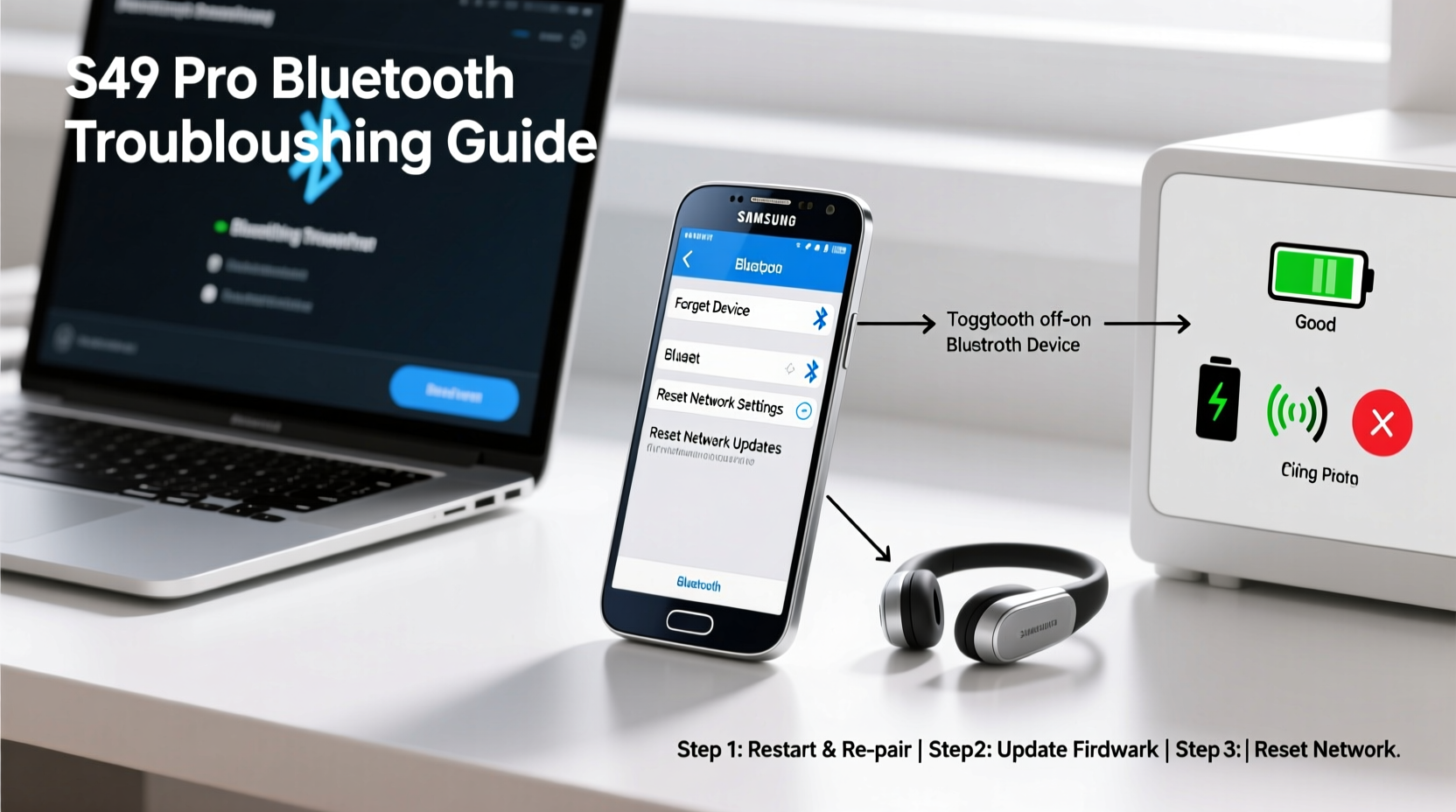
Before jumping into fixes, it helps to identify the type of issue you're facing. The S49Pro may exhibit one or more of the following symptoms:
- Earbuds won’t power on or enter pairing mode
- Device detects S49Pro but fails to connect
- Connection drops intermittently during use
- Only one earbud connects
- S49Pro appears in Bluetooth list but shows “Not Connected” or “Failed”
These problems often stem from firmware glitches, pairing conflicts, low battery, or interference—not hardware failure. That means most users can restore full functionality without returning or replacing their earbuds.
Step-by-Step Guide to Restore S49Pro Connectivity
Follow this structured sequence to methodically eliminate common causes. Each step builds on the previous one, increasing the likelihood of a complete fix.
- Reset the Earbuds Completely
Place both earbuds in the charging case, close the lid for 30 seconds, then open it. Press and hold the button on the back of the case for 10–15 seconds until the LED flashes red and white three times. This clears stored pairing data and restarts the internal chip. - Delete Old Pairing Records
On your phone or tablet, go to Settings > Bluetooth. Find any entry for “S49Pro” or “S49 Series,” tap the gear icon or “i,” and select “Forget This Device.” Repeat this on all previously paired devices. - Enter Pairing Mode Correctly
After resetting, remove both earbuds from the case. They should flash red and white alternately. If not, press and hold either earbud for 5 seconds until lights blink. Within 60 seconds, enable Bluetooth on your device and select “S49Pro” when it appears. - Test with Another Device
Try pairing the S49Pro with a different smartphone, tablet, or laptop. If it works elsewhere, the issue lies with your original device’s Bluetooth stack, not the earbuds. - Check for Interference
Move away from Wi-Fi routers, microwaves, USB 3.0 ports, and other 2.4 GHz devices. Bluetooth operates on the same frequency band and can suffer signal degradation in crowded environments.
Do’s and Don’ts When Troubleshooting S49Pro
| Action | Do | Don’t |
|---|---|---|
| Resetting | Hold case button for 15 seconds until triple flash | Assume a quick press is enough |
| Pairing | Start pairing within 60 seconds of removing earbuds | Wait several minutes after taking them out |
| Charging | Use a certified 5V/1A charger or powered USB port | Charge via a PC USB port with unstable power output |
| Storage | Keep in case when not in use; avoid extreme temperatures | Leave earbuds exposed on a desk for days |
Real-World Example: Fixing Intermittent Dropouts
Jamal, a remote worker using his S49Pro for daily Zoom calls, began experiencing frequent audio dropouts—sometimes every 30 seconds. He tried restarting his phone and re-pairing, but the problem returned within hours. After reviewing logs and testing signal strength, he discovered his standing desk placed the earbuds directly between his phone (in his pocket) and a dual-band Wi-Fi router mounted behind him. Moving the router to the side of the room and switching his phone to 5 GHz Wi-Fi eliminated interference. Additionally, he updated his phone’s OS, which included Bluetooth stability patches. The combination of environmental adjustment and software updates restored stable audio for over two weeks.
“Bluetooth instability is often a systems issue, not a device flaw. Signal congestion and outdated drivers are silent culprits.” — Lena Torres, Wireless Audio Engineer at SoundSync Labs
Advanced Fixes for Persistent Connection Failures
If basic steps don’t work, escalate to deeper system-level interventions.
Update Your Source Device’s Software
Outdated operating systems often lack proper support for newer Bluetooth codecs or profiles used by the S49Pro. Check for updates on your phone, tablet, or computer. For Android, ensure you’re running at least version 8.0; iOS users should update to iOS 12 or later for optimal compatibility.
Clear Bluetooth Cache (Android Only)
On Android devices, corrupted Bluetooth cache can prevent new connections. Navigate to Settings > Apps > Show System Apps > Bluetooth > Storage > Clear Cache. Do not clear data unless necessary, as this removes all saved Bluetooth devices.
Disable Bluetooth Power-Saving Modes
Some phones aggressively throttle Bluetooth to save battery. In Developer Options (enable via Build Number tap), look for “Bluetooth AVRCP Version” or “Disable Bluetooth Idle Timeout.” Set idle timeout to “Never” if available. Alternatively, disable Battery Optimization for your Bluetooth settings app.
Check for Firmware Updates
While the S49Pro does not have a dedicated app, some retailers distribute firmware tools via QR codes or support portals. Contact the manufacturer or seller to confirm if a firmware update is available. Updated firmware can resolve handshake bugs and improve range.
Comprehensive Troubleshooting Checklist
Use this checklist to ensure no step is missed when resolving S49Pro Bluetooth issues:
- ✅ Charge S49Pro fully (at least 2 hours)
- ✅ Reset earbuds using case button (15-second press)
- ✅ Forget S49Pro from all paired devices
- ✅ Enable Bluetooth and restart source device
- ✅ Place earbuds in pairing mode (red-white blinking)
- ✅ Pair within 60 seconds of removal from case
- ✅ Test connection with a second device
- ✅ Update source device OS and Bluetooth drivers
- ✅ Eliminate sources of wireless interference
- ✅ Confirm firmware is up to date (if supported)
Frequently Asked Questions
Why do only one of my S49Pro earbuds connect?
This usually happens when the earbuds lose internal synchronization. Place both back in the case, reset them using the case button, and remove them simultaneously. They should reconnect to each other first, then to your device. If one still doesn’t respond, clean the charging contacts with a dry cotton swab and retry.
Can I use the S49Pro with gaming consoles or TVs?
Most smart TVs and consoles like PlayStation do not support Bluetooth audio pairing by default. Use a third-party Bluetooth transmitter connected to the audio output. Ensure it supports A2DP and low-latency modes for better sync. Note: Xbox Wireless Headset system does not support standard Bluetooth.
How do I know if my S49Pro needs repair?
If you’ve completed all troubleshooting steps—including testing with multiple devices—and one or both earbuds fail to power on, remain unresponsive during reset, or show no LED activity, the hardware may be faulty. Contact the retailer or manufacturer for warranty support.
Final Thoughts and Next Steps
Bluetooth issues with the S49Pro are almost always solvable with systematic troubleshooting. The key is to start simple—reset, forget, re-pair—then progress to environmental and software factors. Most users regain full functionality within one troubleshooting session. Remember that wireless technology depends on both ends of the connection: your earbuds and your device. Optimizing both ensures reliable performance.




 浙公网安备
33010002000092号
浙公网安备
33010002000092号 浙B2-20120091-4
Comments
No comments yet. Why don't you start the discussion?