
In an age where communication happens largely through text, managing the growing volume of messages across smartphones, tablets, and computers has become a necessity—not just for organization, but for efficiency and mental clarity. Whether you're looking for a critical confirmation code from last week or trying to retrieve a shared address during a commute, knowing how to locate and categorize messages quickly can save valuable time. The challenge lies in the fragmentation: messages live on different platforms, apps, and operating systems. Fortunately, with the right strategies, you can unify and streamline your messaging experience across all devices.
Leverage Built-In Search Features Across Platforms
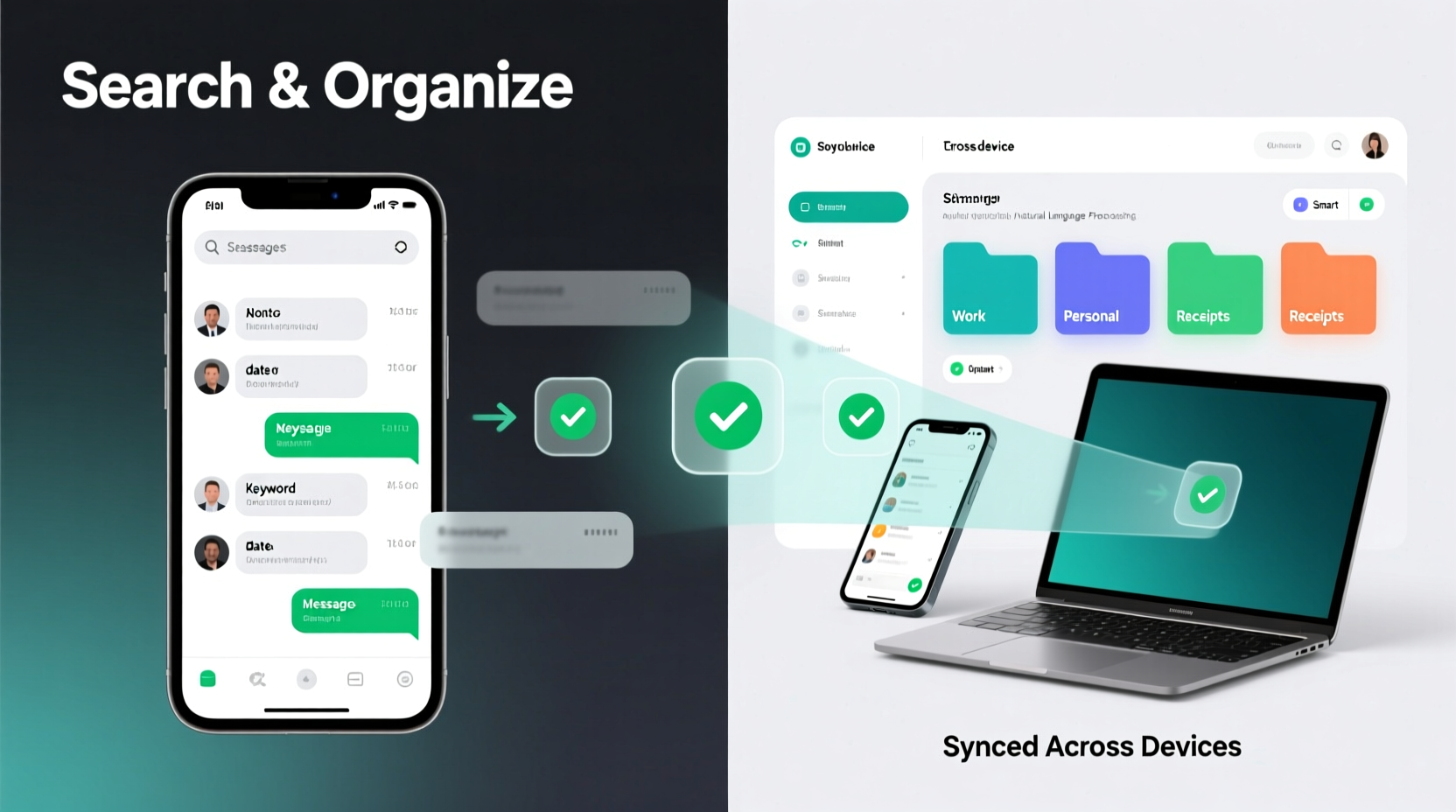
Every major mobile and desktop platform includes robust search tools within their native messaging apps. Mastering these features is the first step toward efficient message retrieval.
iOS users can use the Messages app’s top search bar to find keywords, phone numbers, or even specific media types like photos or links. As you type, results appear instantly, pulling from iMessage, SMS, and even shared content such as documents or locations. On Android, Google Messages offers similar functionality, enhanced by Google’s AI-powered search that understands context—searching for “dinner plans” may surface messages containing restaurant names or times.
For cross-device access, linking your phone to a desktop browser via services like Android Messages for Web or Apple’s Continuity feature allows you to search and reply from a larger screen, which is especially useful when sorting through long threads.
Use Cloud Syncing to Unify Your Message History
One of the biggest obstacles to organizing messages across devices is inconsistency. A message read on your phone may not appear on your laptop unless syncing is properly configured.
iCloud Messages syncs conversations across all Apple devices when enabled in Settings > Messages > Sync with iCloud. This means deletions, new messages, and searches are reflected everywhere. Similarly, enabling RCS (Rich Communication Services) in Google Messages ties your account to your Google profile, allowing synchronization across Android devices and the web version at messages.google.com.
Third-party apps like WhatsApp and Signal also offer cloud-based chat backup options. While they don’t allow real-time multi-device access by default (except WhatsApp’s linked devices feature), regular backups ensure you won’t lose history when switching phones.
“Cross-device continuity isn’t just about convenience—it reduces cognitive load. When users know their data is accessible anywhere, they spend less time worrying about losing information.” — Dr. Lena Torres, Digital Behavior Researcher at UX Institute
Create a Systematic Organization Workflow
Unlike email, most messaging apps lack folders or tagging. However, you can create your own organizational system using simple behavioral habits.
Start by pinning critical conversations. Both iOS and Android allow you to pin up to nine chats at the top of your inbox. Reserve these spots for ongoing discussions with family, coworkers, or service providers you interact with daily.
Another strategy is periodic archiving. Instead of deleting old messages, archive them. In Google Messages, archived chats disappear from the main view but remain searchable. On iPhone, swipe left and tap “Archive” to remove clutter without losing data.
Step-by-Step Guide: Weekly Message Cleanup Routine
- Sunday evening: Open your messaging app and review the past week’s conversations.
- Search for key terms: Look up words like “appointment,” “confirmation,” or “address” to identify important messages.
- PIN priority threads: Pin active conversations related to work, travel, or family logistics.
- Archive resolved chats: Remove completed discussions from view while keeping them searchable.
- Back up your data: Ensure iCloud or Google backup is current to preserve your organized state.
Utilize Third-Party Tools for Advanced Search and Archiving
When native tools fall short, third-party applications can enhance message management. Apps like BackupText (iOS) and SMS Backup & Restore (Android) export messages into searchable PDFs or encrypted cloud files. These exports can be stored in Google Drive, Dropbox, or local storage, creating a personal message archive.
Some tools go further by indexing message content for keyword search outside the phone interface. For example, exporting messages to a note-taking app like Evernote or Notion allows full-text search, tagging, and integration with other personal data.
| Tool | Platform | Key Feature | Best For |
|---|---|---|---|
| SMS Backup & Restore | Android | Encrypted backups to cloud/local storage | Users switching phones frequently |
| BackupText+ | iOS | Export to PDF/CSV with search index | Legal or financial record keeping |
| Pushbullet | Cross-platform | Sync SMS to PC and receive notifications | Desktop-first communicators |
| Notion Integration | All | Manual import with tagging and filtering | Digital minimalists and planners |
Real-World Example: Managing Messages During a Family Move
Consider Sarah, a project manager relocating her family across states. Over three weeks, she exchanged hundreds of texts with movers, school administrators, contractors, and relatives. Without organization, finding a delivery confirmation or utility setup time became stressful.
She implemented a system: pinned the mover’s thread, used her phone’s search to find “utility” and “Friday” when confirming appointments, and exported critical logistics messages using SMS Backup & Restore to a folder labeled “Relocation Records.” She also mirrored urgent threads to her laptop using Android Messages for Web, allowing her to respond during late-night planning sessions.
By week three, Sarah could retrieve any detail in under 15 seconds. More importantly, she reduced decision fatigue caused by information overload—a direct result of proactive message management.
Essential Checklist for Cross-Device Message Control
- ✅ Enable cloud syncing (iCloud or Google Messages)
- ✅ Link your phone to a desktop client (Messages for Web or Continuity)
- ✅ Set up automatic backups weekly
- ✅ Pin 3–5 high-priority conversations
- ✅ Archive inactive but potentially important threads
- ✅ Use precise keywords when searching (names, dates, places)
- ✅ Export critical message threads to secure, searchable archives
Frequently Asked Questions
Can I search text messages from my computer?
Yes. If you use Google Messages, visit messages.google.com and link your phone to search and send messages from your browser. iPhone users with a Mac can use the Messages app via Continuity, provided both devices are signed into the same iCloud account and have Wi-Fi and Bluetooth enabled.
Why can’t I see my old messages on a new phone?
This usually happens when backups weren’t enabled before switching devices. On Android, verify that SMS backup was turned on in Google One settings. On iPhone, ensure “Messages” was included in your iCloud Backup before the transfer. Restoring from a recent backup typically resolves this.
Are third-party message backup apps safe?
Most reputable apps use encryption and do not store your data on their servers. Always review permissions and opt for open-source or well-reviewed tools. Avoid granting unnecessary access to contacts or location when using these apps.
Take Control of Your Messaging Life Today
Text messages are more than casual exchanges—they’re records of decisions, confirmations, relationships, and responsibilities. Treating them with the same organizational respect as emails or calendar events transforms how you manage time and information. By combining built-in search, cloud syncing, smart workflows, and selective use of external tools, you can turn message chaos into clarity.




 浙公网安备
33010002000092号
浙公网安备
33010002000092号 浙B2-20120091-4
Comments
No comments yet. Why don't you start the discussion?