
Smartphones today capture stunningly detailed photos, often exceeding 5–10 MB per image. While high resolution enhances visual fidelity, large file sizes can quickly consume storage space, slow down uploads, and complicate sharing. The solution isn’t deleting photos—it’s smart compression. Reducing photo size without sacrificing clarity is not only possible but essential for efficient digital life. This guide explores proven methods, tools, and best practices that preserve image quality while minimizing file weight.
Why Reduce Photo Size?
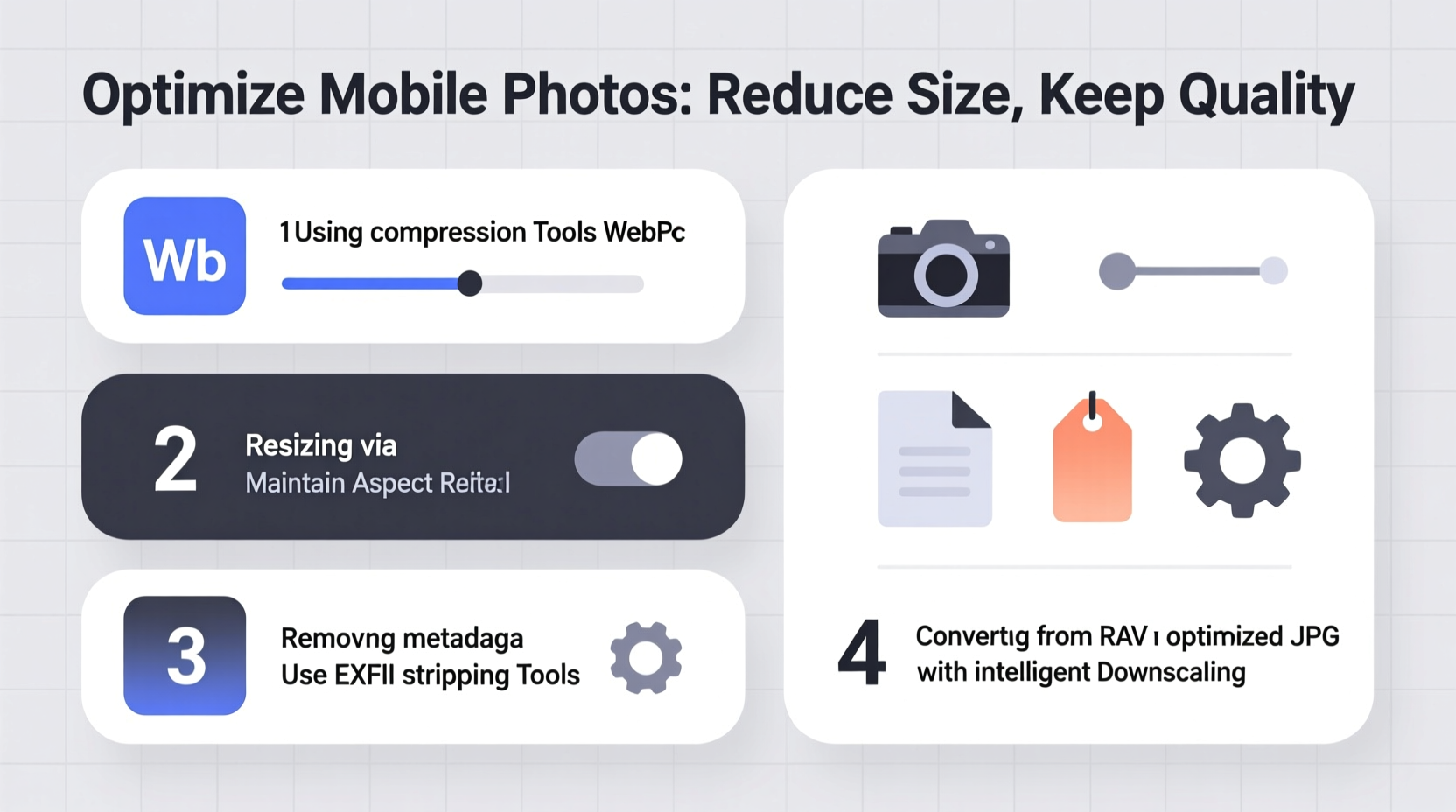
Modern mobile cameras produce high-resolution images with rich detail, but these come at a cost: massive file sizes. A single 12-megapixel photo can be over 6 MB, and with hundreds or thousands of photos, your device fills up fast. Beyond storage, oversized files affect:
- Email attachments: Most providers cap attachments at 10–25 MB.
- Social media upload speed: Large files take longer to process and share.
- Cloud backup costs: Services like iCloud or Google One charge more for extra storage.
- Website performance: If you run a blog or portfolio, heavy images slow loading times.
The goal is to strike a balance—smaller files that retain enough detail for viewing, printing, or online use.
Compression Methods That Work
There are two main types of image compression: lossless and lossy. Understanding the difference helps you choose the right method.
Lossless compression reduces file size by optimizing data structure without removing any visual information. Formats like PNG and certain TIFF configurations use this method. It’s ideal when every pixel matters, such as screenshots or text-heavy images.
Lossy compression, used in JPEG and HEIC formats, removes less noticeable data to achieve greater size reduction. When done carefully, the human eye cannot detect the difference. This makes it perfect for everyday mobile photos.
“With modern algorithms, you can cut a JPEG file size by 60% with no visible degradation—if you use the right settings.” — Dr. Lena Patel, Digital Imaging Specialist, MIT Media Lab
Step-by-Step Guide to Smart Compression
Follow this sequence to shrink photo sizes efficiently while preserving visual integrity:
- Select the right tool: Use built-in editing features or trusted third-party apps (listed below).
- Resize dimensions: Reduce pixel width/height if the image is larger than needed (e.g., 4000px → 1920px for web use).
- Adjust compression level: Aim for 70–85% quality in JPEG exports—this balances clarity and size.
- Convert format if beneficial: Switch from JPEG to HEIC (iOS) or WebP (cross-platform) for better compression efficiency.
- Batch process when possible: Compress multiple photos at once using desktop software or automation tools.
- Verify output: Zoom in on key areas (faces, text, edges) to ensure sharpness remains acceptable.
Best Tools for Mobile and Desktop
Whether you're on iOS, Android, or a computer, several tools deliver excellent compression results.
| Tool | Platform | Format Support | Key Feature |
|---|---|---|---|
| Photos (iOS) | iOS | HEIC, JPEG | Built-in resize/export options with adjustable quality |
| Google Photos | Android, Web | JPEG, WebP | Auto-resize for “Storage Saver” mode |
| Adobe Express (formerly Spark) | Web, Mobile | JPEG, PNG, WebP | Preset optimization for social media |
| ImageOptim (Mac) | macOS | JPEG, PNG, GIF | Lossless + lossy optimization with preview |
| Caesium Image Compressor | Windows, Web | JPEG, PNG, BMP | Simple interface with batch processing |
For most users, starting with native gallery apps is sufficient. Advanced users benefit from desktop tools offering granular control over compression ratios and metadata stripping.
Real Example: Travel Photographer's Workflow
Maya, a travel blogger, shoots over 1,000 photos per trip using her iPhone 15 Pro. Initially, she struggled with iCloud running out of space mid-journey. Her solution?
Each evening, she reviews selects and uses the Shortcuts app to automatically export chosen photos at 80% JPEG quality and 1920px wide. These optimized versions go to her blog and Instagram, while originals remain backed up to an encrypted external drive. This workflow reduced her average file size from 6.8 MB to 1.1 MB—a 84% reduction—with no complaints from readers about image quality.
This approach demonstrates how strategic resizing and selective compression enable efficient content creation without compromising professionalism.
Do’s and Don’ts of Photo Size Reduction
| Do’s | Don’ts |
|---|---|
| Resize images to match intended display size (e.g., 1200px wide for blogs) | Avoid reducing quality below 60% unless file size is critical |
| Use HEIC/WebP formats for better compression efficiency | Don’t repeatedly save and re-compress JPEGs (causes generational loss) |
| Strip unnecessary metadata (GPS, camera model) if privacy is a concern | Never delete originals immediately after compression |
| Test compressed images on different screens (phone, tablet, desktop) | Avoid upscaling low-quality images expecting good results |
Checklist: Optimize Your Photos in 5 Minutes
- ☐ Pick 5–10 photos needing compression
- ☐ Back up originals to cloud or computer
- ☐ Open them in a compression tool (e.g., Adobe Express or Caesium)
- ☐ Resize to max 1920px on the longest side
- ☐ Set quality to 75%
- ☐ Save with a new filename (e.g., “IMG_001_small.jpg”)
- ☐ Compare original and compressed side-by-side
- ☐ Delete only after confirming quality is acceptable
Frequently Asked Questions
Does reducing photo size always mean lower quality?
No—not necessarily. Smart resizing and moderate compression maintain quality for most viewing purposes. Only aggressive settings cause visible artifacts like blurring or color banding.
What’s the ideal file size for sharing photos online?
For social media and email, aim for under 2 MB per image. For websites, under 500 KB is ideal for fast loading. Use responsive images where possible—serve smaller versions to mobile users.
Can I automate photo compression on my phone?
Yes. iOS users can create Shortcuts to auto-resize and compress photos upon saving. Android users can use apps like Photo Compress 2.0 or Tasker for automation. Some cloud services (like Dropbox) also offer automatic optimization.
Final Thoughts
Reducing mobile photo size without losing quality isn’t about compromise—it’s about optimization. With the right tools and techniques, you gain faster sharing, more storage, and smoother workflows, all while keeping your memories sharp and vivid. Whether you're a casual shooter or a content creator, mastering compression empowers smarter digital habits.




 浙公网安备
33010002000092号
浙公网安备
33010002000092号 浙B2-20120091-4
Comments
No comments yet. Why don't you start the discussion?