
An unresponsive iPhone screen can be more than just inconvenient—it can disrupt your entire day. Whether you're unable to unlock your phone, scroll through messages, or tap apps, a frozen or non-reactive display often triggers panic. The good news is that in most cases, the issue isn’t permanent and can be resolved at home with methodical troubleshooting. Before scheduling a costly service appointment or assuming hardware failure, try these proven techniques to restore full functionality to your device.
Understanding Common Causes of Screen Unresponsiveness
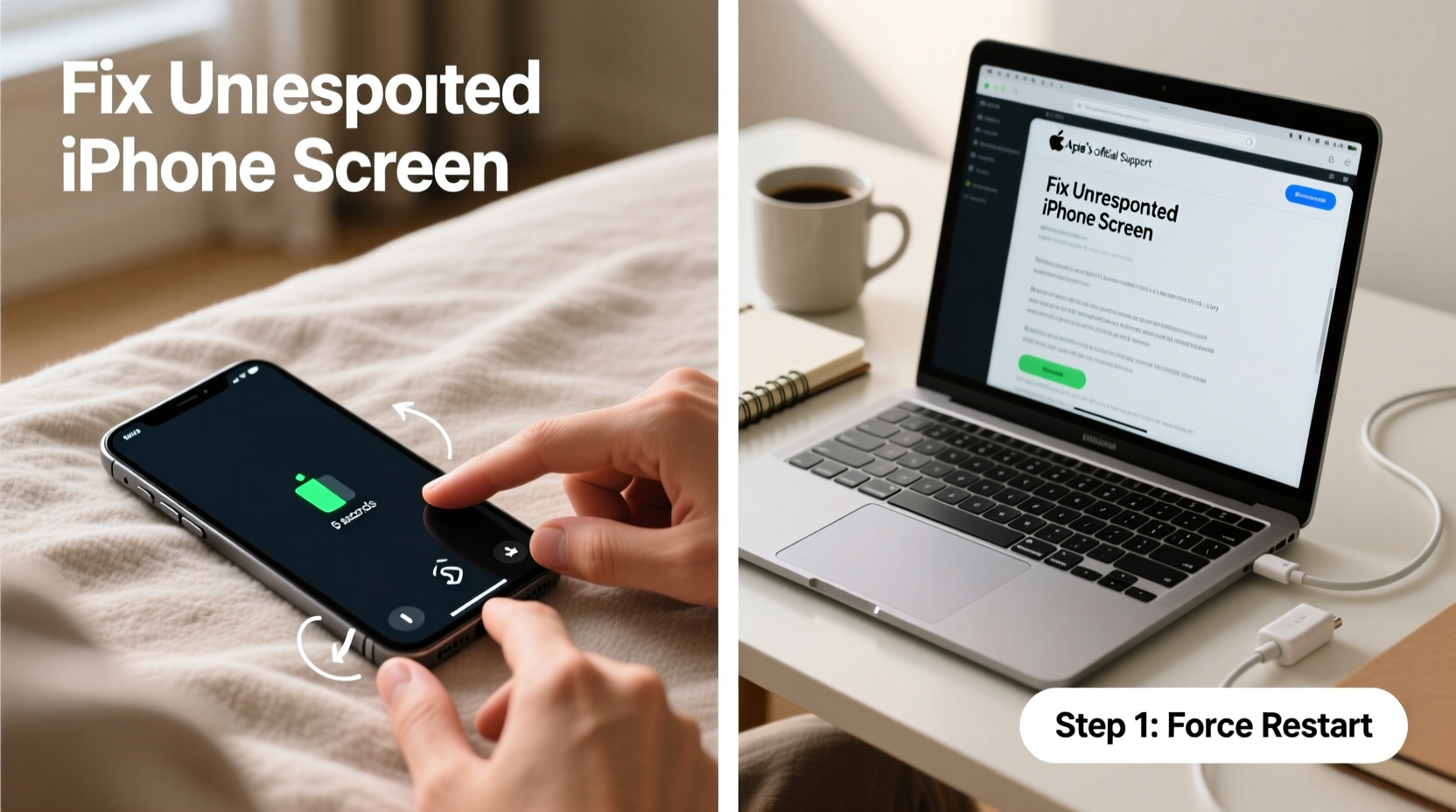
Before jumping into fixes, it helps to understand what might be causing the problem. An unresponsive screen doesn't always point to a cracked display or failing touchscreen hardware. Often, the root cause lies in software glitches, system overload, or environmental factors. Common culprits include:
- Software crashes: iOS updates gone wrong or app conflicts can freeze the UI.
- Low battery or power issues: A nearly drained iPhone may appear unresponsive when it’s actually entering low-power hibernation.
- Moisture or debris: Water damage or dirt on the screen can interfere with touch sensitivity.
- Physical damage: Drops or pressure can compromise internal connections between the display and logic board.
- Outdated iOS version: Older firmware may have known bugs affecting responsiveness.
Identifying the likely cause streamlines your troubleshooting process and prevents unnecessary repairs.
Step-by-Step Guide to Regain Control of Your iPhone
Follow this structured sequence to systematically eliminate potential causes and restore screen function. Begin with the simplest solutions before progressing to advanced measures.
- Force Restart Your iPhone
This is the fastest way to clear temporary software hangs. The button combination varies by model:- iPhone 8 and later: Press and quickly release Volume Up, then Volume Down. Then press and hold the Side button until the Apple logo appears.
- iPhone 7/7 Plus: Press and hold Volume Down + Side (Power) button for about 10 seconds.
- iPhone 6s and earlier: Hold Home + Side (Power) button until the screen restarts.
- Check for Physical Obstructions
Remove any case, screen protector, or film. Wipe the screen with a lint-free cloth slightly dampened with water. Avoid cleaning agents. Test responsiveness after cleaning. - Disable Accessibility Shortcuts
Sometimes accidental activation of AssistiveTouch or Switch Control disables normal touch input. Go to Settings > Accessibility > Touch and disable any active features. - Update iOS
Outdated systems may contain bugs. Connect to Wi-Fi, go to Settings > General > Software Update, and install any available update. - Reset All Settings
This won’t erase data but will reset network, keyboard, and accessibility settings. Navigate to Settings > General > Transfer or Reset iPhone > Reset > Reset All Settings.
When to Consider DFU Mode
If the screen remains unresponsive despite multiple restarts and no physical damage is visible, a deeper system corruption may be present. Entering Device Firmware Update (DFU) mode allows you to reinstall iOS via iTunes or Finder. This should only be attempted if the device powers on but remains frozen.
“DFU mode is the last line of defense before hardware diagnostics. It bypasses the bootloader and iOS entirely, giving you a clean slate.” — David Lin, Senior Mobile Technician at iFixRepair Labs
Troubleshooting Checklist
Use this checklist to ensure you don’t skip critical steps while diagnosing your iPhone’s screen issues:
- ✅ Perform a force restart based on your iPhone model
- ✅ Clean the screen and remove any accessories
- ✅ Check for visible cracks or water damage indicators
- ✅ Ensure the device has sufficient charge (plug in for 15+ minutes)
- ✅ Disable AssistiveTouch and other accessibility tools
- ✅ Install pending iOS updates
- ✅ Try recovery mode or DFU mode if unresponsive
- ✅ Backup data once access is restored
Do’s and Don’ts When Handling a Frozen iPhone
| Do’s | Don’ts |
|---|---|
| Charge the phone for at least 15 minutes if battery is low | Don’t repeatedly tap the screen—it increases stress on components |
| Use official Apple cables and chargers during recovery | Don’t attempt to disassemble the phone unless certified |
| Back up data as soon as the device responds | Don’t leave the phone in extreme temperatures |
| Test touch response using different fingers or stylus (non-metallic) | Don’t use third-party software claiming to “fix” iOS instantly |
Real Example: Recovering a Frozen iPhone After a Rain Exposure
Sophia, a freelance photographer in Seattle, found her iPhone 12 completely unresponsive after being caught in a sudden downpour. She couldn’t swipe to unlock or even trigger the flashlight. Initially fearing permanent damage, she followed a careful protocol: first, she powered off the device (after confirming it wasn’t charging), then wiped it down and placed it in a sealed container with silica gel packets for 24 hours. Upon powering it back on, the screen remained partially glitchy. A force restart brought it back to life. She later discovered that moisture had temporarily disrupted the digitizer’s signal. Since then, she keeps a waterproof pouch in her kit and backs up weekly.
This scenario underscores how environmental exposure combined with quick, informed action can prevent long-term damage.
Frequently Asked Questions
Why is my iPhone screen not responding even though it turns on?
This typically indicates a software freeze, corrupted system process, or temporary hardware communication error. Start with a force restart. If the Apple logo appears but the lock screen remains unresponsive, the operating system may be stuck loading. In such cases, recovery mode via computer may be necessary.
Can a screen protector cause touch sensitivity issues?
Yes. Low-quality or improperly installed screen protectors—especially tempered glass with air gaps—can interfere with capacitive touch detection. Bubbles or misalignment create dead zones. Remove the protector and test the bare screen. Always choose precision-cut, high-transparency models designed for your iPhone model.
Does Apple cover unresponsive screens under warranty?
If the issue stems from a manufacturing defect and there’s no physical or liquid damage, yes. However, wear and tear, accidental drops, or moisture exposure void standard coverage. AppleCare+ extends protection to include accidental damage, subject to a service fee.
Final Steps and Prevention Tips
Once your iPhone screen is responsive again, take preventive action to reduce future risks. Regularly update iOS, avoid overloading the device with background apps, and use a high-quality case and screen protector. Enable automatic backups via iCloud so data isn’t lost during unexpected crashes.
If none of the above steps work and your iPhone still shows signs of life (e.g., receives calls or notifications but the screen won’t respond), the issue may involve the digitizer cable or display assembly. At this point, professional repair—either through Apple or a certified technician—is advisable.




 浙公网安备
33010002000092号
浙公网安备
33010002000092号 浙B2-20120091-4
Comments
No comments yet. Why don't you start the discussion?