
A smartphone that restarts repeatedly can be more than just annoying—it can disrupt work, prevent communication, and put your data at risk. Whether the issue occurs randomly or during specific actions like charging or app usage, consistent rebooting is rarely normal. The root cause could range from software glitches to failing hardware. Fortunately, most cases can be resolved with systematic troubleshooting. This guide provides practical, step-by-step solutions to diagnose and fix a phone stuck in a reboot loop.
Identify the Root Cause
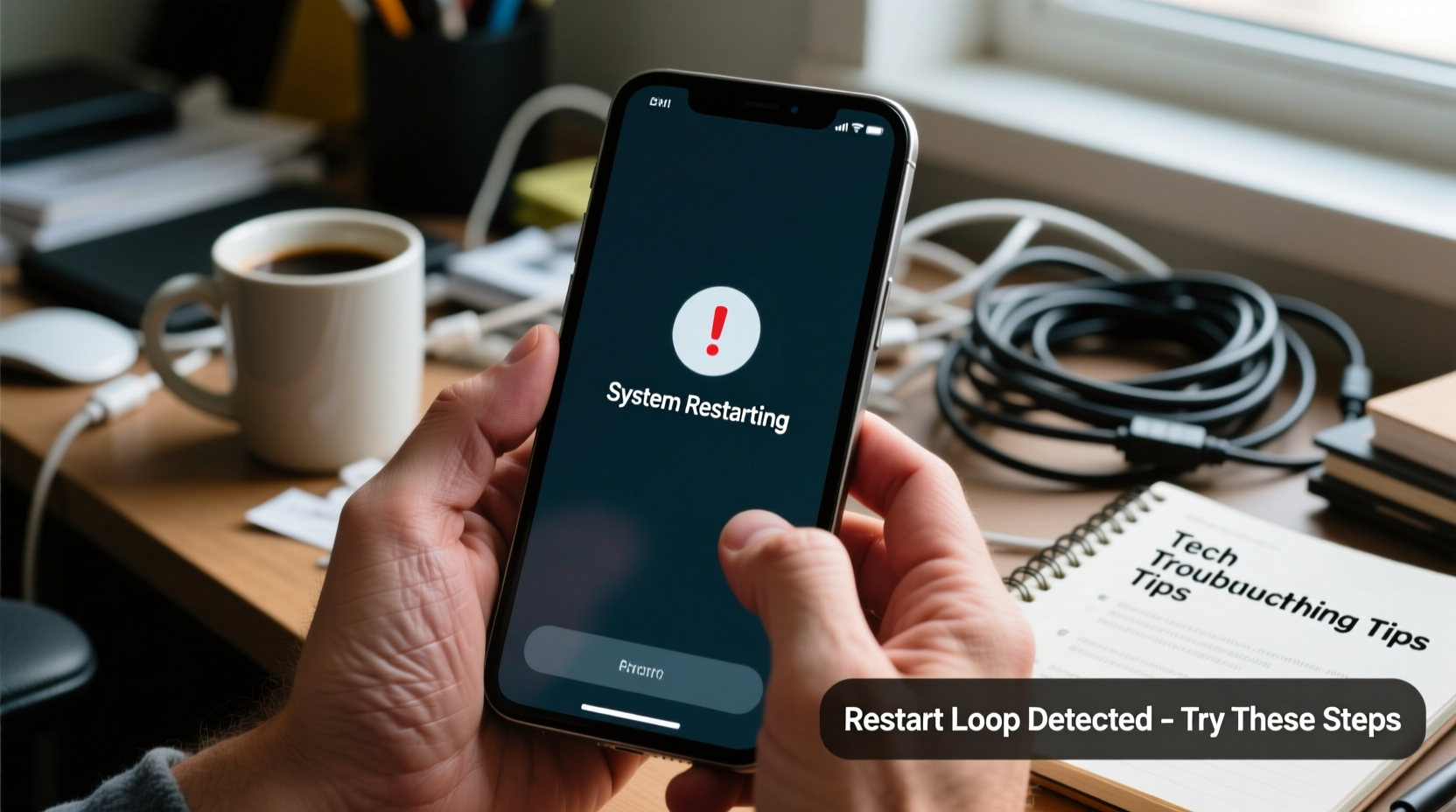
Before jumping into fixes, it’s essential to understand what might be triggering the restarts. Common causes include:
- Software bugs or failed updates: An incomplete or corrupted system update can destabilize the OS.
- Overheating: Excessive heat triggers automatic shutdowns and restarts as a protective measure.
- Malware or rogue apps: A poorly coded or malicious app may overload system resources.
- Low storage space: When internal memory is nearly full, the system may struggle to operate smoothly.
- Failing battery: A swollen or degraded battery can cause voltage fluctuations leading to sudden reboots.
- Hardware damage: Physical trauma or water exposure may compromise internal components.
Pinpointing the trigger helps you apply the right solution without unnecessary steps.
Step-by-Step Troubleshooting Guide
Follow this logical sequence to resolve the issue efficiently. Start with non-invasive methods before moving to advanced options.
- Restart the device properly: Hold the power button for 10–15 seconds to force a complete shutdown and restart. This clears temporary glitches.
- Check for overheating: Feel the device. If it's hot, let it cool down in a shaded area. Avoid using it while charging if heat is a recurring problem.
- Boot into Safe Mode: This disables third-party apps and helps identify if a downloaded app is causing the issue.
- Uninstall recent apps: If the problem started after installing a new app, remove it immediately.
- Clear cache partition: On Android, this resets temporary system files without deleting personal data.
- Update the operating system: Install any pending updates, which often contain stability fixes.
- Perform a factory reset: As a last resort, erase all data and restore the phone to its original state.
How to Enter Safe Mode (Android)
To test if a third-party app is responsible:
- Press and hold the Power button until the power menu appears.
- Long-press the \"Power off\" option.
- Tap \"Safe Mode\" when prompted.
- If the phone stops restarting in Safe Mode, uninstall recently added apps one by one.
How to Clear Cache Partition (Android)
This step doesn’t delete personal files but removes temporary system junk:
- Turn off the phone.
- Press and hold Volume Up + Power buttons simultaneously until the logo appears.
- Use volume keys to navigate to \"Recovery Mode,\" then press Power to select. <4>When the Android robot appears, press Power + Volume Up to enter recovery.
- Select \"Wipe Cache Partition\" and confirm.
- Reboot the system afterward.
Common Fixes for iPhone Users
iPhones experience similar reboot issues, though the troubleshooting differs slightly due to iOS architecture.
- Force restart: For iPhone 8 and later: Press and release Volume Up, then Volume Down, then hold the Side button until the Apple logo appears.
- Check for iOS updates: Go to Settings > General > Software Update.
- Restore via iTunes/Finder: Connect to a computer and use recovery mode to reinstall iOS.
- Disable Background App Refresh: Reduces strain on the system. Found under Settings > General > Background App Refresh.
Unlike Android, iPhones don’t support safe mode, so isolating problematic apps requires manual uninstallation.
Troubleshooting Checklist
Use this checklist to methodically address the issue:
| Action | Status (✓/✗) | Notes |
|---|---|---|
| Force restart the phone | Resolves temporary freezes | |
| Check for overheating | Let device cool if hot | |
| Boot into Safe Mode (Android) | Test stability without third-party apps | |
| Uninstall suspicious or recent apps | Especially apps running at startup | |
| Clear cache partition (Android) | Non-destructive system refresh | |
| Install OS updates | Patches known bugs | |
| Back up data and perform factory reset | Last resort for persistent issues |
Real-World Example: Recovering a Stuck Samsung Galaxy S21
Jamal noticed his Samsung Galaxy S21 kept rebooting every few minutes, especially after he installed a battery optimization app. The phone would turn on, show the Samsung logo, then restart again—sometimes getting stuck in a boot loop.
He followed these steps:
- Booted into Safe Mode—reboots stopped, indicating a third-party app was the culprit.
- Uninstalled the battery app he had installed the previous day.
- Cleared the cache partition through recovery mode as a precaution.
- Rebooted normally—no further restarts occurred.
The issue was traced to a rogue app that interfered with system processes. By isolating variables systematically, Jamal avoided a factory reset and preserved his data.
“Many reboot issues stem from software conflicts rather than hardware failure. A methodical approach saves time and prevents unnecessary repairs.” — David Lin, Mobile Device Technician with 12 years of experience
When to Suspect Hardware Failure
If all software remedies fail, the problem may lie in the hardware. Warning signs include:
- Phone restarts even when powered off (vibrates or lights up briefly).
- Visible battery swelling or physical damage.
- Issues persist after a clean OS installation.
- Restarting occurs only when the phone is moved or tilted (suggesting a loose connection).
In such cases, professional repair is necessary. Replacing a faulty battery or repairing damaged power management circuits often resolves chronic rebooting.
FAQ
Can a virus make my phone restart constantly?
Yes. Malware can consume system resources, trigger crashes, or interfere with core processes, leading to repeated restarts. Install a reputable antivirus app and avoid downloading apps from untrusted sources.
Will a factory reset delete everything?
Yes. A factory reset erases all apps, settings, photos, messages, and accounts. Always back up important data to cloud storage or a computer before proceeding.
My phone restarts only when charging. What does that mean?
This often points to a defective charger, cable, or battery. Try a different charging set. If the issue persists, the charging port or power management IC may need repair.
Final Steps and Prevention Tips
Once your phone stabilizes, take preventive measures to avoid recurrence:
- Keep the operating system and apps updated.
- Avoid installing apps from unknown sources.
- Maintain at least 10–15% free storage space.
- Use a case and screen protector to prevent physical damage.
- Monitor battery health and replace it if capacity drops below 80%.
Conclusion
A phone that keeps restarting isn’t necessarily doomed. In most cases, the issue is fixable with careful diagnosis and the right steps. From simple restarts to factory resets and hardware checks, each action brings you closer to a stable device. Don’t rush to replace your phone—try these proven methods first. Your patience could save money, time, and data.




 浙公网安备
33010002000092号
浙公网安备
33010002000092号 浙B2-20120091-4
Comments
No comments yet. Why don't you start the discussion?