
In today’s hyper-connected world, unsolicited calls, spam messages, and persistent contacts are more than just an annoyance—they can affect mental well-being and digital security. Whether it's a telemarketer, an ex-partner, or a scammer, knowing how to effectively block unwanted contacts is essential for maintaining peace of mind. This guide provides clear, actionable steps for blocking numbers and contacts across major platforms—iOS, Android, Windows, macOS, and popular messaging apps—so you can regain control over your digital space.
Why Blocking Matters: Privacy and Peace of Mind
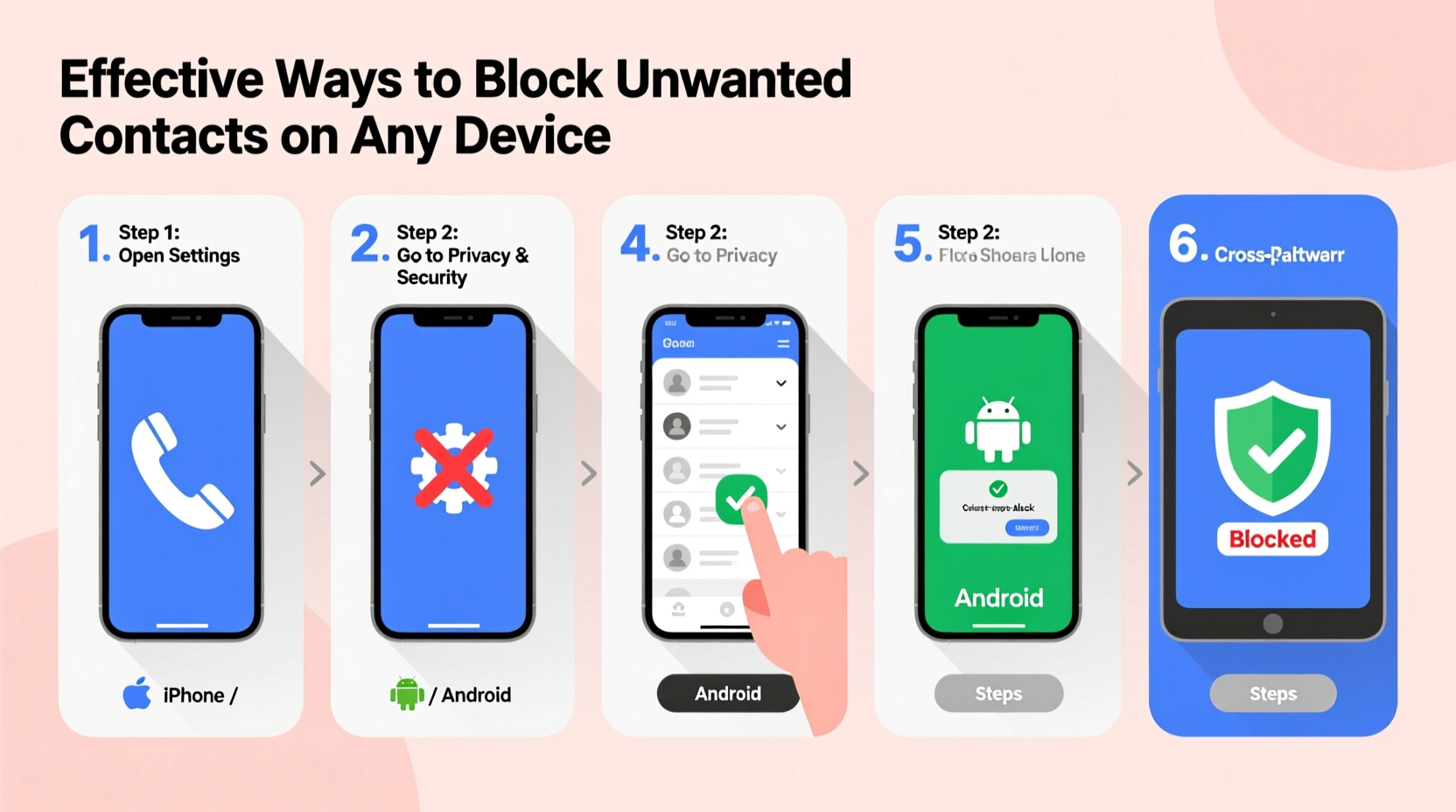
Unwanted communication doesn’t just clutter your inbox—it can lead to anxiety, wasted time, and even financial risk when scams are involved. According to the Federal Trade Commission (FTC), consumers reported losing over $500 million to phone scams in 2023 alone. Proactively managing who can reach you is not just about convenience; it’s a critical part of digital self-defense.
Blocking a contact prevents them from calling, texting, or reaching you through certain apps. On most devices, blocked callers go straight to voicemail without ringing your phone, and messages are silently filtered out. The blocked party typically receives no notification they’ve been blocked, which helps avoid escalation.
Step-by-Step Guide to Blocking on Smartphones
Blocking on iPhone (iOS)
- Open the Phone app and tap the \"Recents\" tab.
- Find the number you want to block and tap the “(i)” icon next to it.
- Scroll down and select Block this Caller.
- Confirm by tapping Block Contact.
Alternatively, if the contact is saved:
- Go to Contacts, select the person, scroll down, and choose Block this Caller.
Messages from blocked numbers will no longer appear in your Messages app, and calls won’t ring through. To manage blocked contacts, go to Settings > Phone > Blocked Contacts.
Blocking on Android Devices
The process varies slightly depending on your manufacturer and Android version, but general steps apply to most Samsung, Google Pixel, and other stock Android phones.
- Open the Phone app and go to your call history.
- Tap and hold the number you wish to block.
- Select Block number or Add to reject list.
- Confirm the action.
For Samsung users:
- Navigate to Settings > Calls > Call rejection > Auto-reject list to add numbers manually.
To view or unblock numbers, go to Phone app > Settings > Blocked numbers.
Blocking Across Messaging and Communication Apps
Many unwanted interactions happen outside standard SMS and calls—especially on messaging platforms like WhatsApp, iMessage, and social media.
- Open the chat with the contact.
- Tap their name at the top to open contact info.
- Select Block and confirm.
Blocked users will no longer see your last seen, online status, or profile photo updates. Their messages won’t be delivered.
iMessage
- Open the message thread.
- Tap the contact’s name or number at the top.
- Choose info, then Block this Contact.
Blocking in iMessage also blocks FaceTime and regular calls if the number is linked.
Social Media (Facebook Messenger, Instagram DM)
- In Messenger: Open the conversation > Tap the person’s name > Settings > Block.
- In Instagram: Open DM > Tap profile icon > Block.
Blocking here removes existing messages and prevents future contact.
| Platform | Can They See Past Messages? | Do They Know They’re Blocked? | Can They Call/SMS? |
|---|---|---|---|
| iOS Native Call/Text | No new delivery | No | No ring, goes to voicemail |
| Android Native | Filtered silently | No | No alert, call fails |
| Only what they already saw | No direct notification | No voice/video calls | |
| Instagram DM | No access after block | No | No unless unblocked |
Blocking on Computers and Tablets
Even desktops and tablets need protection. Here’s how to handle unwanted contacts on larger devices.
macOS (Messages & FaceTime)
- Open the Messages app.
- Click on the conversation with the unwanted contact.
- Click the person’s name at the top.
- Select Block this Contact.
This also applies to FaceTime. Blocked users cannot reach you via Apple ID or phone number.
Windows 10/11 (Your Phone App or Messaging)
If syncing your Android phone via Microsoft’s Your Phone app:
- Blocking must be done on the phone itself—the PC mirrors the block status.
- Use the Your Phone app only to monitor; settings are controlled on-device.
Email and Chat Clients (Gmail, Outlook)
- Open the unwanted email.
- Click the three dots (more options) or sender’s profile.
- Select Block [sender].
Gmail automatically filters future emails to spam. Outlook moves them to Junk.
“Digital boundaries are as important as physical ones. Learning to block respectfully but firmly is a form of self-care in the modern age.” — Dr. Lena Patel, Digital Wellness Psychologist
Mini Case Study: Reclaiming Control After Harassment
Sarah, a freelance designer from Austin, began receiving daily threatening texts from a former client who disagreed with a project outcome. At first, she ignored them, but the messages escalated. She decided to act.
She followed these steps:
- Reported the messages to her carrier and saved screenshots.
- Blocked the number on her iPhone under Settings > Phone > Blocked Contacts.
- Blocked the associated email in Gmail and reported the account.
- Disabled iMessage from unknown senders under Settings > Messages.
Within hours, the harassment stopped. Sarah later filed a police report using the preserved records. Her proactive blocking not only restored peace but provided legal documentation.
Essential Checklist: Secure Your Devices Against Unwanted Contacts
- ✅ Identify all devices where the contact can reach you (phone, tablet, computer).
- ✅ Block the number in native phone settings (iOS/Android).
- ✅ Repeat blocking in messaging apps (WhatsApp, iMessage, etc.).
- ✅ Enable spam filtering in email and SMS settings.
- ✅ Review blocked lists monthly to remove errors or update entries.
- ✅ Report illegal or threatening behavior to authorities and service providers.
Frequently Asked Questions
Can a blocked person leave a voicemail?
On iPhones, yes—blocked calls go directly to voicemail without alerting you. On Android, this depends on the carrier and settings, but most allow voicemails from blocked numbers. Check your voicemail folder discreetly if concerned.
Will I still see past messages after blocking?
Yes. Blocking prevents future communication but does not delete prior conversations. You can manually delete the chat thread if desired.
What if the person uses a different number?
Some harassers switch numbers. Enable spam protection features: use apps like Hiya or Truecaller, or activate carrier-level tools such as AT&T Call Protect or T-Mobile Scam Shield. These detect and warn about suspicious incoming numbers.
Take Control of Your Digital Environment
Blocking unwanted contacts isn’t rude—it’s responsible. In a world where attention is scarce and personal space is constantly challenged, setting digital boundaries protects your time, energy, and safety. Whether it’s a spam bot or someone from your past, every device you own should reflect your right to choose who gets access to you.
Start today. Audit your recent calls and messages. Remove lingering distractions. Apply the steps outlined here across all your devices. Your peace of mind is worth the few minutes it takes to set these protections in place.




 浙公网安备
33010002000092号
浙公网安备
33010002000092号 浙B2-20120091-4
Comments
No comments yet. Why don't you start the discussion?