
Updating your iPhone or iPad to the latest version of iOS can bring new features, performance improvements, and security patches. However, not every update arrives at a convenient time. Whether you're in the middle of important work, concerned about compatibility with essential apps, or simply want to delay the change, knowing how to cancel or pause an iOS update is a valuable skill. Unlike some operating systems, iOS doesn't offer a built-in \"pause\" button for updates, but several practical methods allow you to manage the process effectively—before and even during installation.
Understanding iOS Update Behavior
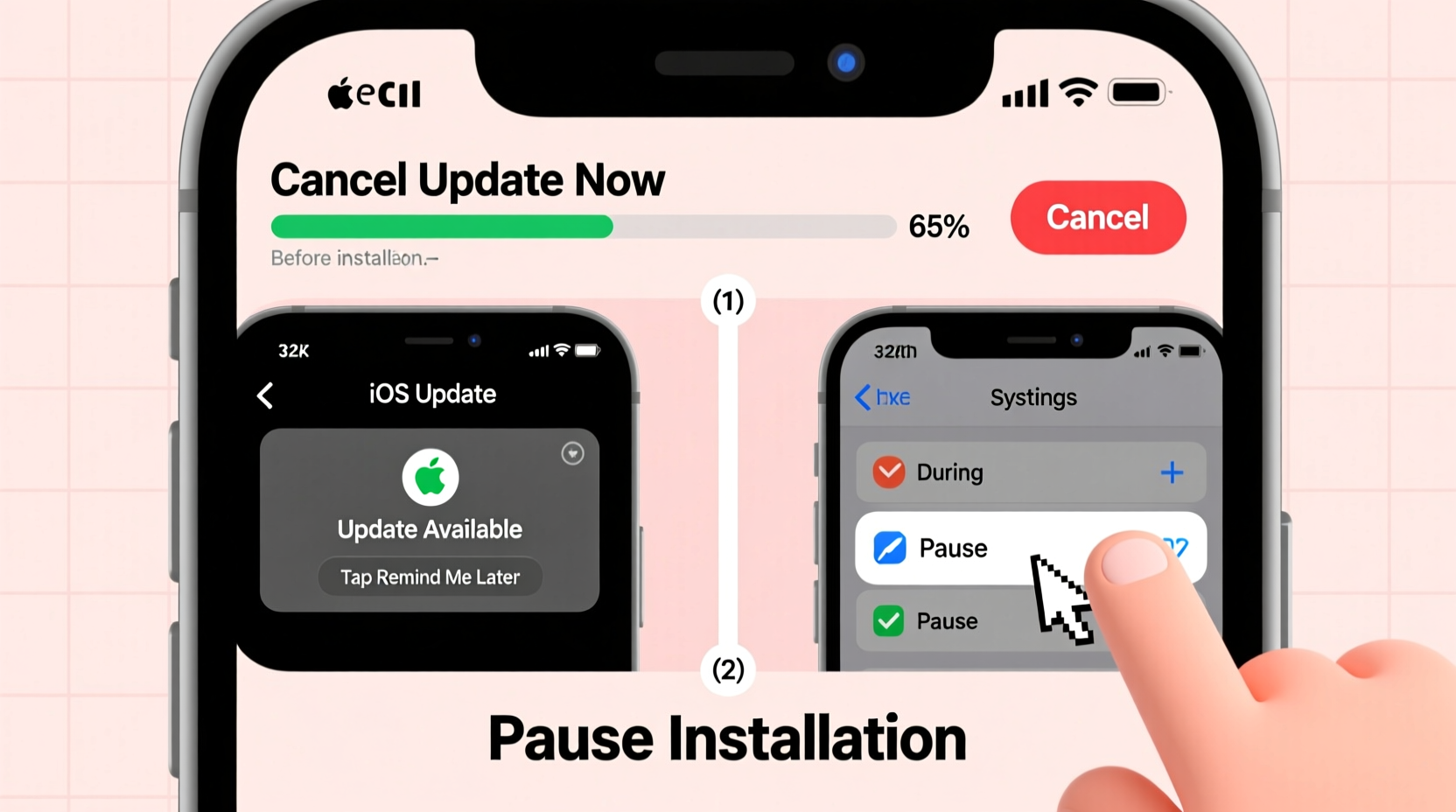
iOS updates typically follow a three-stage process: download, preparation (verification), and installation. Each stage presents different opportunities—and limitations—for intervention. Once an update begins downloading, it’s stored in a system partition that isn’t easily accessible through standard user controls. After verification, the device prepares for reboot, making cancellation risky and potentially disruptive.
Apple designs this flow to encourage users to stay current with security patches. However, this doesn’t mean you’re powerless. With careful timing and the right approach, you can delay or stop an update before it locks in.
“While Apple prioritizes automatic updates for security, power users should understand the narrow windows available to intervene.” — David Lin, Mobile Systems Analyst
How to Cancel an iOS Update Before Installation
If you’ve seen the update notification but haven’t yet started the download or installation, you have the most control. The following steps can prevent the update from beginning altogether.
Step-by-Step Guide: Preventing an iOS Update
- Navigate to Settings > General > Software Update.
- If an update is pending, tap the update listing but do not tap “Download and Install.”
- Instead, press the Home button (or swipe up on Face ID models) to exit the screen without confirming.
- Go to Settings > General > iPhone Storage (or iPad Storage).
- Look for any large system files labeled “iOS [version]” or “Software Update.”
- If found, tap it and select Delete Update.
This method works only if the update has been partially downloaded or cached. If no entry appears, the system hasn’t begun downloading, and you’re safe—for now.
Pausing or Stopping an iOS Update During Download
Once the download starts, iOS continues in the background using Wi-Fi. While you can’t truly “pause” the download, you can interrupt it by cutting network access.
Effective Interruption Methods
- Turn off Wi-Fi: Go to Control Center and disable Wi-Fi. Without connectivity, the download halts and won’t resume unless manually restarted.
- Switch to cellular data: If Wi-Fi is restricted, iOS usually stops the download since updates are typically limited to Wi-Fi connections.
- Enable Airplane Mode: This disables all wireless communication, stopping the download instantly.
Note: These interruptions don’t delete the partial download. To remove it completely, follow the storage cleanup steps mentioned earlier.
| Action | Effect on Update | Reversibility |
|---|---|---|
| Disable Wi-Fi | Halts download | Resumes when reconnected |
| Delete via iPhone Storage | Removes update file permanently | Must redownload later |
| Enable Airplane Mode | Stops download and notifications | Resumes after disabling |
| Restart device mid-download | Interrupts process; may resume automatically | Unreliable—avoid if possible |
What to Do When Installation Has Already Started
Once the “Preparing Update” or “Installing…” screen appears, options become extremely limited. At this point, the system is verifying and patching the operating system. Interrupting this phase risks software corruption, boot loops, or data loss.
However, there are rare exceptions. If the device is stuck on “Preparing…” for more than 15 minutes and shows no progress, a forced restart might be necessary.
Forced Restart Procedure by Model
- iPhone 8 and later: Press and release Volume Up, then Volume Down, then press and hold the Side button until the Apple logo appears.
- iPhone 7/7 Plus: Press and hold Volume Down + Side button until the Apple logo appears.
- iPhone 6s and earlier: Hold Home + Side (or Top) button until the screen restarts.
After restarting, check whether the update was canceled. In some cases, iOS will revert to the previous version or prompt you to try again. If the device enters recovery mode, you’ll need to use a computer and iTunes/Finder to restore.
Real Example: Delaying an Update During Travel
Sophia, a freelance photographer, received an iOS 17 update alert while traveling in rural Portugal. Her rental car’s CarPlay integration had known bugs with the new OS, and she relied on navigation daily. She didn’t want to risk losing functionality mid-trip.
She opened Settings and saw the update was already downloading. Immediately, she turned off Wi-Fi and enabled Airplane Mode. Later, she went to iPhone Storage and deleted the 4.2 GB update file. By disabling automatic updates, she prevented recurrence. Two weeks later, after research confirmed CarPlay stability, she manually installed the update at home—on her own terms.
This case illustrates the importance of quick action and understanding where update files reside.
Checklist: How to Safely Cancel or Pause an iOS Update
- ✅ Check if the update is downloaded but not installed.
- ✅ Go to Settings > General > iPhone Storage.
- ✅ Locate and delete the iOS update file if present.
- ✅ Disable automatic updates in Software Update settings.
- ✅ Avoid starting installation during critical tasks.
- ✅ Use Airplane Mode or Wi-Fi toggle to interrupt downloads.
- ✅ Only force-restart if the device is frozen for over 15 minutes.
- ✅ Backup your device before allowing any major update.
Frequently Asked Questions
Can I permanently block iOS updates?
No official setting allows permanent blocking, but you can avoid updates indefinitely by disabling automatic downloads, deleting update files, and never manually installing them. Note: Skipping updates may expose your device to security vulnerabilities.
Will canceling an update delete my data?
Canceling before installation poses no risk to your data. However, interrupting the installation process (after reboot) could lead to data loss or system instability. Always back up before updates begin.
Why does my iPhone keep reminding me to install an update after I deleted it?
iOS periodically checks for updates. Even after deletion, the system will re-prompt you. To stop reminders, ensure automatic updates are disabled and consider connecting to Wi-Fi less frequently—if feasible.
Final Thoughts and Recommendations
While Apple’s ecosystem prioritizes seamless, secure updates, users deserve control over when and how changes are applied. The ability to cancel or pause an iOS update hinges on timely action and awareness of system behavior. Once installation begins, intervention becomes dangerous. But with proactive settings management and swift response, you can maintain stability and convenience.
Updates are important—but so is timing. Take charge of your device experience by mastering these techniques. Stay informed, back up regularly, and make updates work for you, not against you.




 浙公网安备
33010002000092号
浙公网安备
33010002000092号 浙B2-20120091-4
Comments
No comments yet. Why don't you start the discussion?