
As you use your iPhone daily, it quietly learns from your habits—what you type, search, tap, and even where you go. This intelligence powers the predictive suggestions that appear in Safari, Spotlight, keyboard, search fields, and more. While designed to save time, these accumulated suggestions can become cluttered, outdated, or even intrusive over time. A bloated suggestion history not only slows down decision-making but may also raise privacy concerns. The good news: Apple gives you granular control to clear and manage these suggestions effectively. With the right approach, you can enjoy a cleaner interface, improved performance, and greater peace of mind.
Understanding iPhone Suggestions: Where They Appear and Why
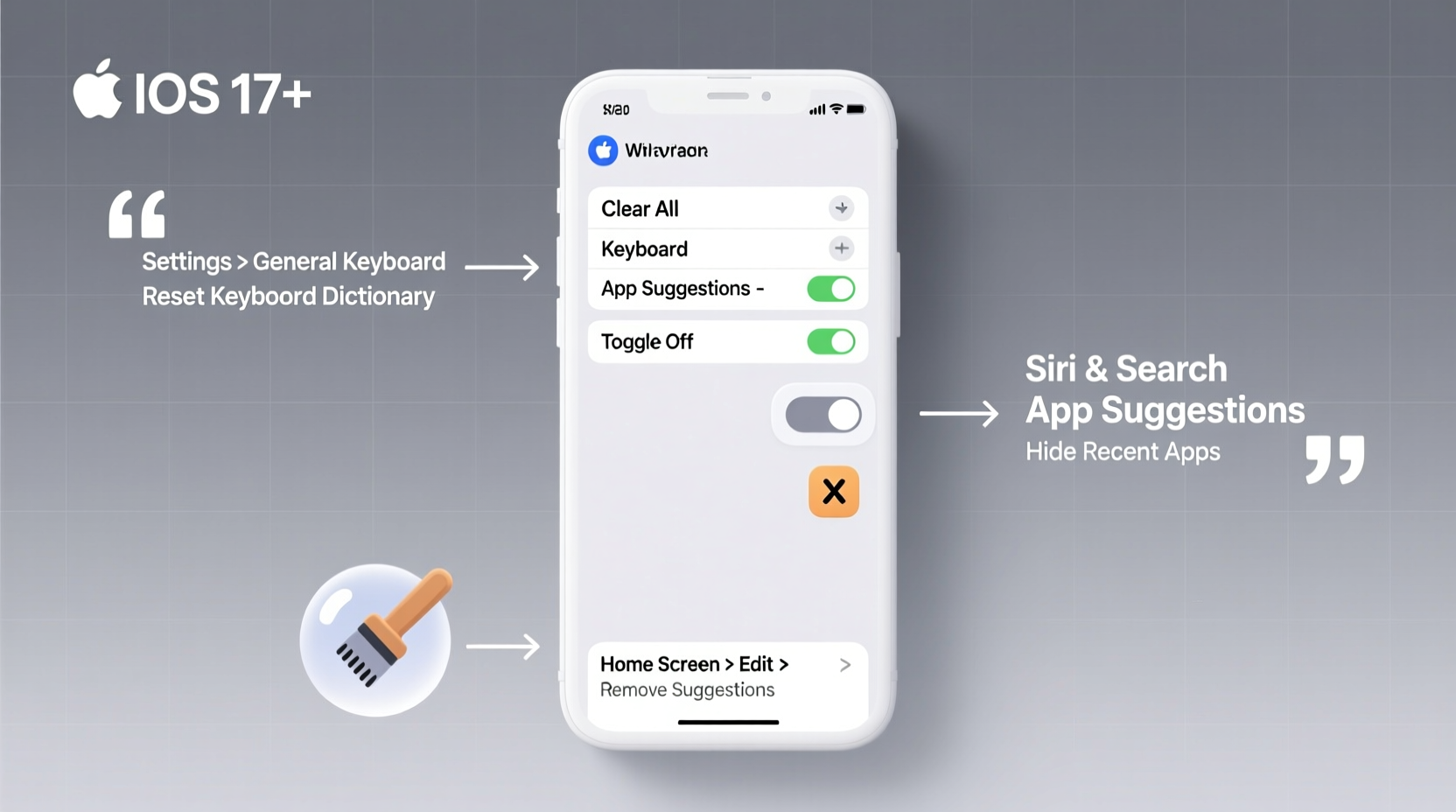
iPhone suggestions are generated by on-device machine learning and appear across multiple apps and system functions. These include:
- Spotlight Search: Suggestions at the top of the screen when swiping down on the Home or Lock screen.
- Safari Search Bar: Auto-completed URLs, search terms, and frequently visited sites.
- Keyboard Predictions: Word and phrase suggestions above the keyboard while typing.
- App Switcher & Siri Suggestions: Apps suggested based on time, location, or usage patterns.
- Maps & Calendar: Location-based reminders and event predictions.
These features rely on your device’s personal context engine, which operates locally on your iPhone for privacy. However, as data accumulates, irrelevant or outdated suggestions—like an old restaurant you visited once or a contact you no longer communicate with—can persist. Managing them isn’t just about aesthetics; it’s about reclaiming efficiency and digital clarity.
Step-by-Step Guide to Clear Different Types of Suggestions
Cleaning up suggestions requires targeted actions depending on where they appear. Here’s how to clear each major category:
Clear Safari Search Suggestions
- Open Settings.
- Tap Safari.
- Scroll down and tap Clear History and Website Data.
- Confirm the action.
This removes browsing history, autofill entries, and search suggestions from Safari. For a lighter touch, disable search engine suggestions: Go to Settings > Safari > Search > toggle off “Search Engine Suggestions.”
Remove Keyboard Predictions
- Navigate to Settings.
- Select General > Keyboard.
- Tap Clear Keyboard Dictionary.
- Confirm the reset.
This erases learned words, phrases, and autocorrect habits. Note: You’ll need to retrain your keyboard over time, but this is ideal if your predictions have become inaccurate or inappropriate.
Delete Siri and Search Suggestions
- Go to Settings.
- Tap Siri & Search.
- Select individual apps listed under “SUGGESTIONS FROM” and disable “Show in Search,” “Show on Home Screen,” or “Use with Ask Siri” as needed.
To remove specific app suggestions from the Home Screen or Lock Screen, long-press the suggestion, then tap the “X” icon that appears.
Clear Spotlight Search History
Spotlight doesn’t store a traditional “history,” but it surfaces recent interactions. To reduce clutter:
- Go to Settings > Siri & Search > disable “Suggestions in Search” for specific apps.
- Or, go to Settings > General > iPhone Storage > Spotlight > toggle off unnecessary categories like Messages, Mail, or Notes.
Managing Ongoing Suggestions: Prevent Future Clutter
Clearing suggestions is helpful, but managing them proactively ensures lasting cleanliness. Consider these ongoing strategies:
Limit App-Based Suggestions
Many third-party apps contribute to system-wide suggestions. Review which apps are allowed to suggest content:
- Settings > Siri & Search > scroll through the list.
- Disable “Show When Searching” and “Show on Home Screen” for apps you don’t want promoting themselves.
Turn Off Frequent Locations
If location-based suggestions feel invasive, limit tracking:
- Settings > Privacy & Security > Location Services > System Services.
- Tap Significant Locations, enter your passcode, then tap “Clear History.”
- Toggle off “Significant Locations” if you prefer not to store movement patterns.
Adjust Keyboard Learning
While you can’t fine-tune what the keyboard learns, you can influence it. Avoid accepting incorrect autocorrects, and manually add important names or terms via Settings > General > Keyboard > Text Replacement.
“Users often overlook how much predictive data builds up over months. Periodic cleanup isn’t just maintenance—it’s digital hygiene.” — Dr. Lena Torres, Mobile Usability Researcher, Stanford HCI Group
Checklist: Your Monthly iPhone Suggestion Cleanup Routine
Stay ahead of clutter with this simple monthly checklist:
- ✅ Clear Safari history and website data
- ✅ Review and disable unnecessary Siri & Search app permissions
- ✅ Remove unwanted Spotlight categories
- ✅ Check Significant Locations and clear if desired
- ✅ Reset keyboard dictionary if predictions feel off
- ✅ Audit recently suggested apps on the Home Screen
Set a calendar reminder or tie this routine to the start of each month for consistent upkeep.
Do’s and Don’ts of Managing iPhone Suggestions
| Do | Don't |
|---|---|
| Regularly review which apps suggest content in Search and Siri | Assume all suggestions are harmless—some may expose private info |
| Use “Clear History” options instead of full resets when possible | Disable all suggestions—you’ll lose useful conveniences |
| Clear keyboard dictionary if autocorrect becomes erratic | Ignore outdated or incorrect predictions—they reinforce bad habits |
| Leverage Text Replacement for frequently used phrases | Store sensitive information without considering suggestion exposure |
Real Example: How Sarah Regained Control of Her iPhone Experience
Sarah, a freelance designer in Portland, noticed her iPhone was constantly suggesting outdated project names and old client emails in Spotlight and Messages. She felt embarrassed when typing near colleagues—the wrong autocomplete once sent “Hey [ex-client]” instead of her current client’s name. After reading about suggestion management, she spent 20 minutes clearing Safari data, resetting her keyboard, and disabling suggestions from unused apps like fitness trackers and delivery services. Within days, her typing felt smoother, and her search results were more relevant. “It’s like my phone finally stopped guessing and started listening,” she said. She now schedules a quick cleanup every four weeks using a reminder in her productivity app.
Frequently Asked Questions
Will clearing suggestions delete my saved passwords or bookmarks?
No. Clearing suggestions does not affect saved passwords (stored in iCloud Keychain) or bookmarks in Safari. It only removes predictive data, history, and temporary learning models.
Can I re-enable suggestions after turning them off?
Absolutely. All settings related to suggestions are reversible. You can toggle them back on anytime in Settings > Siri & Search or individual app settings.
Does resetting the keyboard dictionary affect my typing speed?
Temporarily, yes. You’ll lose personalized word predictions and may experience less accurate autocorrect until the keyboard relearns your habits—usually within a few days of regular use.
Take Back Control of Your iPhone Experience
Your iPhone should work for you—not against you. Unmanaged suggestions create noise that distracts, slows you down, and sometimes exposes more than you intend. By understanding where these suggestions come from and applying deliberate cleanup routines, you restore clarity and efficiency to your device. Whether you perform a full reset or adopt a monthly maintenance habit, the result is the same: a smarter, leaner, and more respectful iPhone experience. Start today—your future self will appreciate the cleaner interface and regained focus.




 浙公网安备
33010002000092号
浙公网安备
33010002000092号 浙B2-20120091-4
Comments
No comments yet. Why don't you start the discussion?