
Over time, your Android device accumulates cached data from the Google app and Chrome browser to speed up loading times and improve responsiveness. While caching is designed to enhance performance, an overloaded cache can have the opposite effect—slowing down searches, causing outdated content to appear, or even leading to app crashes. Clearing the Google cache regularly helps restore smooth operation, ensures you see the latest web content, and frees up valuable storage space. This guide explores practical, proven methods to effectively clear Google’s cache on Android without losing essential data.
Why Clearing Google Cache Improves Performance
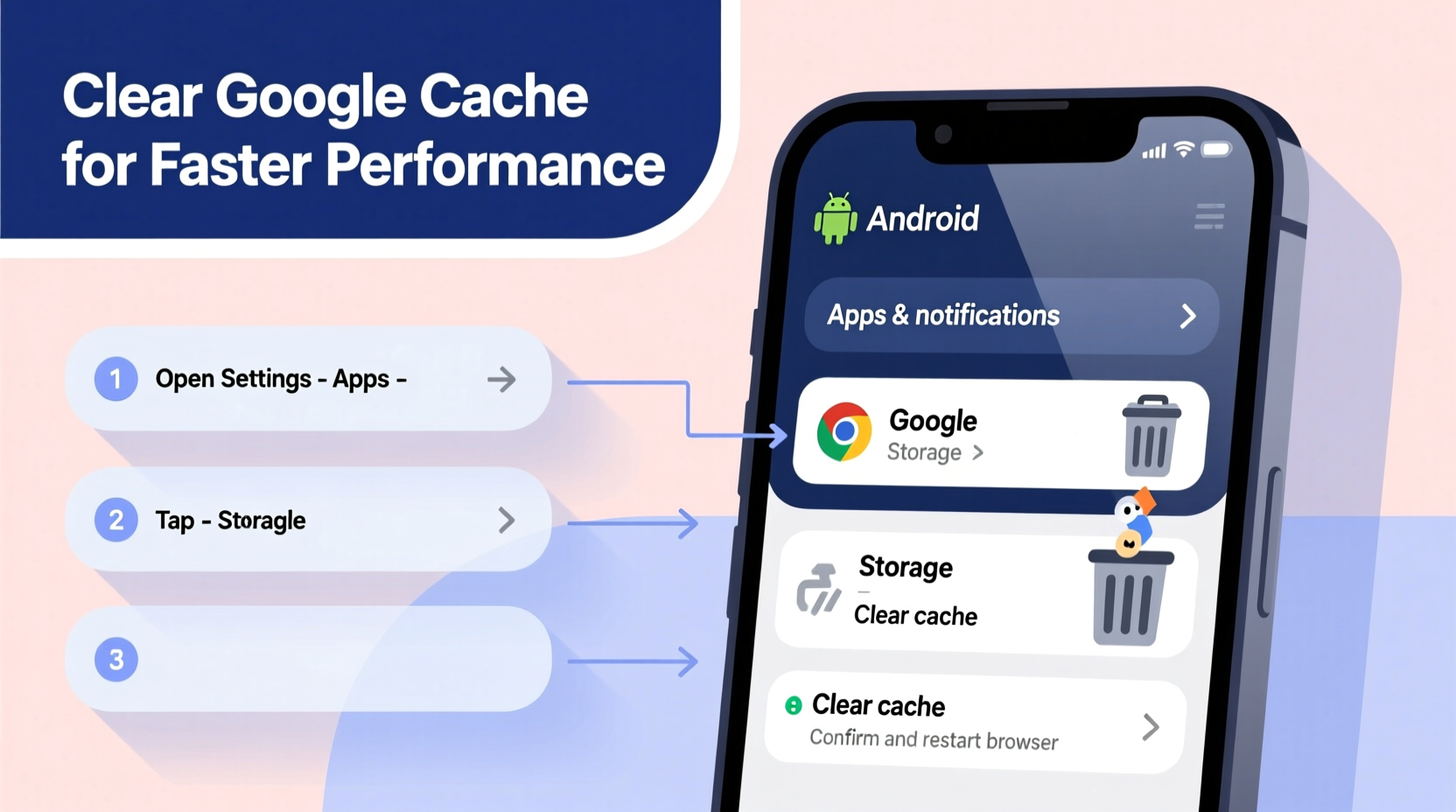
Caching stores temporary files like images, scripts, and search results so that they load faster on subsequent visits. However, when too much cached data builds up, it can conflict with updated website versions, consume internal storage, or cause glitches in the Google app. Users often report sluggish search responses, autocomplete errors, or persistent login prompts—all of which may stem from corrupted or excessive cache.
Clearing the cache resets this temporary storage, forcing the app to fetch fresh data. Unlike clearing app data, which deletes settings and history, clearing the cache only removes non-essential files. It’s a safe maintenance step that doesn’t affect your personal information but can significantly boost speed and reliability.
Step-by-Step Guide to Clear Google App Cache
The Google app (often labeled “Google” or represented by the multicolored “G” icon) powers voice search, Discover feed, and integrated web searches on Android. Follow these steps to clear its cache:
- Open the Settings app on your Android device.
- Tap Apps or App Management (varies by manufacturer).
- Locate and select Google from the list of installed apps.
- Tap Storage & cache.
- Select Clear Cache. Confirm if prompted.
This process takes seconds and immediately frees up space. Afterward, reopen the Google app to notice smoother navigation and refreshed content. Note that some personalized settings might reload slightly slower the first time as new cache is generated.
When to Also Clear Storage Data
If clearing the cache doesn’t resolve performance issues, consider clearing stored data. This action resets the app entirely—removing preferences, recent searches, and signed-in sessions. Use this option only when necessary:
- You’re experiencing frequent crashes.
- Search results are consistently inaccurate.
- Voice assistant fails to respond correctly.
To clear data: In the same Storage & cache menu, tap Clear Storage or Delete Data, then confirm. You’ll need to reconfigure voice match and sign back into certain services.
Clearing Chrome Browser Cache Separately
The Google app and Chrome browser maintain separate caches. If web pages load slowly or display old versions, clear Chrome’s cache independently:
- Launch the Chrome app.
- Tap the three-dot menu in the top-right corner.
- Go to History > Clear browsing data.
- Select a time range (e.g., “Last hour,” “All time”).
- Check Cached images and files.
- Tap Clear data.
This removes stored page elements while preserving bookmarks and saved passwords (unless manually selected for deletion). For privacy-focused users, combining cache deletion with browsing history and cookies improves both speed and security.
| Action | Affects Cache? | Loses Login Info? | Recommended Frequency |
|---|---|---|---|
| Clear Google App Cache | Yes | No | Every 4–6 weeks |
| Clear Chrome Cache | Yes | No | Monthly |
| Clear Google App Data | Yes | Yes | Only when troubleshooting |
| Clear Chrome Cookies | No | Yes | As needed |
Automating Cache Management with Digital Wellbeing Tools
Android’s built-in tools can help manage app behavior before performance degrades. The Digital Wellbeing dashboard monitors app usage and storage impact. Set up notifications to remind you when apps exceed healthy cache levels.
Additionally, use Battery Saver or Data Saver modes to limit background activity, reducing unnecessary cache buildup. These features restrict apps from preloading content when connectivity is active, minimizing redundant file storage.
“Regular cache maintenance is one of the most overlooked yet impactful habits for keeping Android devices running smoothly.” — Raj Mehta, Mobile Optimization Engineer at Android Authority
Mini Case Study: Resolving Slow Search on a Mid-Range Device
Jamal, a freelance writer using a Samsung Galaxy A52, noticed his Google searches were taking over 10 seconds to return results. Autocomplete suggestions were outdated, and the Discover feed froze frequently. He had 8 GB of free storage, so space wasn’t the obvious issue.
After checking app storage, he found the Google app was using 1.2 GB of cached data—unusually high for a search utility. Following the steps above, Jamal cleared the cache. Post-cleanup, search response time dropped to under 2 seconds, and the Discover feed loaded reliably. No settings were lost, and overall device responsiveness improved noticeably.
This case illustrates how invisible cache bloat can degrade user experience—even on capable hardware.
Best Practices Checklist
To keep your Google services fast and efficient, follow this routine:
- ✅ Clear Google app cache monthly via Settings > Apps > Google > Storage & cache > Clear Cache
- ✅ Clear Chrome browsing cache every few weeks through Chrome > History > Clear browsing data
- ✅ Avoid using third-party \"cleaner\" apps that promise automatic cache removal—they often collect sensitive data
- ✅ Restart your device after major cache clears to ensure all processes reset properly
- ✅ Monitor app storage size periodically to catch abnormal growth early
- ✅ Use incognito mode for private searches to prevent unnecessary cache accumulation
Frequently Asked Questions
Will clearing Google cache delete my search history?
No. Cache and search history are stored separately. Clearing the cache only removes temporary files used for performance. Your past searches remain intact unless you manually delete them in the Google Activity Controls panel.
Can I clear cache for specific websites only?
Not directly within the Google app. However, in Chrome, you can go to Site Settings and manage storage per domain. Tap a problematic site and choose “Clear data” to remove its cookies and cached files selectively.
Is it safe to clear cache frequently?
Yes. Unlike app data, cache is designed to be disposable. Regular clearing is safe and encouraged as part of digital hygiene. The system will rebuild necessary cache automatically as you use the app.
Conclusion: Optimize Your Experience Proactively
Clearing Google cache on Android is a simple yet powerful way to reclaim speed, accuracy, and efficiency in daily searches. Whether you're troubleshooting slow performance or maintaining peak device health, routine cache management should be part of your digital maintenance checklist. By understanding where cache lives, how it impacts performance, and when to act, you take control of your mobile experience.




 浙公网安备
33010002000092号
浙公网安备
33010002000092号 浙B2-20120091-4
Comments
No comments yet. Why don't you start the discussion?