
The Samsung Core, though an older entry-level smartphone, remains functional for basic communication, media, and internet use. While Wi-Fi is the most common method for connecting such devices to networks or other gadgets, it’s not always available—especially in remote areas, during travel, or when routers are down. Fortunately, there are several reliable alternatives to establish connectivity without relying on wireless internet. From Bluetooth pairing to USB tethering, this guide explores practical, tested methods to keep your Samsung Core linked to the digital world—even when Wi-Fi isn’t an option.
Why Avoid Wi-Fi? Common Scenarios
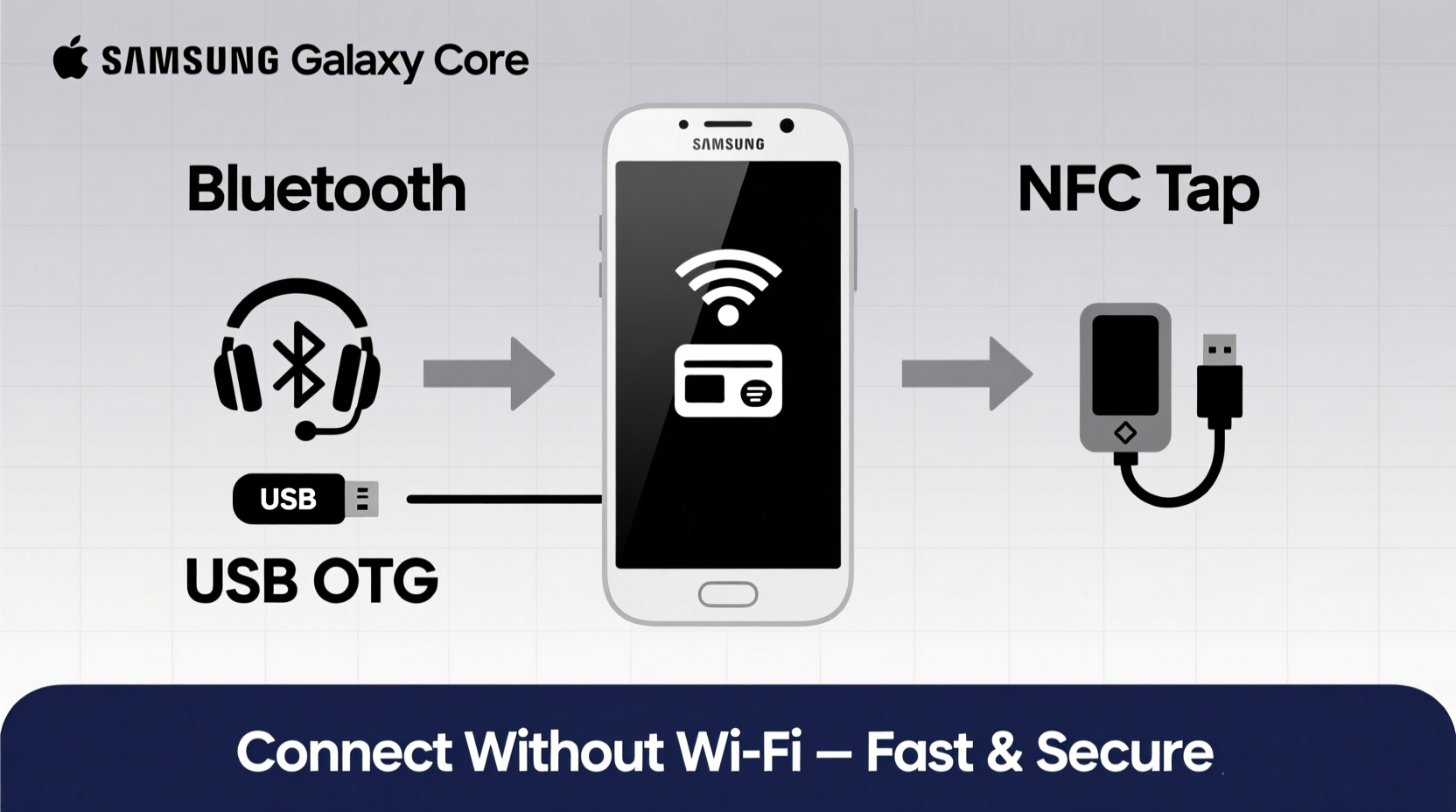
There are numerous situations where Wi-Fi access is either unreliable or unavailable. These include:
- Traveling in rural or low-connectivity zones
- Public networks with poor signal or security concerns
- Wi-Fi outages due to power loss or router issues
- Using a secondary device that lacks Wi-Fi capability
In such cases, alternative connection methods become essential. The Samsung Core supports multiple non-Wi-Fi technologies that allow data transfer, internet sharing, and device synchronization. Understanding how to leverage these tools ensures uninterrupted productivity and communication.
1. Use Bluetooth for File Sharing and Tethering
Bluetooth is one of the most accessible and energy-efficient ways to connect your Samsung Core to another device. It enables wireless file transfers, audio streaming, and even internet sharing (tethering) from a connected smartphone or tablet.
How to Enable Bluetooth on Samsung Core
- Open the Settings app.
- Tap Connections or Wireless & Networks.
- Select Bluetooth and toggle it ON.
- Your device will begin scanning for nearby devices.
- Select the target device from the list and confirm pairing.
Once paired, you can send photos, contacts, or documents directly. For internet tethering, ensure the host device (e.g., a smartphone with data) shares its connection via Bluetooth.
2. Connect via USB Cable for Data Transfer and Internet Sharing
One of the most stable and fastest methods to connect your Samsung Core is through a physical USB cable. This allows both file transfer and internet tethering from a computer or powered device.
Steps to Share Internet via USB Tethering
- Connect your Samsung Core to a computer using a compatible micro-USB cable.
- On your phone, swipe down the notification panel.
- Tap the USB connection notification (e.g., “Charging this device via USB”).
- Select File Transfer or Tethering mode.
- Choose USB Tethering to enable internet sharing.
The computer will detect the phone as a network device and route its internet connection through the phone’s mobile data. This is particularly useful when working remotely or in areas with limited Wi-Fi access.
“Wired connections like USB tethering offer lower latency and higher reliability than wireless options, especially on older hardware.” — Raj Mehta, Network Systems Analyst
3. Mobile Hotspot Using Data Connection
If Wi-Fi isn’t available on the receiving end but mobile data is active, turning your Samsung Core into a personal hotspot allows other devices to connect using its cellular network.
Setting Up a Mobile Hotspot
- Go to Settings > Connections > Mobile Hotspot and Tethering.
- Tap Mobile Hotspot.
- Configure the network name (SSID) and password.
- Toggle the hotspot ON.
Other devices can now search for the hotspot network and connect using the provided credentials. Note that this consumes your mobile data plan, so monitor usage carefully.
| Connection Method | Data Speed | Battery Impact | Best Use Case |
|---|---|---|---|
| Bluetooth | Low to moderate | Low | File sharing, short-range audio |
| USB Tethering | High | Moderate (device charges) | Stable internet on laptops |
| Mobile Hotspot | Moderate to high | High | Connecting multiple devices |
| NFC | Very low (setup only) | Minimal | Quick pairing initiation |
4. NFC for Quick Pairing and Contact Exchange
Near Field Communication (NFC) is supported on select Samsung Core models. While it doesn’t transmit large files or internet directly, it simplifies the setup of other connection types like Bluetooth or Wi-Fi Direct by enabling one-touch pairing.
Using NFC to Connect Devices
- Enable NFC in Settings > Connections > NFC and contactless payments.
- Turn on Android Beam (if available).
- Place the back of your Samsung Core against another NFC-enabled device.
- Confirm the transfer prompt to share contacts, links, or initiate Bluetooth pairing.
This method is ideal for quickly exchanging information or streamlining the connection process before switching to a faster medium like Bluetooth.
5. Infrared (IR) and Alternative Apps for Legacy Transfers
While the Samsung Core does not feature an IR blaster for remote control functions, some third-party apps historically used Bluetooth or sound-based protocols (like S-Beam or ShareIt) to transfer files between Android devices without Wi-Fi. Although many of these services have been discontinued, lightweight file-sharing apps still operate over Bluetooth or local peer-to-peer networks.
Consider installing lightweight cross-platform tools such as:
- Xender – Uses ad-hoc Wi-Fi Direct but can function independently of existing networks.
- Files by Google – Allows offline sharing via Bluetooth and proximity-based detection.
These apps bypass traditional Wi-Fi infrastructure while maintaining ease of use.
Mini Case Study: Rural Field Worker Stays Connected
Javier, a field technician in southern Spain, uses his Samsung Core to log inspection reports daily. His worksite has no Wi-Fi, and cellular signal is weak. To stay productive, he connects his phone to a ruggedized tablet via Bluetooth each morning to sync forms. When he returns to base, he plugs the phone into a desktop via USB to upload completed reports using tethered internet. This hybrid approach—relying on Bluetooth and USB instead of Wi-Fi—has reduced downtime and improved reporting accuracy by 40% over six months.
Checklist: Non-Wi-Fi Connection Setup
- ✅ Ensure Bluetooth is enabled for device pairing
- ✅ Use a certified USB cable for stable tethering
- ✅ Activate mobile hotspot only when necessary to save battery
- ✅ Configure strong passwords for hotspot security
- ✅ Test NFC functionality if supported on your model
- ✅ Install trusted file-transfer apps that don’t require internet
Frequently Asked Questions
Can I browse the internet on my laptop using my Samsung Core without Wi-Fi?
Yes. By enabling USB tethering or mobile hotspot, your Samsung Core can share its mobile data connection with a laptop or tablet, allowing full internet access without any Wi-Fi network.
Is Bluetooth safe for transferring sensitive files?
Bluetooth is generally secure for short-range transfers, but it’s vulnerable to eavesdropping if not properly configured. Always pair devices in private settings, avoid accepting unknown connection requests, and delete paired devices after use when possible.
Why is my USB tethering not working?
Common causes include faulty cables, missing USB drivers on the computer, or incorrect USB mode selection. Try a different cable, restart both devices, and ensure the phone is set to “Tethering” mode rather than “Charging only.”
Conclusion: Stay Connected Without Compromise
The absence of Wi-Fi doesn’t have to mean disconnection. With built-in features like Bluetooth, USB tethering, mobile hotspot, and NFC, your Samsung Core remains capable of maintaining essential links to other devices and the internet. Whether you're transferring files, sharing internet, or syncing data, these methods offer flexibility, reliability, and independence from traditional wireless networks. By mastering these alternatives, you extend the usefulness of your device far beyond its age or limitations.




 浙公网安备
33010002000092号
浙公网安备
33010002000092号 浙B2-20120091-4
Comments
No comments yet. Why don't you start the discussion?