
Google’s search suggestions are designed to speed up queries by predicting what you’re typing. While helpful for many, these autocomplete results can be distracting, repetitive, or even intrusive. They may surface sensitive topics, outdated interests, or irrelevant keywords based on your past behavior. For users seeking a more private, streamlined, or focused search experience, customizing or disabling these suggestions is a practical step.
This guide explores actionable methods to take control of Google’s search predictions across devices and browsers. Whether you want to reduce clutter, enhance privacy, or simply refine your digital workflow, the following strategies offer both temporary fixes and long-term solutions.
Understanding Google Search Suggestions
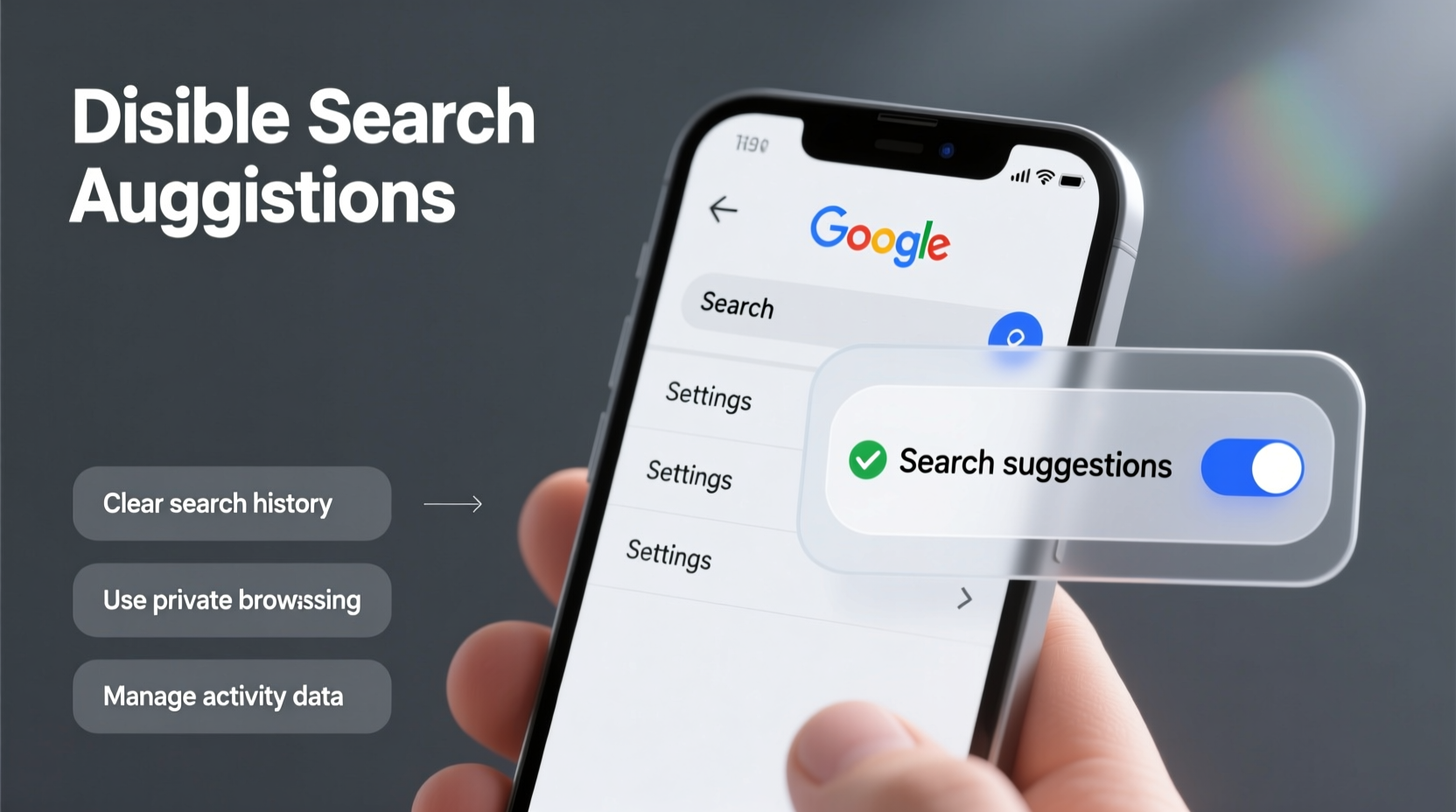
Search suggestions—also known as autocomplete or query predictions—are generated using a mix of public search trends and your personal search history. When you type into Google’s search bar, the algorithm pulls from:
- Popular searches across the web
- Your own browsing and search history (if synced)
- Your location and device settings
- Past interactions with Google services
These suggestions appear in real time and are meant to save time. However, they can also expose personal habits, promote clickbait, or derail focus during research. The good news: Google provides several tools to manage how and when these predictions appear.
Step-by-Step Guide to Disable Search Suggestions
If you prefer a minimal search interface without predictive text, follow these steps to disable suggestions entirely in Google Chrome and on the Google website.
- Open Google.com in your browser (preferably while signed out or in an incognito window for testing).
- Start typing in the search bar and wait for suggestions to appear.
- At the bottom of the suggestion dropdown, click \"Turn off search personalization\" (if available).
- To disable completely, go to Settings > Privacy and security > Address bar and search in Chrome.
- Toggle off the option labeled \"Show search and site suggestions as you type.\"
- Restart your browser to ensure changes take effect.
Note: This setting only affects Chrome’s address bar. To disable suggestions directly on Google.com, you must adjust account-level settings or use alternative configurations like incognito mode.
Customizing Suggestions with Google Account Controls
Rather than turning off suggestions entirely, you might prefer to refine them. Google allows granular control over what influences your predictions through your Google Account dashboard.
Manage Your Web & App Activity
This setting determines whether Google saves your search history and uses it to personalize results.
- Visit myactivity.google.com.
- Click on the menu icon and select Activity controls.
- Find Web & App Activity and toggle it off.
- Choose whether to delete existing history or keep it archived.
Disabling this stops Google from building a profile of your searches for prediction purposes. You can still use Google Search, but suggestions will rely only on trending queries, not your personal data.
Remove Specific Suggestions
Sometimes a single persistent suggestion is the issue—perhaps an old project, former interest, or embarrassing typo. Google lets you remove individual entries.
- Type the query in Google’s search bar.
- Hover over the unwanted suggestion.
- Press Shift + Delete (on most desktop browsers).
- Confirm removal if prompted.
This action removes the suggestion only from your device and account. It does not affect other users or devices unless they share the same sync settings.
Do’s and Don’ts: Managing Search Predictions
| Do | Don't |
|---|---|
| Use incognito mode for one-off private searches | Assume suggestions are the same for all users on your device |
| Regularly review and delete outdated search activity | Expect immediate updates after changing settings—sync delays occur |
| Disable Web & App Activity if you prioritize privacy | Forget that suggestions may still appear based on public trends |
| Use ad blockers or extensions to filter UI elements | Rely solely on browser settings if you use multiple devices |
Expert Insight on Digital Clarity
“Reducing cognitive load in digital interfaces starts with minimizing distractions. Search suggestions, while efficient, often pull attention toward tangential or emotionally charged topics. Taking control of these inputs is a form of digital hygiene.” — Dr. Lena Torres, Cognitive UX Researcher at Digital Wellbeing Lab
This perspective underscores that managing search suggestions isn’t just about privacy—it’s also about maintaining mental focus and intentionality online. Unwanted predictions can trigger anxiety, nostalgia, or distraction, especially when tied to past behaviors or sensitive subjects.
Mini Case Study: A Researcher’s Workflow Upgrade
Sophie, a freelance journalist researching mental health trends, noticed her Google searches were being derailed by autocomplete suggestions related to her personal medical history. Despite using a work account, cross-device syncing had carried over data from her personal phone.
She took the following steps:
- Disabled Web & App Activity on her primary account
- Cleared search history from the past six months
- Switched to Chrome profiles—one for personal use, one for journalism
- Used incognito windows when exploring sensitive topics
Within days, her search bar became neutral and focused. She reported faster research cycles and reduced emotional fatigue during writing sessions. Her case illustrates how small technical adjustments can yield significant improvements in professional and personal well-being.
Checklist: Take Control of Your Search Experience
Use this checklist to customize or disable Google search suggestions effectively:
- ☐ Turn off “Show search and site suggestions” in Chrome settings
- ☐ Visit myactivity.google.com and pause Web & App Activity
- ☐ Delete specific unwanted suggestions using Shift + Delete
- ☐ Use incognito or guest mode for sensitive or one-time searches
- ☐ Set up separate browser profiles for work, personal, and research use
- ☐ Regularly audit your Google Activity dashboard
- ☐ Consider third-party tools or extensions that filter autocomplete
Frequently Asked Questions
Will disabling search suggestions affect my search results?
No. Disabling suggestions only removes the dropdown list as you type. Your actual search results remain unchanged and are still personalized based on your current settings unless you opt out of tracking.
Can I re-enable suggestions later?
Yes. All changes are reversible. You can re-enable search suggestions in Chrome settings or restore Web & App Activity through your Google Account at any time.
Why do I still see suggestions after turning off personalization?
Even with personalization off, Google displays popular or trending searches. These are based on aggregated, anonymous data from millions of users and cannot be disabled directly—but they won’t reflect your personal history.
Conclusion: Build a Cleaner Digital Habit
A clutter-free search experience begins with awareness and ends with action. Google’s suggestions are powerful, but they shouldn’t dictate your digital environment. By customizing or disabling autocomplete features, you reclaim focus, privacy, and efficiency in your daily browsing.
The steps outlined here—from adjusting Chrome settings to managing account activity—are simple yet transformative. Whether you're conducting research, protecting personal data, or simply tired of seeing last year’s hobbies resurface, taking control is within reach.




 浙公网安备
33010002000092号
浙公网安备
33010002000092号 浙B2-20120091-4
Comments
No comments yet. Why don't you start the discussion?