
Google Chrome’s built-in pop-up blocker is designed to enhance user experience by preventing intrusive or potentially harmful advertisements from appearing. While this feature improves security and reduces distractions, it can also interfere with legitimate pop-ups required for essential website functions—such as online banking portals, webinar registrations, or customer support chat windows. When important content gets blocked, it disrupts workflow and causes frustration. Fortunately, Chrome offers flexible settings that allow users to selectively disable the pop-up blocker either temporarily or permanently for trusted sites. Understanding how to manage these settings ensures a smoother, more productive browsing experience without compromising overall safety.
Understanding Chrome’s Pop-Up Blocker Behavior
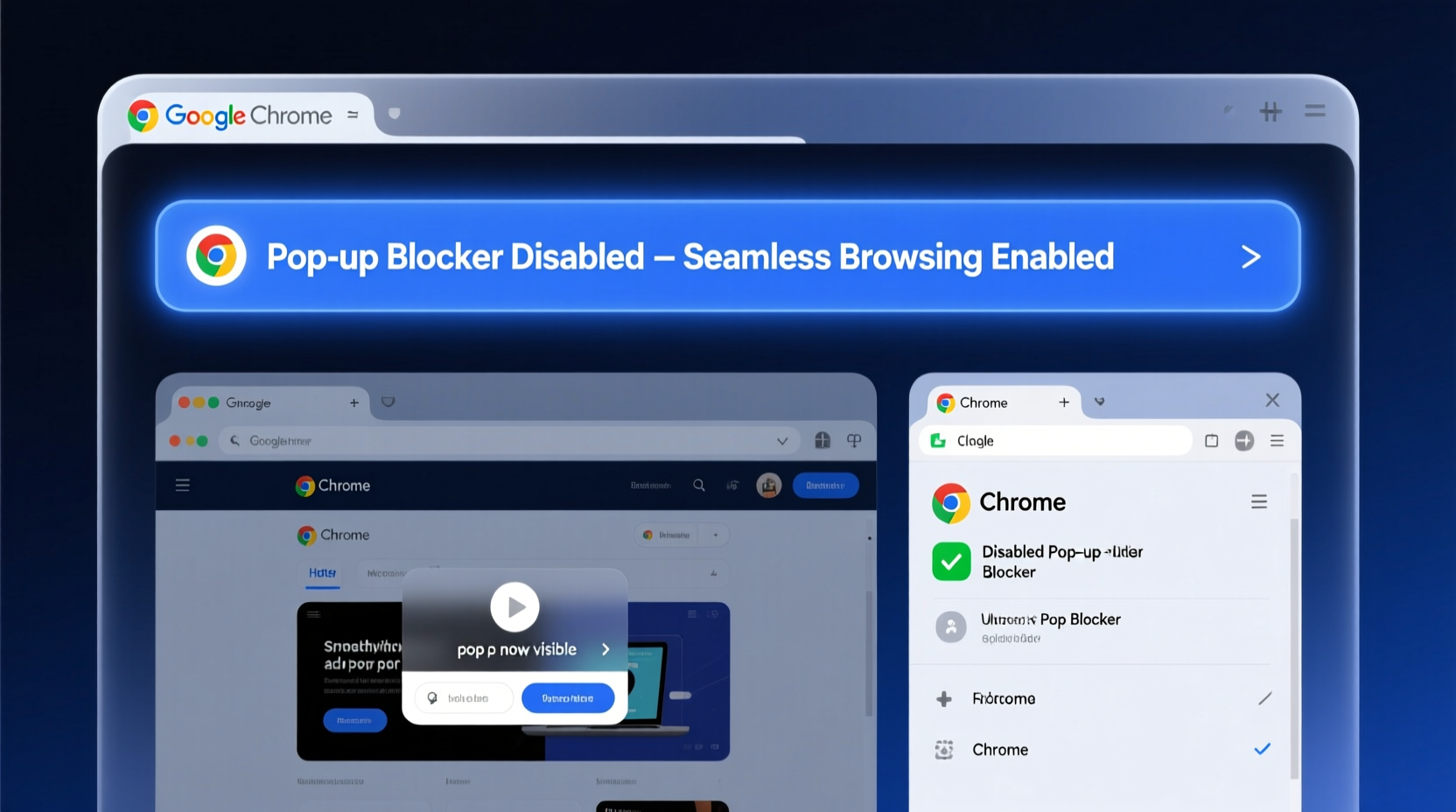
Chrome automatically blocks pop-ups that are triggered without direct user interaction. For example, if a script on a webpage launches a new window when the page loads, Chrome will intercept it. However, pop-ups initiated by a user click—like pressing a “Help” button—are typically allowed. This behavior helps maintain usability while minimizing spam-like interruptions.
The browser uses a combination of heuristics and site permissions to determine whether a pop-up should be blocked. It maintains a list of allowed and blocked sites based on user preferences. When a pop-up is blocked, Chrome displays a small icon in the address bar—a red shield or a “Pop-up blocked” message—giving users the option to allow it for that session.
“Balancing security and functionality is key. Users should not disable pop-up blocking globally but instead configure exceptions for trusted domains.” — David Lin, Web Security Analyst at BrowserTrust Labs
Step-by-Step Guide to Disable Pop-Up Blocker for Specific Sites
Disabling the pop-up blocker for individual websites is the safest and most practical approach. This method allows necessary pop-ups while keeping protection active for unknown or suspicious domains.
- Open Google Chrome and navigate to the website where pop-ups are being blocked.
- Click the padlock icon or the i (information) icon located to the left of the web address in the address bar.
- In the dropdown menu, find and click on \"Site settings\".
- Scroll down to locate \"Pop-ups and redirects\".
- By default, this setting is set to \"Blocked\". Click the dropdown and change it to \"Allow\".
- Reload the page. Future pop-ups from this site will now appear unless explicitly blocked by other extensions or system settings.
Temporarily Allow Blocked Pop-Ups
Sometimes you only need to allow a pop-up once—for instance, when accessing a one-time verification tool or printing an invoice. Chrome makes this easy without changing permanent settings.
- If a pop-up is blocked, look for the red shield icon or the pop-up notification in the right side of the address bar.
- Click the icon and select \"Always allow pop-ups and redirects from [site]\" if you trust the domain.
- To allow just one instance, choose \"Pop-up was blocked\" → \"Show all\" or \"Allow once\", depending on your Chrome version.
This temporary allowance lasts only for the current browsing session and resets when the tab is closed, offering a secure way to handle one-off needs.
Disable Pop-Up Blocker Globally (Use with Caution)
While not recommended for everyday use, some environments—such as internal corporate systems or local development servers—require pop-ups across multiple unlisted domains. In such cases, turning off the pop-up blocker entirely may be necessary.
How to Turn Off Pop-Up Blocking System-Wide
- Click the three-dot menu in the top-right corner of Chrome and select \"Settings\".
- Navigate to \"Privacy and security\" in the sidebar.
- Click \"Site Settings\".
- Scroll down and click \"Pop-ups and redirects\".
- Toggle the switch to turn off blocking (it will go gray).
Once disabled, Chrome will no longer block any pop-ups automatically. You’ll need to rely on third-party ad blockers or vigilance to avoid malicious content.
| Method | Best For | Security Risk |
|---|---|---|
| Allow per site | Trusted services (banks, learning platforms) | Low |
| Temporary allow | One-time actions (printing, verification) | Very Low |
| Global disable | Local development or intranet tools | High |
Troubleshooting Common Issues After Disabling the Blocker
Even after adjusting settings, pop-ups may still fail to appear due to external factors. Consider the following checks:
- Browser Extensions: Ad blockers like uBlock Origin or popup-blocker add-ons may override Chrome’s native settings. Disable them selectively for affected sites.
- Multiple Profiles: Chrome supports multiple user profiles. Ensure you're modifying settings in the correct profile currently in use.
- Cached Permissions: Clear site data or reset site permissions under Settings > Site Settings > View permissions & data stored across sites.
- Outdated Chrome Version: Older versions may have bugs affecting pop-up handling. Update Chrome via Menu → Help → About Google Chrome.
“I once spent hours debugging a training platform that wouldn’t launch its quiz interface. The issue wasn’t code—it was Chrome silently blocking pop-ups because the team hadn’t added the domain to their allowlist.” — Maria Tran, Front-End Developer at EduTech Solutions
Best Practices for Managing Pop-Up Settings Safely
Disabling pop-up protection doesn’t have to mean inviting risk. Follow these guidelines to maintain both functionality and security:
- Only allow pop-ups for websites you actively trust and frequently use.
- Avoid allowing pop-ups on public or shared computers.
- Use incognito mode when visiting unfamiliar sites; it enforces stricter pop-up controls by default.
- Combine Chrome’s settings with a reputable ad blocker extension for layered defense.
FAQ
Will disabling the pop-up blocker make me vulnerable to malware?
It increases risk only if done carelessly. Allowing pop-ups on phishing or compromised sites can expose you to fake login pages or drive-by downloads. Always verify the authenticity of a site before granting permission.
Can I automate pop-up allowances for multiple sites at once?
No, Chrome does not support bulk domain allowances through its UI. However, enterprise administrators can use Group Policy or Chrome Management Console to enforce policies across devices.
Why do pop-ups still get blocked even after I allowed them?
This can happen if another extension (like an ad blocker) is interfering, or if the site uses non-standard methods to trigger pop-ups. Try disabling other extensions temporarily to isolate the cause.
Conclusion
Managing Chrome’s pop-up blocker effectively means striking a balance between accessibility and security. By understanding how to allow pop-ups selectively, troubleshoot common issues, and apply best practices, users can ensure uninterrupted access to essential web functions without exposing themselves to unnecessary risks. Whether you're completing an online course, managing finances, or working with legacy business software, taking control of your browser settings empowers a smoother digital experience.




 浙公网安备
33010002000092号
浙公网安备
33010002000092号 浙B2-20120091-4
Comments
No comments yet. Why don't you start the discussion?