
Pop-ups have long been a point of contention in web browsing—sometimes essential, often intrusive. Safari, Apple’s default browser, blocks most pop-ups by design to enhance privacy and security. While this protects users from malicious sites, it can also interfere with legitimate functions like login windows, payment gateways, or productivity tools that rely on pop-up interfaces. The key lies not in disabling protection entirely, but in managing exceptions wisely. With the right approach, you can allow necessary pop-ups while maintaining strong defenses against threats.
Understanding Safari’s Pop-Up Blocker
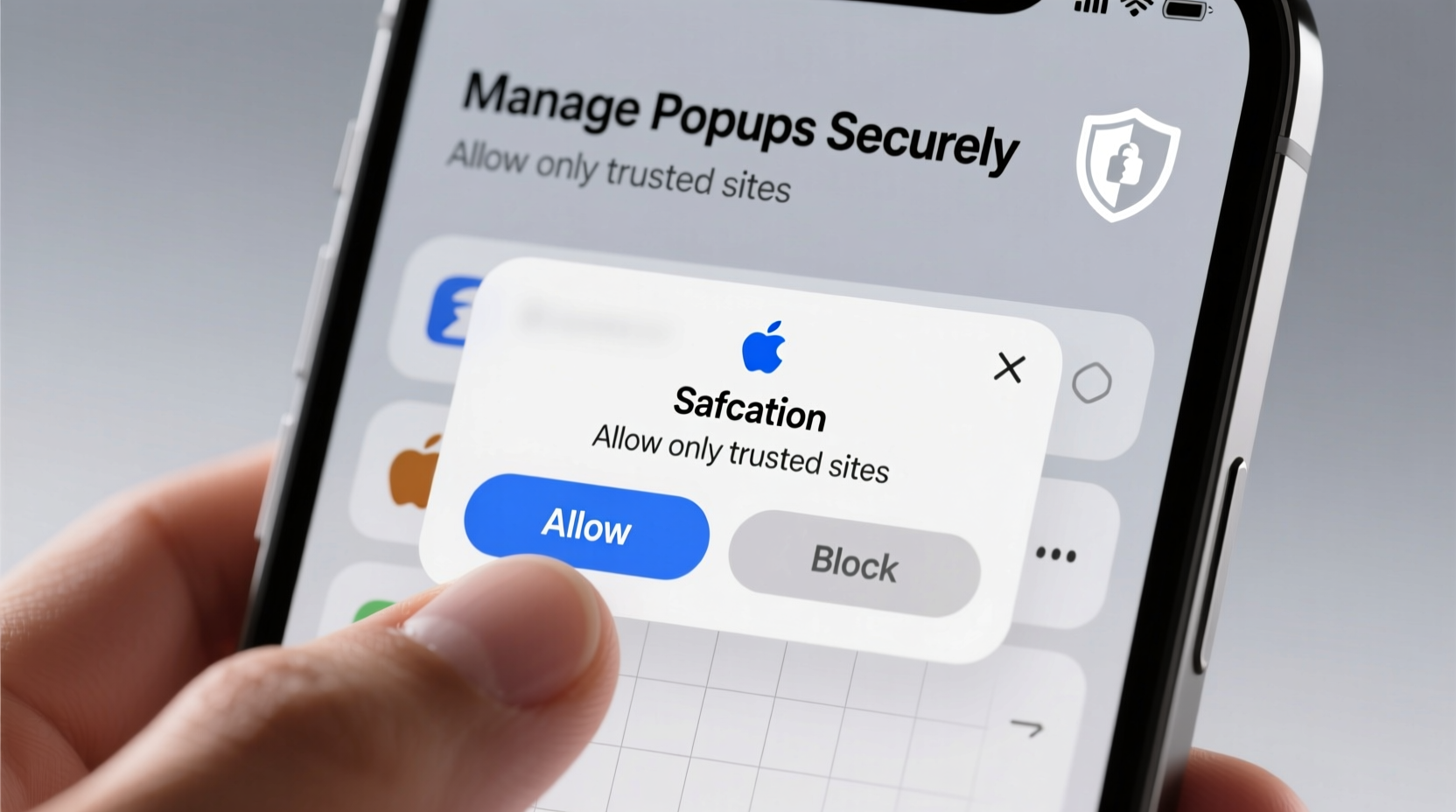
Safari uses intelligent tracking prevention and built-in pop-up blocking to reduce interruptions and safeguard your data. By default, any new window or tab triggered automatically by a website is blocked unless explicitly permitted. This includes redirects, ads, and embedded scripts designed to open secondary windows. However, manually initiated pop-ups—such as those opened when you click a link—are typically allowed.
The system works silently in the background, which means most users never see blocked pop-ups unless they’re expecting one. When an important pop-up fails to appear (like a two-factor authentication prompt or a document preview), confusion often follows. Recognizing how Safari distinguishes between harmful and helpful pop-ups is the first step toward smarter management.
How to Allow Pop-Ups for Trusted Sites
You don’t need to disable Safari’s pop-up blocker globally. Instead, selectively allow pop-ups for websites you trust. This preserves security while ensuring functionality where needed.
- Open Safari and navigate to the website requiring pop-up access.
- Click the lock icon or “Website Not Secure” label in the Smart Search field.
- Select “Website Settings.”
- Under “Pop-up Windows,” choose “Allow.”
- Close settings; changes apply automatically.
This setting persists across sessions, so once configured, trusted sites will function normally. You can review or modify these permissions anytime via Safari Preferences > Websites > Pop-up Windows.
Managing Multiple Site Exceptions
If you frequently use several services that require pop-ups—such as online banking portals, cloud collaboration platforms, or educational dashboards—it's useful to audit and organize your allowances.
| Website | Use Case | Pop-Up Status |
|---|---|---|
| bank.example.com | Secure login & verification | Allowed |
| docs.google.com | Preview links in new tabs | Blocked |
| portal.university.edu | Exam interface | Allowed |
| ads.network.com | Third-party advertising | Blocked (default) |
Regularly reviewing this list ensures only necessary domains are granted permission, minimizing exposure to potential exploits.
Enhancing Security While Permitting Pop-Ups
Allowing pop-ups introduces risk if not managed carefully. A compromised site with pop-up privileges could redirect to phishing pages or initiate unwanted downloads. To mitigate this, combine selective allowances with proactive security practices.
- Verify site authenticity: Ensure URLs begin with HTTPS and match the official domain before allowing pop-ups.
- Keep software updated: macOS and Safari updates often include patches for known vulnerabilities exploited through pop-up vectors.
- Use Private Browsing for sensitive tasks: This limits cookie persistence and reduces tracking, even on allowed sites.
- Monitor behavior changes: Unexpected redirects or excessive new tabs may indicate malware attempting to bypass restrictions.
“Balancing usability and security means making informed exceptions—not blanket allowances.” — Dr. Lena Torres, Cybersecurity Researcher at Pacific Digital Institute
Real-World Scenario: Remote Work Challenges
Consider Maria, a project manager using a web-based CRM platform integrated with video conferencing and task delegation tools. Each time she assigns a follow-up call, the system opens a scheduling assistant in a new window. After upgrading her Mac, she noticed these windows no longer appeared, stalling her workflow.
She initially considered turning off the pop-up blocker completely. Instead, she checked Safari’s notification area and found the pop-up icon alerting her to a blocked window. She clicked it, chose “Always Allow,” and resumed seamless operation. Later, she reviewed her allowed sites and removed outdated entries, maintaining control without sacrificing efficiency.
This scenario illustrates how understanding subtle cues in Safari’s interface prevents overreaction and supports secure, productive browsing.
Best Practices Checklist
- ✅ Keep global pop-up blocking enabled
- ✅ Only allow pop-ups for verified, secure websites
- ✅ Regularly audit allowed sites in Safari Preferences
- ✅ Look for the pop-up alert icon when expected windows fail to load
- ✅ Avoid allowing pop-ups on public or shared devices
- ✅ Use separate browser profiles for work and personal use if applicable
Frequently Asked Questions
Why does Safari block some pop-ups but not others?
Safari allows pop-ups initiated by direct user actions (like clicking a button) while blocking those launched automatically by scripts. This distinction helps prevent deceptive or aggressive advertising while preserving interactive features.
Can I temporarily allow a pop-up without changing settings?
Yes. When Safari blocks a pop-up, a small icon appears in the Smart Search field. Click it and select “Allow Once” to permit the pop-up just for that session, reducing long-term risk.
Are allowed pop-ups a security threat?
They can be—if granted to untrusted or compromised sites. Always verify the legitimacy of a website before allowing pop-ups, and avoid granting permissions on public Wi-Fi networks or shared computers.
Conclusion: Smart Permissions, Safer Browsing
Managing pop-ups in Safari isn’t about choosing between convenience and security—it’s about integrating both through thoughtful configuration. By leveraging Safari’s granular controls, staying vigilant about permissions, and understanding the signs of blocked content, you maintain smooth access to essential tools without exposing yourself to unnecessary risks. Technology should serve you efficiently and safely, and Safari’s pop-up management system, when used correctly, achieves exactly that.




 浙公网安备
33010002000092号
浙公网安备
33010002000092号 浙B2-20120091-4
Comments
No comments yet. Why don't you start the discussion?