
In today’s digital landscape, video has become a primary mode of communication—whether for remote collaboration, marketing, or personal sharing. However, sending long videos through traditional messaging apps often leads to frustrating compromises: automatic compression, reduced resolution, or outright rejection due to file size limits. The challenge isn’t just about transferring data—it’s about preserving clarity, audio fidelity, and viewer experience. Fortunately, there are proven methods to share lengthy videos via text-based channels without sacrificing quality. By leveraging the right tools, formats, and workflows, you can deliver high-resolution content seamlessly.
Understanding the Core Challenge
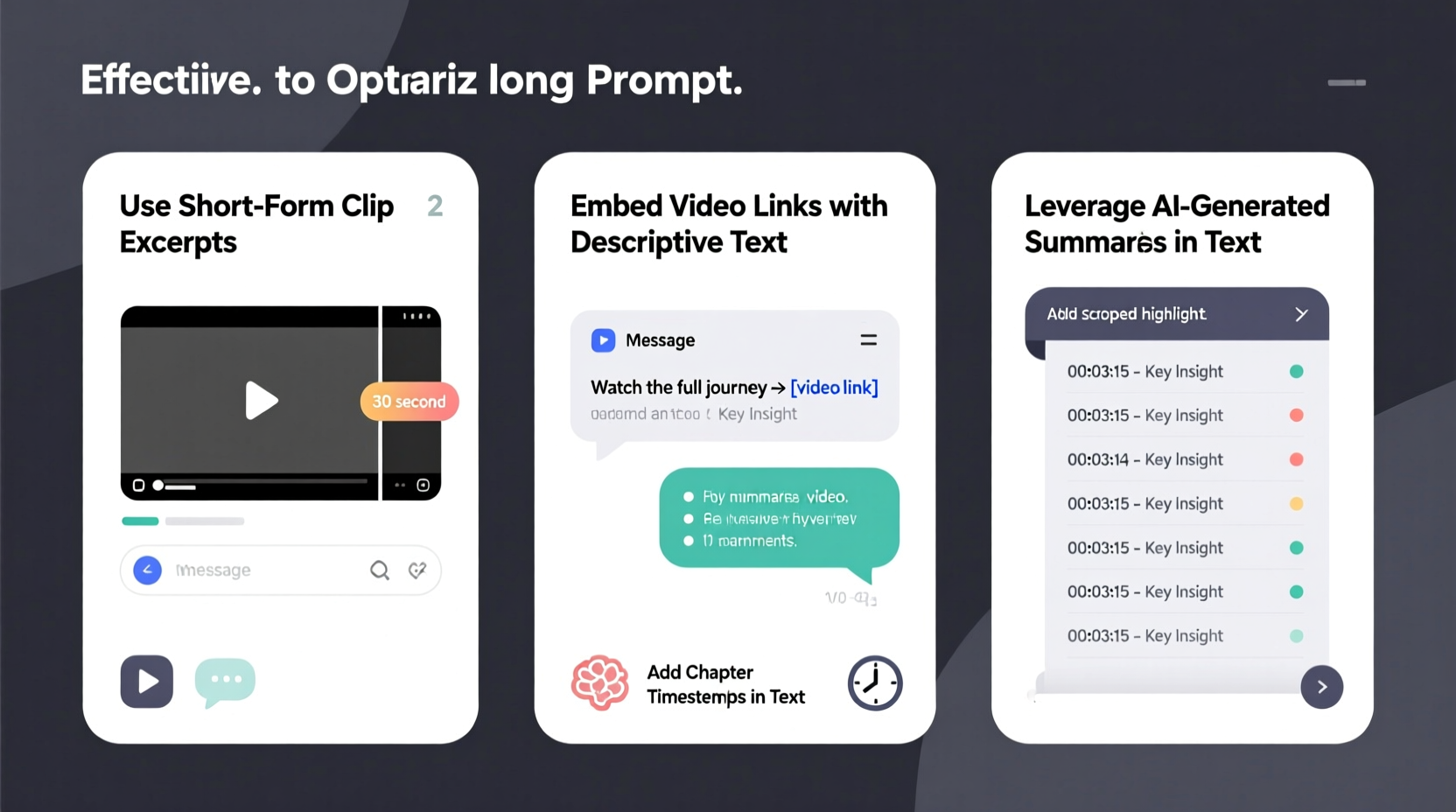
The root issue lies in how most messaging platforms handle media. SMS, WhatsApp, iMessage, and even some email clients automatically compress videos to reduce bandwidth usage and server load. A 4K video recorded on a modern smartphone can quickly be downgraded to 720p or lower, with noticeable loss in detail and sound. Additionally, file size restrictions—often capped between 16MB and 25MB—make direct uploads impractical for anything beyond short clips.
This doesn't mean high-quality video sharing is impossible. Instead, it requires shifting from direct attachment to indirect delivery: using text messages not to carry the video itself, but to deliver a link that points to the original, unaltered file stored securely online.
Best Platforms for Hosting High-Quality Videos
To preserve video integrity, choose a hosting platform that supports full-resolution uploads and provides reliable, fast access. Not all cloud services treat video equally—some re-encode files, while others offer raw file access. Below is a comparison of top options:
| Platform | Max File Size | Quality Preservation | Link Sharing | Best For |
|---|---|---|---|---|
| Google Drive | 15 GB (free) | ✅ No re-encoding | Yes (with permission settings) | General sharing, collaboration |
| Dropbox | 2 GB (free) | ✅ Preserves original | Yes (direct download links) | Quick client delivery |
| WeTransfer Pro | 20 GB per transfer | ✅ Full quality retained | Yes (time-limited links) | Large one-off sends |
| Vimeo | Up to 50 GB (Pro plan) | ✅ Original resolution kept | Yes (embeddable or direct) | Professional creators |
| OneDrive | 5 GB (free) | ⚠️ May transcode preview | Yes (shareable links) | Microsoft ecosystem users |
For maximum control, platforms like Vimeo and Dropbox stand out. Vimeo allows detailed privacy settings and true HD/4K playback without forced compression. Dropbox generates clean download links that recipients can use to retrieve the exact file you uploaded—ideal for editors, clients, or collaborators who need the source material.
“Sending a link to an unprocessed video file is the only way to guarantee what you shot is what they see.” — Jordan Lee, Video Production Lead at FrameFlow Studios
Step-by-Step Guide to Sharing Long Videos via Text
Follow this workflow to ensure your video reaches its recipient in pristine condition:
- Prepare the Video File: Export your video in a widely compatible format like MP4 using H.264 encoding. Avoid obscure codecs that may not play on all devices.
- Upload to a Trusted Host: Use Google Drive, Dropbox, or WeTransfer to upload the full-resolution file. Ensure the upload completes fully before proceeding.
- Generate a Shareable Link: Set permissions to “Anyone with the link can view” or “Can download,” depending on your privacy needs.
- Shorten the Link (Optional): Use a URL shortener like Bitly or TinyURL to make the link more SMS-friendly and trackable.
- Send via Text: Copy the link into your message and add brief context: “Full 4K version of the event recap – no compression applied.”
- Confirm Receipt: Ask the recipient to confirm they downloaded the original file, especially if editing or archiving is required.
This method bypasses carrier and app limitations entirely. The text message acts as a delivery mechanism for access—not the media itself.
Optimizing Video Before Upload
While the goal is to avoid quality loss, smart preparation ensures faster uploads and smoother playback. Consider these optimization tips:
- Use Efficient Encoding: H.265 (HEVC) offers better compression than H.264 with minimal quality loss, reducing file size by up to 50%.
- Avoid Over-Bitrate: A 1080p video doesn’t need a 50 Mbps bitrate. Stick to 8–12 Mbps for smooth streaming and smaller files.
- Trim Unnecessary Footage: Remove blank segments or redundant clips before export to minimize size without affecting core content.
- Add Metadata: Include title, date, and description in the file properties so recipients know what they’re downloading.
Real Example: Sharing a Wedding Video Preview
Sarah, a freelance videographer, filmed a 2.1-hour wedding ceremony in 4K. Her client wanted to review the footage quickly but didn’t have professional editing software. Instead of sending fragmented, compressed clips via WhatsApp, Sarah uploaded the full timeline to Dropbox, generated a download link, and sent it via SMS with the note: “Hi John, here’s the complete 4K edit timeline. Total size: 12.4 GB. You can stream previews or download in full for closer inspection.”
The client accessed the link on his home Wi-Fi, downloaded the file overnight, and provided feedback within 48 hours—without any confusion about missing scenes or poor quality. This approach saved time, maintained trust, and avoided repeated resends.
Common Mistakes That Degrade Video Quality
Even with good intentions, many people inadvertently compromise video integrity. Avoid these pitfalls:
- Forwarding Videos Through Messaging Apps: Each forward may trigger additional compression, degrading quality cumulatively.
- Using Email Attachments: Most email providers cap attachments at 25MB, forcing compression or failure.
- Assuming Cloud Previews Equal Originals: Some platforms show transcoded versions for streaming but allow original downloads—always verify.
- Sending Multiple Parts Without Instructions: If splitting a video, include clear naming (Part 1 of 3) and merge instructions.
Checklist: Ensuring High-Quality Video Delivery via Text
Before hitting send, run through this checklist:
- ☑ Video exported in MP4 (H.264 or H.265)
- ☑ Uploaded to a quality-preserving host (e.g., Dropbox, Vimeo)
- ☑ Share link permissions set correctly (view/download)
- ☑ Link tested on another device
- ☑ Message includes context (duration, size, purpose)
- ☑ Recipient informed of expected file size and download time
Frequently Asked Questions
Can I send a 4K video through iMessage or WhatsApp?
No—not in full quality. Both platforms automatically compress videos over a few megabytes. A 4K clip will be downscaled to 720p or lower. Use a cloud link instead to maintain resolution.
What’s the largest video file I can share this way?
It depends on your hosting service. Google Drive allows 15GB on the free tier; WeTransfer Pro supports up to 20GB per transfer; paid Dropbox plans allow multi-GB files. Always check limits before uploading.
Is it safe to share video links publicly via text?
If privacy matters, avoid public links. Use platforms that allow password protection (like WeTransfer Pro or Vimeo) or set sharing to “link-only” access without search indexing.
Final Thoughts: Quality Over Convenience
Preserving video quality when sharing via text isn’t about finding a workaround—it’s about redefining the process. Text messages should serve as invitations to view, not carriers of the content itself. By embracing hosted links and smart compression practices, you maintain control over how your videos are seen and used.
Whether you're a filmmaker, educator, marketer, or someone capturing life’s important moments, delivering high-fidelity video builds credibility and ensures your message lands as intended. Don’t let technical limitations dilute your work.




 浙公网安备
33010002000092号
浙公网安备
33010002000092号 浙B2-20120091-4
Comments
No comments yet. Why don't you start the discussion?