
For professionals, students, and creatives alike, Google Drive is a cornerstone of digital organization. It stores everything from project files to personal photos, making it essential to have instant access. On a Mac, the Finder sidebar acts as your command center—placing frequently used locations just one click away. Integrating Google Drive directly into this space eliminates the need to open a browser or dig through folders. The process is simple, fast, and transforms how you interact with your cloud files.
Why Google Drive Belongs in Your Finder Sidebar
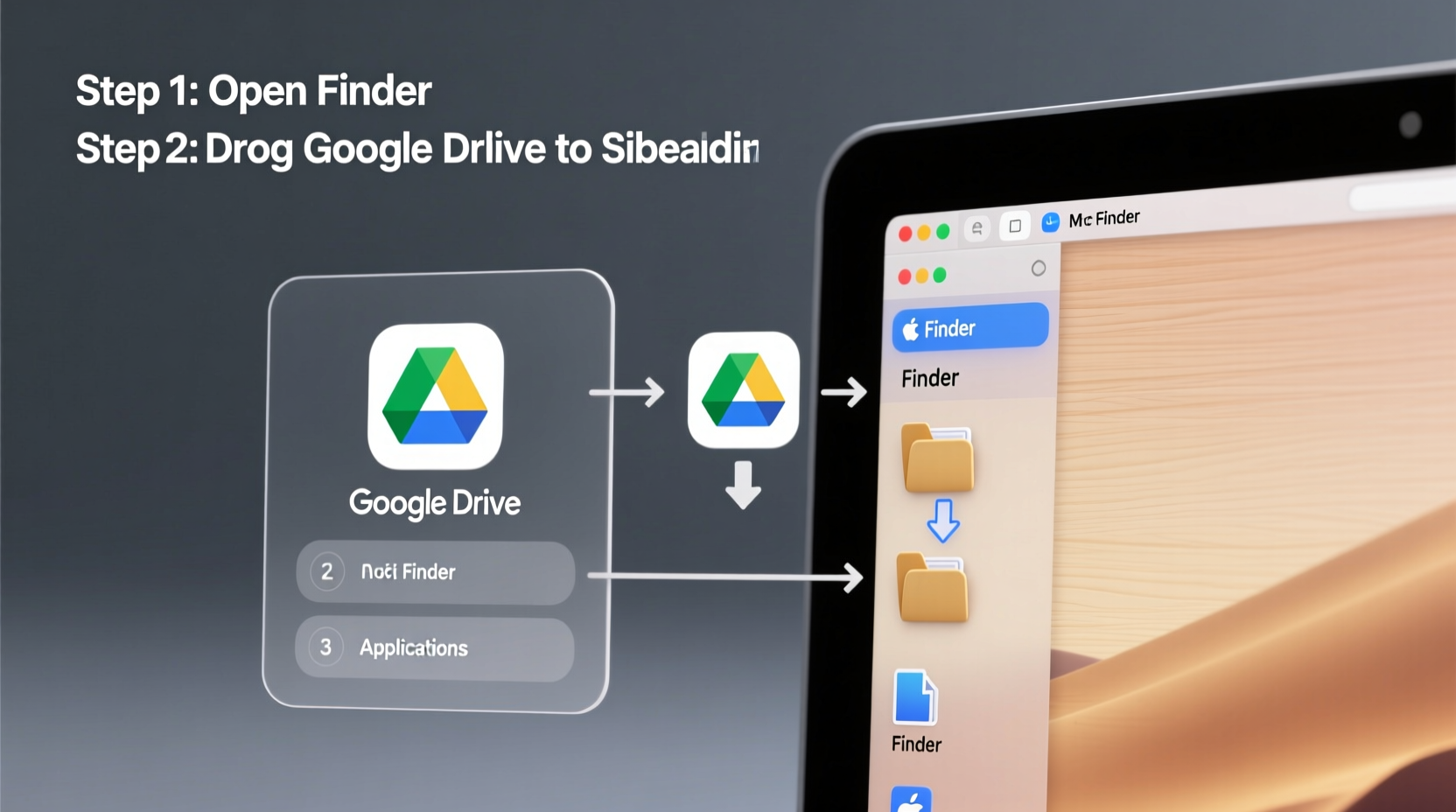
Having Google Drive accessible in the Finder sidebar isn’t just about convenience—it’s about efficiency. When cloud storage feels like part of your local system, workflows become smoother. You can drag and drop files between local folders and Drive, search across both environments seamlessly, and maintain continuity across devices without switching apps.
macOS supports third-party cloud services through its native integration features. Google Drive, via the official Backup and Sync or the newer Google Drive for Desktop app, leverages this capability. Once set up, your Drive appears not only on your desktop but also in Finder’s sidebar, where it’s always within reach.
“Integrating cloud storage into the Finder environment reduces friction in daily file management and encourages consistent backup habits.” — David Lin, macOS Systems Consultant
Step-by-Step: Adding Google Drive to Finder Sidebar
The process varies slightly depending on whether you're using the legacy Backup and Sync tool or the modern Google Drive for Desktop. Most new users should opt for Google Drive for Desktop, which offers better performance, offline access, and tighter macOS integration.
Step 1: Install Google Drive for Desktop
- Visit drive.google.com/drive/download.
- Download “Google Drive for Desktop” for macOS.
- Open the downloaded .dmg file and follow the installation prompts.
- Launch the app after installation completes.
Step 2: Sign In and Configure Sync Settings
- Sign in with your Google account (personal or Workspace).
- Choose between “Mirror files” (full sync) or “Stream files” (cloud-only with on-demand access).
- Select folders you want available offline, if applicable.
- Click “Start Syncing.”
Step 3: Confirm Finder Integration
Once syncing begins, Google Drive automatically appears in the Finder sidebar under the “Locations” section. If it doesn’t show up immediately:
- Open Finder.
- Navigate to Finder > Settings (or Preferences) > Sidebar.
- Ensure “Google Drive” is checked under the “Locations” list.
Customizing Your Finder Sidebar Experience
While Google Drive appears by default once enabled, you can further tailor how it behaves and looks within Finder.
Rearranging Sidebar Order
To prioritize Google Drive among other locations:
- Open any Finder window.
- Hold the Command (⌘) key.
- Drag “Google Drive” up or down in the sidebar to reposition it.
Renaming for Clarity (If Multiple Accounts)
If you use multiple Google accounts (e.g., work and personal), consider renaming them for clarity:
- In Finder, right-click (or Ctrl+click) the Google Drive entry.
- Select “Get Info.”
- Change the name under “Name & Extension” (e.g., “Drive – Work Account”).
Managing Visibility Across Applications
Google Drive for Desktop also integrates with Open/Save dialogs in apps like Pages, Photoshop, and Microsoft Office. This means you can save directly to Drive without navigating through folders—another benefit of full system integration.
Do’s and Don’ts of Google Drive Integration
| Do’s | Don’ts |
|---|---|
| Use “Stream files” mode to save disk space on smaller SSDs. | Don’t disable Google Drive in Finder settings without understanding sync implications. |
| Enable selective sync to control which folders are mirrored locally. | Don’t manually move or rename the Google Drive folder outside the app settings. |
| Keep the app updated for security and feature improvements. | Don’t rely solely on local copies—always verify files are synced to the cloud. |
| Use tags and Spotlight search to locate Drive files quickly. | Don’t store sensitive credentials or unencrypted data in shared folders. |
Troubleshooting Common Issues
Even with a smooth setup, occasional hiccups may occur. Here’s how to resolve them quickly.
Google Drive Not Showing in Sidebar
First, verify that it’s enabled in Finder settings. Go to Finder > Settings > Sidebar and ensure “Google Drive” is checked. If still missing, try restarting the Google Drive app or rebooting your Mac.
Sync Errors or Stalled Uploads
Check your internet connection and ensure you’re not exceeding storage limits. You can monitor sync status via the menu bar icon (the green arrow or blue “G”). Click it to view pending actions or resolve conflicts.
High CPU or Battery Usage
If Google Drive appears to be consuming excessive resources:
- Pause syncing temporarily via the menu bar icon.
- Exclude large or unnecessary folders from syncing.
- Update to the latest version—performance improvements are frequent.
Real-World Example: A Freelancer’s Workflow Upgrade
Sophie, a freelance graphic designer based in Portland, used to toggle between her local Projects folder and Google Drive in the browser. She often forgot to upload final versions, leading to client confusion. After adding Google Drive to her Finder sidebar, she restructured her workflow: all active client folders now live directly in Drive. She drags assets from her Downloads folder into Drive, uses Preview and Photoshop to edit files stored there, and shares links instantly. Her file consistency improved, revision tracking became effortless, and she reclaimed nearly an hour per week previously lost to file hunting.
“It felt like unlocking a hidden level of my Mac,” she said. “Now my cloud storage doesn’t feel remote—it feels like home.”
Frequently Asked Questions
Can I add multiple Google accounts to Finder?
Yes. Google Drive for Desktop supports multiple accounts. After signing in with one, click the menu bar icon, go to Settings, and add another account. Each will appear separately in Finder.
Does adding Google Drive to Finder take up storage?
Only if you choose “Mirror files” mode. In “Stream files” mode, files remain in the cloud and only download when opened, saving significant local space.
Is my data secure when accessed through Finder?
Yes. Files accessed via Finder are encrypted in transit and at rest. Two-factor authentication and device-level passcodes add additional protection. However, avoid using public computers or unsecured networks when handling sensitive files.
Final Checklist: Ensure Full Integration
- Install Google Drive for Desktop
- Download and install the official app from Google.
- Sign in with your Google account
- Use personal or Workspace credentials.
- Choose sync mode
- Select “Stream files” for cloud-first access or “Mirror files” for full local backup.
- Verify Finder sidebar presence
- Open Finder Settings and confirm Google Drive is enabled under Locations.
- Test file operations
- Create, move, and open a test file to confirm bidirectional sync.
- Optimize for performance
- Adjust sync preferences, exclude large folders, and keep the app updated.
Take Control of Your File Access Today
Integrating Google Drive into your Mac’s Finder sidebar is more than a small tweak—it’s a strategic upgrade to your digital workspace. No longer do you need to switch contexts or remember separate paths. With Drive embedded in your daily navigation, every file becomes instantly reachable, whether it lives on your SSD or in the cloud.
This integration reflects a broader shift in how we work: fluid, cross-platform, and centered around accessibility. By taking just a few minutes to set this up, you align your tools with modern productivity standards. Whether you're collaborating on documents, managing creative assets, or organizing personal records, seamless access makes all the difference.




 浙公网安备
33010002000092号
浙公网安备
33010002000092号 浙B2-20120091-4
Comments
No comments yet. Why don't you start the discussion?