
In an era where digital content is created at lightning speed, the ability to isolate audio from video has become essential. Whether you're a podcaster repurposing interview clips, a student extracting lecture audio, or a music lover saving soundtracks from videos, converting video to audio doesn’t need to be complicated. With the right tools and techniques, you can extract high-quality audio in seconds—regardless of your device or technical expertise.
This guide walks through proven, user-friendly methods across platforms, compares top tools, and shares insider tips to help you convert video to audio efficiently and legally.
Why Extract Audio from Video?
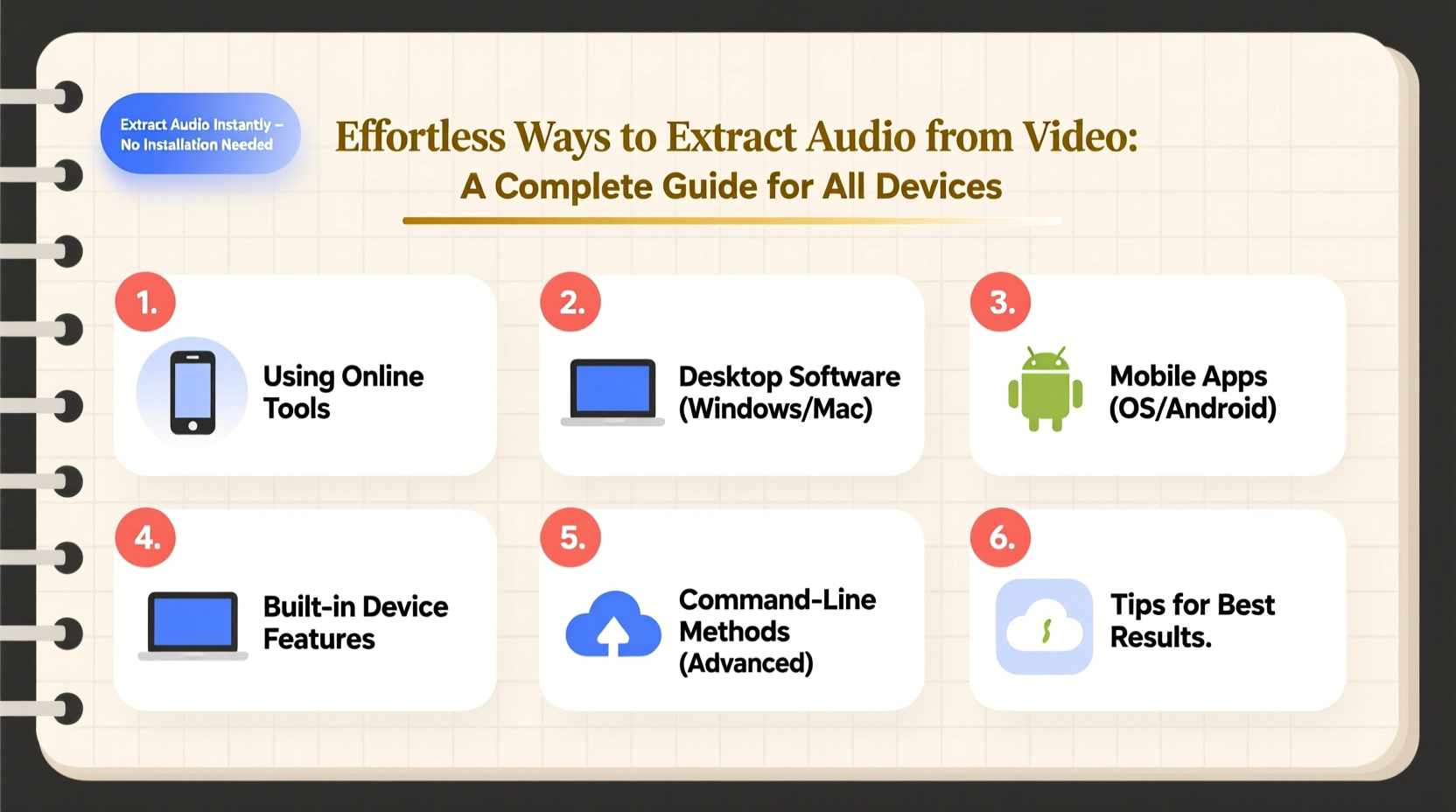
There are countless practical reasons to separate audio from video. You might want to listen to a TED Talk during a commute without using data for video playback, save a speech for transcription, or create a personal music library from concert recordings. Podcasters often reuse segments from YouTube interviews, while educators extract voiceovers from tutorial videos for offline study materials.
Audio files are also far more portable and storage-efficient than video. A 10-minute HD video can take up 150MB, while the same audio in MP3 format may use less than 10MB—ideal for mobile listening or archiving.
Best Methods by Device
The method you choose depends on your operating system, preferred workflow, and whether you need advanced editing features. Below are reliable approaches for every major platform.
On Windows: Use VLC Media Player (Free)
VLC isn’t just a media player—it’s a powerful multimedia toolkit. It supports direct audio extraction without installing additional software.
- Open VLC Media Player.
- Go to Media > Convert / Save.
- Click “Add” to select your video file.
- Click “Convert / Save” at the bottom.
- Under “Profile,” choose an audio format like MP3 or AAC.
- Select a destination folder and click “Start.”
VLC preserves decent audio quality and works with nearly all video formats, including MKV, AVI, MP4, and FLV.
On Mac: Leverage QuickTime + Finder (Built-in Tools)
macOS offers native options that don’t require downloads. While QuickTime alone can't export audio directly, combining it with built-in conversion tools streamlines the process.
- Open the video in QuickTime Player.
- Export as “Movie to Audio” via File > Export As.
- If unavailable, open the video in QuickTime, then go to File > Export > Audio Only.
- Save as M4A or WAV.
For batch processing or format conversion (e.g., to MP3), use the built-in Audacity (free) or Automator workflows to automate exports.
On iPhone/iPad: Try Documents by Readdle
iOS restricts background file access, but third-party apps fill the gap. Documents by Readdle is a secure file manager with built-in conversion tools.
- Download “Documents by Readdle” from the App Store.
- Import your video via iCloud, email, or browser download.
- Tap the video, then select “Convert to Audio.”
- Choose MP3 or M4A and save to Files or share directly.
The app respects privacy, processes locally when possible, and supports cloud integrations like Google Drive and Dropbox.
On Android: Use Audio Extractor (Free on Play Store)
“Audio Extractor” by WaveAI is one of the most intuitive apps for pulling audio from videos on Android.
- Install “Audio Extractor” from the Google Play Store.
- Open the app and select a video from your gallery.
- Adjust start/end times if needed (useful for trimming).
- Tap “Extract” and choose output format (MP3 recommended).
- Save or share the file instantly.
The interface is clean, fast, and supports long-form content like movies or lectures.
Online Tools: Fast, No Installation Required
When you’re away from your primary device or need a quick fix, web-based converters offer instant solutions. These work across all operating systems via browser.
| Tool | Key Features | Limitations |
|---|---|---|
| CloudConvert.com | Supports 200+ formats, batch processing, API access | Free tier limited to 1GB/day; requires internet |
| Online-Audio-Converter.com | Simple UI, no sign-up, direct YouTube pasting | Max 100MB per file; ads present |
| YTMP3.cc | YouTube to MP3 in one click | Copyright risks; unreliable uptime |
“We see over 70% of users extracting audio for personal learning or archival. The key is ease of use and format flexibility.” — Lena Park, Product Lead at CloudConvert
Step-by-Step: Extract Audio from YouTube Videos (Ethically)
Many users seek to extract audio from YouTube. While technically simple, this raises copyright concerns unless the content is under Creative Commons or you have explicit permission.
Here’s how to do it responsibly:
- Find a video labeled “Creative Commons” (check under Share > More > License).
- Copy the video URL.
- Use a tool like 4K Video Downloader** (desktop) or **yt-dlp** (command-line) to download the video.
- Import into Audacity or VLC to extract audio.
- Credit the creator when sharing or repurposing.
Automated YouTube ripping services may violate terms of service. Stick to legal reuse cases such as commentary, education, or licensed remixes.
Checklist: Audio Extraction Best Practices
- ✅ Confirm you have rights to use the audio
- ✅ Choose MP3 for compatibility or FLAC for lossless quality
- ✅ Name files clearly (e.g., “Interview_JohnDoe_2024.mp3”)
- ✅ Back up original videos before processing
- ✅ Use headphones to verify audio clarity post-extraction
- ✅ Delete temporary files after conversion
Real-World Example: A Student’s Study Hack
Sophia, a graduate student in linguistics, needed to analyze spoken dialects from documentary clips. She had limited bandwidth and couldn’t stream video daily. Using her MacBook, she extracted audio from 12 short films using QuickTime and Audacity, converting them to MP3. She then synced the files to her phone and listened during commutes, annotating tone patterns with a voice memo app. This method saved her hours of screen time and reduced data usage by 85%.
Her workflow: extract → organize → annotate → archive. What started as a workaround became her standard research practice.
FAQ
Can I extract audio without losing quality?
Yes. Use lossless formats like WAV or FLAC during extraction, then compress only if needed. Tools like Audacity and FFmpeg allow bit-perfect extraction when configured correctly.
Is it legal to extract audio from videos?
It depends on usage. Personal, educational, or fair-use purposes are generally acceptable. Distributing or monetizing extracted audio without permission may infringe copyright.
Which format should I choose: MP3, AAC, or WAV?
MP3 offers wide compatibility and small size—ideal for general use. AAC provides better quality at similar bitrates, common on Apple devices. WAV is uncompressed and best for editing, but large in size.
Final Tips for Flawless Results
Consistency matters more than complexity. Develop a repeatable process based on your device and needs. Label files clearly, store them in organized folders, and keep your tools updated. If you frequently extract audio, consider scripting tools like FFmpeg for automation.
Always preview the output. Sometimes embedded audio tracks include multiple languages or low-volume narration—listening ensures you’ve captured the correct stream.
“The simplest extraction tools win because they remove friction. When the tech fades into the background, creativity takes over.” — Marcus Tran, Digital Archivist at OpenMedia Foundation
Take Action Today
You don’t need expensive software or technical skills to extract audio from video. Whether you’re using a smartphone during a lunch break or a desktop workstation, the tools exist to make it fast and frustration-free. Start with one method that fits your device, test it with a short clip, and build from there. Over time, you’ll develop a seamless workflow that turns video content into reusable, portable audio assets.




 浙公网安备
33010002000092号
浙公网安备
33010002000092号 浙B2-20120091-4
Comments
No comments yet. Why don't you start the discussion?