
Printing from the web should be simple. Yet many users face cluttered layouts, unwanted ads, and wasted ink when trying to capture articles, recipes, or reports. The good news: modern tools and built-in browser features make it possible to extract clean, readable content with minimal effort. Whether you're printing a research paper, saving a travel itinerary, or archiving a blog post, there are smarter methods than pressing Ctrl+P and hoping for the best.
Use Browser Print Preview for Instant Control
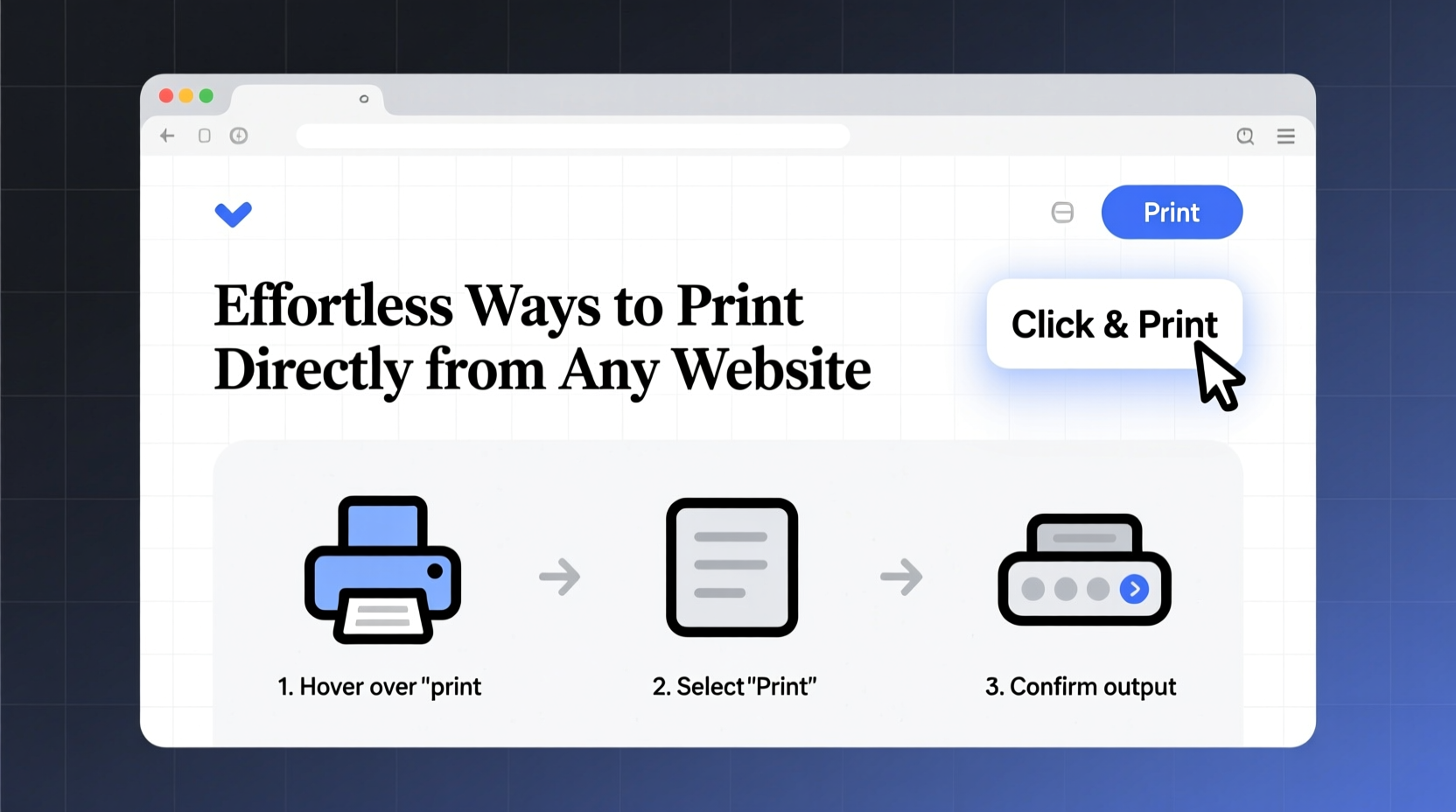
Every major browser includes a print preview function that allows you to refine what gets printed before sending it to the printer. This is your first line of defense against messy output.
Press Ctrl+P (or Cmd+P on Mac) to open the print dialog. Here, you can:
- Select specific pages to print
- Adjust margins and layout (portrait vs. landscape)
- Choose whether to include headers, footers, and background graphics
- Save as PDF instead of printing physically
Most browsers now default to a simplified, reader-friendly version of the page when printing. Chrome, Firefox, and Edge automatically strip out navigation bars, sidebars, and advertisements—focusing only on the main content.
Leverage Built-In Reader Mode for Clean Output
Reader Mode is one of the most underused yet powerful tools in modern browsers. It reformats articles into distraction-free, typographically optimized layouts ideal for reading—and printing.
To activate Reader Mode:
- Navigate to an article-heavy page (e.g., news site, blog)
- Look for the book icon in the address bar (available in Safari, Firefox, and some versions of Edge)
- Click it to enter Reader Mode
- Use Ctrl+P to print—the output will be clean, well-spaced, and ad-free
This method works especially well for long-form journalism, academic summaries, and how-to guides. Since Reader Mode isolates text and images relevant to the article, it eliminates sidebars, pop-ups, and auto-playing videos that often ruin print jobs.
“Reader Mode isn’t just for reading—it’s the fastest path to a professional-looking printout.” — David Lin, Web Usability Consultant
Customize What Gets Printed with CSS and Selection Tools
Sometimes, you don’t want the entire page—just a section. A recipe ingredient list, a financial table, or a single comment thread may be all you need.
Here’s how to print selected content only:
- Highlight the exact text or element you want to print
- Right-click and choose “Print…” (available in Chrome and Edge)
- In the print dialog, ensure “Selection” is chosen under “Pages”
- Proceed to print or save as PDF
This feature bypasses irrelevant content entirely. No need to delete elements manually or fight with formatting.
For advanced users, custom print stylesheets can further enhance control. Websites can define how pages appear when printed using @media print CSS rules. While this requires developer access, understanding it helps explain why some sites print cleanly while others don’t.
| Method | Best For | Time Required | Technical Skill |
|---|---|---|---|
| Browser Print Preview | Quick full-page prints | 1 minute | Beginner |
| Reader Mode | Articles, blogs, news | 2 minutes | Beginner |
| Selection Printing | Specific sections only | 1–3 minutes | Intermediate |
| PDF Export + Editor | Precise layout control | 5+ minutes | Intermediate |
| Bookmarklets | Automated cleanup | 1 minute (after setup) | Intermediate |
Use Bookmarklets to Automate Content Cleanup
A bookmarklet is a small JavaScript snippet saved as a bookmark. When clicked, it runs code on the current page—perfect for instantly cleaning up content before printing.
Create a “Clean Print” bookmarklet in three steps:
- Create a new bookmark in your browser
- Name it “Clean Print”
- Paste this code into the URL field:
javascript:(function(){var%20s=document.createElement('style');s.innerHTML='*%20{%20margin:%200%20!important;%20padding:%200%20!important;%20border:%20none%20!important;%20}%20body,%20article,%20main%20{%20font-family:%20Georgia,%20serif%20!important;%20line-height:%201.6%20!important;%20color:%20black%20!important;%20background:%20white%20!important;%20max-width:%20800px;%20margin:%2020px%20auto;%20padding:%2020px%20!important;%20}';document.head.appendChild(s);})();
Now, when you’re on any webpage:
- Click the “Clean Print” bookmark
- The page will reformat with clean typography and spacing
- Press Ctrl+P to print the improved version
This technique doesn’t remove ads permanently but visually suppresses them, giving you a cleaner base for printing.
Real-World Example: Printing a Complex News Article
Consider Maria, a university student researching climate policy. She finds a detailed investigative report on a major news site filled with banners, video players, and inline surveys. Her goal: print the article for annotation and class discussion.
Her process:
- She opens the article in Firefox and clicks the Reader Mode icon.
- The page transforms into a clean, readable format with consistent fonts and spacing.
- She adjusts font size for better legibility in Reader settings.
- Using Ctrl+P, she selects “Save as PDF” and names the file “Climate_Report_Annotated.pdf”.
- Later, she opens the PDF in a note-taking app, adds highlights and comments, and shares it with her study group.
Without Reader Mode, the same task would have required manual editing, resulted in wasted paper, or produced a disorganized document. Instead, Maria completed the job in under three minutes—with professional results.
Checklist: Optimize Your Web Printing Workflow
Follow this checklist every time you prepare to print from a website:
- ✅ Try Reader Mode first—if available, it’s the cleanest option
- ✅ Use “Print Selection” for partial content
- ✅ Disable headers/footers in print settings to reduce clutter
- ✅ Choose “Save as PDF” to preview before physical printing
- ✅ Adjust scale (e.g., 90%) to fit more content per page
- ✅ Use grayscale mode to save color ink unless essential
- ✅ Test print one page before running a full job
Frequently Asked Questions
Why does my printed page include URLs and timestamps?
These are default header/footer elements added by browsers. To remove them, go to print settings and uncheck “Headers and Footers” or set margins to “Minimal.” Note: Some browsers hide these options under “More settings.”
Can I print without ads and pop-ups?
Yes. Use Reader Mode, selection printing, or a content-cleanup bookmarklet. Alternatively, install a lightweight ad blocker like uBlock Origin to prevent distractions before printing.
Is it possible to print multiple articles in one document?
Absolutely. Save each article as a PDF first, then combine them using free tools like PDFMerge!, Smallpdf, or your operating system’s print-to-PDF queue. On Windows, select multiple PDFs, right-click, and choose “Print” to compile them into a single job.
Final Thoughts: Print Smarter, Not Harder
Printing from the web doesn’t have to mean sacrificing quality or sanity. With thoughtful use of built-in tools, a few smart shortcuts, and a bit of preparation, you can consistently produce clean, professional printouts from any site. The key is knowing which method fits your needs—whether it’s a quick recipe, a research summary, or a curated collection of resources.
Stop fighting with sidebars and wasted ink. Start leveraging browser intelligence, selective printing, and automation tools that were designed for exactly this purpose. The technology already exists; you just need to use it intentionally.




 浙公网安备
33010002000092号
浙公网安备
33010002000092号 浙B2-20120091-4
Comments
No comments yet. Why don't you start the discussion?