
Voice recordings are more than just digital notes—they capture interviews, lectures, creative ideas, and personal reminders. But what good is a recording if it’s trapped on your phone? Transferring these files efficiently to other devices—laptops, desktops, tablets, or even another smartphone—is essential for editing, sharing, or long-term storage. The challenge isn’t the act of moving data; it’s doing so without friction, loss of quality, or security risks.
The key lies in choosing the right method based on your needs: speed, file size, privacy, and device compatibility. Whether you're a journalist sending field recordings to an editor, a student archiving class notes, or someone preserving family memories, mastering file transfer saves time and reduces frustration. Below are proven, practical approaches that make transferring voice recordings seamless across platforms.
Use Cloud Storage Services
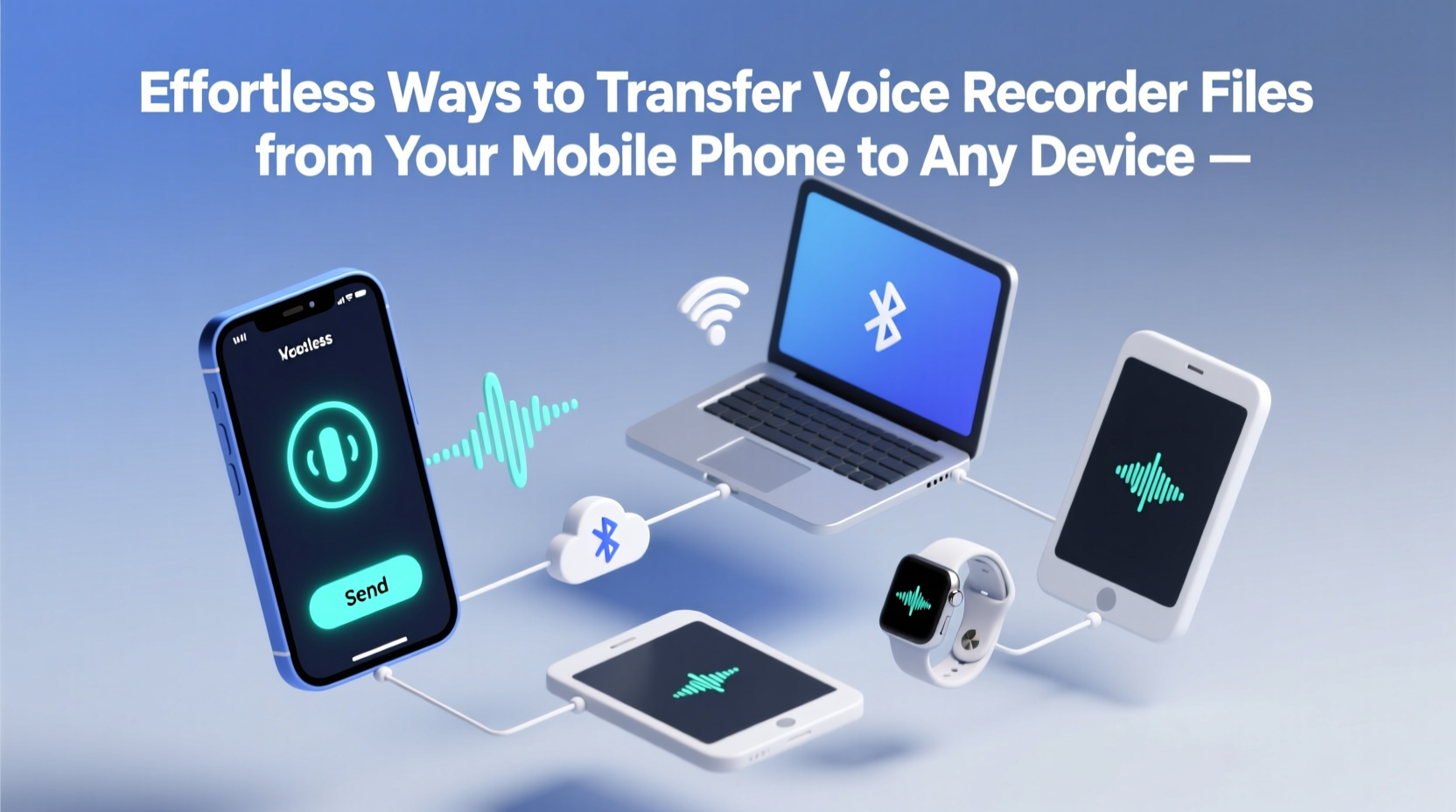
Cloud-based platforms like Google Drive, Dropbox, and iCloud offer intuitive solutions for transferring voice files between devices. Once uploaded from your phone, recordings are instantly accessible from any device with internet access.
Most smartphones automatically integrate with cloud services. For example, Android users can set up automatic uploads to Google Drive, while iPhone users benefit from iCloud synchronization. Simply locate your voice memo app, select the file, tap “Share,” and choose your preferred cloud service.
Once uploaded, open the same cloud app on your laptop or tablet, download the file, and begin transcription, editing, or archiving. This method works best for small to medium-sized files and ensures backups in case your phone is lost or damaged.
Transfer via Direct Cable Connection
For large batches of recordings or when internet access is limited, a physical connection remains one of the fastest and most reliable options. Using a USB cable to connect your phone directly to a computer allows full access to internal storage or SD card folders where voice files are typically saved.
- Connect your phone to the computer using a compatible USB cable.
- On Android, select “File Transfer” mode when prompted. On iPhone, use Finder (macOS) or iTunes (older systems).
- Navigate to the folder containing voice recordings—often labeled “Voice Recorder,” “Audio,” or within the app-specific directory.
- Select the desired files and copy them to a designated folder on your computer.
This method avoids compression, maintains original audio quality, and supports bulk transfers. It's especially useful for professionals who record lengthy sessions, such as podcasters or researchers.
Advantages of Cable Transfer
- No reliance on Wi-Fi or data plans
- High-speed transfer rates
- Full control over file location and naming
- Supports lossless formats like WAV or FLAC
Leverage Bluetooth and Nearby Sharing Tools
When a cable isn’t available, Bluetooth offers a wireless alternative for short-range transfers. While slower than wired methods, it’s convenient for quickly sending a single file to a nearby device.
To send via Bluetooth:
- Enable Bluetooth on both devices.
- Pair the receiving device (e.g., laptop or secondary phone).
- Open your voice recorder app, select the file, tap “Share,” and choose Bluetooth.
- Select the paired device and confirm receipt.
For faster performance, consider platform-specific tools like Apple’s AirDrop (iOS/Mac) or Samsung Quick Share (Android/Windows). These use a combination of Wi-Fi Direct and Bluetooth to achieve higher speeds and better reliability than standard Bluetooth alone.
| Method | Max Speed | Best For | Limitations |
|---|---|---|---|
| Bluetooth | ~3 Mbps | Single small files | Slow for large files; range under 10m |
| AirDrop | Up to 50 Mbps | Apple ecosystem users | Only works between Apple devices |
| Quick Share | Up to 25 Mbps | Samsung and Windows users | Limited cross-platform support |
Email and Messaging Apps for Immediate Sharing
When urgency matters more than file size, email and messaging platforms provide instant delivery. Most voice recorder apps allow direct sharing via Gmail, WhatsApp, Telegram, or Signal.
Email is ideal for formal communication—sending interview clips to colleagues or submitting recorded assignments. However, most providers limit attachments to 25MB. If your file exceeds this, compress it first or use a cloud link instead.
Messaging apps like WhatsApp compress audio by default, which may reduce quality. For high-fidelity transfers, avoid these platforms unless the recipient accepts compressed versions.
Mini Case Study: Field Researcher Transfers Daily Recordings
Sophia, an anthropologist conducting interviews in rural areas with spotty internet, uses a hybrid approach. Each evening, she connects her Android phone to a rugged laptop via USB and copies that day’s recordings into a timestamped folder. She then backs up the files to a portable SSD and labels each session with participant ID and topic. Once back in town, she uploads everything to a password-protected Dropbox folder shared with her research team. This workflow ensures data integrity, offline accessibility, and secure collaboration—all without relying on constant connectivity.
Expert Insight on Data Security
Transferring sensitive voice recordings—such as confidential meetings or medical dictations—requires attention to privacy. Unsecured networks or public cloud links can expose private information.
“Always assume any file transferred over unencrypted channels could be intercepted. Use end-to-end encrypted services or password-protected archives when handling sensitive audio.” — Dr. Marcus Lin, Cybersecurity Analyst at DataShield Labs
For maximum protection, encrypt voice files using tools like VeraCrypt or 7-Zip with AES-256 encryption before uploading or emailing. Alternatively, use secure enterprise-grade platforms like Proton Drive or Tresorit, which offer zero-knowledge encryption.
Checklist: Secure and Efficient File Transfer
Follow this checklist to ensure smooth, safe transfers every time:
- ✅ Confirm the file format (M4A, MP3, WAV) is compatible with the target device
- ✅ Verify sufficient storage space on the destination device
- ✅ Rename files clearly before transfer
- ✅ Use strong passwords when encrypting sensitive recordings
- ✅ Test playback after transfer to confirm integrity
- ✅ Maintain at least two backup copies across different locations
Frequently Asked Questions
Can I transfer voice recordings from iPhone to Android?
Yes. Use cloud storage (Google Drive, Dropbox), email with links, or computer-based file transfer. AirDrop won’t work across ecosystems, but third-party apps like Send Anywhere or SHAREit support cross-platform sharing.
Why won’t my voice file play after transferring?
This often happens due to unsupported formats. iPhones typically record in M4A, which some older devices may not recognize. Convert the file to MP3 using free tools like Audacity or Online-Audio-Converter.com.
Is it safe to store voice memos in the cloud?
Major providers like Apple, Google, and Microsoft use encryption in transit and at rest. However, for highly sensitive content, enable two-factor authentication and avoid public sharing links. Consider local storage or encrypted drives for maximum control.
Final Thoughts: Make Transfers Effortless With the Right Routine
Transferring voice recorder files doesn’t have to be a technical hurdle. By aligning your method with your workflow—whether it’s daily journaling, professional documentation, or creative projects—you can turn what once felt cumbersome into a seamless habit. The most effective strategy combines reliability, speed, and security tailored to your environment.
Start simple: pick one method that fits your current setup, test it with a single file, and build consistency. Over time, automate backups, organize folders, and explore advanced tools. Your future self will thank you when you need to retrieve that critical idea or heartfelt message—exactly when it matters most.




 浙公网安备
33010002000092号
浙公网安备
33010002000092号 浙B2-20120091-4
Comments
No comments yet. Why don't you start the discussion?