
Modern life demands constant connectivity, and for many, that means juggling personal, work, school, or freelance email accounts. The iPhone’s built-in Mail app makes it possible to consolidate all these inboxes into one seamless experience. With the right setup, you can switch between accounts, organize messages, and respond efficiently—all from your pocket. This guide walks you through everything you need to know to add and manage multiple email accounts on your iPhone, ensuring clarity, productivity, and peace of mind.
Why Consolidate Your Emails on One Device?
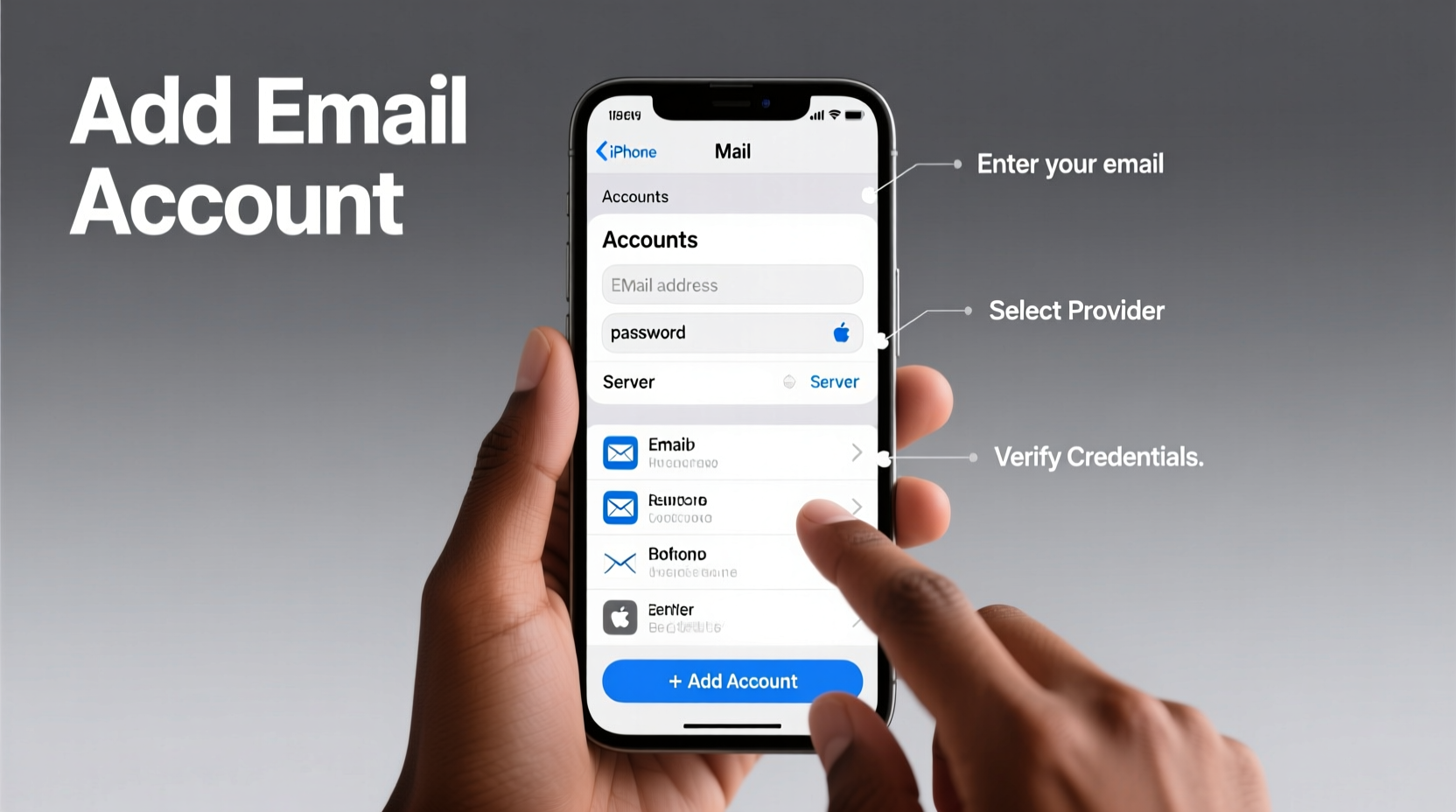
Managing separate logins across devices is time-consuming and increases the risk of missing important messages. By integrating multiple email accounts into your iPhone’s native Mail app, you gain instant access to all your correspondence without switching apps or remembering passwords. Whether you’re using Gmail, Outlook, Yahoo, iCloud, or a custom domain via IMAP/POP, iOS supports most major providers out of the box.
The benefits extend beyond convenience. Unified inboxes allow for better search functionality, centralized notifications, and consistent rules like flagging, archiving, and filtering. Plus, with features like Mail Drop and Read Receipts available across accounts, your communication becomes more professional and reliable.
Supported Email Providers and Protocols
iOS natively supports several popular email services with automatic configuration. These include:
- iCloud
- Gmail
- Yahoo Mail
- Outlook.com / Hotmail / Live.com
- Exchange (Microsoft 365)
For other providers—including corporate servers or custom domains—you can manually configure accounts using either IMAP (recommended) or POP. IMAP keeps your emails synced across devices, while POP downloads them locally and may not reflect changes elsewhere.
| Protocol | Synchronization | Storage Usage | Best For |
|---|---|---|---|
| IMAP | Full sync across devices | Moderate (only headers cached) | Multiple devices, ongoing access |
| POP | Local only (one-way download) | High (full message storage) | Single-device users, offline reading |
“IMAP has become the standard for mobile email because it ensures consistency no matter which device you check.” — David Lin, Mobile Infrastructure Engineer at TechFlow Systems
Step-by-Step: Adding an Extra Email Account
Follow this sequence to add any supported email account to your iPhone:
- Open the Settings app.
- Scroll down and tap Mail.
- Select Accounts, then tap Add Account.
- Choose your provider (e.g., Google, Yahoo, Exchange, etc.). If yours isn’t listed, select Other.
- Enter your name, email address, password, and a description (e.g., “Work Gmail” or “Personal Yahoo”).
- Tap Next. iOS will attempt to auto-configure the settings.
- If successful, choose which data to sync: Mail, Contacts, Calendars, Notes, or Reminders.
- Tap Save. The account appears in the Mail app within moments.
For manual setup under “Other,” you’ll need incoming and outgoing server details from your provider. Common configurations include:
- Gmail IMAP: imap.gmail.com (port 993, SSL required)
- Outlook SMTP: smtp-mail.outlook.com (port 587, TLS enabled)
- Custom Domain: Often mail.yourdomain.com with authentication enabled
Organizing and Managing Multiple Accounts
Once added, you can customize how each account behaves. Open Settings > Mail > Accounts to adjust syncing frequency, notification preferences, and default reply settings.
To streamline your workflow:
- Set a primary account as your default for composing new messages.
- Use color-coded labels or avatars (available via third-party integrations) to distinguish senders.
- Create Smart Mailboxes based on criteria like sender, subject, or account.
- Enable Show Total Unread in Settings > Mail to see cumulative inbox counts.
You can also view all inboxes together using the unified mailbox feature. In the Mail app, swipe left on the sidebar or tap the back button until you see “All Inboxes.” From there, you’ll see unread messages across every connected account.
Mini Case Study: Balancing Freelance and Full-Time Work
Sophie, a graphic designer based in Portland, used to toggle between her phone’s browser tabs and desktop client to monitor three email accounts: her full-time job (via Microsoft Exchange), freelance clients (Gmail), and personal correspondence (iCloud). She often missed project updates because notifications were inconsistent.
After consolidating all three into her iPhone’s Mail app, Sophie set up custom alerts for client-related keywords and designated her freelance account as the default for new messages. Within two weeks, her response time improved by over 40%, and she reported feeling less mentally cluttered. “Having everything in one place changed how I manage my day,” she said.
Security and Privacy Best Practices
While combining accounts offers efficiency, it also increases exposure if your phone is lost or compromised. Protect yourself with these steps:
- Enable Screen Lock
- Use Face ID, Touch ID, or a strong passcode to prevent unauthorized access.
- Review Account Permissions
- Periodically audit which apps have access to your email under Settings > Privacy & Security > Mail.
- Remove Unused Accounts
- Delete old or inactive accounts to reduce sync load and potential vulnerabilities.
Also consider disabling automatic message previews in Settings > Notifications > Mail to prevent sensitive content from appearing on your lock screen.
Frequently Asked Questions
Can I use multiple Gmail accounts with different aliases?
Yes. Each Gmail alias (using + or . variations) can be treated as a separate identity, but to fully isolate them, create individual accounts. Alternatively, use Gmail’s “Send mail as” feature through web forwarding rules.
Will adding more accounts slow down my iPhone?
Generally, no. Modern iPhones handle multiple accounts efficiently. However, excessive syncing (e.g., fetching every 5 minutes across five large inboxes) can impact battery life. Adjust fetch intervals under Settings > Mail > Accounts > Fetch New Data.
What if my company uses a private email server?
You can still add it manually using IMAP/SMTP settings provided by your IT department. Some organizations require configuration via a profile download or Mobile Device Management (MDM) software.
Final Checklist Before You Finish
- ✅ Verified correct login credentials for each account
- ✅ Enabled two-factor authentication where available
- ✅ Chosen appropriate sync settings (Mail, Calendar, etc.)
- ✅ Set default account for sending new emails
- ✅ Customized notification preferences per account
- ✅ Tested sending and receiving on each added account
Take Control of Your Communication Today
Managing multiple email accounts doesn’t have to be overwhelming. With thoughtful setup and smart organization, your iPhone can become a powerful hub for all your digital correspondence. No more missed messages, forgotten passwords, or context-switching fatigue. By following the steps outlined here, you’re not just adding accounts—you’re building a personalized communication system tailored to your lifestyle.




 浙公网安备
33010002000092号
浙公网安备
33010002000092号 浙B2-20120091-4
Comments
No comments yet. Why don't you start the discussion?