
For students, a laptop is more than just a device—it’s a portal to learning, creativity, and communication. Carrying it daily in a backpack exposes it to risks like impact, moisture, overheating, and theft. Unlike desktops, laptops are inherently vulnerable due to their portability. Yet, many students overlook basic protective measures until it's too late. A single drop or spilled drink can lead to hundreds in repair costs or lost data. Protecting your computer starts with how you carry it. The right backpack, packing habits, and awareness can prevent most common accidents.
Choose the Right Backpack with Dedicated Protection
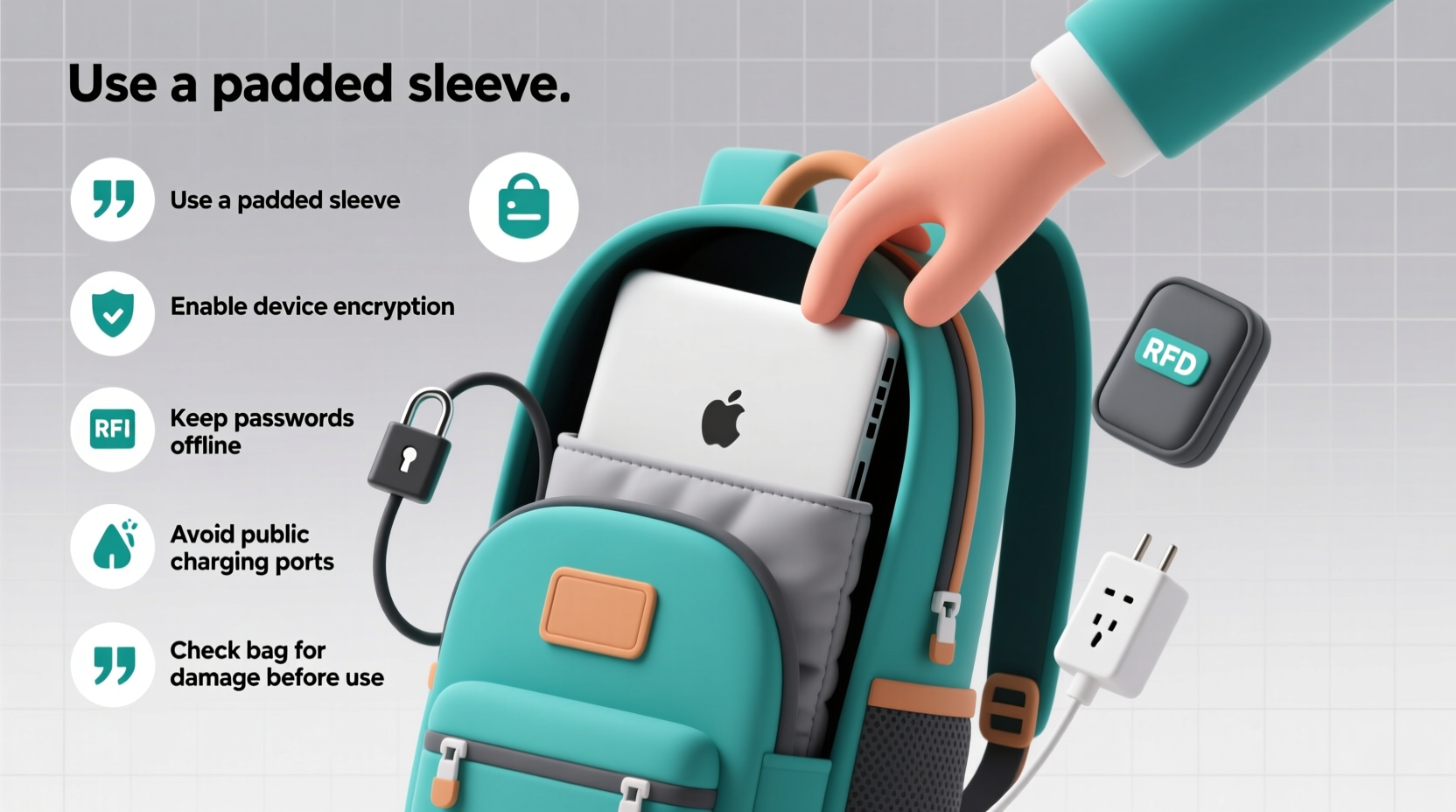
Not all backpacks are created equal. Many standard models lack proper padding or structure to protect sensitive electronics. A well-designed laptop backpack includes a dedicated, cushioned compartment that isolates the device from other items. This compartment should be made of high-density foam and fit snugly around your laptop’s dimensions.
Look for backpacks labeled as “laptop-safe” or “impact-resistant.” These often feature reinforced corners and suspension systems that absorb shock during movement. Avoid stuffing your laptop into general storage pockets where pens, chargers, or textbooks can press against the screen or keyboard.
Use a Protective Laptop Sleeve as a Second Layer
Even within a padded compartment, a laptop benefits from an additional layer of defense. A neoprene or padded sleeve acts as a shock absorber and prevents micro-scratches from occurring inside the bag. Think of it as seatbelt for your device—simple, lightweight, and highly effective.
Sleeves also make it easier to remove your laptop without scraping it against zippers or rough fabric. When selecting one, ensure it fits your model precisely. A loose sleeve defeats the purpose, while an overly tight one can strain ports or hinges during insertion.
“Adding a sleeve reduces impact forces by up to 30% during falls from waist height.” — Dr. Alan Torres, Materials Engineer at Mobile Device Safety Lab
Organize Your Bag to Prevent Internal Damage
One of the most overlooked threats comes from inside the backpack itself. Loose cables, heavy textbooks, or metal water bottles can shift during transit and apply pressure to your laptop. Over time, this can crack screens, damage hinges, or short-circuit internal components if debris enters through ventilation ports.
Use internal organizers or small pouches to secure accessories. Keep hard or heavy objects at the bottom of the bag, away from the laptop section. If possible, store liquids in leak-proof containers and place them in external side pockets—not beneath your electronics.
| Item | Safe Placement | Risk if Misplaced |
|---|---|---|
| Laptop | Dedicated padded compartment | Screen cracks, hinge stress |
| Water bottle | Side mesh pocket, upright | Spills causing motherboard damage |
| Textbooks | Bottom or main compartment | Pressure on lid leading to warping |
| Chargers/Cables | Zippered organizer or pouch | Cable ends scratching screen |
Follow a Daily Pre-Departure Checklist
Developing consistent habits ensures your laptop stays protected every day. Before leaving home or class, run through a quick safety check. This only takes a minute but can prevent major issues later.
- Confirm the laptop is fully powered down or in sleep mode (not active under pressure)
- Double-check that the screen is completely closed
- Ensure no foreign objects (like sticky notes or pens) are trapped between keyboard and display
- Verify all cables are disconnected unless stored safely in a separate pocket
- Zip the laptop compartment securely
- Inspect the backpack for signs of wear, especially stitching near the laptop area
Avoid Environmental Hazards During Transit
Temperature extremes and moisture are silent killers of electronics. Never leave your backpack in a hot car, under direct sunlight, or outside in rain—even briefly. High heat accelerates battery degradation and can warp plastic components. Cold environments may cause condensation inside the device when warmed up rapidly.
If caught in the rain, remove the laptop as soon as possible and let it air-dry (powered off) for at least two hours before turning it on. Avoid using hair dryers or heaters, which can create thermal stress.
Real-World Scenario: The Dorm Room Spill Incident
Jamal, a sophomore at a midwestern university, placed his open water bottle at the bottom of his backpack, directly below his laptop. During a crowded lecture hall exit, the bottle cap loosened. By the time he reached his next class, the liquid had seeped upward through fabric layers. He didn’t notice until his keyboard began malfunctioning mid-essay. The repair cost $280, and he lost unsaved work. A simple switch to a sealed container and better placement would have prevented the entire incident.
Secure Against Theft and Unauthorized Access
Backpacks are frequent targets in libraries, cafeterias, and public transport. Never leave your bag unattended, even for “just a minute.” If you must step away, lock it to a fixed object using a cable lock designed for laptops. Some backpacks include built-in anti-theft features like slash-resistant fabric or RFID-blocking pockets.
Enable full-disk encryption and set a strong login password. In case of loss, this protects personal data, research, and financial information. Consider installing tracking software such as Prey or Apple’s Find My Mac, which can help locate a missing device even if Wi-Fi is disabled.
Frequently Asked Questions
Can I carry my laptop in a regular backpack without a padded compartment?
It’s not recommended. Regular backpacks lack structural support and padding, increasing the risk of impact damage. If you must use one, always pair it with a high-quality sleeve and avoid overloading adjacent compartments.
How often should I inspect my backpack for wear and tear?
Check monthly for frayed straps, broken zippers, or weakened padding—especially around the laptop section. Immediate repair or replacement prevents sudden failures that could drop or expose your device.
Is it safe to carry a laptop while it’s still running?
No. Operating laptops generate heat, and enclosing them in a bag restricts airflow, leading to overheating. Always shut down or put your device to sleep before stowing it.
Final Steps to Build Long-Term Protection Habits
Protecting your laptop isn’t about one perfect solution—it’s about stacking small, smart decisions. Start by upgrading your backpack if needed, then add a sleeve. Implement the pre-departure checklist until it becomes automatic. Be mindful of where and how you place your bag throughout the day. These actions compound over time, significantly reducing the likelihood of hardware failure or data loss.
Your computer supports your academic journey. Treat it with the care it deserves, and it will return the favor with reliability and performance. A few minutes of prevention today can save hours of frustration—and hundreds of dollars—tomorrow.




 浙公网安备
33010002000092号
浙公网安备
33010002000092号 浙B2-20120091-4
Comments
No comments yet. Why don't you start the discussion?