
In today’s secondhand market, iPhones remain among the most sought-after smartphones. Their premium build, consistent software updates, and strong resale value make them prime targets for counterfeiters. Fake iPhones—ranging from crude replicas to sophisticated clones—are increasingly common, especially on online marketplaces and in unofficial retail environments. Buying a counterfeit not only wastes money but also risks poor performance, security vulnerabilities, and lack of support. Knowing how to distinguish a real iPhone from a fake is crucial whether you're buying new, used, or refurbished.
Check the Build Quality and Design Details
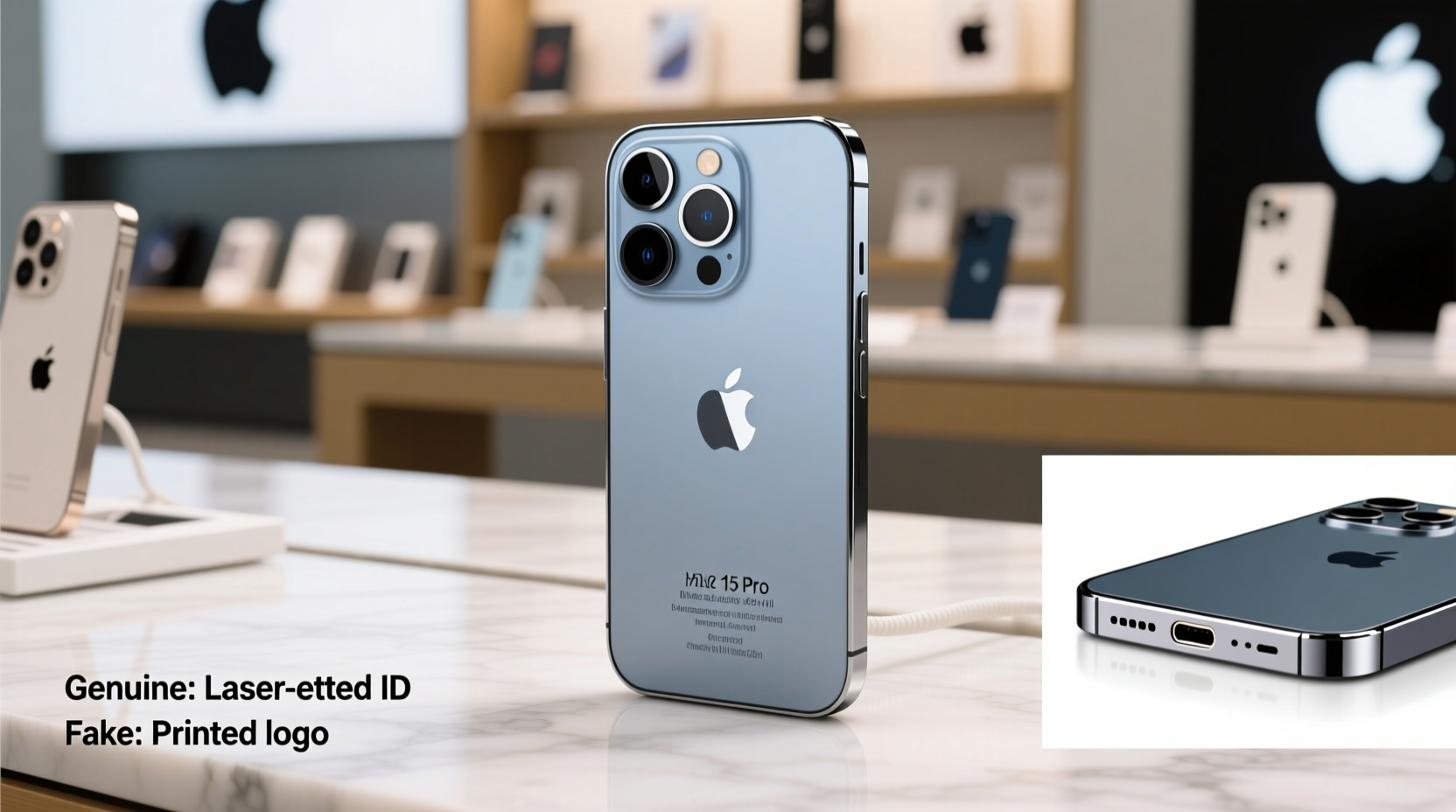
Apple maintains strict control over its product design and manufacturing. A genuine iPhone features precise engineering, seamless materials, and consistent finishes. Counterfeit models often fall short in these areas due to lower production standards.
Start by examining the physical build:
- Weight and balance: Genuine iPhones have a solid, balanced feel. Fakes are often lighter due to cheaper internal components or plastic bodies instead of glass and aluminum.
- Button placement and feedback: The volume buttons, power button, and mute switch (on older models) should click smoothly and align perfectly with the frame. Misaligned or overly stiff buttons are red flags.
- Logo and text engraving: The Apple logo on the back should be crisp and centered. Text such as model identifiers or regulatory info should be laser-etched, not printed or stickered.
- Port precision: The Lightning port (or USB-C on newer models) should be symmetrical and clean. Look for inconsistencies in shape or fit—common in knockoffs.
Verify Software and Interface Authenticity
The iOS operating system is one of the strongest indicators of authenticity. While some advanced fakes run modified versions of Android mimicking iOS, they rarely replicate the real experience accurately.
Look for these software-level clues:
- iOS version and update options: Navigate to Settings > General > Software Update. A genuine iPhone will show Apple-signed update notifications. If the option is missing or redirects to third-party sites, it’s likely fake.
- Animation smoothness: iOS animations—such as app opening/closing, Control Center swipe, and multitasking—are fluid and optimized. Laggy or jittery transitions suggest non-Apple hardware.
- Fonts and UI elements: Pay attention to font rendering. Apple uses San Francisco as its system font. Fake phones often use similar-looking fonts that appear slightly off in spacing or weight.
- Missing Apple apps: Genuine iPhones come preloaded with core apps like FaceTime, iMessage, App Store, and Safari. Their absence—or poorly designed lookalikes—is a major warning sign.
“Even the most convincing fake fails under close scrutiny of the software interface. Real iOS has a polish that can’t be replicated without Apple’s proprietary frameworks.” — Daniel Lin, Mobile Security Analyst at TechShield Labs
Analyze Hardware Performance and Sensors
Counterfeit iPhones often use substandard components that don’t match Apple’s specifications. Testing key hardware functions can quickly reveal discrepancies.
Perform these quick checks:
- Camera quality: Take photos in various lighting conditions. Genuine iPhone cameras produce sharp images with accurate color reproduction and depth effects (on dual-camera models). Blurry, overprocessed, or grainy photos suggest inferior sensors.
- Fingerprint or Face ID: On supported models, test biometric authentication. Fake phones either lack this feature or use unreliable third-party alternatives. True Face ID uses a complex dot projector system unavailable in clones.
- Siri response: Activate Siri by saying “Hey Siri” or pressing the side button. On a real iPhone, Siri responds instantly with natural voice synthesis. Fakes may respond slowly, inaccurately, or not at all.
- Charging behavior: Use an original Apple cable and power adapter. Fake iPhones may charge slowly, heat up excessively, or display “Accessory Not Supported” warnings.
Hardware Comparison Table: Genuine vs. Common Counterfeits
| Feature | Genuine iPhone | Common Counterfeit Behavior |
|---|---|---|
| Processor | Apple A-series chip (e.g., A15 Bionic) | Generic MediaTek or unbranded chipset |
| Storage | Actual capacity matches advertised (verified in Settings) | Advertised 128GB but shows only 32GB available |
| Battery Life | Lasts full day under normal use | Dies within hours or overheats during use |
| Wi-Fi & Bluetooth | Stable connection, supports modern standards | Weak signal, frequent disconnections |
Use Official Tools to Validate Serial and IMEI Numbers
Every genuine iPhone comes with a unique serial number and IMEI (International Mobile Equipment Identity), both of which can be verified through Apple’s systems.
Follow this verification process:
- Locate the serial number: Go to Settings > General > About. Note the Serial Number and IMEI.
- Cross-check physically: The serial number should also appear on the SIM tray (iPhone 13 and earlier), box, and original receipt.
- Visit Apple’s official check site: Go to checkcoverage.apple.com and enter the serial number.
- Review results: A real iPhone will display warranty status, purchase date (if registered), and eligibility for service.
If the serial number is invalid, duplicated, or returns no data, the device is likely counterfeit or stolen.
Real-World Example: A Cautionary Purchase
Rahul, a college student in Mumbai, found what seemed like a great deal: an iPhone 14 Pro for 40% below market price on a local classified site. The seller claimed it was “barely used” and showed photos of the phone in hand. Excited, Rahul met in person, did a quick visual check, and handed over cash.
Within two days, the phone froze repeatedly, couldn’t connect to iCloud, and displayed a “No Service” error despite inserting his SIM card. When he tried to verify the serial number online, Apple’s site returned “Invalid Serial Number.” He had bought a high-end replica running a fake iOS skin over Android.
After reporting the incident to local authorities, Rahul learned that the seller had used multiple fake listings with stock photos. His experience underscores the importance of technical verification—even when a deal seems trustworthy.
Essential Checklist to Spot a Fake iPhone
Before purchasing any iPhone, complete this checklist:
- ✅ Weigh the device and compare with Apple’s published specs
- ✅ Inspect button alignment, logo engraving, and finish quality
- ✅ Confirm iOS is installed and check for App Store, FaceTime, and iMessage
- ✅ Test camera, Siri, and Face ID functionality
- ✅ Verify serial number at checkcoverage.apple.com
- ✅ Check IMEI via Settings and carrier lookup
- ✅ Avoid deals significantly below market value
- ✅ Buy from authorized resellers or Apple directly when possible
Frequently Asked Questions
Can a fake iPhone use iCloud?
No. iCloud services require authentication with Apple’s servers using a valid device certificate. Counterfeit phones cannot access iCloud, even if they mimic the login screen.
Do fake iPhones have the same model numbers as real ones?
Sometimes. Some replicas copy model numbers (like A2634) but fail verification when checked against Apple’s database. Always cross-reference the number officially.
Is it safe to buy a used iPhone from online marketplaces?
Yes, but with caution. Stick to sellers with strong ratings, request video calls to test the device live, and insist on serial number verification before payment.
Stay Informed, Stay Protected
As counterfeit technology evolves, so must buyer awareness. The best defense is knowledge: understanding what makes a genuine iPhone unique and knowing where to verify its authenticity. Whether you’re upgrading, replacing a lost device, or helping a family member choose a phone, taking a few extra minutes to validate a device can save hundreds of dollars and countless headaches.




 浙公网安备
33010002000092号
浙公网安备
33010002000092号 浙B2-20120091-4
Comments
No comments yet. Why don't you start the discussion?