
Microsoft Excel is a powerful tool used daily by millions for data analysis, financial modeling, project tracking, and more. One of the most frustrating problems users encounter is when Excel stops responding to scroll commands—either vertically or horizontally. When scrolling fails, productivity grinds to a halt. The good news: most scrolling issues are fixable without reinstalling Excel or losing your work. This guide provides a comprehensive breakdown of why Excel might stop scrolling and how to restore full functionality.
Why Excel Stops Scrolling: Common Causes
Before jumping into fixes, it’s important to understand what might be causing the problem. Excel's scrolling behavior depends on multiple factors, including software settings, system resources, keyboard input, and file-specific configurations. Common causes include:
- Frozen panes: Accidentally freezing rows or columns can restrict movement in unexpected ways.
- Scroll lock enabled: A legacy keyboard feature that changes arrow key behavior.
- Corrupted user interface settings: Excel’s display or window state may become corrupted.
- Large or complex workbooks: Files with heavy formulas, formatting, or external links can slow down responsiveness.
- Add-ins or macros: Third-party tools may interfere with normal Excel operations.
- Outdated software: Missing updates can introduce bugs affecting navigation.
Step-by-Step Fixes to Restore Excel Scrolling
Follow this systematic approach to identify and resolve the root cause of your scrolling issue.
1. Check Scroll Lock Status
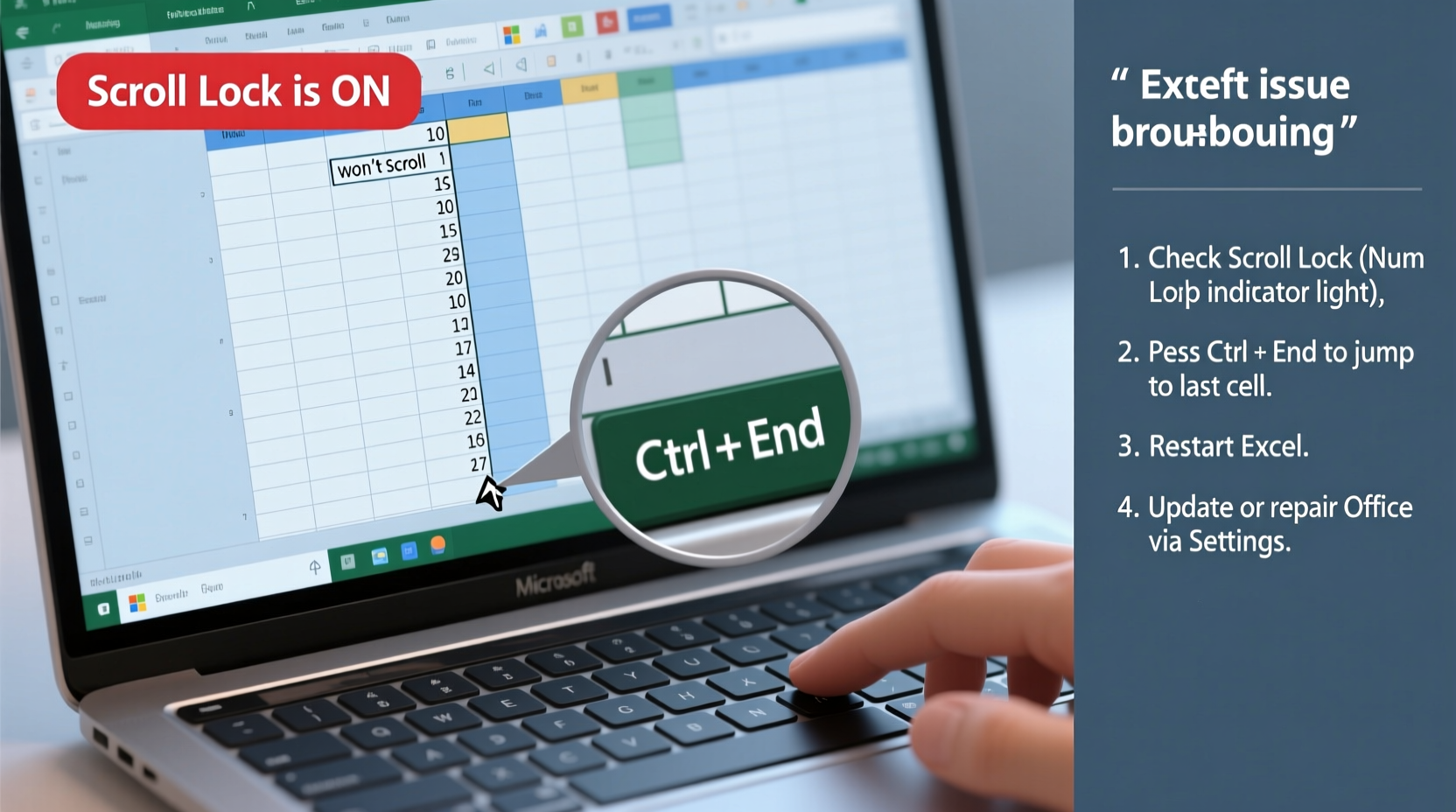
The Scroll Lock key (often labeled “ScrLk”) is a holdover from older computing eras, but Excel still respects its function. When enabled, pressing the arrow keys scrolls the worksheet instead of moving the active cell.
- Look at your keyboard for a “ScrLk” indicator light.
- If lit, press the Scroll Lock key to disable it.
- Test scrolling with the arrow keys.
If you're using a laptop without a dedicated Scroll Lock key, try pressing Fn + F12, Fn + C, or another function-key combination—this varies by manufacturer.
2. Disable Frozen Panes
Frozen panes keep certain rows or columns visible while scrolling through the rest of the sheet. However, if set incorrectly, they can give the illusion that scrolling isn’t working.
- Navigate to the View tab in the ribbon.
- In the Window group, click Freeze Panes.
- Select Unfreeze Panes.
- Try scrolling again.
If you need to keep certain sections visible, refreeze them intentionally after testing.
3. Reset Excel Window State
Sometimes, Excel’s window becomes corrupted or misaligned, especially after switching between monitors or resolutions.
- Close all Excel windows.
- Reopen Excel.
- Instead of opening a file, create a new blank workbook.
- Test scrolling here.
If scrolling works in a new file, the issue is isolated to a specific workbook. If not, the problem lies within Excel’s configuration.
4. Disable Add-ins Temporarily
Third-party add-ins like Power Query, Solver, or custom macros can interfere with Excel’s core functions.
- Go to File → Options → Add-ins.
- At the bottom, select COM Add-ins from the dropdown and click Go…
- Uncheck all add-ins and click OK.
- Restart Excel and test scrolling.
If scrolling returns, re-enable add-ins one at a time to identify the culprit.
5. Repair or Reset Excel Settings
Corrupted preferences or display settings can disrupt normal behavior.
- Close Excel completely.
- Press Win + R, type
excel /safe, and press Enter. - This starts Excel in Safe Mode, disabling add-ins and startup files.
- Open your file and test scrolling.
If scrolling works in Safe Mode, reset Excel’s normal template:
- Close Excel.
- Navigate to
C:\\Users\\[YourUsername]\\AppData\\Roaming\\Microsoft\\Excel\\XLSTART. - Delete or rename the file
Book.xltxorSheet.xltxif present. - Restart Excel normally.
Troubleshooting Table: Do’s and Don’ts
| Action | Do | Don't |
|---|---|---|
| When scrolling fails | Check Scroll Lock, test in a new workbook, restart Excel | Immediately reinstall Office |
| Working with large files | Disable automatic calculation, remove unused formats | Keep excessive conditional formatting or volatile formulas |
| After installing new software | Check for conflicting add-ins | Assume compatibility without testing |
| When Excel freezes | Use Task Manager to end unresponsive processes | Force shutdown repeatedly without saving |
Real Example: Resolving a Frozen Dashboard
A financial analyst at a mid-sized firm reported that her monthly reporting dashboard suddenly stopped scrolling. She could navigate using arrow keys, but the scroll wheel and scrollbar were unresponsive. After ruling out hardware issues (tested mouse on another PC), she followed these steps:
- Verified Scroll Lock was off.
- Checked View → Freeze Panes → Unfreeze Panes (no change).
- Opened a new workbook — scrolling worked fine.
- Realized the file contained an embedded Power BI visual via an add-in.
- Disabled the add-in — scrolling immediately restored.
She later re-enabled the add-in and found that updating it resolved the conflict. This case highlights how third-party integrations can silently disrupt basic Excel functions.
“Over 60% of Excel performance issues stem from either misconfigured settings or poorly optimized files—not software failure.” — David Lin, Senior Productivity Consultant at TechFlow Solutions
Performance Optimization Checklist
To prevent future scrolling issues, follow this proactive checklist:
- ✅ Regularly update Microsoft Office to the latest version.
- ✅ Avoid excessive conditional formatting (limit to essential ranges).
- ✅ Replace volatile functions like
INDIRECT()orOFFSET()where possible. - ✅ Split extremely large workbooks into smaller, linked files.
- ✅ Periodically clear Excel’s cache and temporary files.
- ✅ Use manual calculation mode (Formulas → Calculation Options → Manual) for complex sheets.
- ✅ Test new add-ins in isolation before deploying company-wide.
FAQ: Common Questions About Excel Scrolling Issues
Why does Excel scroll so slowly on my computer?
Slow scrolling is often caused by large datasets, excessive formatting, or outdated hardware. Try turning off automatic calculation, reducing conditional formatting rules, or upgrading RAM if you frequently work with big files.
My mouse wheel scrolls too fast in Excel. Can I adjust the speed?
Yes. Go to Settings → Devices → Mouse on Windows and adjust the \"Vertical scroll lines\" setting. Note: Excel uses the system-wide mouse scroll setting and doesn’t offer an internal adjustment.
Excel scrolls automatically when I click a cell. How do I stop this?
This usually happens when the window is split or panes are frozen incorrectly. Go to View → Freeze Panes → Unfreeze Panes. Also check if the window is split by going to View → Split and clicking it again to remove the split.
Conclusion: Regain Control of Your Excel Experience
Excel not scrolling is a disruptive but solvable issue. By methodically checking for Scroll Lock, frozen panes, add-in conflicts, and file complexity, most users can restore smooth navigation within minutes. The key is to start simple—test in a new workbook, verify hardware, and eliminate variables before diving into advanced repairs. With regular maintenance and awareness of performance best practices, you can avoid recurring issues and maintain peak productivity.




 浙公网安备
33010002000092号
浙公网安备
33010002000092号 浙B2-20120091-4
Comments
No comments yet. Why don't you start the discussion?