
If your phone isn’t alerting you to new messages, you’re not alone. Missed texts, silent group chats, or delayed alerts can lead to missed appointments, strained relationships, or overlooked work updates. The root cause might be a simple setting tweak—or something deeper involving app permissions, connectivity, or device-specific quirks. Whether you use an iPhone or Android, the solution often lies in systematic troubleshooting rather than guesswork.
This guide walks through every possible reason behind missing message notifications and provides actionable steps to diagnose and fix them—fast.
Check Device-Level Notification Settings
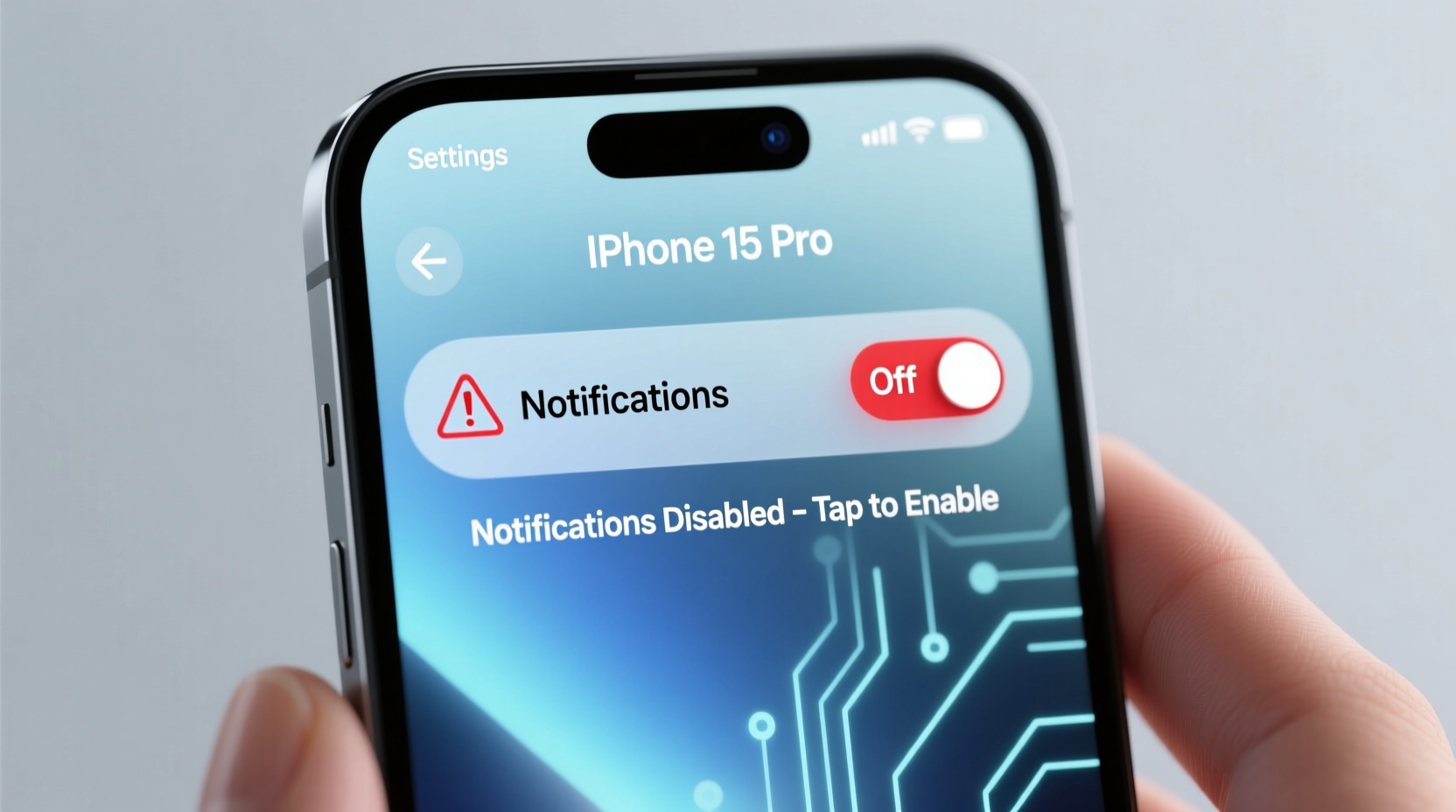
The most common culprit for missing alerts is misconfigured system settings. Even if your messaging app is working properly, your phone might be silencing it at the OS level.
iOS (iPhone):
- Go to Settings > Notifications.
- Select your messaging app (e.g., Messages, WhatsApp).
- Ensure “Allow Notifications” is toggled on.
- Set Alert Style to “Banners” or “Alerts” (not “None”).
- Verify that Sound is enabled and not set to “None.”
- Check “Show in Notification Center” and “Badge App Icon.”
Android:
- Navigate to Settings > Apps & Notifications > See All Apps.
- Find your messaging app (e.g., Messages, Signal).
- Tap Notifications and ensure they are enabled.
- Under “Notification Categories,” confirm that message alerts are allowed to make sound, vibrate, and appear on-screen.
- Disable “Silent” or “Priority Only” modes unless intentionally used.
Verify App-Specific Notification Settings
Even with system-level permissions enabled, individual apps have their own notification controls. These can override global settings.
For example:
- In WhatsApp, go to Settings > Notifications and enable pop-ups, sounds, and vibrations.
- In iMessage, check Settings > Messages > Unknown & Spam to ensure legitimate messages aren’t being filtered silently.
- In Facebook Messenger, open the app, tap your profile, go to Notifications, and customize alert types.
Some apps also allow per-conversation notification overrides. A muted group chat may still show messages but won’t alert you. Open the specific thread and look for a bell icon—tap it to unmute.
Network and Connectivity Factors
Notifications rely on stable internet or cellular connections. If your device frequently drops Wi-Fi or has poor signal strength, push notifications may fail to deliver.
Consider these network-related issues:
- Wi-Fi Sleep Mode (Android): Some phones turn off Wi-Fi when screen locks to save battery. Go to Settings > Network & Internet > Wi-Fi > Advanced > Keep Wi-Fi On During Sleep → Set to “Always.”
- Background Data Restrictions: On Android, background data may be limited. Check under App Info > Mobile Data & Wi-Fi > Background Data.
- iCloud/Apple Push Notifications (iOS): Reboot your router or reset network settings (Settings > General > Reset > Reset Network Settings) if APNs are failing.
“Persistent notification delays are often tied to intermittent connectivity—even brief outages can break the push channel.” — David Lin, Mobile Systems Engineer at PushTech Labs
Step-by-Step Fix: Restore Missing Alerts
Follow this sequence to methodically resolve notification failures:
- Restart your phone. This clears temporary glitches affecting background services.
- Check date and time settings. Incorrect time zones disrupt push certificate validation. Enable “Set Automatically” in Date & Time settings.
- Update your OS and messaging apps. Outdated software may contain bugs blocking alerts.
- Re-enable app notifications. Toggle them off and on again to refresh the permission handshake.
- Clear app cache (Android). For problematic apps, go to App Info > Storage > Clear Cache (do not clear data unless necessary).
- Reinstall the app. If issues persist, delete and reinstall the messaging app—this resets internal configurations.
- Sign out and back into accounts. For apps like WhatsApp or iMessage, sign out of your account and re-authenticate.
Platform Comparison: iOS vs. Android Notification Behavior
| Factor | iOS | Android |
|---|---|---|
| Background App Refresh | Controlled via Settings > General > Background App Refresh | Managed per-app; some manufacturers restrict aggressively |
| Battery Optimization | Less intrusive; apps generally run in background | Can kill background processes—disable for critical apps |
| Push Service | Apple Push Notification Service (APNs) | Google Firebase Cloud Messaging (FCM) |
| Do Not Disturb Integration | Highly customizable with Focus modes | Varies by manufacturer; some lack granular control |
| Common Fixes | Reset network settings, toggle iMessage/FaceTime | Disable battery optimization, enable auto-start |
Real-World Example: Sarah’s Silent iMessages
Sarah, a freelance designer, began missing client messages despite seeing them later in her inbox. She checked her iPhone settings and found notifications were enabled—but no sound played. After reviewing this guide, she discovered her “Sounds” setting for Messages was set to “None.” She also had Focus mode active during work hours, unintentionally muting personal alerts. By adjusting her Focus filters and restoring default message tones, she regained real-time alerts within minutes.
This case highlights how layered settings—especially on iOS—can silently override each other without clear indicators.
Don’t Overlook Manufacturer Customizations
Many Android devices come with manufacturer skins (Samsung One UI, Xiaomi MIUI, etc.) that add extra layers of battery management. These often include features like:
- Auto-stop apps after inactivity
- Restrict background activity by default
- Aggressive Doze mode extensions
To prevent message apps from being throttled:
- Go to Settings > Battery > App Power Management (varies by brand).
- Find your messaging app and set it to “Unrestricted” or “No Restrictions.”
- Enable “Auto-start” if available.
- Add the app to the “Battery Optimization” whitelist.
Frequently Asked Questions
Why do I get messages but no notification sound?
This usually means notifications are enabled but sounds are disabled. Check both system-level and app-specific sound settings. Also verify that your phone isn’t in silent mode or using a silent ringtone for messages.
Will resetting all settings delete my messages?
No. Resetting settings (such as network or notification settings) only restores system preferences to default. Your messages, photos, and apps remain intact. However, you’ll need to re-enter Wi-Fi passwords and reconfigure custom settings.
Do blocked contacts affect my notifications?
Yes. Messages from blocked numbers typically don’t trigger alerts and are hidden from your inbox. Review your blocked contacts list under Settings > Phone > Blocked Contacts (iOS) or App Settings > Blocked Numbers (Android).
Final Checklist: Regain Message Alerts in 10 Minutes
Use this quick checklist to troubleshoot efficiently:
- ✅ Restart your phone
- ✅ Confirm Do Not Disturb/Focus mode is off
- ✅ Enable notifications in system settings
- ✅ Verify sound and vibration in app settings
- ✅ Ensure internet connection is stable
- ✅ Disable battery optimization for messaging apps (Android)
- ✅ Update your OS and apps
- ✅ Test with a friend sending a message
Conclusion: Stay Connected with Confidence
Missing message notifications shouldn’t be a mystery. With the right approach, you can identify and fix the issue—whether it’s a buried setting, a rogue power-saving feature, or a temporary sync error. The key is to move methodically through device, app, and network layers until the alert system responds as expected.
Now that you’ve diagnosed the problem, take action today. Re-enable those alerts, adjust your settings, and reclaim peace of mind knowing you won’t miss what matters. If this helped you, share it with someone who’s been ghosting their messages—by accident.




 浙公网安备
33010002000092号
浙公网安备
33010002000092号 浙B2-20120091-4
Comments
No comments yet. Why don't you start the discussion?