
When choosing a computer mouse, many people assume the decision comes down to price or brand. But for those spending hours each day at a desk—whether drafting emails, managing spreadsheets, or editing documents—the right mouse can influence productivity, comfort, and even long-term health. With gaming mice becoming more mainstream, it's worth asking: Is there any real benefit to using a high-DPI gaming mouse for office work? Or is a standard, affordable model just as effective?
This article compares gaming and regular mice head-to-head, focusing on DPI relevance, ergonomics, responsiveness, and overall value in an office setting. By the end, you’ll understand whether upgrading your mouse is a smart investment—or just overkill.
The Core Differences: Gaming Mouse vs Regular Mouse
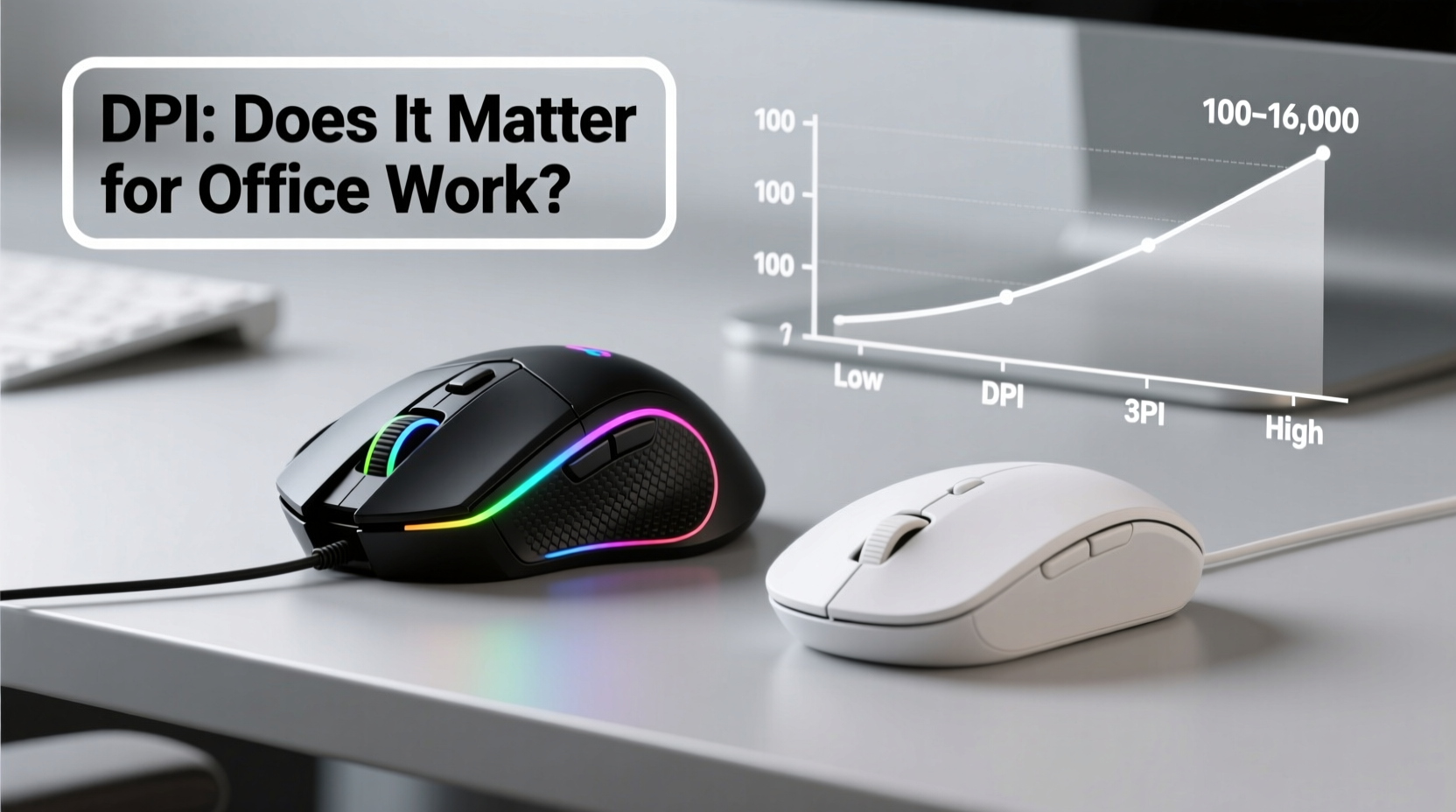
At first glance, gaming and regular mice may look similar, but their design philosophies differ significantly. A gaming mouse is engineered for precision, speed, and customization under high-pressure conditions. In contrast, a regular (or office) mouse prioritizes simplicity, comfort, and reliability for routine computing.
- Sensor Quality: Gaming mice use high-end optical or laser sensors capable of tracking movement at very high DPI (dots per inch), often exceeding 16,000. Regular mice typically max out between 800 and 3200 DPI.
- Build Materials: Gaming models often feature durable plastics, rubberized grips, and metal components. Office mice favor lightweight designs with smooth finishes for all-day comfort.
- Button Count & Programmability: Gaming mice come with extra buttons that can be mapped to macros or shortcuts. Most office mice have only left, right, and scroll functions.
- Polling Rate: Measured in Hz, this refers to how often the mouse reports its position to the computer. Gaming mice usually support 500–1000Hz; office mice are typically limited to 125Hz.
- Software Integration: Gaming devices often require companion software for configuration. Office mice are plug-and-play.
While these differences sound significant, not all translate into tangible benefits for typical office workflows.
DPI Demystified: What It Actually Means for Productivity
DPI measures how far your cursor moves on-screen relative to physical mouse movement. A higher DPI means less hand motion is needed to traverse the screen. For example, a 16,000 DPI mouse will move the cursor across a 4K monitor with just a few centimeters of movement.
In fast-paced games like first-person shooters, high DPI allows players to pivot quickly and track moving targets efficiently. But in office environments, where precision scrolling, clicking, and text selection dominate, extreme sensitivity can become a liability.
“High DPI settings can make fine control harder—especially when selecting small UI elements or dragging spreadsheet cells.” — Dr. Alan Reed, Human-Computer Interaction Researcher, MIT Media Lab
Most professionals find optimal performance between 800 and 1600 DPI. This range offers a balance: enough sensitivity to avoid excessive arm movement, but sufficient control for accurate pointing. Many modern operating systems also include pointer acceleration settings that adjust cursor behavior dynamically, further reducing the need for ultra-high DPI.
Performance Comparison: Real-World Office Tasks
To assess whether a gaming mouse improves productivity, consider common office activities:
| Task | Gaming Mouse Advantage? | Why / Why Not |
|---|---|---|
| Email & Web Browsing | No | Basic navigation doesn’t require high polling rates or extra buttons. Standard mice perform equally well. |
| Spreadsheet Editing (e.g., Excel) | Minimal | Precise cell selection benefits from moderate DPI and good sensor accuracy—but most office mice meet this need. |
| Document Writing & Formatting | No | Keyboard shortcuts dominate here. Mouse usage is light and doesn't demand advanced features. |
| Graphic Design or Photo Editing | Yes | Higher DPI and customizable buttons help with zooming, panning, and tool switching in software like Photoshop. |
| Multi-Monitor Setups | Moderate | A higher DPI reduces travel distance across large desktops, improving efficiency when jumping between screens. |
For general office users, the advantages of a gaming mouse remain marginal. However, certain roles—such as data analysts working with complex dashboards, designers, or financial traders monitoring multiple charts—may benefit from enhanced responsiveness and programmable inputs.
Mini Case Study: Sarah, Financial Analyst at a Mid-Sized Firm
Sarah transitioned from a basic Logitech office mouse to a mid-tier gaming model (DPI up to 3200, six programmable buttons) after struggling with slow cursor movement across her triple-monitor setup. Initially, she found the high default DPI disorienting—clicking the wrong tabs and overshooting targets.
After adjusting the DPI to 1200 and assigning macros to frequently used Excel functions (like “Insert Pivot Table” and “Refresh All Data”), her workflow improved noticeably. The extra side buttons eliminated constant keyboard tabbing, saving several minutes per hour.
However, she noted diminishing returns beyond six months. Her original mouse would have sufficed had it supported moderate DPI adjustment and two additional buttons. The premium price of the gaming device didn’t fully justify its utility in her daily tasks.
Ergonomics and Long-Term Comfort
One area where gaming mice sometimes fall short is ergonomics. Designed for aggressive grip styles and intense sessions, some models feature sharp edges, elevated backs, or heavy builds that cause fatigue during prolonged use.
Conversely, many office-focused mice emphasize natural hand posture, lightweight construction, and silent clicks—features particularly valuable in shared workspaces or during back-to-back video calls.
That said, premium gaming brands now offer ergonomic variants (e.g., vertical designs, ambidextrous shapes) that rival dedicated office peripherals. Ultimately, fit matters more than category: a poorly shaped gaming mouse can do more harm than a simple ball-based legacy model.
Step-by-Step Guide: Choosing the Right Mouse for Office Use
- Assess Your Workflow: Determine if your job involves repetitive actions, multi-monitor navigation, or design-heavy applications.
- Set a DPI Target: Aim for 800–1600 DPI unless you have specific needs (e.g., high-resolution displays).
- Evaluate Button Needs: Decide if programmable buttons would save time (e.g., copy/paste, undo, app switching).
- Test Ergonomic Fit: Choose a shape that supports your grip style—palm, claw, or fingertip—without straining the wrist.
- Check Compatibility: Ensure the mouse works seamlessly with your OS (Windows, macOS, Linux) without requiring bloated drivers.
- Consider Noise Levels: Opt for silent-click models in quiet offices or hybrid work environments.
- Budget Wisely: A $20–$40 office mouse often outperforms a $100 gaming model for non-gaming tasks.
FAQ: Common Questions About Mice and DPI in Office Settings
Does a higher DPI make my computer faster?
No. DPI affects only cursor movement speed, not system performance. A higher DPI doesn’t improve processing power, internet speed, or application responsiveness.
Can I use a gaming mouse for everyday office work?
Yes, absolutely—but you may need to adjust settings. Lower the DPI, disable unnecessary RGB lighting (to save battery on wireless models), and reprogram buttons for productivity tools like Outlook, Teams, or Slack.
Is 3200 DPI too high for office use?
It can be. While usable on ultrawide or 4K monitors, 3200 DPI often leads to jittery cursor control and accidental misclicks. Most users achieve better results between 800 and 1600 DPI.
Final Verdict: Does DPI Really Matter for Office Work?
Not as much as marketing might suggest. While gaming mice boast impressive specs, their core strengths—extreme DPI, rapid polling, and macro support—are largely irrelevant for average office tasks. What truly matters is consistency, comfort, and usability.
A regular mouse with a reliable sensor, moderate DPI, and clean design will serve most professionals perfectly. That said, if your role demands pixel-level precision, frequent shortcut access, or seamless navigation across multiple high-res screens, investing in a high-quality gaming-grade mouse—with adjusted settings—can yield measurable gains.
The key is alignment: match your hardware to your actual workflow, not hypothetical performance benchmarks.
Checklist: Before You Buy a New Mouse
- ☐ Identify whether your current mouse limits your productivity
- ☐ Measure your screen resolution and determine ideal DPI range
- ☐ Decide if extra buttons would enhance your workflow
- ☐ Prioritize ergonomic fit over flashy aesthetics
- ☐ Test the mouse in person if possible, or choose a model with a return policy
- ☐ Disable unused features (e.g., RGB lighting) to reduce distractions and extend battery life
“The best mouse isn’t the one with the highest specs—it’s the one that disappears into your workflow.” — Lena Torres, UX Consultant at TechFlow Solutions
Conclusion
Choosing between a gaming mouse and a regular mouse for office work isn’t about raw power—it’s about purpose. High DPI numbers look impressive on spec sheets, but they don’t automatically translate to better performance in email, spreadsheets, or presentations. For most professionals, a well-designed office mouse offers superior comfort, simplicity, and value.
But if your work involves intricate digital tasks or spans expansive screen real estate, selectively leveraging gaming mouse capabilities—like adjustable DPI and programmable controls—can provide meaningful efficiency boosts. Just remember to tune them properly.




 浙公网安备
33010002000092号
浙公网安备
33010002000092号 浙B2-20120091-4
Comments
No comments yet. Why don't you start the discussion?