
When shopping for a new mouse, many users face a dilemma: should they invest in a high-end gaming model or stick with a standard office peripheral? Gaming mice are built for speed, accuracy, and responsiveness—features designed for fast-paced shooters and competitive play. But how much of that translates into tangible benefits during routine computer use like browsing, document editing, or video conferencing?
The answer isn’t as simple as “yes” or “no.” While the enhanced DPI (dots per inch), customizable buttons, and ergonomic designs of gaming mice can improve productivity and comfort, they also come with trade-offs in cost, complexity, and sometimes even usability. This article breaks down the real differences between gaming and regular mice, evaluates their performance across everyday tasks, and helps you determine whether the extra precision justifies the upgrade.
Understanding the Core Differences
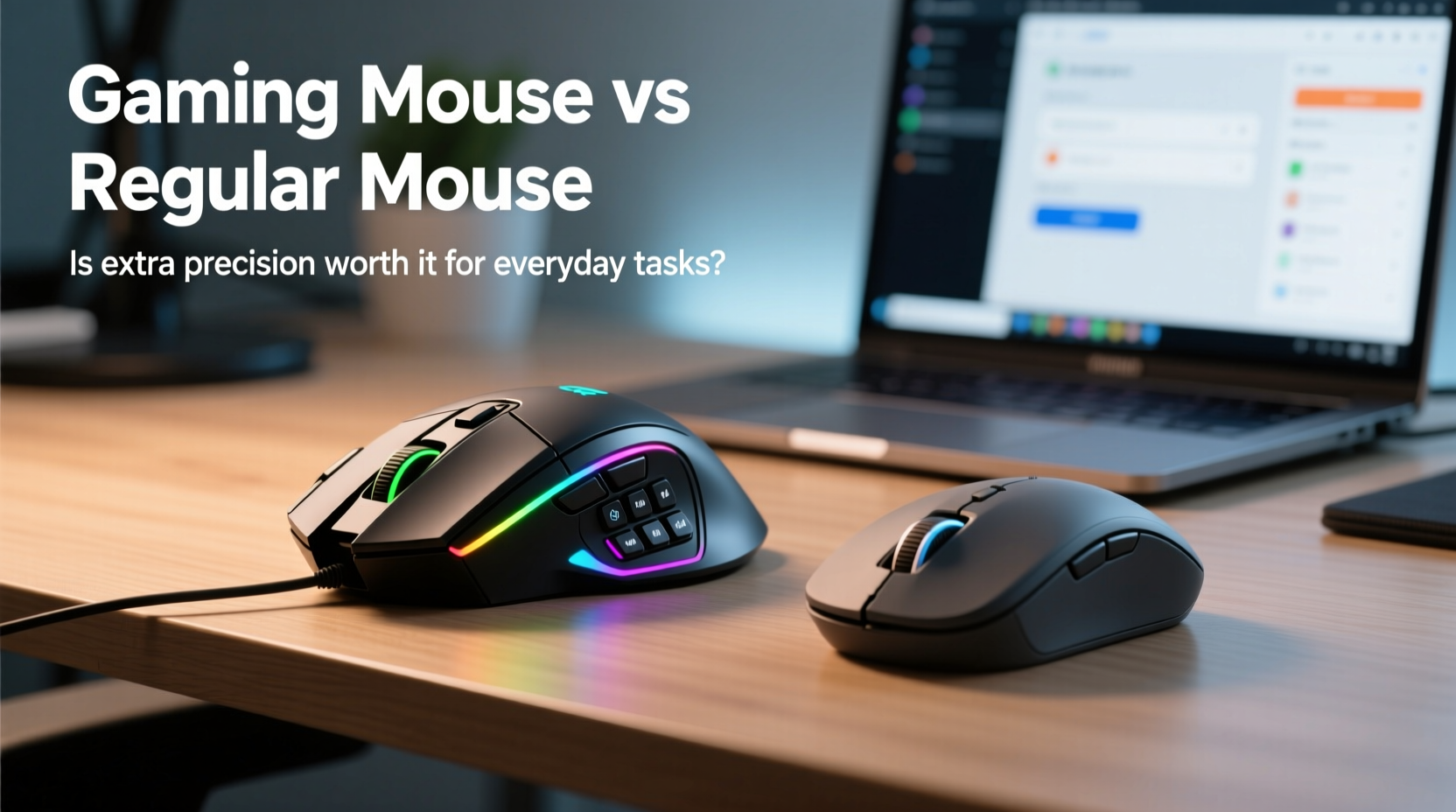
At first glance, gaming and regular mice may appear functionally identical—they both move your cursor and click on things. However, their internal engineering and intended use cases diverge significantly.
Gaming mice are engineered for maximum responsiveness and control. They typically feature:
- High DPI sensors (up to 32,000+), allowing for faster cursor movement without large hand motions.
- Higher polling rates (up to 1000Hz), meaning the mouse reports its position to the computer more frequently for smoother tracking.
- Programmable buttons for macros, shortcuts, or in-game commands.
- Onboard memory to save user profiles directly on the device.
- Ergonomic, often heavier builds with textured grips for long gaming sessions.
- RGB lighting and software ecosystems for customization.
In contrast, regular mice prioritize simplicity, portability, and battery efficiency. Most office models offer:
- DPI ranges between 800–1600, sufficient for standard screen resolutions.
- Polling rates of 125Hz, which is adequate for non-demanding applications.
- Fewer buttons—typically just left, right, scroll wheel, and maybe forward/back navigation.
- Lightweight, compact designs ideal for travel or small desks.
- Long battery life, especially in wireless versions.
These distinctions suggest that gaming mice are overbuilt for basic computing. But under certain conditions, those \"extra\" features can enhance daily workflows.
Real-World Performance in Everyday Tasks
To assess whether gaming mouse precision matters in non-gaming scenarios, consider how people actually use computers day-to-day:
- Browsing and email: Scrolling through web pages, clicking links, managing tabs.
- Document creation: Typing, selecting text, formatting, using toolbars.
- Spreadsheet and data work: Navigating cells, dragging formulas, switching sheets.
- Design and media editing: Zooming, panning, selecting pixels or timeline markers.
- Video calls and remote collaboration: Sharing screens, switching apps, using virtual whiteboards.
For most of these activities, a regular mouse performs perfectly well. The human hand simply doesn’t require millisecond-level response times or sub-pixel accuracy when opening an email or saving a file. However, subtle advantages emerge in specific contexts.
Advantages of Gaming Mice in Productivity Workflows
Take spreadsheet analysts who navigate thousands of rows daily. A gaming mouse with programmable side buttons can be assigned to “Go to Top,” “Filter Toggle,” or “Save Workbook,” reducing reliance on keyboard shortcuts. Similarly, graphic designers benefit from precise cursor control when working at high zoom levels—where even slight jitter can affect line accuracy.
A study conducted by the Human-Computer Interaction Lab at the University of Waterloo found that professionals using high-DPI mice completed detailed digital tasks up to 12% faster than those using standard devices. While not revolutionary, this improvement compounds over time, especially for users spending six or more hours per day at a computer.
“Precision input tools reduce cognitive load. When your hardware responds exactly as expected, your brain spends less energy compensating for lag or drift.” — Dr. Lena Park, HCI Researcher, University of Michigan
Comfort and Long-Term Usability
Ergonomics play a critical role in sustained computer use. Repetitive strain injuries (RSI) and carpal tunnel syndrome are common among office workers, making comfort a top priority.
Gaming mice often excel here due to their focus on extended use. Many models are sculpted to support palm grip styles, include rubberized side panels, and offer adjustable weights. Some brands, like Logitech and Razer, conduct extensive biomechanical testing to optimize hand alignment and pressure distribution.
However, not all gaming mice are created equal. Larger models may be uncomfortable for users with smaller hands. Additionally, the added weight—sometimes exceeding 120 grams—can cause fatigue during prolonged use unless properly balanced.
Regular mice, particularly compact or ambidextrous ones, tend to be lighter (70–90g) and easier to carry. For mobile professionals or students shuttling between classes and cafes, this portability outweighs any ergonomic gains from bulkier alternatives.
| Feature | Gaming Mouse | Regular Mouse |
|---|---|---|
| Average Weight | 100–130g | 70–90g |
| Battery Life (Wireless) | 30–70 hours | 12–24 months |
| Button Customization | Yes (5–12 buttons) | Limited (3–5 buttons) |
| DPI Range | 800–32,000 | 800–1600 |
| Polling Rate | 500–1000Hz | 125Hz |
| Best For | Multimonitor setups, design, data analysis | General use, travel, light computing |
Mini Case Study: From Office Worker to Hybrid User
Sarah Thompson, a financial analyst based in Chicago, used a standard wireless mouse for years. Her workflow involved heavy Excel use, frequent PDF annotation, and daily Zoom meetings. After developing wrist discomfort, she explored ergonomic upgrades and purchased a mid-tier gaming mouse known for its contoured shape and customizable buttons.
She assigned her thumb buttons to “Ctrl+Z” (undo) and “Alt+Tab” (switch apps), drastically reducing keystrokes. She also increased her DPI to 3200, allowing her to traverse three 1440p monitors with minimal arm movement. Within two weeks, she reported reduced neck strain and improved task fluidity.
“I didn’t buy it for gaming,” Sarah said. “But I now realize how much time I was wasting moving my hand back and forth or stretching to reach the keyboard. The precision helps me stay focused.”
Still, she noted downsides: the mouse drained batteries faster, required occasional firmware updates, and drew odd looks during client calls due to its glowing logo. For her, the trade-off was worth it—but only because her job demanded precision and repetition.
When the Extra Precision Isn't Worth It
Despite their capabilities, gaming mice aren’t universally beneficial. For casual users, retirees, or children learning computer basics, the complexity can hinder rather than help.
Consider someone primarily using a laptop for social media, streaming videos, and online banking. In such cases, the default touchpad or a $15 plug-and-play mouse suffices. The learning curve associated with driver software, profile management, and sensitivity settings introduces unnecessary friction.
Additionally, some operating systems and applications don’t fully support advanced mouse features. Windows handles them well, but Linux configurations can be finicky, and macOS historically has limited compatibility with third-party gaming peripherals. Users in creative fields relying on Apple ecosystems may find themselves manually configuring button mappings or disabling features altogether.
Checklist: Is a Gaming Mouse Right for You?
- Do I use multiple high-resolution monitors?
- Do I perform repetitive tasks that could benefit from macro buttons?
- Do I experience physical strain during long computer sessions?
- Am I comfortable installing and maintaining device drivers?
- Do I value customization over plug-and-play simplicity?
If you answered “yes” to three or more, a gaming mouse may enhance your workflow.
FAQ
Can a gaming mouse damage my computer?
No. Gaming mice operate within standard USB protocols and pose no risk to your system. They consume slightly more power and bandwidth, but modern computers handle this effortlessly.
Are gaming mice suitable for photo editing?
Yes, especially if you work at high zoom levels or use complex software like Photoshop or Lightroom. The precise sensor and customizable buttons streamline actions like brush resizing, layer switching, and history navigation.
Do I need high DPI for a 1080p monitor?
Not necessarily. 800–1600 DPI is optimal for 1080p screens. Higher DPI becomes useful only when using larger displays, multiple monitors, or needing minimal hand movement.
Final Verdict: Precision With Purpose
The extra precision of a gaming mouse isn’t inherently valuable—it must serve a purpose. For gamers, the difference between hitting a headshot and missing can be measured in milliseconds. For everyday users, the payoff lies in efficiency, comfort, and workflow optimization.
If your daily computing involves navigating vast spreadsheets, editing visuals, managing multiple windows, or suffering from wrist fatigue, then yes—the investment makes sense. The ability to fine-tune sensitivity, assign productivity macros, and enjoy superior ergonomics can yield measurable improvements in both output and well-being.
But if your needs are modest—checking emails, watching videos, occasional web searches—a regular mouse remains the smarter choice. It’s cheaper, simpler, and lasts longer on batteries. There’s no shame in choosing functionality over flair.
The key is alignment: match your tools to your tasks. Technology should disappear into the background, enabling you to focus on what matters. Whether that requires a $20 mouse or a $120 gaming model depends entirely on how you use your computer—not on marketing hype or peer pressure.
“The best mouse is the one that feels invisible during use. If you notice your hardware, it’s either failing or mismatched to your needs.” — Mark Delaney, Peripheral Design Consultant
Conclusion: Make the Choice That Serves You
Don’t assume that more features mean better performance. Evaluate your actual usage patterns, physical comfort, and long-term goals. Try borrowing a gaming mouse before buying. Test it across your most common tasks. Adjust the DPI, reprogram buttons, and see if it genuinely improves your experience.
Technology should empower, not complicate. Whether you choose a sleek office mouse or a feature-rich gaming model, let intentionality guide your decision. Precision is only worth it when it serves a purpose beyond the spec sheet.




 浙公网安备
33010002000092号
浙公网安备
33010002000092号 浙B2-20120091-4
Comments
No comments yet. Why don't you start the discussion?