
In fast-paced games where split-second decisions determine victory or defeat, the right equipment can make all the difference. Among the most debated peripherals is the mouse—specifically, whether a gaming mouse truly enhances aiming accuracy while reducing physical strain during long sessions. While both gaming and regular mice serve the same basic function, their design, performance, and ergonomics diverge significantly. For gamers focused on competitive play, streamers logging marathon sessions, or even professionals who double as hobbyist players, understanding these differences isn’t just about preference—it’s about performance sustainability.
The core issue lies in balancing precision with comfort. A twitchy flick to headshot an opponent requires pixel-perfect control, but repeating that motion hundreds of times over hours can lead to wrist pain, finger fatigue, or even repetitive strain injuries. This article breaks down the real-world advantages of gaming mice over standard models, backed by technical specs, ergonomic research, and user experiences, to answer one critical question: Which mouse actually helps you aim better—without wearing out your hands?
How Gaming Mice Enhance Precision and Control
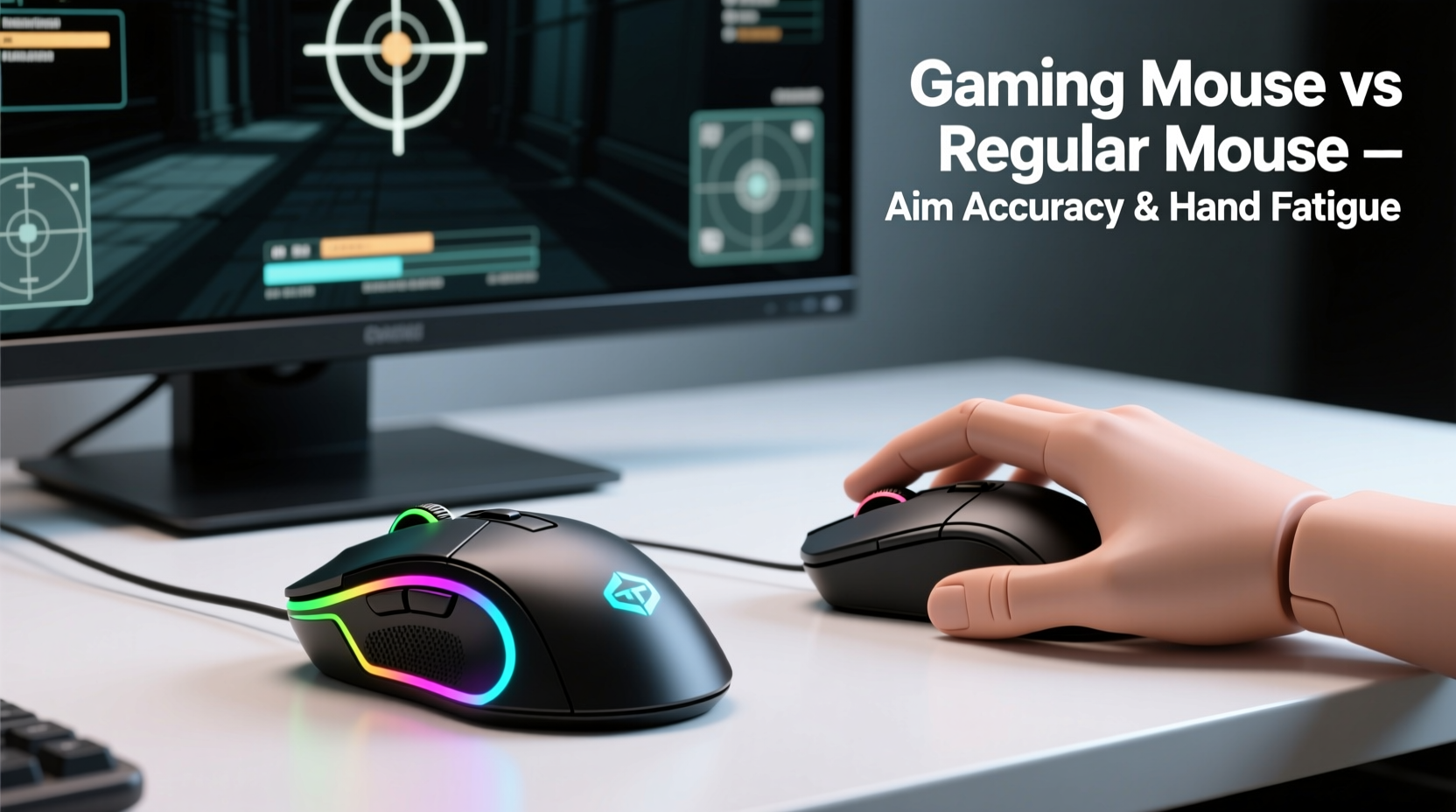
Aim in first-person shooters (FPS) like *CS2*, *Valorant*, or *Apex Legends* relies heavily on consistent cursor movement, low input lag, and high tracking accuracy. Regular mice, designed for office productivity, often fall short in these areas due to lower sensor quality and limited customization.
Gaming mice typically feature high-DPI (dots per inch) optical or laser sensors ranging from 1,600 to over 32,000 DPI. While extremely high DPI settings are rarely used, the ability to fine-tune sensitivity allows players to match their in-game sensitivity with physical desk space. This granular control leads to more predictable and repeatable movements—a cornerstone of muscle memory development.
Beyond DPI, polling rate plays a crucial role. Most standard mice operate at 125Hz, meaning they report position to the computer 125 times per second. In contrast, gaming mice commonly support 500Hz or 1,000Hz polling rates, drastically reducing input lag. At 1,000Hz, the delay between hand movement and on-screen response drops to just 1ms, enabling faster reactions during intense gameplay.
Additionally, gaming mice use higher-quality switches rated for tens of millions of clicks. This durability ensures consistent button registration, which is vital when every shot counts. Some premium models even offer adjustable debounce times or pre-travel tuning to eliminate double-clicks or missed inputs.
Ergonomic Design: Reducing Hand Fatigue Over Time
Long gaming sessions place sustained pressure on the hand, wrist, and forearm. Standard mice often have flat, compact designs optimized for portability rather than prolonged use. Their shape may force the hand into a tense claw grip, increasing strain on tendons and muscles.
Gaming mice, however, are engineered with ergonomics as a priority. They come in various form factors—ambidextrous, palm grip, fingertip, or ergonomic right-handed shapes—allowing users to choose based on their natural hand posture. Many include contoured side grips, rubberized textures, and thumb rests to distribute pressure evenly.
Materials also matter. High-end gaming mice use lightweight polymers or even honeycomb shell designs to reduce overall weight. Lighter mice require less effort to move, decreasing muscular load during rapid flicks or micro-adjustments. Some models now weigh under 60 grams, making them ideal for low-sensitivity, arm-controlled aiming styles.
“Players using ergonomically optimized gear report up to 40% less discomfort after extended sessions. The right mouse isn’t just about winning—it’s about staying healthy.” — Dr. Lena Torres, Human Factors & Ergonomics Researcher, University of Michigan
Ventilation and breathability are subtle but important features. Prolonged gripping can cause sweating, leading to slippage and increased grip tension. Textured sides and perforated shells help maintain dry contact, reducing the need to squeeze harder to retain control.
Comparison: Gaming Mouse vs Regular Mouse
| Feature | Gaming Mouse | Regular Mouse |
|---|---|---|
| Sensor Type | High-performance optical/laser (up to 32,000 DPI) | Laser or basic optical (400–1600 DPI) |
| Polling Rate | 500Hz – 1000Hz (1–2ms response) | 125Hz (8ms response) |
| Switch Lifespan | 50M – 100M clicks | 3M – 10M clicks |
| Ergonomic Design | Contoured grips, customizable shapes | Flat, compact, universal fit |
| Weight | 55g – 100g (ultra-light options available) | 80g – 120g (heavier plastic build) |
| Customization | Adjustable DPI, RGB lighting, programmable buttons | Limited or none |
| Software Support | Dedicated drivers for macros, profiles, sensitivity curves | Plug-and-play only |
| Price Range | $40 – $150+ | $10 – $40 |
This comparison highlights why gaming mice outperform standard ones in responsiveness, longevity, and comfort. While cost is higher, the investment pays off in reduced fatigue and improved consistency—especially for those playing more than a few hours per week.
Real-World Example: Competitive Player Transition
Consider Alex Rivera, a semi-professional *Valorant* player who spent two years competing with a standard wireless office mouse. Despite strong game sense, he struggled with inconsistent recoil control and frequent wrist soreness after practice sessions. After switching to a lightweight gaming mouse (58g, 32,000 DPI sensor, 1000Hz polling), his accuracy improved within three weeks.
“I didn’t realize how much lag I was dealing with until I upgraded,” Alex said. “But the biggest change was comfort. I used to take painkillers after tournaments. Now I can play six-hour scrims without any numbness or tightness in my forearm.”
His K/D ratio increased by 0.4 over the next month, and his coach noted smoother crosshair movement during drills. While skill played a role, the hardware shift removed a limiting factor: physical strain compromising mechanical execution.
Step-by-Step Guide to Choosing the Right Mouse
Selecting a mouse that improves aim without causing fatigue requires a methodical approach. Follow this sequence to make an informed decision:
- Assess Your Grip Style: Determine whether you use palm, claw, or fingertip grip. Palm grippers benefit from larger, contoured mice; claw and fingertip users may prefer lighter, compact models.
- Measure Desk Space: If you have limited room, a higher CPI mouse with moderate sensitivity may suit you. Ample space allows for lower CPI and arm-based aiming.
- Test Weight Preferences: Try mice in the 60–80g range first. Ultra-light options (<70g) reduce fatigue but may feel unstable if not balanced properly.
- Check Sensor Performance: Look for mice with true tracking at your intended CPI (e.g., 800–1600). Avoid models with acceleration or smoothing issues.
- Evaluate Button Layout: Extra side buttons can map to crouch or reload, minimizing keyboard movement and improving fluidity.
- Use Manufacturer Software: Calibrate polling rate, adjust DPI stages, and disable Windows pointer enhancement to ensure raw input.
- Monitor Physical Feedback: After 30 minutes of use, check for pressure points, finger cramping, or wrist bending. Discomfort indicates poor fit.
Many brands offer trial periods or demo units through retailers. Take advantage of these before committing.
Actionable Tips for Reducing Hand Fatigue
- Enable Raw Input: Disable mouse acceleration in both the game and operating system to ensure direct 1:1 movement translation.
- Use Lower CPI with Higher In-Game Sensitivity: This maintains precision while allowing broader movement range, reducing micro-corrections.
- Take Micro-Breaks: Every 30 minutes, release your grip and stretch fingers, wrists, and forearms to prevent stiffness.
- Adjust Chair Height: Position your elbows at 90 degrees with wrists neutral. Elevated wrists increase carpal tunnel pressure.
- Clean Regularly: Dust buildup under the sensor or feet can disrupt tracking and create resistance, forcing you to press harder.
FAQ
Can a gaming mouse really improve aim?
Yes, but only when paired with proper technique. A gaming mouse provides better sensor accuracy, lower latency, and consistent button response, which supports precise aiming. However, it doesn’t replace practice. It removes technical barriers that hinder skill expression.
Do lightweight gaming mice cause more fatigue?
No—when properly balanced, lightweight mice reduce fatigue by requiring less muscular effort to move. Poorly designed light mice may feel \"twitchy,\" but modern models use weight tuning systems to optimize stability and control.
Is a gaming mouse worth it for casual gamers?
If you play occasionally and don’t experience discomfort, a regular mouse may suffice. But if you notice lag, inaccuracy, or hand strain—even after short sessions—a mid-range gaming mouse ($40–$70) can significantly enhance comfort and responsiveness.
Final Checklist Before Upgrading
- ✅ Identify your dominant grip style (palm/claw/fingertip)
- ✅ Measure your available desk space
- ✅ Determine preferred weight range (under 70g or standard 80g+)
- ✅ Confirm compatibility with your OS and games
- ✅ Read user reviews focusing on long-term comfort
- ✅ Test with raw input enabled and acceleration off
- ✅ Pair with an appropriate mousepad for seamless glide
Conclusion: Invest in Performance and Longevity
The choice between a gaming mouse and a regular mouse isn’t merely about flashy lights or extra buttons. It’s about aligning your tools with your goals. If you aim to improve precision, react faster, and sustain longer play sessions without physical toll, a gaming mouse offers measurable advantages in sensor performance, responsiveness, and ergonomic support.
While no peripheral will instantly make you a pro, removing friction—both digital and physical—creates the foundation for growth. Whether you're grinding ranked matches or simply want to enjoy gaming without sore hands, upgrading to a well-designed gaming mouse is one of the most effective steps you can take.




 浙公网安备
33010002000092号
浙公网安备
33010002000092号 浙B2-20120091-4
Comments
No comments yet. Why don't you start the discussion?