
Google Authenticator (commonly referred to as \"GAuth\") is a critical tool for two-factor authentication (2FA), securing accounts across platforms like Gmail, GitHub, Dropbox, and more. However, when the app fails to scan QR codes or the camera doesn’t respond, access to essential services can be blocked. This issue—often summarized as “GAuth not working”—is frustrating but typically solvable with systematic troubleshooting. Whether you're setting up a new account or regaining access after a device change, understanding the root causes behind camera-related failures is key to restoring functionality quickly and securely.
Why GAuth Camera Issues Occur
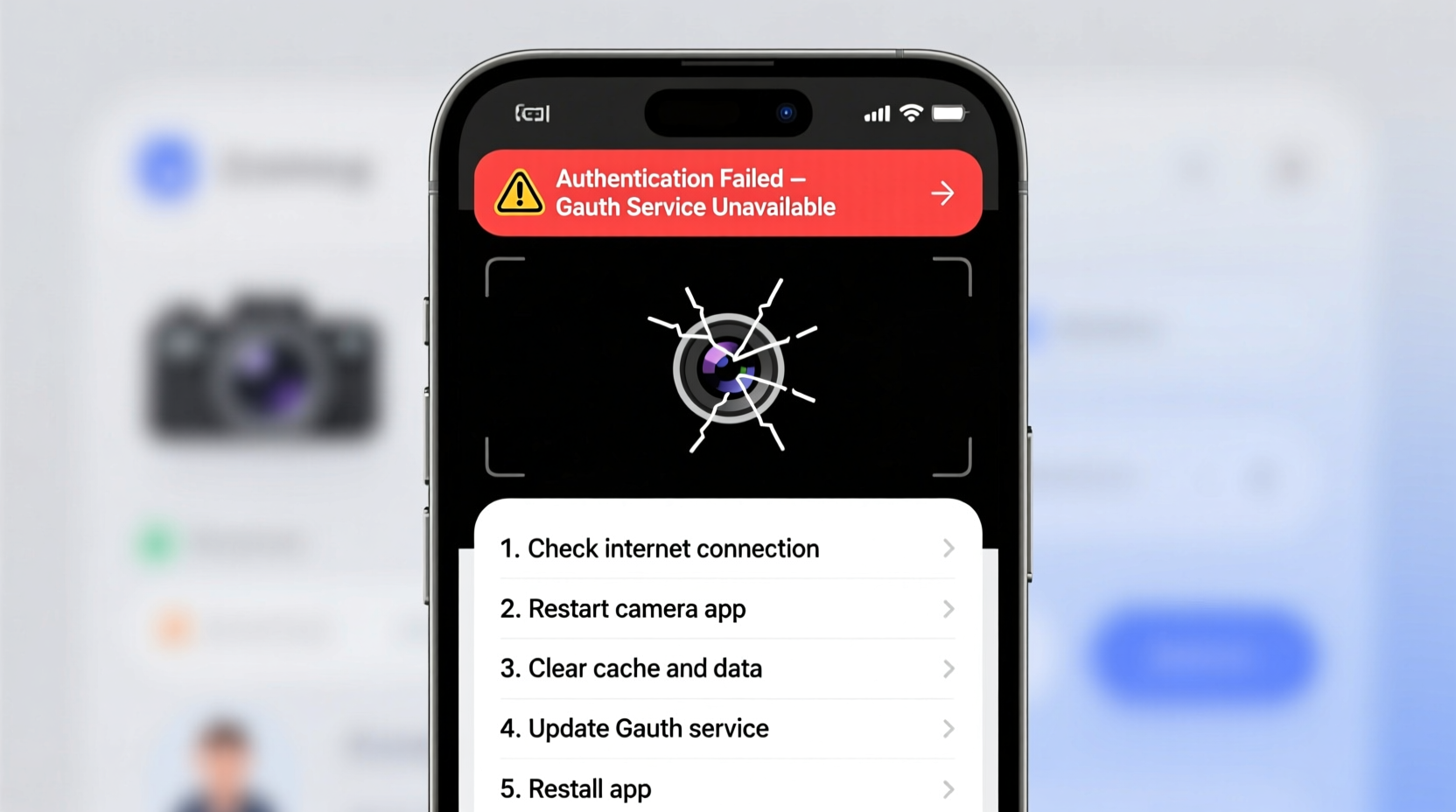
The inability of Google Authenticator to use your phone’s camera usually stems from permission misconfigurations, software glitches, hardware limitations, or outdated app versions. Unlike standard camera apps, GAuth requires precise access to real-time video feed and QR decoding capabilities. When any part of this chain breaks, scanning fails—even if the camera works normally in other apps.
Common triggers include:
- Camera permissions disabled for GAuth
- Outdated version of Google Authenticator
- Temporary OS-level camera conflicts
- Damaged or low-resolution rear camera
- Screen brightness or glare interfering with QR detection
- Background apps monopolizing camera resources
Step-by-Step Guide to Fix GAuth Camera Problems
Follow this structured approach to identify and resolve camera access issues with Google Authenticator. Most problems are resolved within minutes using these steps.
- Check Camera Permissions
Navigate to your phone’s Settings > Apps > Google Authenticator > Permissions. Ensure that \"Camera\" access is enabled. On Android, missing permissions are a top cause of failure. iOS users should check under Settings > Privacy & Security > Camera. - Restart the App and Device
Close GAuth completely from the recent apps menu. Restart your phone to clear temporary memory locks and free up camera resources held by background processes. - Update Google Authenticator
Open Google Play Store (Android) or App Store (iOS) and search for Google Authenticator. Install any pending updates. Older versions may lack compatibility with newer OS features or QR parsing algorithms. - Test Camera in Another App
Open your default camera app or a QR scanner to verify the camera functions properly. If it fails here, the problem lies outside GAuth and could involve hardware or system drivers. - Clear App Cache (Android Only)
Go to Settings > Apps > Google Authenticator > Storage > Clear Cache. Do not tap “Clear Data” unless you’ve backed up your accounts—this will erase all saved tokens. - Reinstall Google Authenticator
Uninstall the app, then reinstall it from the official store. Before doing so, ensure you have recovery codes or backup methods for all 2FA-protected accounts. Reinstallation often resolves corrupted installations. - Adjust Lighting and Distance
Poor lighting or holding the phone too far from the QR code can prevent detection. Position the code at eye level, increase screen brightness on the source device, and hold your phone 6–12 inches away from the code.
Do’s and Don’ts When Troubleshooting GAuth
| Do’s | Don’ts |
|---|---|
| ✅ Enable camera permissions explicitly | ❌ Assume the QR code is faulty without testing alternatives |
| ✅ Use a secondary device to display the QR code if possible | ❌ Share screenshots of active QR codes online or via messaging apps |
| ✅ Keep recovery codes in a secure password manager | ❌ Factory reset your phone without backing up 2FA accounts |
| ✅ Try manual entry if scanning fails repeatedly | ❌ Ignore error messages like “Camera unavailable” or “Permission denied” |
Real Example: Recovering Access After Phone Upgrade
Samantha recently upgraded her Android phone and attempted to set up Google Authenticator on her new device. During setup, she encountered a blank camera view with no autofocus or shutter sound. The app appeared frozen. She verified the camera worked fine in Snapchat and WhatsApp, ruling out hardware failure.
After checking settings, she discovered that during migration, app permissions were not automatically transferred. GAuth had no camera access. She manually enabled it under App Permissions, relaunched the app, and successfully scanned the QR code. For future safety, she now stores backup codes in her encrypted password vault and double-checks permissions after every major device transition.
“Over 70% of ‘camera not working’ reports in authenticator apps stem from permission resets after OS updates or device swaps.” — Raj Mehta, Mobile Security Analyst at CyberShield Labs
Alternative Setup Methods When Camera Fails
If troubleshooting doesn’t restore camera function, don’t panic. You can still link accounts using manual entry.
When prompted to scan a QR code, look for an option labeled “Enter code manually” or “Use setup key.” This reveals a text-based secret key (usually 16–32 alphanumeric characters). Carefully type this into Google Authenticator. The app will generate time-based codes just as if scanned.
This method is especially useful if:
- Your device has no functional camera
- You’re using a tablet without rear-facing camera
- You’re assisting someone remotely
Preventive Checklist for Future GAuth Stability
Maintain seamless access by following these proactive measures:
- ✔️ Regularly update Google Authenticator and your operating system
- ✔️ Confirm camera permissions remain granted after updates
- ✔️ Store backup codes in a trusted password manager (e.g., Bitwarden, 1Password)
- ✔️ Use Google Prompt or Backup Codes as secondary verification options
- ✔️ Avoid third-party authenticator clones; stick to official apps
- ✔️ Test 2FA recovery process annually
Frequently Asked Questions
Can I use Google Authenticator on multiple devices?
Yes, but each device must be set up separately by scanning the same QR code or entering the manual key. Be cautious: some services invalidate the original QR after first use. Always complete setup on all intended devices simultaneously.
What if my phone’s camera is broken? Can I still use GAuth?
Absolutely. Use the manual entry method with the setup key provided during 2FA activation. You can also consider switching to alternative authentication methods like Google Prompt (on Android), hardware security keys, or SMS-based codes—if allowed by the service.
Does Google Authenticator work offline?
Yes. Once configured, GAuth generates time-based one-time passwords (TOTP) without internet or cellular connectivity. The initial setup requires internet to receive the QR code or key, but ongoing use does not.
Conclusion: Stay Secure and Prepared
Encountering “GAuth not working” due to camera issues is common but rarely permanent. With a methodical approach—verifying permissions, updating software, testing hardware, and leveraging manual entry—you can overcome most obstacles. More importantly, treating 2FA setup as a critical security ritual, not just a one-time task, ensures long-term resilience against lockouts.
Take action today: audit your current 2FA methods, back up recovery codes, and test camera access in Google Authenticator. A few minutes of preparation can save hours of frustration tomorrow.




 浙公网安备
33010002000092号
浙公网安备
33010002000092号 浙B2-20120091-4
Comments
No comments yet. Why don't you start the discussion?