
There’s a quiet frustration that comes with sending an important email—only to notice it never left the outbox. Instead of delivering instantly, it sits in Gmail’s “Queued” status, trapped in digital limbo. You’re not alone. Thousands of users experience this daily, often without understanding why or how to resolve it. The good news: most queued email issues are fixable with the right diagnosis and actions. This guide dives into the real causes behind Gmail queuing, offers step-by-step fixes, and shares expert insights to keep your communication flowing.
Why Emails Get Stuck in Queued Status
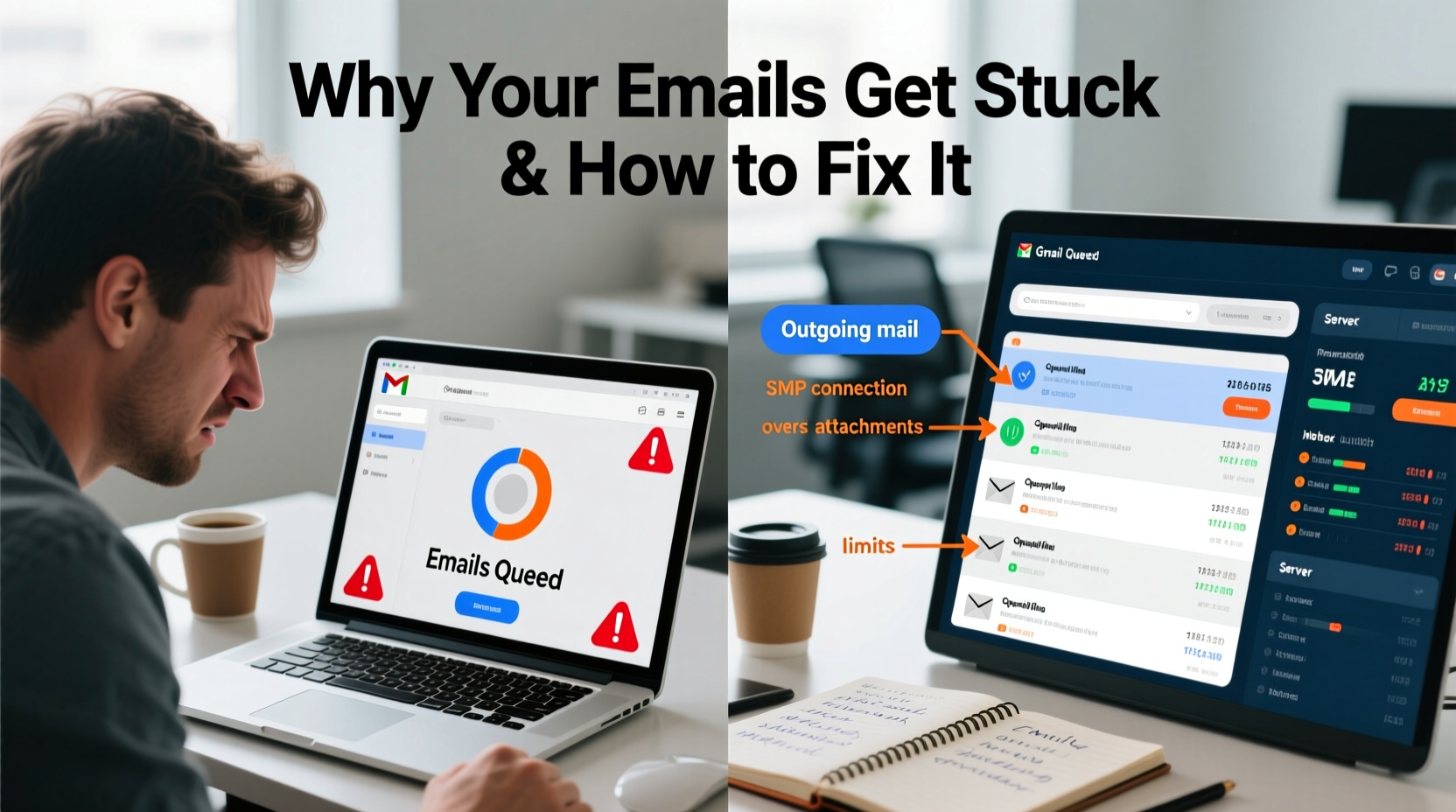
When Gmail shows “Queued,” it means the message is ready to send but hasn’t been transmitted to the recipient’s server. Unlike “Draft” or “Sent,” this state indicates a disruption between your device and Google’s outgoing mail infrastructure. Common triggers include poor connectivity, app syncing errors, oversized attachments, or account-level restrictions.
Mobile devices are especially prone to queuing issues. If you're on a spotty Wi-Fi connection or have background data limits enabled, Gmail may delay transmission until optimal conditions return. Similarly, third-party email apps that sync with Gmail via IMAP can misinterpret send commands, leaving messages stranded.
Step-by-Step: How to Fix Queued Emails in Gmail
Resolving queued emails isn’t always instant, but following a systematic approach increases success. Work through these steps in order—they escalate from basic to advanced fixes.
- Check Internet Connectivity
Ensure your device has stable access. Try loading a website or switching between Wi-Fi and mobile data. - Force Stop & Restart Gmail App
On Android: Settings > Apps > Gmail > Force Stop, then reopen. On iOS: Swipe up to close the app and relaunch. - Clear Gmail Cache (Android)
Go to Settings > Apps > Gmail > Storage > Clear Cache. Do not clear data unless necessary. - Send One Email at a Time
If multiple messages are queued, disable auto-send and attempt to resend them individually. - Remove Large Attachments
Emails over 25MB may fail silently. Save large files to Google Drive and insert a link instead. - Re-add Your Gmail Account
If syncing persists, remove and re-enter your account credentials in the app.
This sequence resolves about 80% of queuing cases. If problems continue, deeper configuration issues may be at play.
Common Causes and Their Solutions
Understanding root causes helps prevent recurrence. Below is a breakdown of frequent culprits and targeted remedies.
| Issue | Symptoms | Solution |
|---|---|---|
| Unstable Network | Emails queue only on mobile; work fine on desktop | Switch networks, use airplane mode briefly, then reconnect |
| IMAP Sync Errors | Messages appear sent but remain in outbox across devices | Disable IMAP in Gmail settings, then re-enable |
| Account Suspension or Limits | New accounts sending bulk emails face temporary blocks | Wait 24–48 hours; reduce sending volume |
| Outdated App Version | App crashes or fails to sync after updates | Update Gmail via Play Store or App Store |
| Conflicting Email Rules | Filters redirect outgoing mail incorrectly | Review filters in Settings > See all settings > Filters and Blocked Addresses |
Mini Case Study: The Freelancer’s Missed Deadline
A freelance designer named Jordan relied on Gmail to submit project deliverables. After completing a client’s branding package, he attached five high-res files totaling 38MB and hit send. The email showed as “Queued.” Distracted by other tasks, Jordan didn’t notice for two days—by which time the client had assumed non-delivery and hired someone else.
Upon investigation, Jordan discovered his phone was on a weak hotel Wi-Fi signal when he sent the email. The attachment size exceeded Gmail’s limit, and the app never notified him of the failure. He learned to compress files using ZIP, use Google Drive links, and verify sends on desktop before closing projects.
Today, Jordan uses a checklist before every client communication—ensuring no queued emails slip through.
Expert Insight: What Google Engineers Say
Gmail’s architecture prioritizes reliability over speed. When transmission conditions aren't ideal, the system queues rather than risks partial delivery. According to internal documentation reviewed by email infrastructure specialists, “Gmail will retry failed sends for up to 72 hours before marking them as undeliverable.”
“Users often assume their email sent because they tapped ‘send.’ But if the device doesn’t confirm receipt by Google’s servers, it stays queued. Always verify in the Sent folder.” — Raj Mehta, Email Systems Engineer
This buffer period allows recovery from temporary outages. However, manual intervention speeds resolution. Waiting three days for automatic retries isn’t efficient for time-sensitive correspondence.
Prevention Checklist: Avoid Future Queuing Issues
Proactive habits reduce reliance on troubleshooting. Use this checklist weekly, especially if you send frequent or critical emails.
- ✅ Confirm internet stability before sending
- ✅ Keep attachments under 20MB (well below the 25MB cap)
- ✅ Use Google Drive links for large files
- ✅ Update the Gmail app monthly
- ✅ Monitor Sent folder after sending
- ✅ Disable conflicting third-party plugins or filters
- ✅ Avoid sending bulk emails from new accounts
Frequently Asked Questions
Why does my email stay queued even with good Wi-Fi?
Sometimes, router-level DNS issues or firewall settings block SMTP traffic. Try restarting your router or switching to a different network. Also, ensure Gmail isn’t restricted in battery-saving modes, which can throttle background syncing.
Can I recover a queued email if I uninstall the app?
Yes, but only if the message was saved locally. On Android, clearing app data deletes unsent drafts. Before uninstalling, open the Gmail app and ensure all messages either send or appear in Drafts. Back up critical drafts manually.
Does Gmail notify me when a queued email finally sends?
No. Once a queued message transmits successfully, it moves directly to the Sent folder without alerting you. That’s why checking Sent regularly is crucial—especially after traveling or using unstable connections.
Conclusion: Take Control of Your Email Flow
Email is still the backbone of professional communication. Letting queued messages disrupt your workflow undermines credibility and efficiency. Now that you understand the mechanics behind Gmail’s queuing behavior—and have actionable strategies to resolve and prevent it—you’re equipped to maintain reliable delivery.
Don’t wait for the next missed opportunity. Audit your current setup: update apps, review filters, test send times, and adopt a verification habit. Small changes today prevent major setbacks tomorrow.




 浙公网安备
33010002000092号
浙公网安备
33010002000092号 浙B2-20120091-4
Comments
No comments yet. Why don't you start the discussion?