
When browsing Google Images, you may have noticed a strange visual phenomenon: a shimmering or flickering effect as thumbnails load. It's subtle but persistent—like tiny waves of distortion rippling across image previews. While not harmful, this shimmer can be distracting, especially during prolonged searches or when viewing high-resolution visuals. Understanding what causes it and how to reduce or eliminate it can significantly improve your browsing experience.
The shimmering effect isn't a glitch in the traditional sense. Instead, it’s an intentional design feature tied to how Google optimizes image delivery. However, its visibility varies based on device settings, browser behavior, and network conditions. This article breaks down the technical roots of the shimmer, explains why Google uses it, and provides actionable steps to minimize or stop it entirely.
What Is the Google Images Shimmering Effect?
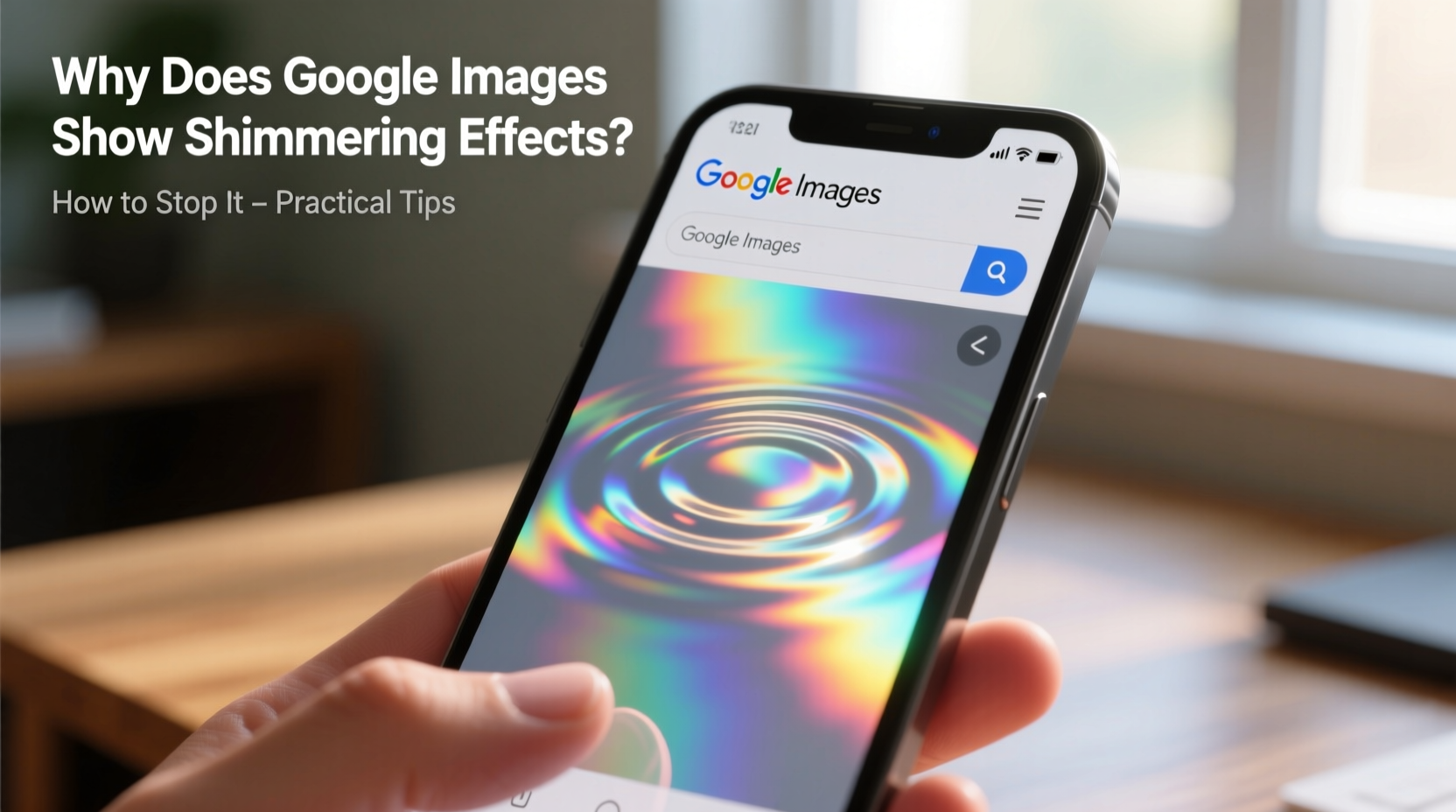
The shimmering effect refers to the animated, wave-like motion that appears over image thumbnails before they fully load on Google Images. It often resembles a soft gradient sweep moving diagonally across the placeholder space where the image will eventually appear. Unlike static loading bars or simple gray boxes, this animation gives a sense of activity—suggesting that content is actively being fetched.
This shimmer is part of Google’s “skeleton screen” strategy—a UX technique used to indicate loading states by showing a simplified version of the interface before data loads. In Google Images, the shimmer serves as a placeholder animation while the actual thumbnail is retrieved from servers.
Why Does the Shimmering Effect Happen?
The shimmer isn’t random—it’s engineered for performance and perception. Here are the primary reasons behind its implementation:
- Perceived Performance: A dynamic animation makes waiting feel shorter. Studies show users perceive systems as faster when there’s visual feedback during load times.
- Bandwidth Optimization: Google prioritizes speed by initially serving low-quality image placeholders (LQIP) or blurred versions, then replacing them with full-resolution thumbnails. The shimmer bridges the gap visually.
- Progressive Image Loading: Modern web standards support progressive JPEG rendering. The shimmer mimics this process even before image data arrives, creating continuity in user experience.
- Consistency Across Devices: Whether on mobile or desktop, the shimmer provides uniform feedback regardless of connection speed or hardware capability.
“Animated placeholders like the shimmer effect help maintain engagement by reducing the cognitive load associated with blank spaces.” — Dr. Lena Patel, Human-Computer Interaction Researcher at Stanford University
How to Stop or Reduce the Shimmering Effect
While the shimmer improves perceived performance, some users find it visually fatiguing, particularly those sensitive to motion or using screen readers. Fortunately, several methods can reduce or eliminate the effect depending on your device and preferences.
Step-by-Step Guide to Disable Animation in Browsers
- Open Browser Settings: Access settings in Chrome, Firefox, or Edge via the three-dot menu.
- Navigate to Accessibility: Look for \"Accessibility\" or \"Appearance\" settings.
- Enable Reduced Motion:
- In Chrome: Go to
chrome://settings/accessibilityand toggle “Animation” off. - In Firefox: Type
about:configin the address bar, search forui.prefersReducedMotion, and set it to1. - In Safari (macOS): Open System Settings > Accessibility > Display > check “Reduce motion”.
- In Chrome: Go to
- Restart the Browser: Changes may require a restart to take effect.
Once reduced motion is enabled, most websites—including Google Images—will disable decorative animations, replacing the shimmer with a static placeholder.
Device-Level Fixes and Alternatives
Beyond browser settings, system-wide adjustments can further suppress unwanted visual effects.
| Platform | Solution | Effectiveness |
|---|---|---|
| Windows 10/11 | Settings > Ease of Access > Display > Show animations in Windows → Off | High – disables most UI animations system-wide |
| macOS | System Settings > Accessibility > Display > Reduce motion | High – affects Safari and native apps |
| Android | Developer Options > Window/Transition Animation Scale → Off | Moderate – requires enabling developer mode |
| iOS | Settings > Accessibility > Motion > Reduce Motion → On | High – directly impacts Safari rendering |
Using Extensions to Block the Shimmer
For users who want granular control without changing system settings, browser extensions offer targeted solutions.
- Stop Animations Quickly (Chrome): Allows one-click disabling of CSS animations on any site.
- Disable HTML5 Autoplay (Firefox): Also blocks certain motion-based scripts that trigger shimmer effects.
- Stylus or uBlock Origin: Advanced users can write custom CSS rules to hide shimmer layers.
Example CSS rule to remove shimmer via Stylus:
.uEierd { opacity: 0 !important; }
Note: Class names like .uEierd may change over time as Google updates its front-end code, so periodic adjustment might be needed.
Mini Case Study: Reducing Eye Strain for Digital Artists
Jamie, a freelance illustrator, spends hours researching reference images on Google Images. Over time, she began experiencing eye strain and mild headaches. After ruling out screen brightness and posture issues, she noticed the shimmering thumbnails were most intense during long sessions. She enabled “Reduce motion” on her MacBook and installed the “Stop Animations” extension on Chrome. Within days, her visual fatigue decreased significantly. “I didn’t realize how much mental energy I was spending on that constant flicker,” she said. “Turning it off made image research feel calmer and more focused.”
FAQ
Does the shimmering effect use more data or battery?
No. The shimmer is a lightweight CSS animation and does not increase data usage or drain battery significantly. However, disabling animations can slightly improve performance on low-end devices.
Can I disable the shimmer without affecting other website animations?
Not precisely. Most built-in options (like reduced motion) apply globally. For selective control, use extensions like Stylus to target only Google Images with custom styles.
Is the shimmer new? I don’t remember seeing it before.
The effect became more prominent after Google redesigned its image search layout in 2020. Earlier versions used simpler loading indicators, but the current shimmer aligns with modern Material Design principles emphasizing fluid transitions.
Checklist: How to Eliminate the Google Images Shimmer
- ✅ Enable “Reduce motion” in your operating system settings.
- ✅ Turn off animations in your browser’s accessibility settings.
- ✅ Install a browser extension like Stop Animations Quickly or Stylus.
- ✅ Apply custom CSS to hide shimmer elements (advanced users).
- ✅ Test changes by opening Google Images and checking if placeholders are static.
- ✅ Consider using Reader Mode or text-only browsers for minimal distractions.
Conclusion
The Google Images shimmering effect exists to enhance perceived speed and provide visual feedback during loading. But for many users, especially those sensitive to motion or seeking a distraction-free experience, it does more harm than good. The good news is that you’re not stuck with it. Through a combination of accessibility settings, browser configurations, and optional tools, you can reclaim a cleaner, calmer image browsing environment.




 浙公网安备
33010002000092号
浙公网安备
33010002000092号 浙B2-20120091-4
Comments
No comments yet. Why don't you start the discussion?