
When you send a message from your iPhone and see a green bubble instead of the familiar blue, something has changed in how that message was delivered. While it might seem like a small visual detail, green text can signal deeper communication issues—especially if you're trying to stay within Apple's ecosystem. Understanding why messages turn green, what it means for functionality, and how to resolve it empowers you to maintain seamless conversations with friends and family.
What Do Green and Blue Text Messages Mean?
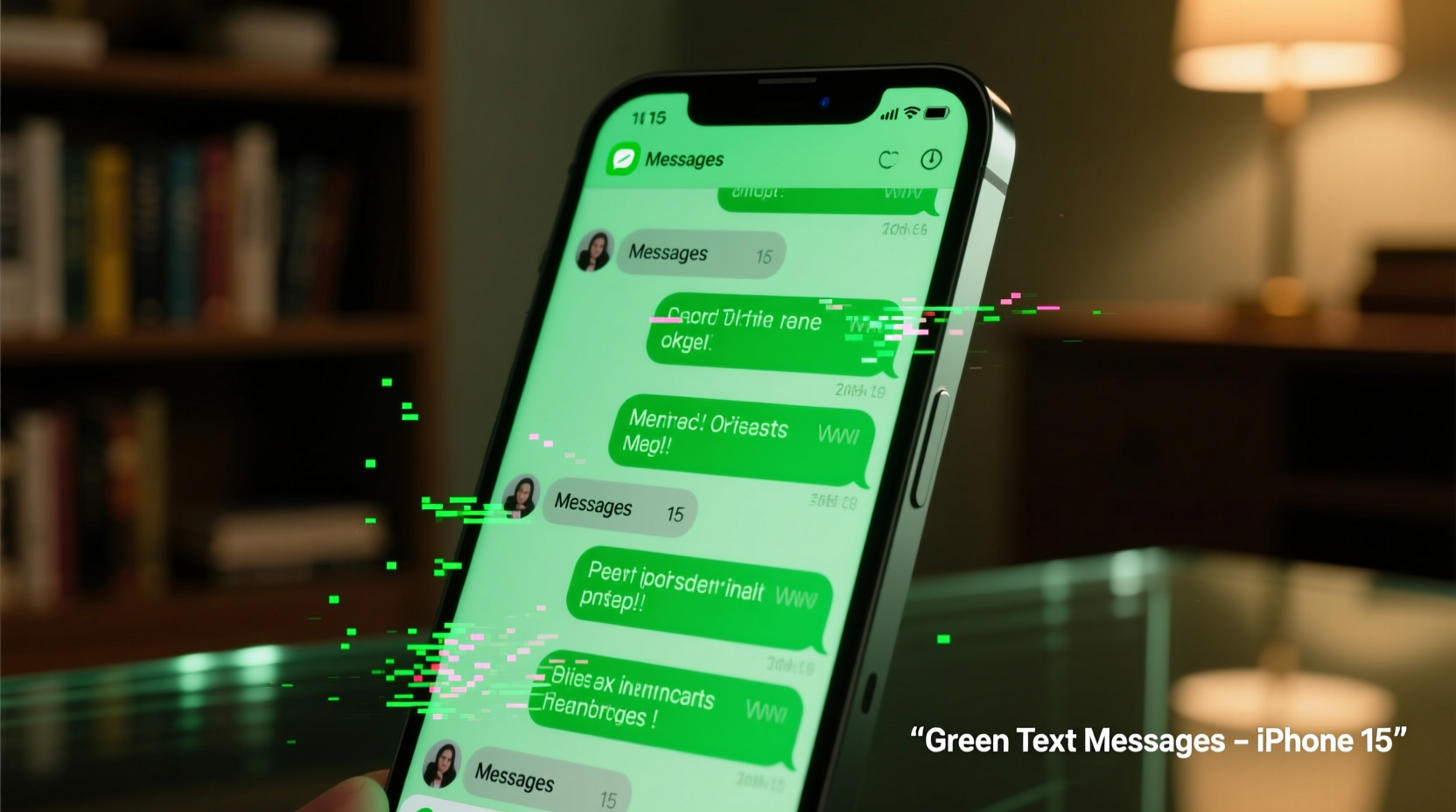
On an iPhone, message bubbles are color-coded to indicate the type of message being sent:
- Blue bubbles = iMessage (Apple’s proprietary messaging service over Wi-Fi or cellular data)
- Green bubbles = SMS/MMS (standard text or multimedia messages sent through your carrier’s network)
iMessage is feature-rich: it supports read receipts, typing indicators, high-quality photo sharing, video messages, Animoji, and end-to-end encryption. SMS, on the other hand, is limited to 160 characters per text (unless concatenated), lower-resolution media, and no advanced features.
The shift from blue to green doesn’t always mean something is broken—it could simply reflect who you’re messaging or their device type. However, when unexpected green texts appear between two iPhone users, it often points to a technical hiccup.
Common Reasons Why iPhone Messages Turn Green
Several factors can cause your messages to default to green SMS instead of blue iMessage. Identifying the root cause is essential for fixing the issue.
- The recipient doesn’t have an Apple device. If they use an Android, Windows phone, or another non-iOS device, messages will always be green because iMessage only works between Apple devices.
- iMessage is turned off on your iPhone. Without iMessage enabled, all outgoing messages fall back to SMS.
- Poor or no internet connection. iMessage requires Wi-Fi or cellular data. If either is unavailable, your iPhone automatically sends the message as SMS.
- The recipient has disabled iMessage. Even if they own an iPhone, they may have turned off iMessage, forcing replies to come via SMS.
- Phone number not registered with iMessage. Sometimes, after switching SIM cards or restoring a backup, your number fails to re-register with Apple’s iMessage servers.
- Do Not Disturb or Airplane Mode is active. These modes can interfere with data connectivity needed for iMessage.
Real Example: The Case of the Missing Blue Bubbles
Sarah noticed her messages to her sister were suddenly green—even though both used iPhones. At first, she assumed her sister had switched to Android. But after checking, she confirmed her sister still had an iPhone. After some troubleshooting, Sarah discovered her sister had accidentally disabled iMessage while adjusting privacy settings. Once re-enabled, the messages turned blue again. This scenario highlights how easily a simple setting change can disrupt iMessage continuity.
How to Fix Green Text Message Issues on iPhone
If you're seeing green messages unexpectedly—especially when texting another iPhone user—you can follow this step-by-step process to restore iMessage functionality.
Step-by-Step Guide to Restore Blue iMessages
- Check Your Internet Connection
Ensure your iPhone is connected to Wi-Fi or has active cellular data. Open Safari or another app to confirm connectivity. - Verify iMessage Is Enabled
Go to Settings > Messages and make sure iMessage is toggled on. - Wait for Activation
After enabling iMessage, your device may take up to a few minutes to activate with Apple’s servers. Avoid sending messages during this time. - Confirm Your Phone Number Is Linked
In Settings > Messages > Send & Receive, ensure your phone number appears under “You can be reached by iMessage at.” If only your email is listed, tap “Add Another Email or Phone Number” and verify your number. - Sign Out and Back Into iMessage
Still no luck? Go to Settings > Messages > Send & Receive, tap your Apple ID, then choose “Sign Out.” Restart your phone, then sign back in. - Reset Network Settings (if needed)
If iMessage won’t activate, go to Settings > General > Transfer or Reset iPhone > Reset > Reset Network Settings. Note: This erases saved Wi-Fi passwords. - Contact Your Carrier
Rarely, SMS/MMS settings may be misconfigured. Ask your carrier to ensure APN settings are correct for iMessage support.
“iMessage relies on consistent data connectivity and proper account registration. Many green message issues stem from overlooked settings rather than hardware failure.” — Jordan Lee, Apple Support Specialist
Do’s and Don’ts When Dealing With Green Messages
| Do | Don't |
|---|---|
| Double-check iMessage settings after updating iOS | Assume the recipient has changed phones without verifying |
| Use FaceTime to test Apple ID registration (calls use same backend) | Ignore pending iMessage activation prompts |
| Restart your iPhone if iMessage isn’t responding | Disable MMS Messaging unless necessary (needed for group texts with non-iPhones) |
| Ensure date and time are set automatically (Settings > General > Date & Time) | Send sensitive information over SMS, which lacks iMessage encryption |
Frequently Asked Questions
Does a green message mean I’ve been blocked?
No. Being blocked typically results in messages remaining blue with no delivery confirmation. A green message usually indicates the message was sent via SMS, often due to connectivity or settings—not blocking.
Can I force a message to send as iMessage instead of SMS?
Not directly. If iMessage is available, your iPhone will automatically use it. If it fails (due to no internet or deactivated iMessage), it falls back to SMS. You can prevent this fallback by turning off Send as SMS in Settings > Messages, but this risks undelivered messages.
Why are my group messages green?
Group messages containing even one non-iPhone user default to SMS/MMS, resulting in green bubbles. This is normal behavior, as iMessage cannot include non-Apple devices in encrypted group chats.
Final Thoughts and Action Steps
Green text messages on iPhone aren’t inherently problematic—but they do signal a departure from Apple’s enhanced messaging experience. Whether it’s a one-time fallback due to spotty Wi-Fi or a persistent issue caused by misconfigured settings, understanding the difference between iMessage and SMS puts you in control.
For most users, re-enabling iMessage and ensuring your phone number is properly registered resolves the issue. Others may need to reset network settings or contact their carrier. The key is methodical troubleshooting: start simple, verify each step, and don’t assume the worst when a quick fix exists.
If you frequently switch between devices or share messages across platforms, consider using cross-platform apps like WhatsApp or Signal for consistent formatting and features. But for pure Apple-to-Apple communication, keeping iMessage functional ensures you get the full benefit of modern messaging.




 浙公网安备
33010002000092号
浙公网安备
33010002000092号 浙B2-20120091-4
Comments
No comments yet. Why don't you start the discussion?