
The Xbox One X remains a powerhouse console, capable of delivering true 4K gaming at up to 60 frames per second. While many gamers opt for large TVs, a high-performance monitor can offer sharper visuals, faster response times, and reduced input lag—critical advantages in competitive or fast-paced games. However, not all monitors are built to handle the Xbox One X’s capabilities. Choosing the right one requires understanding display technology, connectivity, resolution, and refresh rates. This guide walks you through everything you need to know to find a monitor that elevates your gameplay.
Why a Monitor Can Outperform a TV for Xbox One X Gaming
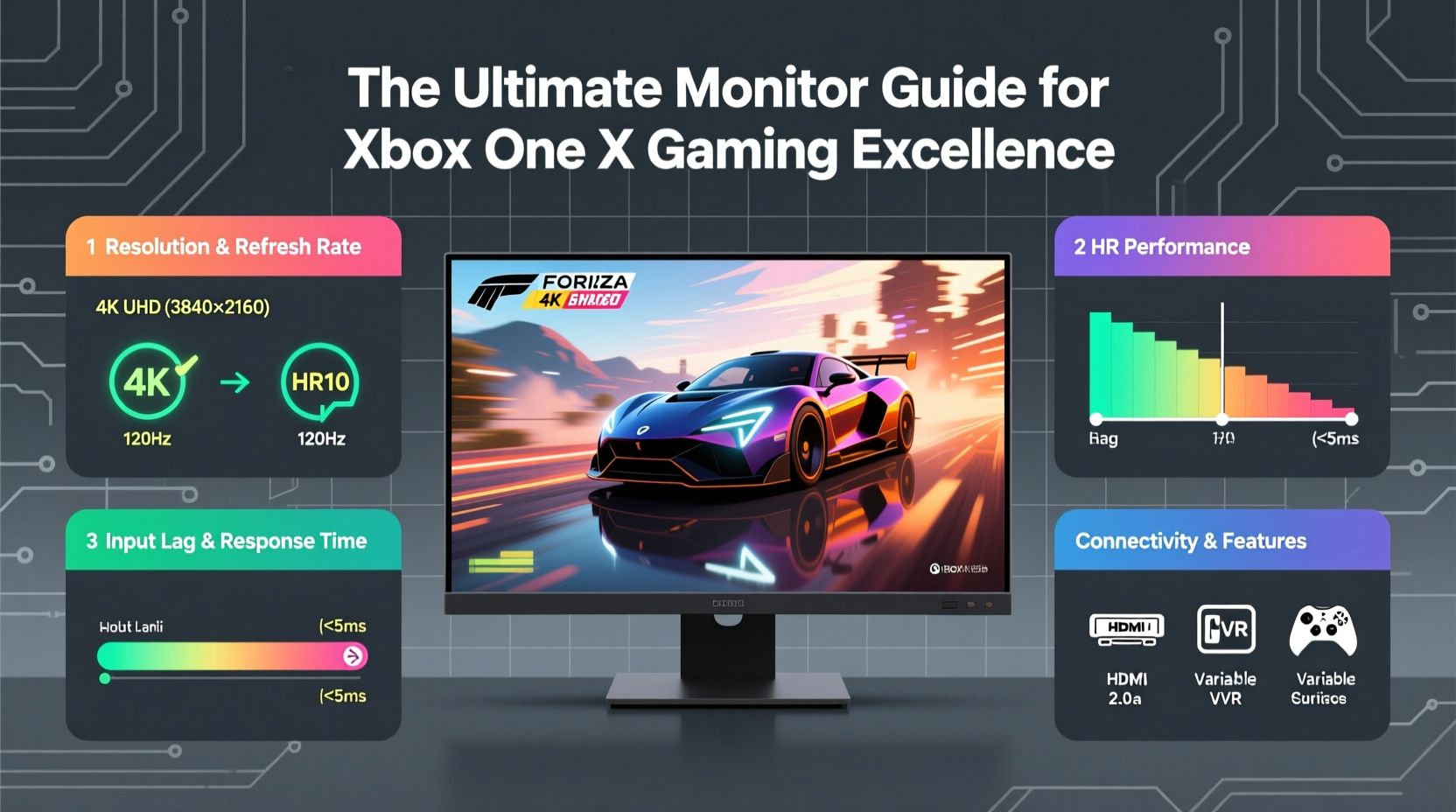
While traditional TVs dominate living room setups, monitors provide several distinct benefits when used with the Xbox One X. Their smaller size allows for closer viewing distances, which enhances immersion and detail clarity—especially important at 4K resolution. Monitors typically feature lower input lag than consumer TVs, meaning your controller inputs translate to on-screen action faster. Many also include adaptive sync technologies like FreeSync, reducing screen tearing during intense gameplay.
In addition, gaming monitors often have higher refresh rates (up to 144Hz) compared to standard TVs (usually capped at 60Hz). Although the Xbox One X is limited to 60Hz output over HDMI 2.0, future-proofing for higher frame rates and smoother motion handling still makes a difference in perceived fluidity. Monitors also tend to offer better color accuracy and contrast ratios, especially those with IPS or OLED panels.
Key Specifications to Consider
Selecting the ideal monitor isn’t just about size or brand—it comes down to technical compatibility and performance alignment with the Xbox One X. Here are the most critical specs to evaluate:
- Resolution: The Xbox One X supports native 4K (3840x2160), so a 4K UHD monitor ensures you’re getting the full visual benefit.
- Panel Type: IPS panels offer excellent color reproduction and wide viewing angles; VA provides deeper blacks; TN is faster but sacrifices color and viewing quality.
- Refresh Rate: While the console maxes out at 60Hz, monitors with higher refresh rates (e.g., 120Hz or 144Hz) can still improve motion clarity via lower response times.
- Response Time: Look for 5ms or lower gray-to-gray (GtG) response time to minimize ghosting and blur.
- HDR Support: HDR10 compatibility enhances contrast and color depth, making supported games more vibrant and lifelike.
- Ports: At minimum, the monitor should have an HDMI 2.0 port supporting 4K@60Hz and HDCP 2.2 for content protection.
“Gamers often overlook input lag, but even a 20ms reduction can make a noticeable difference in reaction-heavy titles.” — David Lin, Display Technology Analyst at GameGear Review
Top Monitor Recommendations for Xbox One X
Not every 4K monitor delivers a great console experience. Some lack proper HDR implementation, while others don’t support 4K at 60Hz over HDMI without enabling specific settings. Below is a curated list of reliable options across different price points:
| Monitor Model | Resolution | Refresh Rate | Panel Type | HDR Support | Price Range |
|---|---|---|---|---|---|
| Dell S2721QS | 4K UHD | 60Hz | IPS | HDR400 | $300–$350 |
| LG 27UL500-W | 4K UHD | 60Hz | IPS | HDR10 | $250–$300 |
| Acer CB281HK | 4K UHD | 60Hz | IPS | No | $200–$250 |
| ASUS ProArt PA278CV | 4K UHD | 60Hz | IPS | HDR10 | $500+ |
| Samsung Odyssey Neo G7 (scaled) | 4K | 120Hz | VA (Mini LED) | HDR2000 | $1000+ |
The Dell S2721QS stands out as the best balance of price, image quality, and reliability. It features excellent color accuracy, HDR400 certification, and a clean minimalist design. For budget-conscious users, the LG 27UL500-W offers solid 4K performance and HDR10 support at a lower cost. High-end professionals or enthusiasts might consider the ASUS ProArt series for studio-grade color fidelity, though it's pricier.
Step-by-Step Setup Guide for Optimal Performance
Even the best monitor won’t perform well if not configured correctly. Follow this sequence to maximize your Xbox One X and monitor pairing:
- Connect via HDMI 2.0 or higher: Use a certified Ultra High Speed HDMI cable and plug into the monitor’s HDMI 2.0+ port.
- Enable 4K and HDR on Xbox: Go to Settings > General > TV & display options > Resolution and select 2160p UHD. Then enable HDR under Color space.
- Adjust monitor settings: Set the monitor’s input mode to “Game” or “Low Input Lag” if available. Disable any motion smoothing or post-processing effects.
- Calibrate colors: Use the Xbox One X’s built-in color calibration tool or manually adjust brightness, contrast, and gamma based on ambient lighting.
- Test performance: Launch a graphically intensive game and check for flickering, banding, or black level crush. Adjust settings accordingly.
Real-World Example: Enhancing Competitive Edge
Take the case of Marcus, a dedicated Halo: The Master Chief Collection player who switched from a 55-inch 4K TV to a 27-inch Dell S2721QS monitor. Previously, he struggled with motion blur during fast multiplayer matches and noticed slight delays in weapon recoil feedback. After switching to the monitor, he reported crisper visuals, improved target tracking, and a more responsive feel—even though both displays ran at 4K/60Hz. The shorter viewing distance and superior panel technology made enemy spotting easier, and his kill-death ratio improved within two weeks. While skill played a role, the hardware upgrade undeniably contributed to his enhanced performance.
Frequently Asked Questions
Can I use a 144Hz monitor with Xbox One X?
Yes, but the Xbox One X only outputs up to 60Hz via HDMI 2.0. A 144Hz monitor will default to 60Hz, but may still offer better pixel response and lower input lag than slower models, improving perceived smoothness.
Do all 4K monitors support HDR for Xbox One X?
No. Ensure the monitor explicitly supports HDR10, as that’s the format used by the Xbox One X. Avoid monitors labeled “HDR-ready” or “HDR-effect,” as these are often fake implementations with no real dynamic range improvement.
Is screen size important for monitor gaming?
Absolutely. For desk-based setups, 24–32 inches is ideal. Larger screens (over 32\") can cause eye strain if viewed too closely, while smaller ones may lose the immersive impact of 4K. A 27-inch 4K monitor strikes the sweet spot for clarity and comfort.
Final Checklist Before Buying
- ✅ Verify HDMI 2.0 support:
- Must carry 4K@60Hz signal without compression.
- ✅ Confirm HDR10 compatibility:
- Look for official HDR10 certification, not marketing terms.
- ✅ Check input lag:
- Aim for under 10ms in game mode (check reviews).
- ✅ Test VESA mount compatibility:
- If wall-mounting or using an arm, ensure 100x100mm support.
- ✅ Review audio options:
- Many monitors lack speakers; plan for external audio via headset or DAC.
Conclusion: Upgrade Your Game with the Right Monitor
The Xbox One X was designed to push graphical boundaries, and pairing it with a capable monitor unlocks its full potential. From richer colors to tighter responsiveness, the right display transforms how you see and interact with games. Whether you're revisiting classic titles in 4K or diving into cinematic adventures, investing in a high-quality monitor tailored to console specifications pays off in immersion and enjoyment.




 浙公网安备
33010002000092号
浙公网安备
33010002000092号 浙B2-20120091-4
Comments
No comments yet. Why don't you start the discussion?