
ARK: Survival Evolved is a visually rich, open-world survival game that demands significant system resources. Whether you're playing on PC, console, or through a dedicated server, performance hiccups like stuttering, low frame rates, or crashes can disrupt immersion and make survival unnecessarily frustrating. The good news? With the right in-game and system-level adjustments, even mid-tier hardware can deliver a stable, enjoyable experience. This guide breaks down essential graphical, engine, and server-side settings to maximize both visual quality and performance.
Understanding ARK’s Performance Bottlenecks
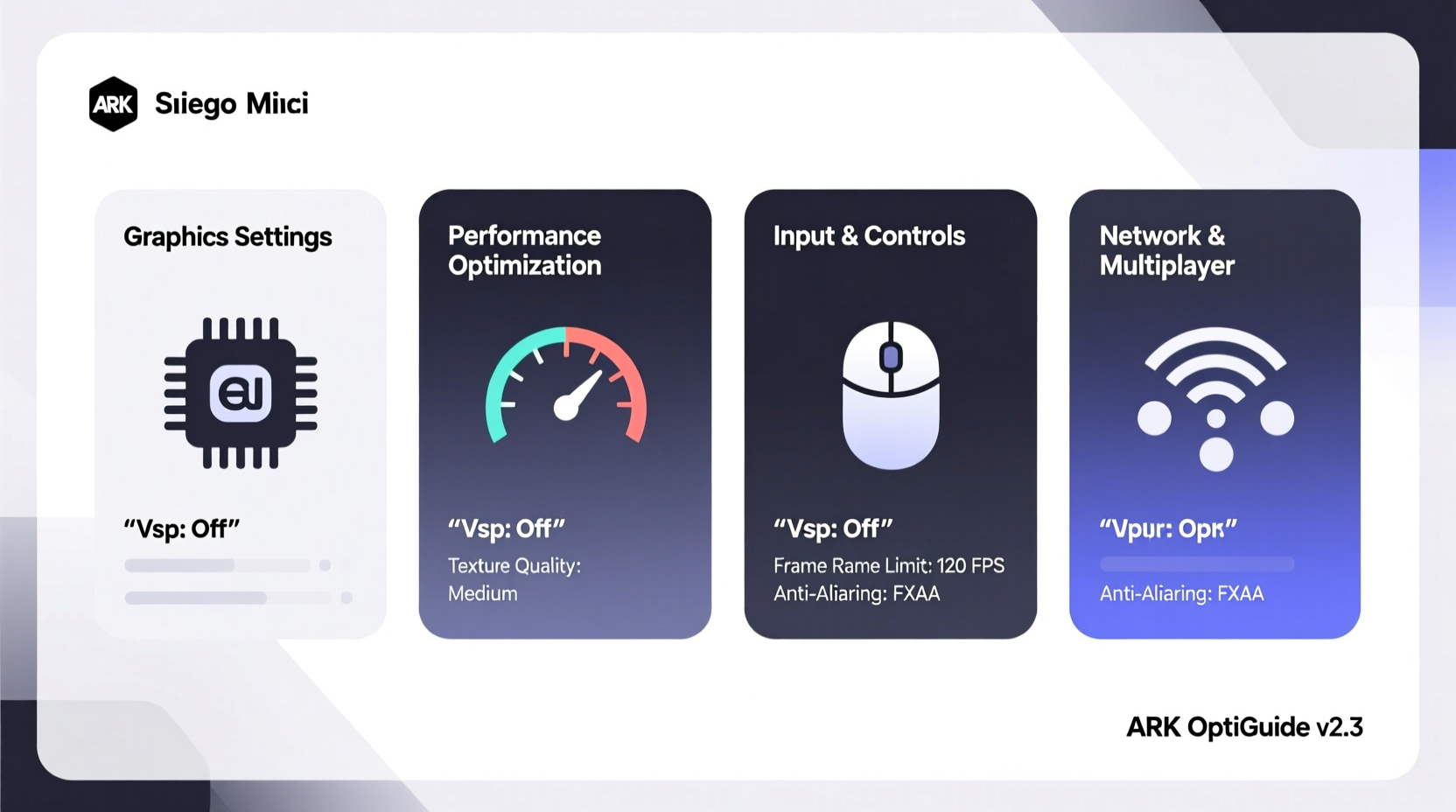
Before tweaking settings, it's important to understand what slows ARK down. The game combines high-poly models, dynamic weather, particle effects, and AI-driven dinosaurs—all while simulating physics and terrain deformation. The primary bottlenecks include:
- CPU usage: ARK relies heavily on CPU for creature AI, structure integrity, and simulation logic.
- GPU load: High-resolution textures, shadows, and post-processing effects strain graphics cards.
- RAM consumption: Large maps and modded content can push memory limits.
- Disk I/O: Slow storage leads to long load times and texture pop-in.
Adjusting settings isn't just about lowering quality—it's about finding the right balance where visual fidelity meets consistent frame pacing.
Optimal In-Game Graphics Settings
The most impactful changes come from the video settings menu. Below is a breakdown of key options and recommended configurations based on hardware tiers.
| Setting | High-End PCs (RTX 3070+) | Mid-Range PCs (GTX 1660/RX 580) | Low-End PCs (GTX 1050/iGPU) |
|---|---|---|---|
| Resolution | 1440p or 4K | 1080p | 900p or 720p |
| View Distance | Ultra (1.0) | High (0.7–0.8) | Medium (0.5) |
| Shadows | High | Medium | Low or Disabled |
| Post Processing | High | Medium | Low |
| Anti-Aliasing | TAA or MSAA | FXAA | Disabled |
| Effects Quality | High | Medium | Low |
| V-Sync | Off (use G-Sync/FreeSync if available) | Off | Off |
| Frame Rate Limit | Unlocked or 120 FPS | 60–90 FPS | 30–60 FPS |
Lowering View Distance has one of the biggest impacts on performance since it reduces how much terrain and creatures are rendered at once. Shadows and anti-aliasing are also GPU-intensive—prioritize these for reduction if struggling with frame drops.
Engine and Launch Options for Maximum Performance
Beyond in-game menus, ARK allows deeper optimization via launch parameters and configuration files. These tweaks target the Unreal Engine 3 backend and can significantly improve stability.
Recommended Steam Launch Options
Add these directly in Steam by right-clicking ARK > Properties > General > Launch Options:
-USEALLAVAILABLECORES -nomansky -high -malloc=system -fullscreen
- -USEALLAVAILABLECORES: Enables full CPU utilization.
- -nomansky: Disables volumetric clouds, reducing GPU load.
- -high: Sets process priority to high in Task Manager.
- -malloc=system: Uses Windows memory allocator instead of default, reducing stutters.
- -fullscreen: Forces exclusive fullscreen mode, improving input latency and performance.
Config File Tweaks (GameUserSettings.ini)
Navigate to %LOCALAPPDATA%\\ARK\\ShooterGame\\Saved\\Config\\WindowsNoEditor\\ and edit GameUserSettings.ini.
Add or modify under [SystemSettings]:
r.Shadow.DistanceScale=0.6
r.ViewDistanceScale=2.0
r.PostProcessAAQuality=0
r.SSR.Quality=1
r.Foliage.MinScreenRadius=0.01
r.Streaming.PoolSize=4000
These reduce shadow draw distance, disable expensive anti-aliasing methods, and optimize texture streaming. Adjust PoolSize based on available VRAM (e.g., 6000 for 8GB VRAM).
“Many players overlook launch options, but -malloc=system alone can eliminate micro-stutters caused by memory fragmentation.” — Alex Rivera, PC Optimization Specialist
Server-Side Considerations for Dedicated Hosts
If you're hosting a private server, performance depends as much on server settings as client-side tuning. Overpopulated servers with complex mods often lag regardless of client specs.
Essential Server Settings for Smooth Gameplay
- Reduce Dino Population: Use
GlobalDinoLimitto cap spawns. High dino counts overwhelm CPU simulation. - Disable Unnecessary Structures: Turn off features like auto-decay or foundation alignment checks if not needed.
- Optimize Taming Speed: Higher taming speeds reduce time spent near aggressive creatures, lowering AI load.
- Use Official Map Settings: Custom maps with increased spawn rates or resource gains increase simulation overhead.
- Update Regularly: Patch updates often include performance improvements and bug fixes.
Mini Case Study: Reviving a Laggy Private Server
A player-run Ragnarok server with 15 active members was experiencing constant lag, especially near the Redwoods and Volcano. Despite high-end client rigs, frame rates dropped below 20 FPS in populated zones. After analysis, the host discovered:
- Dino limit was set to 5000 (default is 1500).
- Auto-decay and foundation alignment were enabled.
- Several poorly optimized mods were active.
The fix included reducing the dino cap to 2000, disabling decay mechanics, removing two heavy mods, and increasing server RAM allocation. Within 24 hours, average client FPS improved by 65%, and server tick rate stabilized at 60.
Performance Checklist
Follow this checklist to ensure your ARK setup is optimized:
- ✅ Update GPU drivers to the latest version.
- ✅ Apply recommended in-game graphics settings for your hardware tier.
- ✅ Add performance-focused launch options in Steam.
- ✅ Edit GameUserSettings.ini for advanced rendering control.
- ✅ Disable V-Sync and use fullscreen mode.
- ✅ Install ARK on an SSD, not an HDD.
- ✅ Limit background apps while playing.
- ✅ For servers: cap dino spawns and avoid unnecessary mods.
Frequently Asked Questions
Why is ARK still lagging after lowering all graphics settings?
Lag may stem from CPU bottlenecks or background processes. Check Task Manager for high CPU or disk usage. Also, verify that your antivirus isn’t scanning the game folder in real time.
Does playing windowed mode affect performance?
Yes. Windowed and borderless modes introduce compositor overhead. Exclusive fullscreen generally provides better frame consistency and lower input lag.
Can I improve performance without sacrificing too much visual quality?
Absolutely. Prioritize lowering shadows and view distance first—they offer the best performance gain per visual loss. Keep textures and effects at medium to preserve atmosphere.
Conclusion: Play Smarter, Survive Longer
Smooth gameplay in ARK isn’t just about having the latest hardware—it’s about smart configuration. From launch commands to server caps, every adjustment contributes to a more responsive, immersive survival experience. Whether you're building a base on The Island or battling bosses on Aberration, optimized settings mean fewer distractions and more focus on strategy and exploration. Don’t let technical issues hinder your journey. Apply these settings today, and feel the difference in every hunt, build, and flight across the wilds.




 浙公网安备
33010002000092号
浙公网安备
33010002000092号 浙B2-20120091-4
Comments
No comments yet. Why don't you start the discussion?