
For millions of users, Amazon is a daily destination for shopping, streaming, and managing subscriptions. While the Amazon app offers convenience, it’s not always the best option. It can consume storage, deliver intrusive notifications, or limit functionality compared to the full desktop experience. Fortunately, you can bypass the app entirely and access Amazon directly through your browser—on smartphones, tablets, laptops, smart TVs, and even gaming consoles. This method gives you more control, faster load times, and access to features often hidden in the app.
Why Bypass the App?
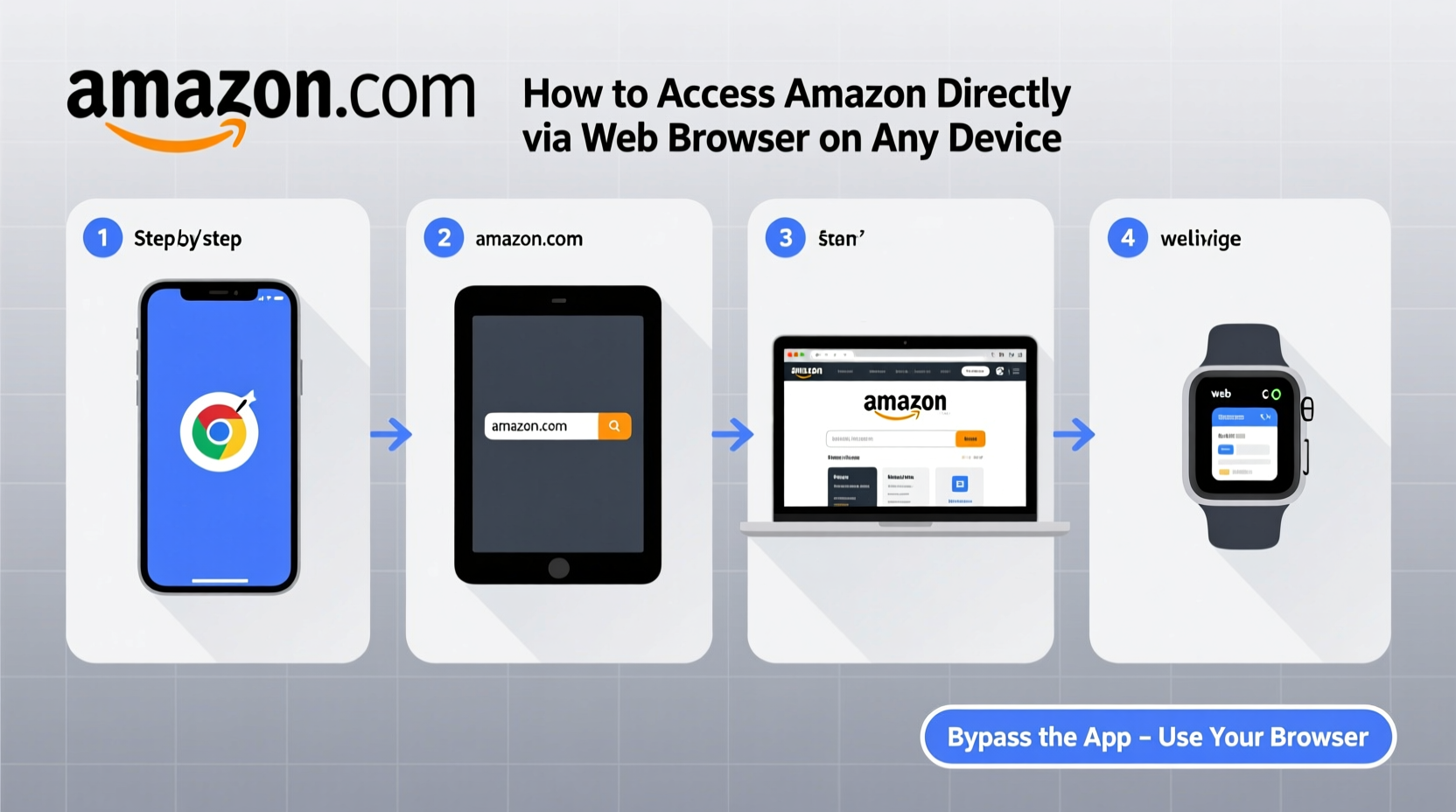
The Amazon app dominates mobile home screens, but its benefits come with trade-offs. Many users report slower performance, excessive ads, and restricted navigation. The web version, in contrast, often provides a cleaner interface, broader product filters, easier price comparisons, and access to customer service tools that aren’t available in-app.
Additionally, the website supports keyboard shortcuts, mouse hover previews, and multiple open tabs—features essential for power shoppers and deal hunters. Whether you're comparing laptop specs or tracking package deliveries across multiple orders, the browser-based Amazon experience is frequently superior.
How to Access Amazon Directly on Any Device
No matter what device you're using, accessing Amazon via a web browser is simple. Here’s how to do it correctly and optimize your experience.
On Smartphones (iOS and Android)
Open your preferred browser—Safari, Chrome, Firefox, or Edge—and type www.amazon.com into the address bar. Press Enter. You’ll be redirected to your regional Amazon site if applicable (e.g., amazon.co.uk, amazon.de).
Once logged in, you can save the site to your home screen for quick access:
- Tap the share icon in your browser (usually at the bottom on iOS, top-right on Android).
- Select “Add to Home Screen” or “Install” (if available).
- Confirm the action. A shortcut will appear like an app icon, but it opens in the browser.
This creates a lightweight, fast-loading alternative to the native app without taking up significant storage space.
On Tablets
Tablets offer larger screens ideal for browsing. Open your browser and navigate to Amazon as you would on a phone. For the best experience, request the desktop site:
- In Chrome or Safari, tap the three-dot or “aA” menu and select “Request Desktop Site.”
- This unlocks advanced sorting options, bulk ordering tools, and business account features.
The desktop layout makes filtering by price, rating, or delivery date far more efficient than swiping through app menus.
On Laptops and Desktops
This is where Amazon truly shines outside the app. Simply open any modern browser and go to amazon.com. Log in with your credentials or use one-click login if enabled.
You gain immediate access to:
- Wish lists with sharing options
- Order history with downloadable invoices
- Advanced search operators (e.g., “laptop +i7 -refurbished”)
- Amazon Business dashboards (for verified accounts)
On Smart TVs and Streaming Devices
You don’t need the Amazon Prime Video app to watch content. Many smart TVs have built-in browsers. Open the browser app, go to amazon.com, log in, and navigate to “Prime Video” from the menu.
Note: Some TV browsers lack full compatibility. If playback fails, try enabling desktop mode or use screen mirroring from a phone or laptop.
On Gaming Consoles
Both PlayStation and Xbox include web browsers. Navigate to Amazon through the browser, though input may be clunky with a controller. Best used for checking orders or managing digital subscriptions rather than shopping.
Step-by-Step Guide: Setting Up Browser Access Like an App
Follow this sequence to make your browser-based Amazon access feel seamless and app-like:
- Choose Your Browser: Pick one with sync capabilities (Chrome, Firefox, Safari) so bookmarks and logins carry across devices.
- Go to Amazon: Visit www.amazon.com and sign in securely.
- Save Login Info: Allow the browser to remember your credentials (use a password manager for safety).
- Add to Home Screen: Use the “Add to Home Screen” feature on mobile devices.
- Enable Notifications (Optional): Allow browser notifications for order updates—if desired.
- Bookmark Key Pages: Save links to Your Orders, Prime Benefits, and Wishlist.
Now you have instant, app-free access with all the functionality of the official application—plus added flexibility.
Do’s and Don’ts When Using Amazon via Browser
| Action | Do | Don't |
|---|---|---|
| Login Security | Use two-factor authentication | Stay logged in on public computers |
| Performance | Clear cache monthly | Run too many tabs simultaneously |
| Navigation | Use desktop mode on tablets | Rely on outdated browser versions |
| Privacy | Browse in incognito mode | Click suspicious third-party seller ads |
Real Example: Maria’s Switch from App to Web
Maria, a freelance designer from Austin, used the Amazon app for years to buy office supplies and stream shows. But she grew frustrated with constant pop-ups pushing Prime Day deals and found it hard to compare monitor specs across listings.
After switching to Chrome on her iPad and enabling desktop mode, she discovered side-by-side product comparison tools and detailed filter options she never knew existed. She saved the site to her home screen and now completes orders 40% faster. “I didn’t realize how much the app was holding me back,” she said. “The website feels like the full version now.”
“We see increasing demand for web-first experiences—even on mobile. Users want control over their data and interfaces.” — Dr. Lena Patel, UX Researcher at Digital Commerce Lab
Tips for Optimizing the Amazon Web Experience
- Use Keyboard Shortcuts: Press ‘/’ to jump to the search bar instantly.
- Leverage Advanced Search: Use filters like “Newest Arrivals” or “Avg. Customer Review” to refine results.
- Check Seller Ratings Directly: On the website, hover over seller names to view feedback scores without leaving the page.
- Download Order Reports: Go to “Your Orders” > “Download Order Report” for expense tracking.
FAQ
Can I track my packages without the Amazon app?
Yes. Log in to amazon.com, go to “Your Orders,” and click on any shipment to view real-time tracking, delivery windows, and rescheduling options—identical to the app.
Is it safe to use Amazon in a browser?
Absolutely. As long as you’re on the official site (check for HTTPS and the correct URL), browser access is just as secure as the app. Enable two-factor authentication for added protection.
Will I miss out on app-only deals?
Rarely. Most “app-exclusive” promotions are also accessible via the mobile website. True exclusives are uncommon and usually minor discounts. The flexibility of the web typically outweighs these small savings.
Final Checklist: Going App-Free on Amazon
- ✅ Open your preferred browser and visit amazon.com
- ✅ Log in and verify your account security settings
- ✅ Save the site to your home screen (mobile/tablet)
- ✅ Enable desktop mode on tablets for better navigation
- ✅ Bookmark key pages: Orders, Prime, Returns, Wishlist
- ✅ Clear cookies/cache periodically to maintain speed
- ✅ Consider a password manager for secure, automatic logins
Conclusion
Ditching the Amazon app doesn’t mean losing convenience—it means gaining freedom. By accessing Amazon directly through your browser, you unlock a more powerful, customizable, and privacy-conscious shopping experience. Whether you're on a phone, tablet, computer, or TV, the web version delivers everything the app does—and often more. With just a few taps, you can create a fast, lightweight, and fully functional Amazon portal tailored to your needs.




 浙公网安备
33010002000092号
浙公网安备
33010002000092号 浙B2-20120091-4
Comments
No comments yet. Why don't you start the discussion?