
Losing access to your Samsung phone because you’ve forgotten the PIN can be frustrating—especially when important data, messages, or apps are locked behind the screen. While security is essential, there are legitimate situations where you need to regain entry without triggering factory resets or risking account loss. Fortunately, Samsung offers several secure recovery paths, and third-party methods exist that prioritize both safety and effectiveness. This guide walks through reliable techniques to unlock your device while minimizing data loss and protecting your privacy.
Understanding Samsung’s Security Framework
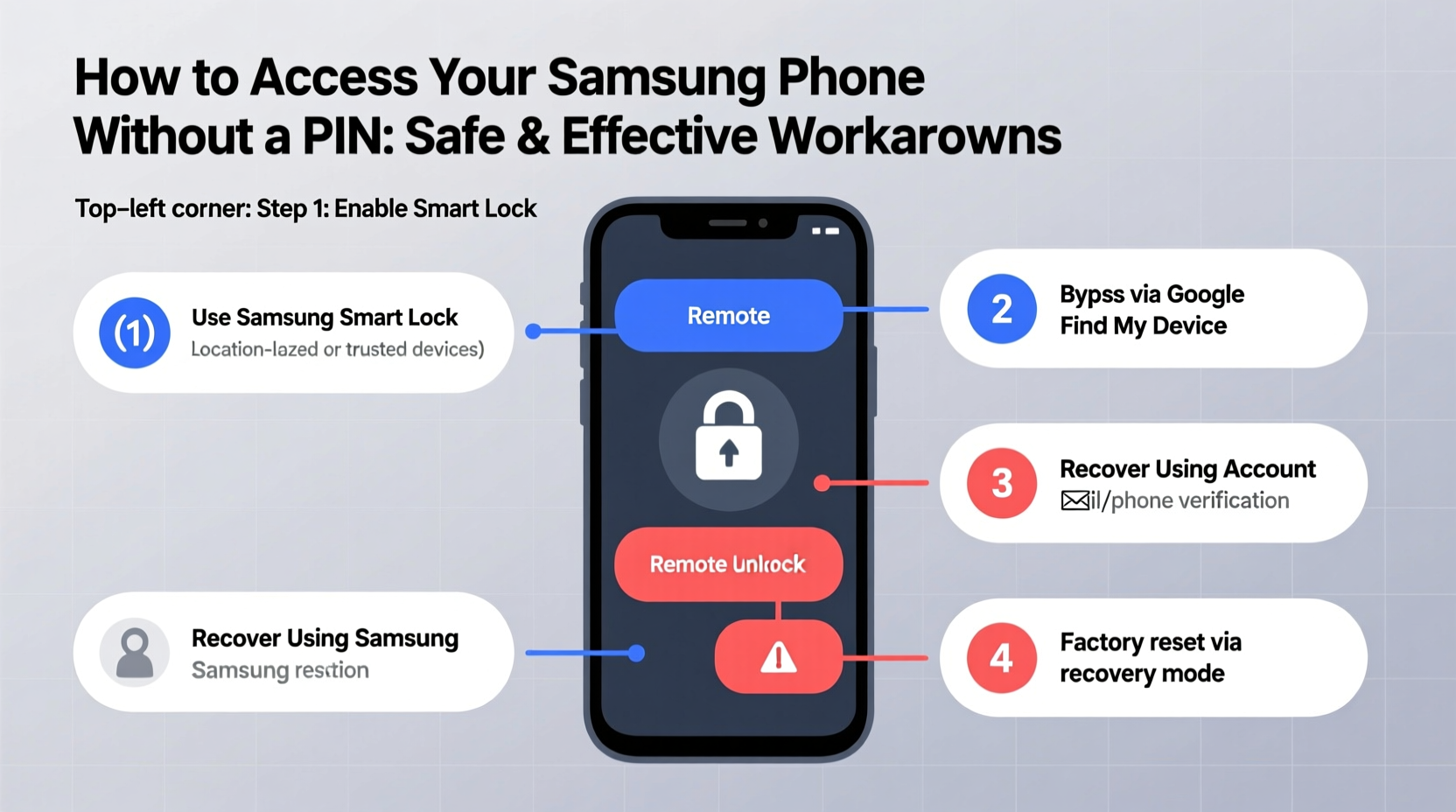
Samsung devices run on Android with additional layers from Samsung Knox, a defense-grade security platform that protects user data from unauthorized access. When a PIN is set, it encrypts the device at the system level. After multiple incorrect attempts, the phone may lock temporarily or prompt for Google Account verification—a feature known as Factory Reset Protection (FRP).
This means brute-forcing or guessing the PIN isn’t viable and could lead to permanent lockout. Instead, successful access depends on leveraging account-based recovery tools or pre-enabled backup features. The key is preparation: having your Google or Samsung account credentials ready dramatically increases your chances of regaining control.
Step-by-Step Guide: Using Find My Mobile to Bypass the Lock Screen
Samsung’s Find My Mobile service is one of the most effective tools for unlocking a device remotely—if it was enabled before the lockout. This method doesn’t require technical expertise and preserves all your data.
- Visit findmymobile.samsung.com from any computer or another smartphone.
- Log in using the Samsung account linked to your locked device.
- Select your device from the list shown on the dashboard.
- Click “Unlock” under the device management options.
- Confirm the action. The lock will be removed within minutes, provided the phone is powered on and connected to the internet.
This solution works only if “Remote Unlock” was activated in settings beforehand. To check this in the future, go to Settings > Biometrics and Security > Find My Mobile and ensure both location and remote unlock are toggled on.
“Samsung’s Find My Mobile is among the most robust manufacturer-specific recovery systems available. It gives users a second chance without compromising long-term security.” — David Lin, Mobile Security Analyst at TechShield Labs
Using Google's Find My Device: A Viable Alternative
If Find My Mobile isn’t an option, Google’s ecosystem provides a fallback. While it won’t directly remove a PIN, it allows remote actions that can help restore access—especially when combined with FRP compliance.
Here’s how to use Google Find My Device:
- Go to google.com/android/find.
- Sign in with the Google account associated with your Samsung phone.
- Select your device from the menu.
- You’ll see options like “Play Sound,” “Secure Device,” and “Erase Device.”
- Choose “Erase Device” to perform a factory reset.
After erasing, the phone restarts as new. During setup, you’ll need to enter the same Google account used to trigger the erase—this satisfies FRP and lets you proceed. All local data will be lost unless previously backed up.
| Method | Data Preservation? | Internet Required? | Account Needed |
|---|---|---|---|
| Find My Mobile (Samsung) | Yes | Yes | Samsung Account |
| Google Find My Device | No (erases data) | Yes | Google Account |
| Recovery Mode + Factory Reset | No | No | Google Account (post-reset) |
| Smart Switch Backup Restore | Yes (partial) | No (during restore) | None |
Real Example: Recovering Access After Forgetting the PIN
Sarah, a teacher from Portland, accidentally locked herself out of her Galaxy S22 after changing her PIN and forgetting the new code. She tried several combinations, triggering a 30-second delay after each attempt. Panicked about losing student contact lists and lesson plans stored locally, she remembered enabling Find My Mobile months earlier.
She borrowed a colleague’s laptop, logged into her Samsung account, located her phone, and clicked “Unlock.” Within two minutes, her device rebooted and welcomed her back—no data loss, no reset. Sarah later set up biometric authentication (fingerprint and face unlock) as a backup and wrote down her PIN in a password manager.
Workarounds Without Remote Access: When Accounts Aren't Synced
If neither Find My Mobile nor Google Find My Device recognizes your phone—likely due to being offline or not previously synced—you may still recover access via recovery mode. Note: this erases everything.
Steps to Perform a Factory Reset via Recovery Mode:
- Power off the Samsung phone completely.
- Press and hold Volume Up + Power + Home buttons simultaneously (on older models; newer ones may omit Home button).
- When the Samsung logo appears, release the Power button but keep holding the others until the recovery menu loads.
- Use Volume keys to navigate to “Wipe Data/Factory Reset” and press Power to select.
- Confirm the action, then choose “Reboot System Now” once complete.
After rebooting, the phone behaves like a new device. You must verify ownership by entering the last Google account used on the device—this is FRP in action. Without those credentials, the phone remains unusable.
Checklist: Prevent Future Lockouts
- ✅ Enable Find My Mobile and allow location services.
- ✅ Link your phone to a trusted Google account with recovery info updated.
- ✅ Set up biometric unlock (face/fingerprint) as a daily convenience layer.
- ✅ Regularly back up data via Samsung Cloud or Smart Switch.
- ✅ Store your PIN securely in a password manager—not on paper near the device.
Frequently Asked Questions
Can I bypass my Samsung PIN without losing data?
Yes, if Find My Mobile was enabled prior to lockout. Use findmymobile.samsung.com to unlock remotely. Otherwise, most other methods involve data loss through reset.
What happens if I don’t remember my Google account after a factory reset?
The phone will remain locked due to Factory Reset Protection. You cannot skip this step. Contact Google Support with proof of purchase to potentially verify ownership and regain access.
Are third-party PIN removal tools safe?
Most are not recommended. Tools claiming to remove locks without credentials often carry malware or violate security policies. Stick to official Samsung or Google solutions for safety.
Final Thoughts: Balance Security With Accessibility
Being locked out of your Samsung phone doesn’t mean permanent loss—but acting quickly and correctly makes all the difference. The safest path relies on preparation: syncing accounts, enabling remote tools, and backing up regularly. Once locked, prioritize official channels over risky shortcuts. Whether you use Find My Mobile, Google’s ecosystem, or recovery mode, understanding these processes ahead of time reduces stress when memory fails.




 浙公网安备
33010002000092号
浙公网安备
33010002000092号 浙B2-20120091-4
Comments
No comments yet. Why don't you start the discussion?