
Losing your contacts can be more than inconvenient—it can mean losing vital personal and professional connections. Whether due to a broken phone, accidental deletion, or a forgotten password, data loss happens more often than people expect. While many users rely solely on cloud backups or SIM card storage, neither option is foolproof on its own. Cloud services depend on internet access and account security, while SIM cards have limited storage and are vulnerable to physical damage or loss. The smart solution? Combine both methods. By backing up contacts to both the SIM and the cloud simultaneously, you ensure redundancy, accessibility, and peace of mind.
This guide walks through practical strategies, device-specific settings, automation tools, and best practices to help you create a dual backup system that runs smoothly in the background—without constant manual effort.
Why Dual Backup Matters: Redundancy You Can’t Afford to Skip
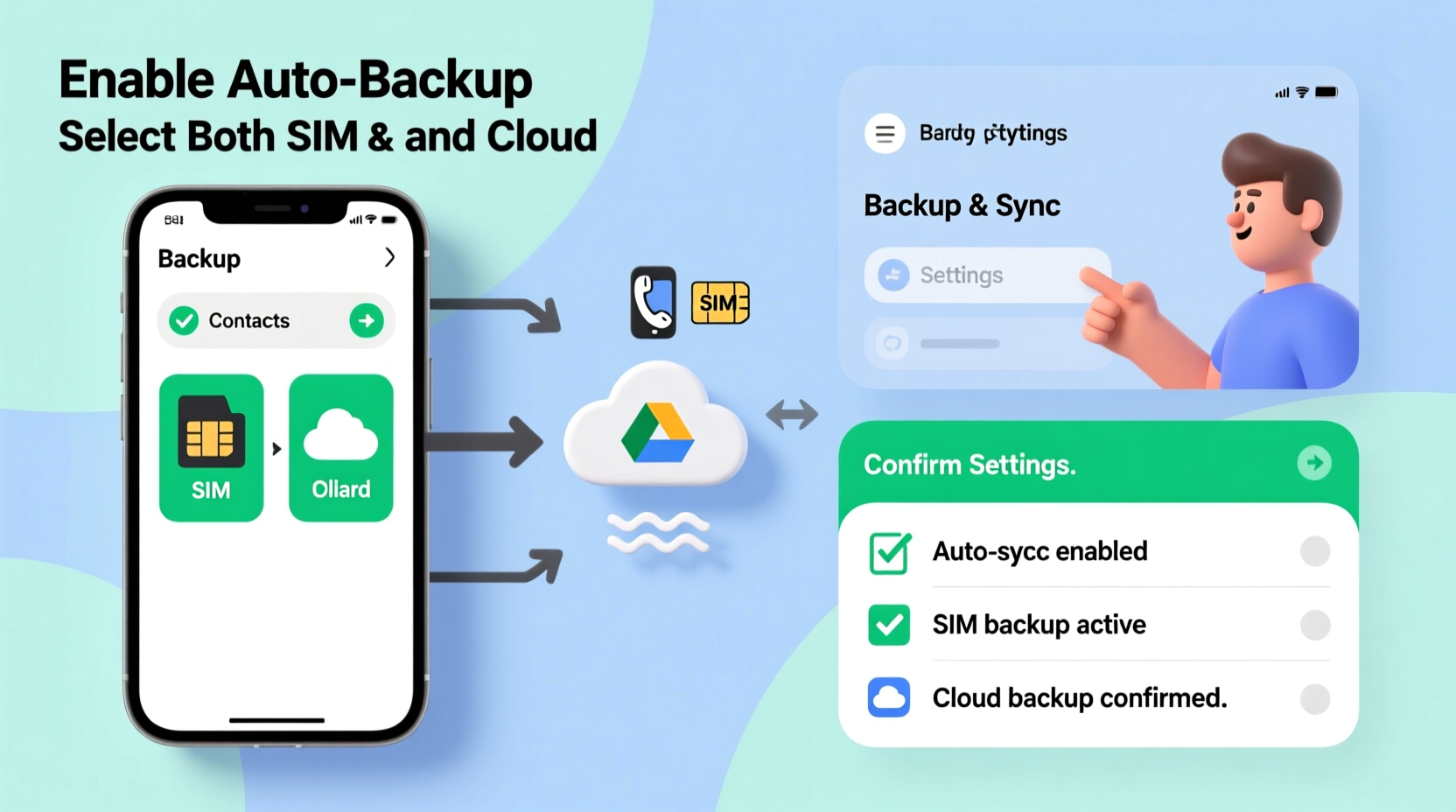
Backing up contacts to only one location creates a single point of failure. If your Google account gets locked, your iCloud isn’t syncing, or your SIM card corrupts, your entire contact list could vanish. A dual backup strategy eliminates this risk by creating two independent copies: one locally on your SIM and another remotely in the cloud.
The SIM acts as a quick-access fallback—especially useful when switching phones without internet access. Meanwhile, the cloud offers unlimited storage, cross-device sync, and long-term archival. Together, they cover both immediate and long-term needs.
“Redundant backups aren’t about paranoia—they’re about resilience. In digital life, having two independent systems is the baseline for data safety.” — Dr. Lena Torres, Data Security Researcher at Mobile Integrity Labs
Step-by-Step: Setting Up Automatic Backups on Android
Android devices offer native support for both SIM and cloud contact storage, but automatic synchronization requires proper configuration. Follow these steps to automate the process across platforms.
- Enable Google Sync: Go to Settings > Accounts > Google. Ensure “Contacts” is toggled on under sync options. This enables automatic cloud backup to your Google account.
- Set Default Save Location: Open the Contacts or Phone app, tap the three-dot menu, then go to Settings > Manage Contacts > Default Save Location. Choose “Google Account” to ensure new contacts save directly to the cloud.
- Copy Contacts to SIM (One-Time Setup): In the same menu, select “Import/Export Contacts” > “Copy from phone to SIM.” Confirm the transfer. This step ensures your current contacts are mirrored on the SIM.
- Automate Future Transfers: Since Android doesn’t natively auto-copy new contacts to SIM, use a lightweight automation app like Tasker or MacroDroid. Create a rule: “When a new contact is added to Google, copy it to SIM.”
- Test the System: Add a test contact (e.g., “Auto Backup Test”) and verify it appears in both your Google Contacts online and on the SIM via the Contacts app’s storage filter.
iOS Limitations and Workarounds
Apple does not support storing contacts directly on SIM cards. This is a deliberate design choice prioritizing iCloud integration and security. However, if you frequently switch between iOS and Android devices—or need a fallback for travel—you can still achieve dual-layer protection using indirect methods.
While you can't back up to SIM from an iPhone, you can export contacts to a file stored externally (like an SD card via adapter or cloud drive), which serves a similar emergency-recovery role. More importantly, ensure iCloud sync is flawless so your primary cloud backup remains intact.
Recommended Workflow for iPhone Users
- Enable iCloud Contacts: Settings > [Your Name] > iCloud > Toggle on “Contacts.”
- Turn on Sync Across Devices: Ensure all Apple devices use the same Apple ID and have Contacts sync enabled.
- Export Periodic VCF Files: Use the Mail app to share your contact list as a .vcf file to cloud storage (Google Drive, Dropbox). This file can be imported to any Android phone or SIM-enabled device later.
- Use Third-Party Sync Tools: Apps like SyncGene or CloudMagic can mirror iCloud contacts to Google Contacts automatically, giving you a secondary cloud copy that *can* be saved to SIM on Android.
This hybrid approach ensures that even though iOS won’t write to SIM, your data flows into a system where it can be backed up redundantly.
Comparison: SIM vs. Cloud Backup – Strengths and Weaknesses
| Feature | SIM Card Backup | Cloud Backup |
|---|---|---|
| Storage Capacity | Limited (typically 250–500 contacts) | Nearly unlimited (thousands of contacts) |
| Portability | High (works with any compatible phone) | Moderate (requires login & internet) |
| Data Types Saved | Names and numbers only (no photos, notes, addresses) | Full details: emails, birthdays, notes, avatars |
| Automatic Sync | No (manual copy required unless automated) | Yes (with proper settings) |
| Durability | Low (physical wear, loss, corruption) | High (encrypted, versioned, remote) |
| Best Use Case | Emergency recovery, basic phone swaps | Daily sync, multi-device access, rich data |
The table shows why relying on just one method is risky. SIM is fast but shallow; cloud is deep but dependent. Together, they complement each other.
Real-World Example: Maria’s Cross-Border Commute
Maria splits her time between Spain and Morocco, using a local SIM in each country. Her main phone is Android, but she carries a backup budget phone for emergencies. She needs her contacts accessible regardless of network or device availability.
She sets up her primary phone to save all new contacts to her Google account. Then, using MacroDroid, she creates an automation: whenever a contact is added or edited in Google, it triggers a copy to the active SIM. She also exports a monthly .vcf file to her encrypted USB drive.
When her phone was stolen in Marrakech, she bought a replacement, inserted her Moroccan SIM, and instantly had access to 400+ critical contacts—enough to call her embassy, hotel, and business partners. Later, she restored the full set via Google. Her dual-backup system didn’t just save time—it prevented a crisis.
Essential Checklist: Automate Your Dual Backup System
- ✅ Confirm cloud sync is active (Google or iCloud).
- ✅ Copy existing contacts to SIM manually once.
- ✅ Set default save location to cloud (not phone or SIM).
- ✅ Install an automation app (Tasker, MacroDroid) if on Android.
- ✅ Create a rule: “On new contact, copy to SIM.”
- ✅ Export a .vcf backup file monthly to external storage.
- ✅ Test the system quarterly with a dummy contact.
- ✅ Update passwords and 2FA on cloud accounts regularly.
Frequently Asked Questions
Can I back up contacts to SIM and Google at the same time automatically?
Android doesn’t do this natively, but yes—with automation apps like Tasker or MacroDroid, you can set up a trigger that copies every new Google-saved contact to the SIM card immediately after creation.
Why don’t my SIM-stored contacts show up on my new phone?
Your phone may not be set to display SIM contacts by default. Go to Contacts > Settings > View Options and enable “SIM Contacts.” Also, ensure the SIM is properly inserted and recognized by the device.
Is it safe to store contacts on a SIM card?
It’s safe for basic data like names and numbers, but SIM cards lack encryption and can be lost or damaged. Never rely on SIM alone for sensitive information. Use it as a supplementary, not primary, backup.
Optimizing for Long-Term Reliability
Automation reduces effort, but consistency ensures longevity. Review your backup setup every few months. Technology changes—operating system updates can disable automation rules, and carrier switches may invalidate old SIMs.
Consider upgrading to eSIMs with caution: while convenient, most eSIMs do not support contact storage. If you're switching to eSIM-only devices, strengthen your cloud and file-based backups accordingly.
Also, consolidate duplicate contacts regularly. Over time, syncing across platforms can create duplicates—especially if you’ve imported/exported multiple times. Use built-in deduplication tools (Google Contacts has one under “Fix & manage”) to keep your list clean.
“Backups aren’t a one-time task. They’re a habit. The best system is the one you maintain without thinking.” — Rajiv Mehta, Mobile UX Consultant
Final Thoughts: Build a Backup Habit That Works While You Sleep
The goal isn’t just to back up contacts—it’s to make the process invisible. When your system runs automatically, you stop worrying about data loss and start trusting your device. By combining SIM and cloud backups, you gain the speed of local access and the depth of remote storage.
Start today: audit your current contacts, enable sync, copy to SIM, and set up automation. Do it once, test it twice, and let it run. In the rare moment you need it, you’ll be ready—whether you’re switching phones, traveling abroad, or recovering from a mishap.




 浙公网安备
33010002000092号
浙公网安备
33010002000092号 浙B2-20120091-4
Comments
No comments yet. Why don't you start the discussion?