
Losing your phone contacts can feel like losing a piece of your personal history. Whether it's due to a broken device, accidental factory reset, or software glitch, the consequences are often irreversible—unless you’ve taken steps to protect that data. Unlike photos or documents, contacts are uniquely difficult to reconstruct once gone. There’s no way to remember every phone number, email address, or birthday from memory. The good news? With today’s technology, automatic contact backup is not only possible—it’s simple, reliable, and essential.
This guide walks through practical, real-world strategies to ensure your contacts are backed up automatically across devices and platforms. From built-in operating system tools to third-party solutions, you’ll learn how to safeguard this critical data without lifting a finger after initial setup.
Why Automatic Backup Matters
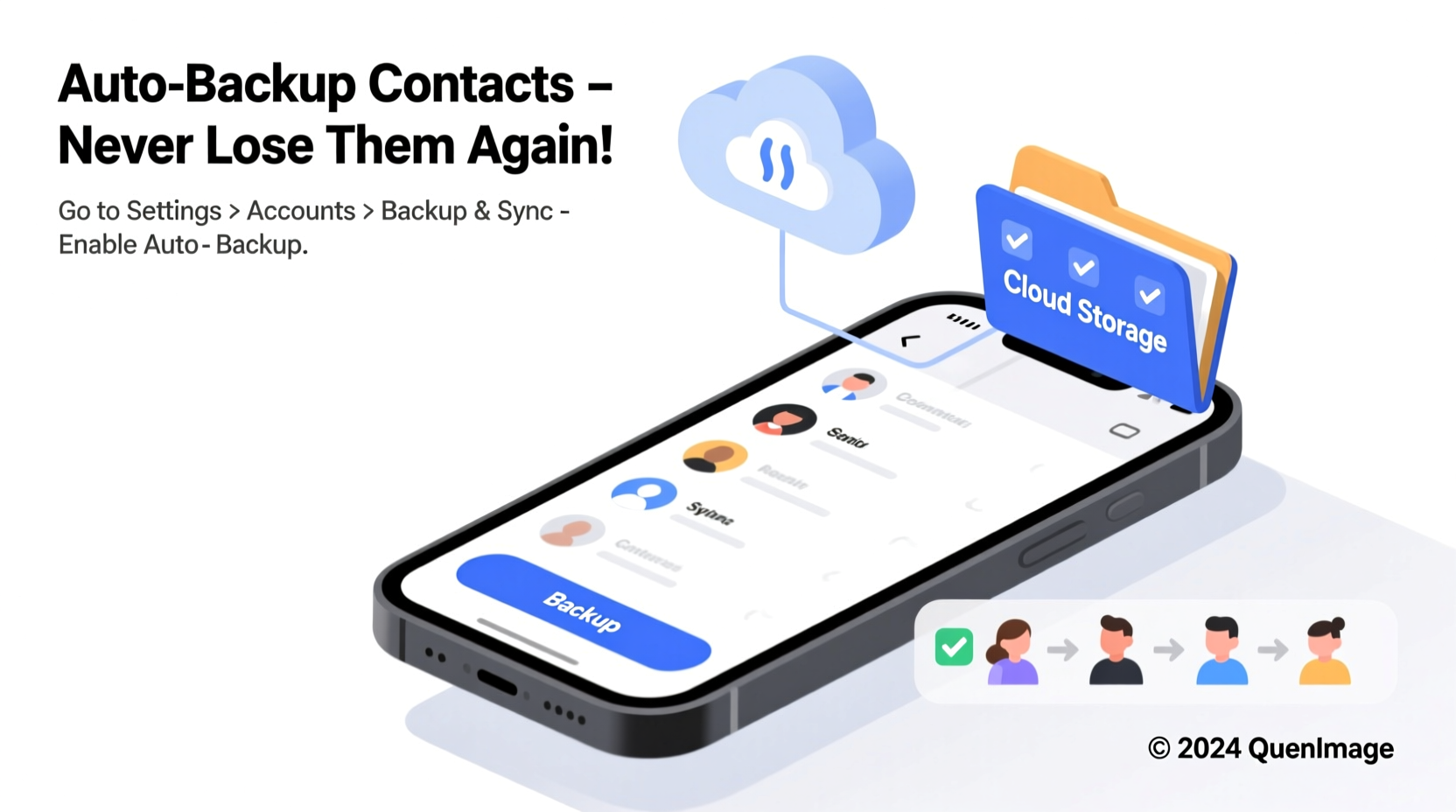
Manual backups are inconsistent by nature. Life gets busy, and even the most diligent users forget to back up their data regularly. Automatic backup systems eliminate human error by syncing your contacts in real time or on a scheduled basis, ensuring that every new addition, edit, or deletion is preserved safely.
Consider this: the average smartphone user adds or updates at least two contacts per week. Over a year, that’s over 100 changes. If your phone crashes today and your last manual backup was six months ago, you’ve lost half those updates—and potentially important connections.
“Data loss isn’t a matter of if, but when. The only reliable defense is automation.” — Dr. Alan Reyes, Cybersecurity Researcher at MIT
Automatic backups run silently in the background, requiring no daily intervention. Once configured, they provide peace of mind knowing your network stays intact, no matter what happens to your device.
How to Automatically Back Up Contacts on iPhone (iOS)
iOS offers one of the most seamless contact backup experiences through iCloud. When enabled, any change to your contacts syncs across all Apple devices and is securely stored in the cloud.
Step-by-Step Setup for iCloud Contact Sync
- Open the Settings app on your iPhone.
- Tap your name at the top to enter your Apple ID settings.
- Select iCloud.
- Toggle on Contacts. If prompted, choose “Merge” to upload existing contacts to iCloud.
- Ensure iCloud Backup is also enabled under Settings > [Your Name] > iCloud > iCloud Backup.
- Wait for the next automatic backup (typically when your phone is locked, charging, and connected to Wi-Fi).
Once active, iCloud backs up your contacts every 24 hours during charging cycles. You can verify the status by going to Settings > [Your Name] > iCloud > iCloud Backup and checking the timestamp of the last successful backup.
To restore contacts later—say, after getting a new iPhone—simply sign in with the same Apple ID during setup and choose to restore from iCloud.
Backing Up Android Contacts Automatically
Android uses Google Account integration to provide automatic contact syncing. This is one of the most reliable cross-platform solutions available, especially if you use multiple devices or plan to switch phones in the future.
Enable Google Contact Sync
- Go to Settings on your Android device.
- Navigate to Accounts or Google (varies by manufacturer).
- Select your Google account.
- Ensure Sync Contacts is turned on.
- For added security, go to contacts.google.com and confirm your contacts appear online.
If you have multiple accounts, double-check that the correct one is set as the default for saving new contacts. You can adjust this in the Contacts app settings under “Default account for new contacts.”
Google automatically backs up contacts within minutes of any change, provided your phone has internet access. No additional apps or manual steps are needed.
Cross-Platform Solutions and Third-Party Tools
While iCloud and Google offer native solutions, they’re limited to their respective ecosystems. If you frequently switch between iOS and Android or want an extra layer of redundancy, third-party tools can enhance reliability.
Recommended Cross-Device Backup Apps
- My Contacts Backup – Sends encrypted contact backups via email or stores them in Dropbox.
- Super Backup & Restore – Supports SMS, call logs, and contacts; allows scheduling automatic backups.
- Sync.ME – Syncs contacts across devices and enhances them with social profiles.
These apps often allow you to schedule automatic backups weekly or monthly and store them in multiple locations, such as Google Drive, OneDrive, or email attachments.
| Tool | Platform | Auto-Backup? | Storage Options | Encryption |
|---|---|---|---|---|
| iCloud | iOS/macOS | Yes | iCloud | End-to-end (for select data) |
| Google Contacts | Android/Web | Yes | Google Account | Transport encryption |
| My Contacts Backup | Android/iOS | Yes (premium) | Email, Dropbox | Optional |
| Super Backup & Restore | Android | Yes | Local, Cloud, Email | Password protection |
| Sync.ME | Android/iOS | Yes | Cloud-based | Limited |
Using a third-party tool doesn’t replace native syncing—it complements it. For maximum safety, enable both Google/iCloud sync and a third-party service with different storage destinations.
A Real-Life Example: Recovering After a Phone Theft
Sophia, a freelance photographer in Portland, had her phone stolen from a coffee shop. She hadn’t manually backed up her contacts in over a year, assuming her phone was secure. What she didn’t realize was that her Google sync had been accidentally disabled during a recent OS update.
When she got a replacement phone, only 12 of her 300+ contacts appeared. Clients, collaborators, and family members were missing. She spent three weeks trying to rebuild her list through social media and old emails—a stressful, incomplete process.
Afterward, Sophia set up dual backups: Google Contacts sync for real-time protection and Super Backup & Restore to send weekly encrypted copies to her personal email. She now receives confirmation emails every Sunday morning showing her latest backup completed successfully.
“I learned the hard way,” she said. “Now I know my contacts are safe even if my phone isn’t.”
Best Practices Checklist
To ensure your contacts are truly protected, follow this actionable checklist:
- ✅ Confirm contact sync is enabled on your device (iCloud or Google).
- ✅ Verify that your primary account is set as the default for new contacts.
- ✅ Test the backup by adding a test contact and checking if it appears online.
- ✅ Enable two-factor authentication on your cloud account to prevent unauthorized access.
- ✅ Use a secondary backup method (e.g., third-party app or export).
- ✅ Periodically review your online contact list (iCloud.com or contacts.google.com) for accuracy.
- ✅ Store recovery codes or backup passwords in a secure password manager.
Frequently Asked Questions
What happens if I disable contact sync by accident?
If sync is turned off, new or edited contacts will only exist on your device. If you lose or reset your phone, those local-only entries will be permanently lost. Always re-enable sync immediately and check your online account to confirm everything resyncs.
Can I back up contacts without using the cloud?
Yes. Some Android phones allow saving contacts directly to the SIM card or internal storage. However, these methods aren’t automatic or reliable. SIM cards hold limited data and can be lost easily. For true automation and safety, cloud sync is strongly recommended.
Are my backed-up contacts private?
Major providers like Apple and Google encrypt your data in transit and at rest. However, if your account is compromised, so is your contact list. Always use strong, unique passwords and enable two-factor authentication to protect your account.
Final Thoughts: Make It Automatic, Make It Foolproof
Your contacts represent more than just names and numbers—they’re your personal and professional lifelines. Losing them can disrupt relationships, damage business opportunities, and create unnecessary stress. The solution isn’t constant vigilance; it’s smart automation.
The key is setting up systems that work whether you remember them or not. By enabling iCloud or Google sync, adding a secondary backup tool, and verifying your setup annually, you create a resilient safety net. These steps take less than 15 minutes to configure but can save you hours—or even years—of lost connections.
Don’t wait until after a disaster to act. Open your phone settings right now, check your sync status, and ensure your contacts are flowing safely into the cloud. Then, set a calendar reminder for six months from now to review your backup health. That small effort today could preserve your network forever.




 浙公网安备
33010002000092号
浙公网安备
33010002000092号 浙B2-20120091-4
Comments
No comments yet. Why don't you start the discussion?