
In today’s hyper-connected world, unwanted phone calls have become a daily nuisance. From fake IRS agents to robocalls promoting dubious services, spam callers exploit vulnerabilities in communication systems—and Android users are frequent targets. While many turn to third-party call-blocking apps, not everyone wants to install additional software due to privacy concerns, battery drain, or data usage. The good news is that modern Android phones come equipped with powerful native tools and integration options that can effectively filter out spam—no downloads required.
This guide explores practical, app-free methods to stop spam calls using only your device’s built-in capabilities, carrier services, and smart settings adjustments. Whether you're using a Samsung Galaxy, Google Pixel, or another Android model, these techniques apply across most devices running Android 8.0 and above.
Understanding the Spam Call Problem
Spam calls aren’t just annoying—they can be dangerous. Scammers use spoofed numbers, automated voice systems (robocalls), and social engineering tactics to trick users into revealing personal information or sending money. According to the Federal Trade Commission (FTC), Americans reported losing over $500 million to imposter scams via phone in 2022 alone.
Android has responded by integrating advanced call-screening and filtering technologies directly into the operating system, especially through Google’s Dialer app (also known as Phone by Google). These tools leverage machine learning, crowd-sourced data, and real-time caller identification to detect suspicious activity before you even answer.
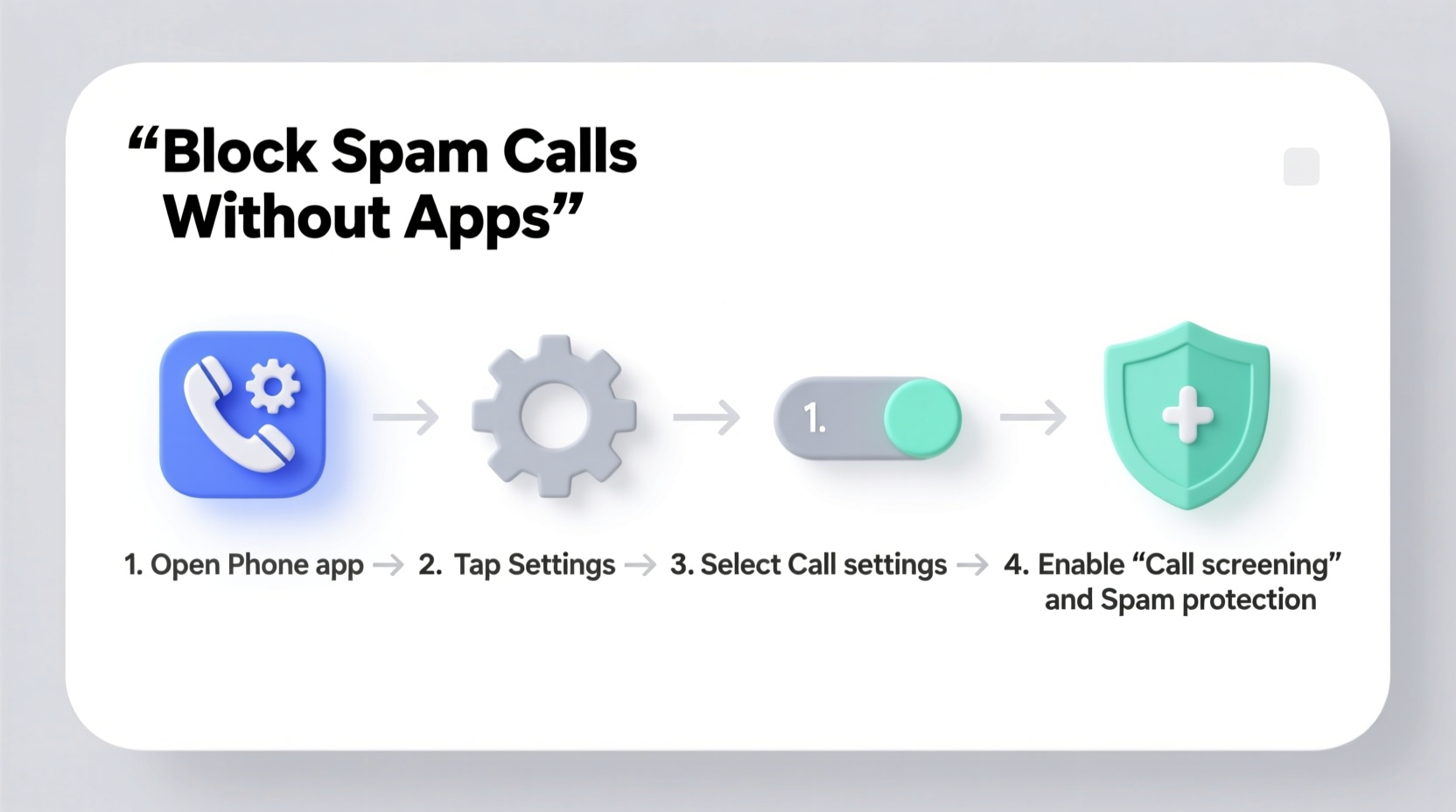
Enable Built-In Call Screening & Spam Protection
Google’s Phone app includes robust spam detection powered by its vast database of reported numbers. This feature works seamlessly on most Android devices, particularly Pixels and phones from manufacturers who include Google’s dialer.
To activate it:
- Open the Phone app (the default calling app).
- Tap the three-dot menu in the top-right corner and select Settings.
- Go to Spam and scam protection.
- Toggle on Enable spam and scam protection.
Once enabled, this setting does several things:
- Labels incoming calls: If a number is flagged as “Suspected spam” or “Scam likely,” you’ll see a warning before answering.
- Automatically blocks high-risk numbers: Known scam numbers are silenced and sent straight to voicemail.
- Provides real-time alerts: You'll receive notifications explaining why a call was blocked.
This feature uses encrypted, anonymous data sharing with Google to improve accuracy without compromising your privacy. It updates continuously based on global user reports.
“Google’s spam detection analyzes billions of calls weekly. By enabling built-in protection, users gain access to one of the most effective real-time filtering systems available.” — David Weldon, Senior Mobile Security Analyst at TechShield Labs
Block Specific Numbers Manually
Sometimes, you receive repeated calls from the same unwanted number—perhaps a debt collector, telemarketer, or harasser. Fortunately, Android allows you to manually block individual numbers using the native Contacts or Phone app.
Step-by-Step: How to Block a Number
- Open the Phone app.
- Navigate to your Call history.
- Find the number you want to block and tap the i (info) icon next to it.
- Select Block number or Add to reject list, depending on your device.
- Confirm the action when prompted.
After blocking, all future calls and texts from that number will be automatically rejected without ringing your phone. Some devices also offer options to report the number as spam during this process, contributing to broader protection networks.
Note: On certain Samsung devices, this option may appear under Settings > Blocked numbers. Look for “Add to block list” or similar phrasing.
Leverage Carrier-Based Spam Blocking Services
Your mobile carrier plays a crucial role in combating spam. Most major carriers now offer free call protection tools that integrate with your Android device at the network level—meaning they work regardless of which phone or dialer app you use.
These services don’t require downloading extra apps; they function behind the scenes once activated.
Popular Carrier Options
| Carrier | Service Name | Activation Method | Cost |
|---|---|---|---|
| Verizon | Call Filter (Basic) | Activate via My Verizon app or website | Free |
| AT&T | Enhanced Caller ID & Spam Shield | Enable in AT&T Mobile Security app (pre-installed) | Free |
| T-Mobile | Scam Shield | Built into device; toggle on in Phone app settings | Free |
| Google Fi | Spam protection | Automatically enabled | Free |
For example, T-Mobile’s Scam Shield offers three key protections:
- Scam ID: Labels scam calls in real time.
- Scam Block: Automatically stops identified scam calls.
- Caller Verified: Confirms if a business caller is authentic.
To enable Scam Shield on a T-Mobile line:
- Open the Phone app.
- Tap the three-dot menu > Settings.
- Select Caller ID & spam.
- Turn on T-Mobile Scam Shield.
Similar steps apply for other carriers. Check your provider’s support site for exact instructions tailored to your plan and device.
Use Do Not Disturb Mode Strategically
While primarily designed to reduce distractions, Android’s Do Not Disturb (DND) mode can double as a selective call filter. When configured properly, it allows calls only from trusted contacts while silencing unknown or spam-prone numbers.
Setting Up DND to Minimize Spam Interruptions
- Go to Settings > Sound > Do Not Disturb.
- Select Allowed interruptions.
- Under \"Calls,\" choose Contacts only or Favorites.
- Optionally, set a schedule (e.g., nighttime hours) for automatic activation.
You can also allow repeat callers—if someone calls twice within 15 minutes, the second call comes through. This prevents emergencies from being missed while still filtering out most robotic spam.
Additionally, consider enabling Block unknown senders in messaging settings to complement call protection. This ensures texts from unrecognized numbers don’t clutter your inbox or expose you to phishing links.
Mini Case Study: Reducing Daily Spam from 15 to 2
Sarah, a small business owner in Austin, Texas, used to receive over 15 spam calls per day. She avoided third-party apps due to concerns about ad tracking and permissions. After reading about built-in Android protections, she took the following steps:
- Enabled Google’s Spam and scam protection in her Phone app.
- Activated T-Mobile Scam Shield through her account settings.
- Set up Do Not Disturb mode to allow calls only from her contact list between 7 PM and 8 AM.
- Manually blocked five persistent telemarketing numbers.
Within a week, her unsolicited call volume dropped dramatically. Today, she averages fewer than two suspected spam calls per week—most of which are clearly labeled so she can ignore them safely. Sarah says, “I didn’t realize my phone already had these tools. Now I feel more in control.”
Best Practices Checklist
To maximize spam protection without installing apps, follow this actionable checklist:
- ✅ Enable spam protection in your default Phone app.
- ✅ Activate your carrier’s free anti-spam service (e.g., Scam Shield, Call Filter).
- ✅ Regularly review recent calls and block recurring offenders.
- ✅ Use Do Not Disturb mode during quiet hours with contact-only exceptions.
- ✅ Report spam numbers when prompted by your dialer or carrier.
- ✅ Keep your operating system and Phone app updated for latest security patches.
- ✅ Avoid answering calls from unknown international or oddly formatted numbers.
Frequently Asked Questions
Can I block spam calls without an internet connection?
Yes, but with limitations. Manual blocking works offline, but real-time spam detection (like Google’s labeling) requires periodic internet access to update its database. Once a number is blocked, it remains blocked even without Wi-Fi or data.
Why do some spam calls still get through?
Spammers frequently change numbers and use spoofing technology to disguise their origin. No system catches 100% of spam. However, combining multiple layers—Google’s filters, carrier tools, and manual blocks—significantly reduces exposure.
Does blocking a number stop spam texts too?
Blocking a number in the Phone app typically only affects calls. To stop spam messages, you must separately block the number in your Messages app or enable filtering features like Filter unknown senders in Android Messaging settings.
Conclusion: Take Control Without Extra Apps
You don’t need to clutter your phone with third-party apps to protect yourself from spam calls. Android’s integrated spam defense—powered by Google’s intelligence and supported by carrier-level safeguards—offers strong, privacy-conscious protection right out of the box. By enabling built-in features, leveraging your network provider’s tools, and applying smart call management strategies, you can reclaim your peace of mind and reduce interruptions.
The key is consistency: regularly update your block list, keep protections turned on, and stay informed about new threats. Small actions add up to significant results. Start implementing these steps today and experience a quieter, safer calling environment—without downloading a single app.




 浙公网安备
33010002000092号
浙公网安备
33010002000092号 浙B2-20120091-4
Comments
No comments yet. Why don't you start the discussion?