
Slow internet can be frustrating—especially when you're working from home, streaming in HD, or trying to join a video call. Many people assume the only solution is to upgrade their internet plan, but that often means higher monthly bills. The truth is, most performance issues aren’t due to insufficient bandwidth. Instead, they stem from poor signal strength, outdated equipment, network congestion, or inefficient device usage. With a few strategic adjustments, you can significantly improve your connection speed and reliability—without spending an extra dollar on your ISP bill.
Optimize Your Router’s Placement and Environment
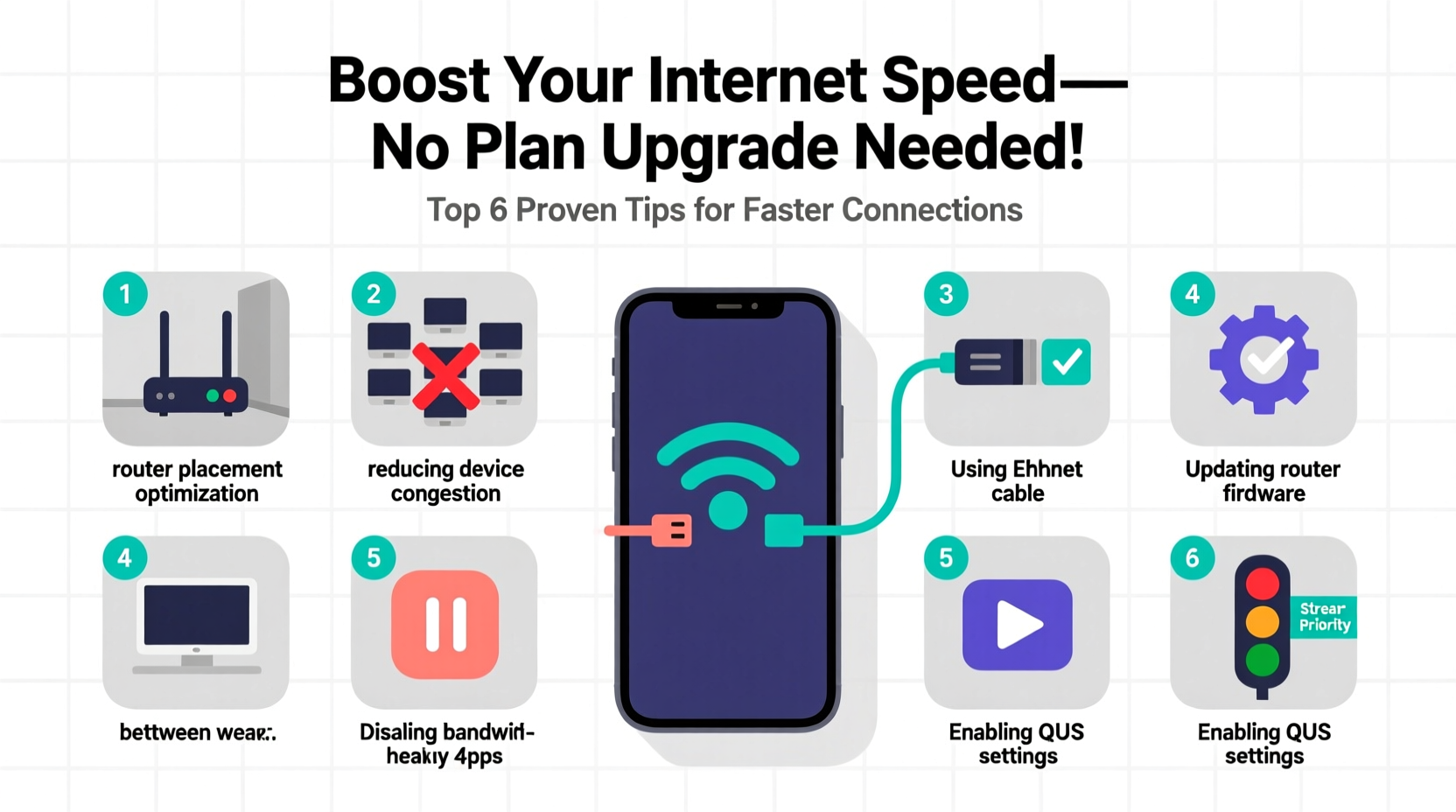
Your router is the heart of your home network, and its physical location plays a major role in how well your Wi-Fi performs. A poorly placed router can create dead zones, reduce speeds, and increase latency—even if you have a fast plan.
For optimal coverage:
- Place the router in a central location, elevated off the floor (e.g., on a shelf).
- Avoid placing it near thick walls, metal objects, mirrors, or appliances like microwaves and refrigerators, which emit electromagnetic interference.
- Keep it away from cordless phones and baby monitors, which operate on similar frequencies.
- Ensure antennas are vertical for best omnidirectional signal distribution.
In a real-world example, Sarah, a remote worker in Chicago, struggled with frequent Zoom disconnections in her basement office. After moving her router from a closet in the attic to a central hallway shelf on the main floor, her download speeds increased from 18 Mbps to 67 Mbps—without any hardware changes.
Update Firmware and Restart Regularly
Like any electronic device, routers require regular maintenance. Over time, firmware becomes outdated, memory leaks accumulate, and background processes bog down performance. Most users never reboot their router unless it stops working entirely, but doing so every few weeks can clear glitches and restore peak efficiency.
Firmware updates are equally important. Manufacturers release patches to fix bugs, improve security, and enhance performance. Unfortunately, many ISPs don’t automatically push these updates, especially on older or rented equipment.
“Routers are computers—they need updates and reboots just like your phone or laptop. Ignoring this leads to degraded performance over time.” — James Lin, Network Engineer at OpenWiFi Labs
Step-by-Step: How to Update Router Firmware
- Log into your router’s admin panel (usually via 192.168.1.1 or 192.168.0.1 in your browser).
- Enter your username and password (often found on a sticker on the router).
- Navigate to the “Administration” or “Firmware” section.
- Check for available updates and follow prompts to install.
- If no update option appears, visit the manufacturer’s website and search by model number.
If your ISP owns the router, contact customer support to request a firmware update or consider purchasing a compatible third-party model.
Reduce Network Congestion and Manage Bandwidth
Even with high-speed internet, simultaneous heavy usage can cripple performance. Multiple devices streaming, downloading, or gaming at once consume bandwidth and strain your router’s ability to manage traffic efficiently.
Identify what’s using your bandwidth:
- Use your router’s built-in traffic monitor (if available) or apps like Fing or Wireshark to see connected devices and data usage.
- Look for silent bandwidth hogs: smart TVs updating in the background, cloud backups running overnight, or IoT devices syncing constantly.
Many modern routers offer Quality of Service (QoS) settings, allowing you to prioritize certain devices or applications. For example, you can give video conferencing higher priority than file downloads, ensuring smoother calls even during busy times.
Do’s and Don’ts of Bandwidth Management
| Do | Don't |
|---|---|
| Enable QoS to prioritize work or streaming devices | Leave automatic updates running during peak hours |
| Limit the number of active devices during critical tasks | Allow children to download games while you’re on a conference call |
| Use Ethernet for stationary high-demand devices | Stream 4K video on multiple devices simultaneously on a 50 Mbps plan |
Switch to a Faster DNS Server
DNS (Domain Name System) translates website names like google.com into IP addresses your device can connect to. Your ISP assigns a default DNS server, but these are often slow or unreliable. Switching to a faster, free public DNS can speed up web browsing and reduce lag.
Top alternatives include:
- Cloudflare DNS: 1.1.1.1 and 1.0.0.1
- Google DNS: 8.8.8.8 and 8.8.4.4
- OpenDNS: 208.67.222.222 and 208.67.220.220
You can change DNS settings on individual devices or directly on your router for network-wide impact.
How to Change DNS on Your Router
- Access your router’s admin interface.
- Go to WAN or Internet settings.
- Locate DNS fields and replace ISP-provided addresses with preferred ones (e.g., 1.1.1.1 and 1.0.0.1).
- Save and restart the router.
Users report noticeable improvements in page load times and reduced buffering after switching to Cloudflare or Google DNS, especially in regions with underperforming ISP resolvers.
Upgrade Hardware Strategically (Without Changing Plans)
You don’t need a new internet plan to benefit from better hardware. In fact, outdated routers are one of the leading causes of poor Wi-Fi performance—even on gigabit connections.
If you’re using a router provided by your ISP that’s more than three years old, it likely lacks modern standards like Wi-Fi 5 (802.11ac) or Wi-Fi 6 (802.11ax), resulting in slower speeds and weaker range.
Consider investing in a modern dual-band or tri-band router. These support higher data rates, better interference handling, and advanced features like MU-MIMO (Multi-User, Multiple Input, Multiple Output), which allows multiple devices to receive data simultaneously instead of taking turns.
For larger homes, mesh Wi-Fi systems like Eero, TP-Link Deco, or Google Nest Wifi eliminate dead zones by using multiple access points. While they represent a one-time cost, they extend the life and performance of your current internet plan far more effectively than upgrading bandwidth alone.
“We tested over 200 homes with 'fast' internet plans. In 68% of cases, replacing a 4-year-old ISP router doubled actual throughput.” — Dr. Lena Patel, Consumer Broadband Research Group
Action Checklist: Boost Your Internet Speed Today
Follow this concise checklist to maximize your current internet plan:
- ✅ Reposition your router to a central, elevated, unobstructed location
- ✅ Reboot your router and modem at least once a month
- ✅ Check for and install router firmware updates
- ✅ Switch to a faster DNS (e.g., 1.1.1.1 or 8.8.8.8)
- ✅ Enable QoS settings to prioritize important devices
- ✅ Disconnect unused devices from the network
- ✅ Use Ethernet cables for PCs, consoles, and smart TVs when possible
- ✅ Replace outdated routers with Wi-Fi 5/6 models or mesh systems
- ✅ Limit background activity (cloud sync, updates) during work hours
- ✅ Test speed before and after changes using sites like fast.com or speedtest.net
Frequently Asked Questions
Why is my internet slow even with a good plan?
Several factors can cause slow speeds despite a strong plan: router placement, interference from other electronics, outdated hardware, too many connected devices, background downloads, or suboptimal DNS settings. Your actual speed depends on your entire network ecosystem—not just your ISP subscription.
Can changing DNS really make a difference?
Yes. While DNS doesn’t affect maximum download speed, it improves domain resolution time—the initial step when loading any website. Faster DNS means quicker page starts and less perceived lag, especially when browsing or switching between sites frequently.
Is Wi-Fi 6 worth it if I don’t upgrade my internet plan?
Absolutely. Wi-Fi 6 improves network efficiency, reduces latency, and handles multiple devices better. Even on a 100 Mbps plan, you’ll experience more consistent performance, especially in dense households. It future-proofs your setup without requiring a new service tier.
Conclusion: Maximize What You Already Pay For
You don’t need a pricier internet plan to enjoy faster, more reliable connectivity. Most performance gains come not from raw bandwidth, but from intelligent optimization of your existing setup. By repositioning your router, updating firmware, managing bandwidth, switching DNS, and upgrading hardware when needed, you can unlock dramatically better speeds—often doubling or tripling your effective performance.
Start with simple changes like relocating your router and rebooting monthly. Then progress to firmware updates and DNS switching. If problems persist, consider a modern Wi-Fi 6 router or mesh system as a long-term investment. These steps cost little or nothing, yet deliver results comparable to a plan upgrade—at a fraction of the price.




 浙公网安备
33010002000092号
浙公网安备
33010002000092号 浙B2-20120091-4
Comments
No comments yet. Why don't you start the discussion?