
In a large home, dead zones and weak Wi-Fi signals are more than an inconvenience—they disrupt streaming, gaming, remote work, and smart home functionality. While mesh Wi-Fi systems are often recommended, they can be expensive and unnecessary for many households. Fortunately, there are effective, budget-friendly ways to improve coverage across multiple floors and rooms without investing in a full mesh network. From strategic router placement to advanced hardware tweaks and signal extenders, this guide outlines proven methods to maximize your existing setup and ensure reliable connectivity throughout your entire house.
Optimize Router Placement for Maximum Coverage
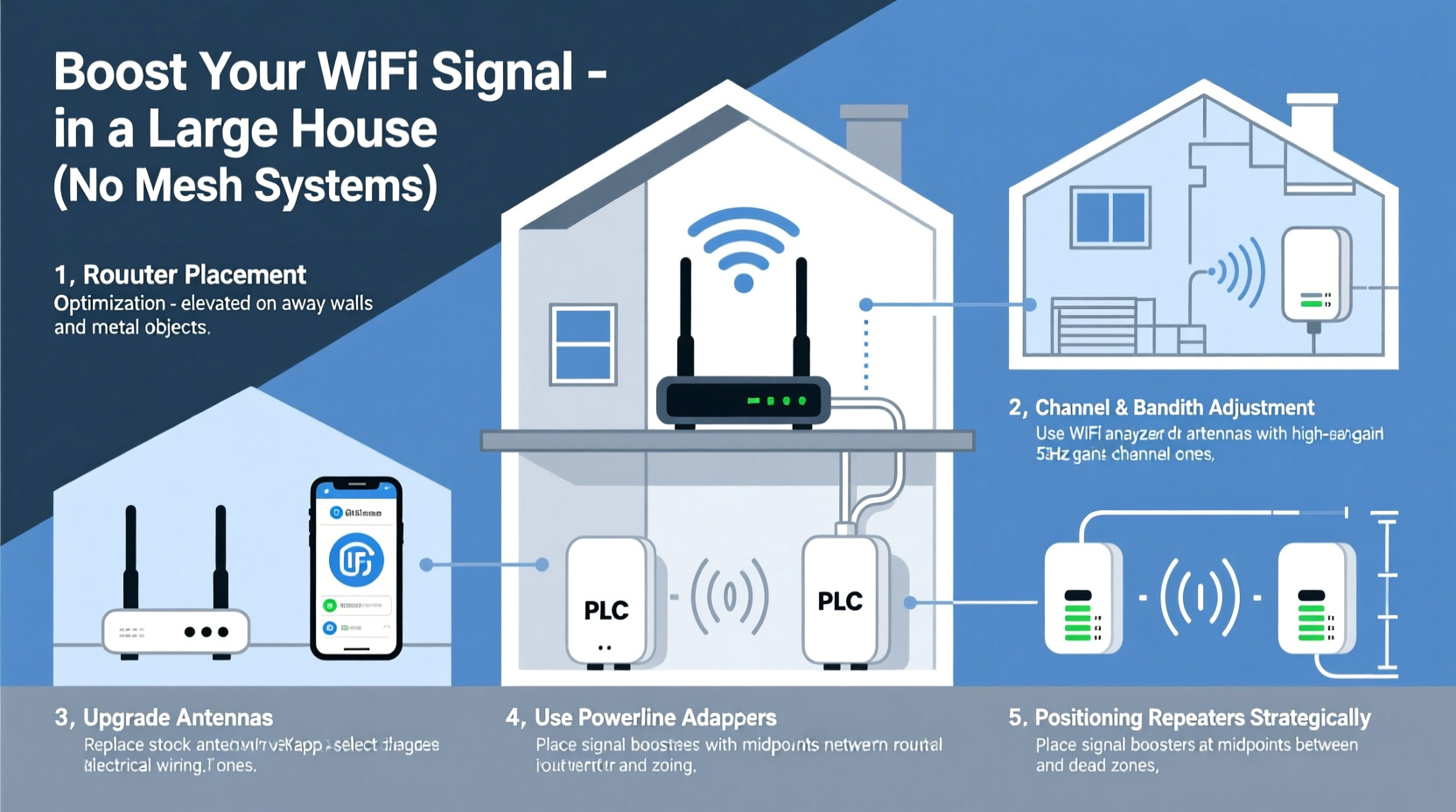
The location of your router is one of the most critical factors affecting Wi-Fi performance. Even high-end routers struggle when placed poorly. In large homes, where walls, furniture, and appliances block or reflect signals, choosing the right spot becomes even more essential.
Start by identifying the center of your home—not necessarily the physical center, but the area from which Wi-Fi needs to radiate evenly. Ideally, place the router on the main floor in a central room, elevated off the ground (on a shelf or desk), and away from obstructions.
Walls made of concrete, brick, or plaster with metal lath significantly degrade Wi-Fi. If possible, position the router so its signal path avoids these dense materials. Also, keep it away from cordless phones, microwaves, baby monitors, and Bluetooth devices, which operate on the 2.4 GHz band and can cause interference.
If your internet service enters the house at one end—such as a basement or garage—consider relocating the modem/router combo. Use long Ethernet cables or request a professional repositioning from your ISP to move it closer to the center of the house.
Upgrade Your Router’s Hardware and Antennas
Not all routers are created equal. Older models may support outdated Wi-Fi standards like 802.11n, which lack the speed, range, and efficiency of modern protocols such as Wi-Fi 5 (802.11ac) or Wi-Fi 6 (802.11ax). Upgrading to a newer dual-band or tri-band router can dramatically improve both reach and throughput.
Dual-band routers broadcast on both 2.4 GHz (better range, slower speeds) and 5 GHz (faster speeds, shorter range). For large homes, this flexibility allows you to assign devices based on their location and bandwidth needs. Place latency-sensitive devices like gaming consoles or streaming boxes on 5 GHz when close to the router, and use 2.4 GHz for smart home gadgets farther away.
Additionally, check if your router has external antennas. Many mid-range and high-end models allow you to replace stock antennas with higher-gain versions (measured in dBi). A 7–9 dBi antenna can focus the signal outward rather than dispersing it omnidirectionally, extending usable range in specific directions.
“Upgrading to a Wi-Fi 6 router with beamforming technology can increase effective range by up to 30% compared to older models, especially in multi-room environments.” — David Lin, Network Infrastructure Engineer
Use Wi-Fi Extenders and Access Points Strategically
Range extenders and access points (APs) are excellent alternatives to mesh systems. While extenders simply rebroadcast the existing signal (often halving bandwidth), properly configured access points connected via Ethernet offer full-speed coverage expansion.
To set up an access point:
- Run an Ethernet cable from your main router to a distant part of the house (e.g., second floor or backyard office).
- Connect a secondary wireless access point or a second router in AP mode.
- Configure it to use the same SSID and password as your primary network for seamless roaming.
This creates a unified network without the complexity or cost of a mesh system. Powerline adapters with built-in Wi-Fi can also serve as pseudo-access points when running Ethernet isn’t feasible. These devices transmit data through your home’s electrical wiring and can extend coverage to hard-to-reach areas.
| Method | Pros | Cons |
|---|---|---|
| Wi-Fi Range Extender | Cheap, easy setup, no wiring needed | Reduces bandwidth by 50%, potential for poor handoff |
| Ethernet-Backed Access Point | Full-speed extension, stable connection | Requires cabling or drilling |
| Powerline Wi-Fi Adapter | Uses existing outlets, moderate performance | Speed varies with circuit quality, limited by home wiring age |
When using extenders, avoid placing them too far from the main router. The extender must receive a strong signal to rebroadcast effectively. A good rule of thumb: if the extender shows only one bar of signal from the main router, it’s too far. Use a Wi-Fi analyzer app to measure signal strength before finalizing placement.
Adjust Router Settings for Better Performance
Most people never touch their router’s settings after initial setup. However, tweaking a few key options can significantly enhance coverage and reliability.
- Channel Selection: In crowded neighborhoods, multiple networks compete on the same Wi-Fi channels, causing congestion. Use a tool like NetSpot or Wi-Fi Analyzer to find the least congested 2.4 GHz and 5 GHz channels. Manually set your router to use those instead of relying on auto-selection.
- Transmit Power: Some routers allow you to adjust transmission power. Increasing it slightly may help cover larger areas, though excessive power can cause overheating or interference.
- Enable Beamforming: If your router supports MU-MIMO and beamforming, turn it on. This feature directs signals toward connected devices instead of broadcasting uniformly, improving efficiency and range.
- Update Firmware: Manufacturers release updates that fix bugs, improve stability, and sometimes boost performance. Check your router admin panel regularly for available firmware upgrades.
Also consider segmenting your network. Assign less critical devices (like smart bulbs or thermostats) to the 2.4 GHz band, freeing up 5 GHz for laptops, tablets, and streaming devices. This reduces congestion and improves overall responsiveness.
Real-World Example: Improving Coverage in a Three-Story Home
Consider a 3,200-square-foot colonial home with thick plaster walls and a finished basement. The homeowner initially placed the ISP-provided gateway in the basement utility room, resulting in spotty Wi-Fi upstairs and zero connectivity in the backyard shed.
Instead of purchasing a $500 mesh system, they took the following steps:
- Moved the router to the main floor living room using a 50-foot Ethernet cable.
- Replaced the default antennas with 9 dBi directional models angled toward upper and lower floors.
- Installed a TP-Link powerline adapter with Wi-Fi in the attic above the garage, covering two bedrooms and a study.
- Configured the router to use non-overlapping channels (1 on 2.4 GHz, 36 on 5 GHz) after analyzing local traffic.
- Set up Quality of Service (QoS) rules to prioritize video conferencing during work hours.
Result: Full signal strength on all three floors, stable streaming in every bedroom, and improved outdoor coverage. Total cost: under $180—less than half the price of a premium mesh kit.
Step-by-Step Action Plan
Follow this sequence to systematically improve Wi-Fi coverage in your large house:
- Assess Current Coverage: Walk through each room with a smartphone or laptop and note where signal drops below two bars. Use apps like WiFi Analyzer (Android) or AirPort Utility (iOS) to record signal strength (RSSI) values.
- Relocate the Router: Move it to a central, elevated, unobstructed location. Avoid basements, closets, and corners.
- Upgrade Hardware: Replace outdated routers with Wi-Fi 5 or Wi-Fi 6 models. Add high-gain antennas if supported.
- Install Wired Access Points: Where possible, run Ethernet cables to remote areas and install access points. For difficult runs, try Cat 6a cables with wall plates.
- Deploy Powerline or Extenders: In locations where cabling isn’t viable, use powerline kits or well-placed extenders.
- Optimize Settings: Change Wi-Fi channels, enable beamforming, update firmware, and separate bands for optimal device management.
- Test and Adjust: Re-survey signal strength after each change. Fine-tune placement and configurations until consistent coverage is achieved.
Frequently Asked Questions
Can I boost Wi-Fi without buying new equipment?
Yes, to some extent. Simply relocating your router to a better position, adjusting its antennas, and changing Wi-Fi channels can yield noticeable improvements. However, for large homes with structural barriers, hardware upgrades are usually necessary for full coverage.
Are Wi-Fi extenders worth it?
They can be, but with caveats. Extenders are affordable and easy to install but often reduce bandwidth and create network segmentation. They work best when placed within strong signal range of the main router and used for low-bandwidth devices. For critical applications, wired access points are superior.
What’s the difference between an access point and a mesh node?
An access point extends your network when connected via Ethernet and operates under the same network name and settings. A mesh node communicates wirelessly with other nodes and dynamically routes traffic. While mesh offers convenience, access points provide faster, more stable connections when cabling is available.
Final Recommendations and Next Steps
Boosting Wi-Fi in a large house without a mesh system is entirely achievable with thoughtful planning and targeted investments. Focus first on optimizing what you already have—router placement, settings, and environment—before adding new hardware. When expanding coverage, prioritize wired solutions like access points over wireless extenders whenever possible. They deliver better performance, lower latency, and greater reliability.
Remember, every home is different. Materials, layout, and usage patterns influence how Wi-Fi behaves. What works in one three-story house may not apply to another. Take the time to test, measure, and adapt your approach based on real-world results.
Start today by walking through your home with a signal meter app. Identify weak spots, then implement one improvement at a time. Small changes compound into major gains. You don’t need the latest mesh tech to enjoy fast, reliable Wi-Fi everywhere—just smart strategy and a little effort.




 浙公网安备
33010002000092号
浙公网安备
33010002000092号 浙B2-20120091-4
Comments
No comments yet. Why don't you start the discussion?