
Nothing disrupts the magic of a holiday display like two strings of “warm white” lights that look like they belong to different decades—one glowing creamy and soft, the other harsh and bluish—or reds that range from candy-apple to brick-dust. When you invest in multiple smart light sets—whether Philips Hue Lightstrip Plus, Nanoleaf Elements, Govee Glide Hex, or LIFX Z—you expect harmony. But factory calibration varies across batches, firmware versions, ambient temperature, LED aging, and even power supply quality. Without intentional calibration, your synchronized lighting choreography collapses into visual dissonance.
This isn’t about guessing or eyeballing shades on a phone app. It’s about establishing repeatable, measurable consistency—treating your lights like professional-grade color instruments. Below is a field-tested methodology used by lighting designers, smart-home integrators, and serious holiday decorators to achieve true chromatic unity across dozens of fixtures—even when they’re from different brands, purchased months apart, or installed on varying circuits.
Why Factory Defaults Fail Across Multiple Sets
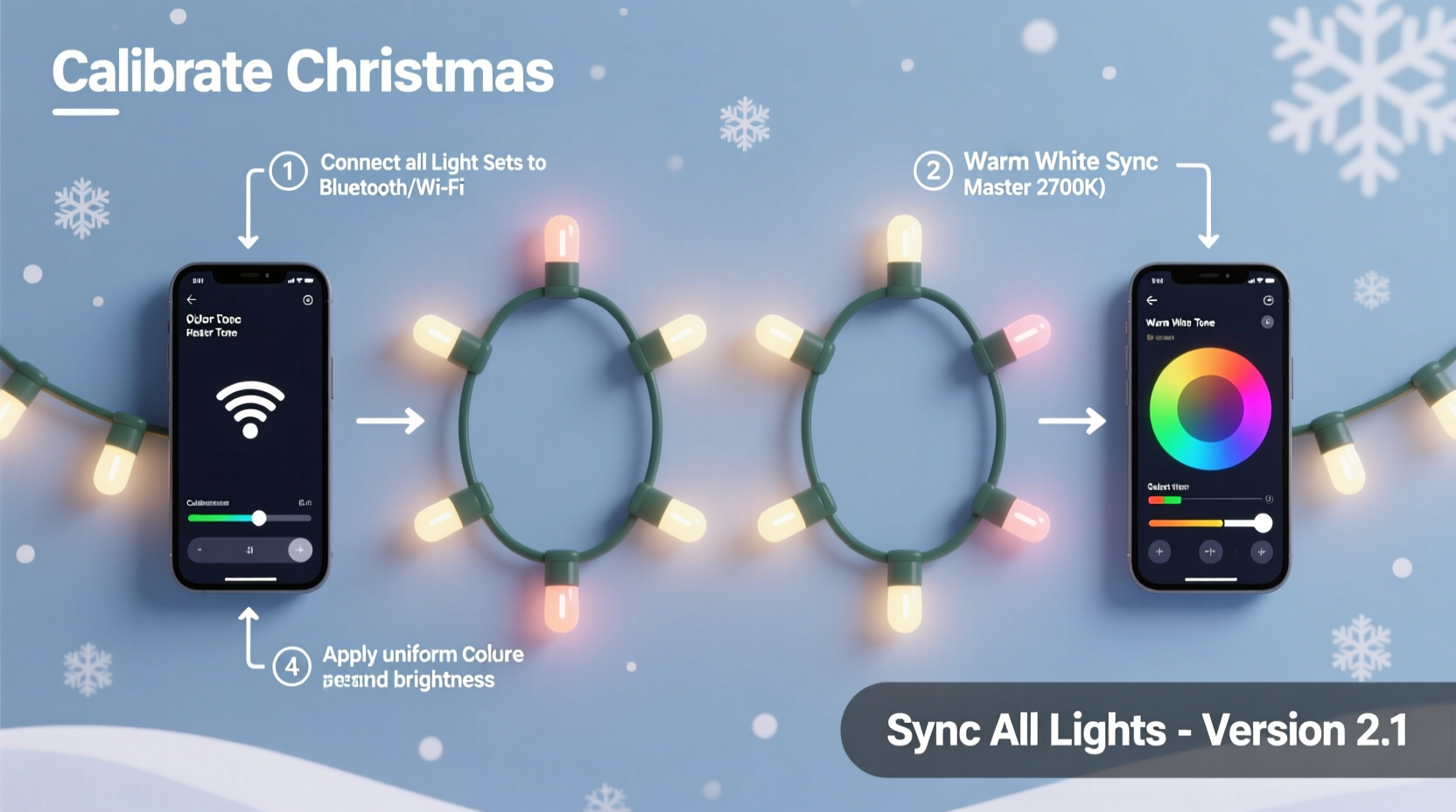
Smart lights ship with preset color profiles optimized for general use—not cross-device accuracy. Each manufacturer uses its own interpretation of standard color spaces (like sRGB or CIE 1931), and even within one brand, subtle differences emerge:
- LED binning variation: Manufacturers group LEDs by slight spectral differences during production. Two “identical” strings may come from adjacent bins—resulting in measurable delta-E (color difference) values above 3.0, which the human eye perceives as distinct.
- Firmware divergence: A set updated in March may render RGB(255,0,0) differently than one updated in October due to internal gamma curve adjustments or white-point refinements.
- Thermal drift: After 15 minutes of operation, warm-white LEDs can shift up to 150K in correlated color temperature (CCT), especially if mounted near heat sources or enclosed in tight channels.
- Power supply inconsistency: Voltage ripple from low-quality AC adapters or shared outlets causes micro-fluctuations in current delivery, altering luminance and hue stability.
Without intervention, these variables compound—turning “matching” into an illusion.
The 5-Step Calibration Workflow
True calibration requires moving beyond app sliders and embracing objective measurement. This workflow assumes you have access to a smartphone with a calibrated camera (iPhone 12+ or recent Samsung Galaxy with Pro mode) and free tools—but also includes analog fallbacks for those without hardware.
- Baseline capture: Photograph each light set individually in a dark room using identical camera settings (manual focus, ISO 100, 1/10s shutter, no flash). Display pure red (255,0,0), green (0,255,0), blue (0,0,255), and 6500K white at full brightness. Save RAW or high-bit-depth JPEGs.
- Color extraction: Use free software like ColorSchemer Studio (macOS/Windows), PixInsight (cross-platform), or even Photoshop’s Eyedropper + Info panel to extract Lab (L*a*b*) or xy chromaticity coordinates for each primary and white point.
- Reference alignment: Choose one set as your “master”—ideally the newest, best-performing unit. Note its Lab values: e.g., red = L*48, a*72, b*41; white = L*92, a*−2, b*8.
- Delta-E calculation: For every other set, compute ΔE₀₀ (CIEDE2000) against the master. ΔE < 1.0 is imperceptible; >3.0 requires correction. Tools like Bruce Lindbloom’s online Delta E calculator simplify this.
- App-based compensation: In your lighting app (e.g., Home Assistant, Nanoleaf Desktop, or Govee App), adjust HSB or RGB values iteratively until measured ΔE drops below 2.0. Record final corrected values per channel.
This process takes 20–45 minutes per set but yields reproducible results—and eliminates seasonal re-tuning.
Brand-Specific Calibration Tactics
Not all apps expose the same controls. Here’s how to maximize precision across major platforms:
| Brand/System | Calibration Access Point | Limits & Workarounds |
|---|---|---|
| Philips Hue | Hue Essentials (iOS/Android) → Advanced Settings → “Color Tuning” sliders for Red/Green/Blue gain; “White Point” adjustment for CCT offset | No direct Lab input. Compensate by adjusting “Red Gain” +3% if master red reads too magenta; reduce “Green Gain” −2% if secondary green appears yellowish. Use Hue Sync desktop app for finer RGB overrides. |
| Govee | Govee Home App → Device Settings → “Color Calibration” → Manual RGB offset (+/−25) | Only applies to single-color modes—not scenes. For multi-zone strips, calibrate zone-by-zone using the “Color Picker” tool with zoomed-in sampling. |
| Nanoleaf | Nanoleaf Desktop App → Settings → “Advanced Color” → Per-channel gamma and white balance sliders | Desktop app required for full control. Mobile app only allows scene-level presets. Firmware v5.2+ adds “Color Consistency Mode” that auto-adjusts across panels in a grid. |
| LIFX | LIFX App → Settings → “Color Correction” → Input custom xy coordinates or CCT + Duv (tint deviation) | Most precise consumer option. Enter exact CIE 1931 xy values extracted from your baseline capture. Supports Duv tuning for green/magenta tint correction. |
| Home Assistant + ESPHome | Manual YAML configuration: rgb_color: [252, 2, 18] or xy_color: [0.652, 0.318] per light entity |
Full programmatic control. Use Node-RED to push calibrated values to groups simultaneously. Ideal for scaling to 50+ lights with version-controlled config files. |
Real-World Case Study: The Elm Street Holiday Display
In suburban Chicago, homeowner and electrical engineer Maya R. managed a 120-foot roofline display using three generations of Govee Glide Hex lights: 2021 (v1), 2022 (v2), and 2023 (v3) sets. Her initial “all-warm-white” sequence looked jarring—v1 glowed amber (2700K), v2 was neutral (3500K), and v3 leaned cool (4200K). She tried app presets and manual tweaks for hours with no consistency.
She implemented the 5-step workflow: captured Lab readings using her iPhone 14 Pro and Halide Mark II app, identified v3 as her master (most stable, lowest thermal drift), calculated ΔE values averaging 6.8 across v1 and v2, then adjusted RGB offsets in Govee’s desktop app. For v1, she added +14 red, −9 green, and −5 blue to warm the white point; for v2, she reduced red by −7 and increased blue by +11 to cool it slightly toward v3’s target. Final ΔE dropped to 1.3 and 1.7 respectively. At nightfall, the entire roofline emitted a seamless, candlelit warmth—indistinguishable to guests and verified by a local lighting technician with a Sekonic C-700 spectrometer.
“Consumer smart lights aren’t designed for color-critical work—but they’re surprisingly tunable once you treat them as adjustable emitters, not just ‘pretty bulbs.’ The biggest leap isn’t technical—it’s shifting from ‘what does it look like?’ to ‘what are its measured coordinates?’” — Derek Lin, Lighting Systems Engineer, LumenCraft Labs
Essential Calibration Checklist
- ☑ Test all sets at operating temperature (run for 20 minutes before measuring)
- ☑ Use identical power supplies—preferably branded, regulated adapters rated for total load
- ☑ Calibrate in complete darkness; eliminate ambient light contamination (cover windows, turn off TVs)
- ☑ Disable automatic brightness or adaptive lighting features in apps and OS
- ☑ Record firmware versions for each set—update all to latest *before* calibration
- ☑ Group lights by physical location (e.g., “north eave,” “garage arch”) and calibrate per zone, not per brand
- ☑ Re-validate quarterly—LEDs drift ~0.5% per 1,000 hours of use
FAQ: Troubleshooting Common Calibration Issues
Why do my lights look consistent in the app preview but mismatched in reality?
App previews render colors using your phone’s display profile—not the lights’ actual output. Phone screens have wider gamuts and different white points than LEDs. Always verify physically, never rely on screen previews for critical matching.
Can I calibrate lights from different brands to match each other?
Yes—with caveats. Cross-brand matching works best for white points and saturated primaries (red, green, blue). Pastel tones, pastels, and complex hues (e.g., lavender, teal) often fall outside overlapping gamuts. Prioritize matching CCT (2700K–3000K for warm white) and ΔE < 3.0 for red/green/blue. Accept minor variance in blended colors.
My lights flicker or shift color after 30 minutes. Is calibration useless?
No—but it signals an underlying issue. Thermal instability, undersized power supplies, or ground-loop interference cause drift. Calibrate *after* resolving these: use a multimeter to confirm steady 5V/12V at the farthest node; add ferrite cores to power cables; separate lighting circuits from refrigerators or HVAC compressors. Calibration stabilizes what’s already electrically sound.
Maintaining Consistency Beyond Installation
Calibration isn’t a one-time event. LED performance degrades non-uniformly: blue diodes typically dim faster than red, and warm-white phosphor coatings fatigue under sustained high-CCT use. To preserve alignment:
- Run monthly validation: Repeat Step 1 (baseline capture) for one “sentinel” set per zone. If ΔE creeps above 2.5, re-run full calibration for that zone.
- Limit peak brightness: Operating at 80–90% max reduces thermal stress and slows chromatic decay. Set automations to cap brightness at 220/255 unless needed for daylight visibility.
- Use scheduled firmware updates: Enable auto-updates, but verify post-update color fidelity—some patches alter gamma curves. Keep a rollback backup of known-good firmware images.
- Document everything: Maintain a spreadsheet with model number, serial, firmware, master Lab values, per-set offsets, and calibration date. Include photos of physical reference cards next to lit strings.
Think of calibration not as a setup task, but as seasonal instrument maintenance—like tuning a piano before a concert. Your lights are precision optical devices. Treat them as such, and their coherence becomes effortless.
Conclusion: Light With Intention
Matching smart lights isn’t about chasing perfection—it’s about honoring intention. When every string, strip, and panel speaks the same chromatic language, your display stops being a collection of products and becomes a unified expression: of warmth, celebration, craftsmanship, and care. That cohesion transforms curb appeal into emotional resonance. Guests won’t say, “Your lights match.” They’ll pause, breathe deeper, and feel the quiet rightness of it all.
You now hold a methodology—not just tips—that scales from a single porch railing to a neighborhood-wide synchronized show. No special hardware required. No subscription fees. Just observation, measurement, and deliberate adjustment. The most powerful tool isn’t in your app—it’s your decision to demand consistency, then act on it.




 浙公网安备
33010002000092号
浙公网安备
33010002000092号 浙B2-20120091-4
Comments
No comments yet. Why don't you start the discussion?