
In fast-paced video games—especially first-person shooters like CS:GO, Valorant, or Apex Legends—milliseconds matter. One of the most impactful ways to improve your aiming precision and responsiveness is by optimizing your mouse's DPI (dots per inch) settings. While many gamers assume higher DPI means better performance, the truth is far more nuanced. The right DPI setting balances speed, control, and sensitivity to match your playstyle, hardware, and in-game configuration. This guide walks you through exactly how to adjust your gaming mouse DPI for faster, cleaner aim without sacrificing accuracy.
Understanding DPI and Its Role in Gaming Performance
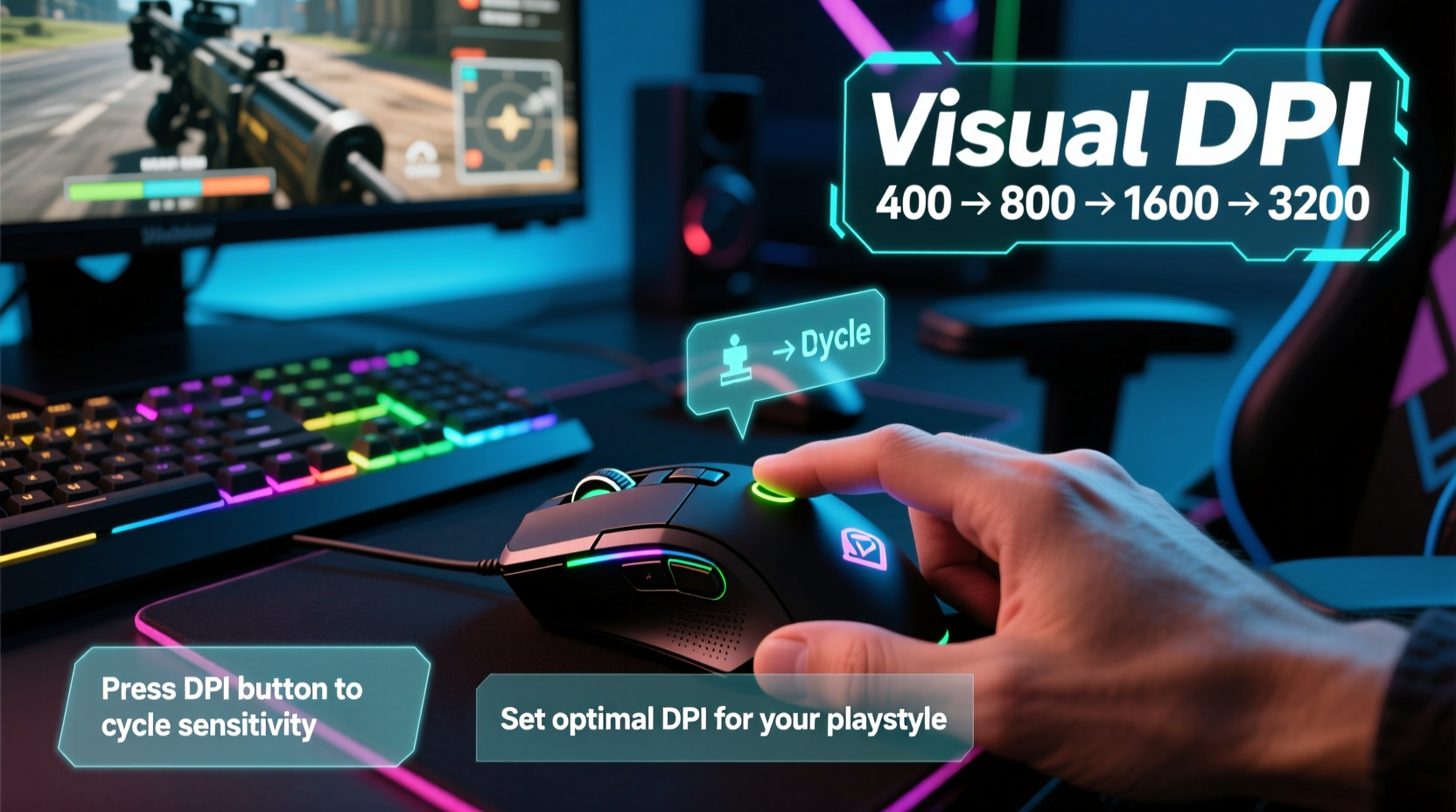
DPI measures how sensitive your mouse is to movement. A higher DPI means the cursor moves farther across the screen with less physical motion. For example, at 1600 DPI, moving your mouse one inch might translate to several feet of movement in-game. At 400 DPI, that same movement may only cover a few inches on-screen.
However, high DPI isn't always better. In fact, professional esports players typically use DPI settings between 400 and 800. Why? Because lower DPI promotes finer motor control, allowing for micro-adjustments when tracking enemies or flicking to targets. High DPI can make small hand tremors exaggerated, leading to shaky aim and overshooting targets.
The key is finding a balance where your mouse feels responsive but still under full control. Your ideal DPI works in tandem with your in-game sensitivity settings to create a cohesive \"effective DPI\" (eDPI), calculated as:
eDPI = Mouse DPI × In-Game Sensitivity
Example: 800 DPI × 1.0 in-game sensitivity = 800 eDPI
This combined value determines how quickly your crosshair moves. Competitive players often target an eDPI between 400 and 1600 depending on genre and preference.
Step-by-Step Guide to Changing DPI on Your Gaming Mouse
Changing DPI varies depending on your mouse model and whether it supports onboard software customization. Follow this universal process to adjust your DPI correctly.
- Check if your mouse has physical DPI buttons
Many gaming mice feature a dedicated DPI toggle button, usually located behind the scroll wheel. Pressing it cycles through preset DPI levels, often indicated by LED color changes. - Install manufacturer software
If your mouse lacks physical DPI buttons or you want granular control, download the official software:- Logitech: Logitech G HUB or Logitech Options+
- Razer: Razer Synapse
- SteelSeries: SteelSeries GG Engine
- HyperX: NGenuity Software
- Finalmouse, Glorious, etc.: Check brand website
- Launch the software and connect your mouse
Plug in your mouse via USB and open the application. It should detect your device automatically. - Navigate to sensor or pointer settings
Look for tabs labeled “Sensor,” “Pointer Speed,” or “DPI Settings.” Here, you can define multiple DPI stages (e.g., 400, 800, 1600). - Set custom DPI levels
Click on each stage and input your desired DPI values. Most users benefit from 3–5 stages, including a low-DPI option for precise sniping and a mid-range default. - Enable DPI shift (optional)
Some software allows assigning a “DPI Shift” button that temporarily lowers sensitivity while held—ideal for scoped shots or long-distance flicks. - Save profiles to onboard memory (if supported)
Premium mice let you save DPI and button configurations directly to the device, so settings work even on other computers without software installed.
Once configured, test each DPI level in-game. Make incremental adjustments until your aim feels natural and repeatable.
Optimal DPI Settings by Game Genre
Different games demand different aiming dynamics. Below is a comparison of recommended DPI ranges based on gameplay style.
| Game Genre | Recommended DPI | In-Game Sensitivity Tips | Why It Works |
|---|---|---|---|
| FPS (CS:GO, Valorant) | 400–800 | Low to medium (0.3–0.8) | Precise recoil control and consistent flick shots |
| Battle Royale (Apex, Warzone) | 800–1200 | Moderate (1.0–2.0) | Balances close-range tracking and long-range sniping |
| MMO/RPG | 1200–1600 | Higher (1.5–3.0) | Fast camera turns and UI navigation |
| RTS (StarCraft, Age of Empires) | 1000–1600 | High (2.0+) | Rapid map panning and unit selection |
Note: These are starting points. Your ideal setup depends on monitor resolution, arm vs. wrist aiming style, desk space, and personal comfort.
“The best DPI isn’t the highest—it’s the one that lets you land headshots consistently without overcorrecting.” — Adrian Chen, Esports Coach & Twitch Streamer
Tips for Maximizing Aim Precision After Adjusting DPI
Changing DPI is just the beginning. To truly improve aim, integrate these proven practices into your routine.
- Calibrate your mousepad space
Ensure you have enough room for full arm movements if using low DPI. A large mousepad (XL or XXL) supports broader swipes without lifting. - Use consistent grip and posture
Whether you palm, claw, or fingertip grip, maintain the same hand position to build reliable muscle memory. - Train with aim trainers
Tools like Aim Lab or Kovaak’s offer targeted exercises to refine tracking, flicking, and target switching at your new DPI. - Avoid V-Sync and limit frame rate caps
Input lag from inconsistent frame pacing can undermine even perfect DPI settings. Cap FPS slightly below refresh rate for smoother response. - Match DPI to monitor resolution
Higher resolutions (1440p, 4K) require more precise cursor control. Lower DPI helps avoid excessive screen traversal.
Real-World Example: From Frustrated Rookie to Accurate Mid-Tier Player
Take Mark, a 22-year-old player stuck in Silver rank in Valorant. He used 3200 DPI with max in-game sensitivity, believing it would help him react faster. In reality, his aim was jittery, he constantly overshot targets, and his spray control was nonexistent.
After researching pro settings, he reset to 800 DPI and lowered his in-game sensitivity to 0.5. Initially, everything felt sluggish. Turning around required sweeping arm motions, and quick 180-degree flicks were difficult.
But after two weeks of daily practice using Aim Lab’s flicking drills and deathmatch grinding, his accuracy improved dramatically. He could now track moving enemies smoothly and consistently land headshots. Within a month, he climbed to Diamond rank.
His breakthrough wasn’t raw speed—it was control. By reducing DPI, he gave himself the precision needed to develop reliable aim patterns. As he put it: “I stopped chasing kills and started mastering movement. That’s when everything clicked.”
Common Mistakes to Avoid When Adjusting DPI
Even experienced gamers fall into traps when tweaking sensitivity. Steer clear of these pitfalls:
- Switching DPI too frequently
Constantly changing settings prevents muscle memory from forming. Pick a DPI and stick with it for at least 2–3 weeks before reassessing. - Ignoring in-game sensitivity
DPI alone doesn’t determine aim speed. Always consider the combined effect of DPI and game-specific sensitivity. - Using uncalibrated surfaces
An uneven desk or cloth mousepad with inconsistent texture can cause acceleration or jitter, making DPI adjustments feel unreliable. - Assuming wireless means lag
Modern wireless gaming mice (e.g., Logitech Lightspeed, Razer HyperSpeed) offer latency on par with wired models. Don’t avoid them out of outdated assumptions. - Overlooking polling rate
Set your polling rate to 1000Hz for minimal delay. This ensures your mouse reports position 1000 times per second, maximizing responsiveness.
FAQ: Common Questions About DPI and Gaming Mouse Settings
Can I change DPI without software?
Yes, if your mouse has physical DPI cycle buttons. These let you switch between preconfigured levels on the fly. However, to set those levels initially, you’ll likely need software unless the defaults suit your needs.
Is 1600 DPI good for gaming?
It depends. 1600 DPI can work well for hybrid gamers who play both FPS and non-FPS titles, especially on 1080p monitors. However, serious competitive FPS players usually prefer 400–800 DPI for greater control. Pairing 1600 DPI with very low in-game sensitivity can yield acceptable results, but it’s less common at the pro level.
Does changing DPI affect click registration or double-click issues?
No. DPI affects cursor movement sensitivity, not button mechanics. Click problems stem from switch wear, debounce settings, or firmware bugs—not DPI. If you’re experiencing double clicks, clean your mouse switches or adjust debounce time in software instead.
Final Checklist: Optimizing Your DPI Setup
Before finalizing your DPI configuration, run through this checklist to ensure optimal performance:
- ✅ Determine your primary game(s) and research typical pro settings
- ✅ Choose a starting DPI (recommended: 800 for beginners)
- ✅ Install and configure manufacturer software
- ✅ Define 3–5 DPI stages with logical increments
- ✅ Enable DPI shift for temporary sensitivity reduction (if available)
- ✅ Save profile to onboard memory for portability
- ✅ Test settings in-game using aim trainers or deathmatch modes
- ✅ Adjust in-game sensitivity to fine-tune overall responsiveness
- ✅ Commit to one setting for 2+ weeks to build muscle memory
- ✅ Re-evaluate only after consistent practice and performance assessment
Conclusion: Master Your Aim Through Smart DPI Tuning
Changing your gaming mouse DPI isn’t about chasing speed—it’s about creating a foundation for accurate, repeatable aim. The fastest flick in the world means nothing if you can’t hit the target consistently. By understanding how DPI interacts with sensitivity, hardware, and human biomechanics, you gain control over one of the most critical elements of competitive gaming.
Start with a moderate DPI like 800, pair it with balanced in-game settings, and commit to deliberate practice. Over time, your hands will learn the exact distance and pressure needed for every shot. That’s when true improvement happens—not in settings alone, but in the synergy between gear and skill.




 浙公网安备
33010002000092号
浙公网安备
33010002000092号 浙B2-20120091-4
Comments
No comments yet. Why don't you start the discussion?