
Removing an app from Windows 11 may seem straightforward—until it isn’t. While the standard uninstall process removes the visible application, many apps, including the Amazon Prime Video player, leave behind files, folders, and registry entries that can clutter your system or interfere with future installations. If you're aiming for a clean slate, a superficial removal won't suffice. This guide walks you through a comprehensive method to ensure every trace of the Amazon Prime Video player is permanently erased from your Windows 11 device.
Why Standard Uninstall Isn’t Enough
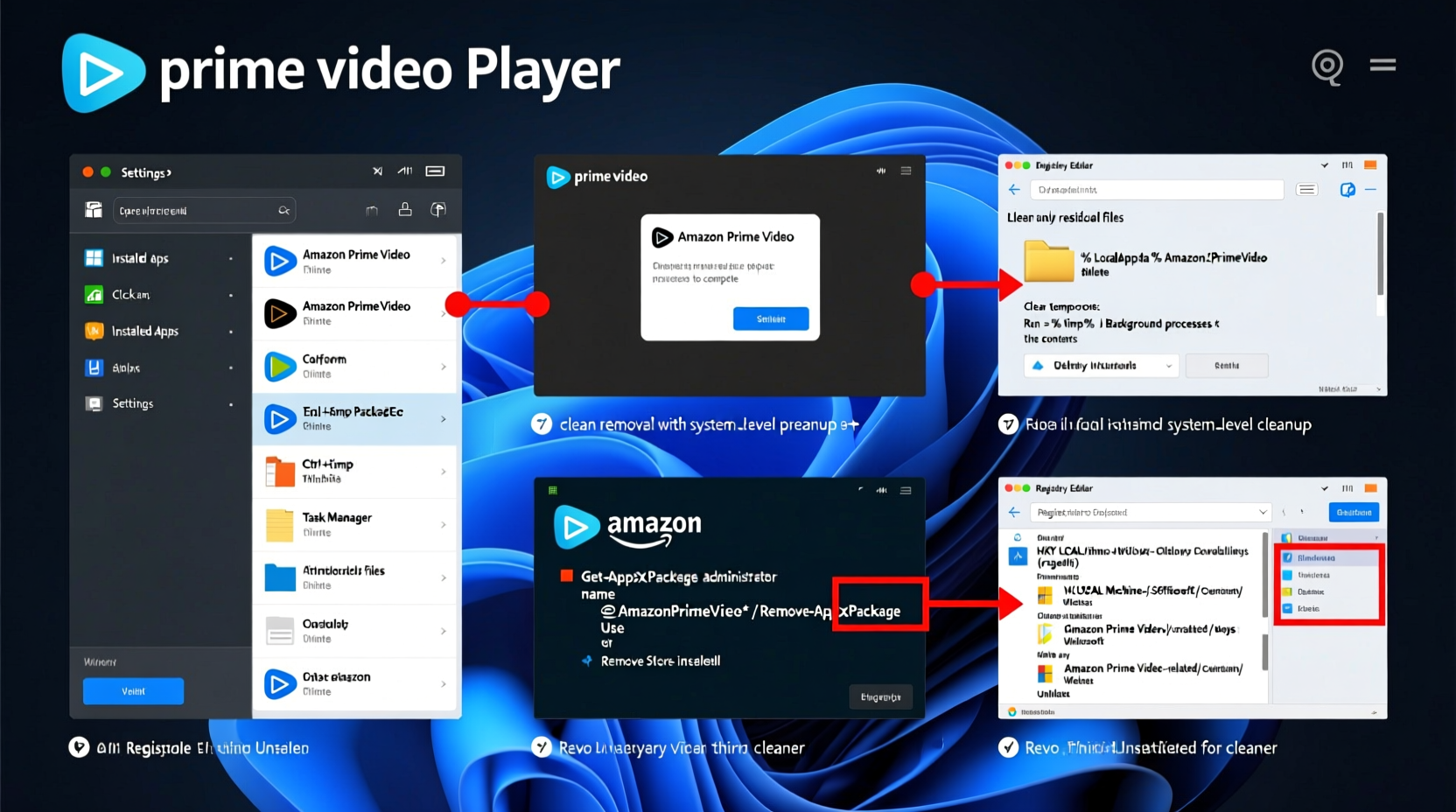
When you uninstall software via Settings or Control Panel, Windows typically deletes only the core program files and shortcuts. However, supporting data such as configuration files, cached videos, login tokens, and registry keys often remain. These remnants are usually harmless but can cause issues if you plan to reinstall the app later or if you're troubleshooting performance problems. For privacy-conscious users or those preparing to sell or transfer their device, removing all traces of media applications like Amazon Prime Video is essential.
“Many preinstalled UWP (Universal Windows Platform) apps on Windows 11 are designed to be persistent. A full removal requires more than just the default uninstall option.” — David Lin, Senior Systems Engineer at WinOps Solutions
Step-by-Step Guide to Full Removal
Follow this detailed sequence to remove the Amazon Prime Video player entirely—from user data to hidden system entries.
- Sign Out of the App: Before beginning, open the Amazon Prime Video app and sign out of your account. This prevents automatic re-authentication during potential reinstalls and protects your credentials.
- Close Background Processes: Press Ctrl + Shift + Esc to open Task Manager. Look for any processes named “Prime Video,” “Amazon,” or “WebView2.” End each task to ensure no component is running in the background.
- Uninstall via Settings: Go to Settings > Apps > Installed apps. Search for “Amazon Prime Video.” Click the three-dot menu and select “Uninstall.” Confirm when prompted. This removes the main application package.
- Delete Local App Data: Press Win + R, type
%localappdata%, and press Enter. Navigate to and delete any folder related to Amazon or PrimeVideo. Common paths include:
C:\\Users\\[YourUsername]\\AppData\\Local\\AmazonC:\\Users\\[YourUsername]\\AppData\\Local\\Packages\\Amazon.PrimeVideo_*
- Clear Roaming Data: Repeat the above using
%appdata%to access roaming data. Check for Amazon-related folders underRoaming\\Microsoft\\Windows\\Start Menu\\Programsor similar locations. - Remove Cache and Temp Files: Use Disk Cleanup or manually clear temporary files. Open Run (Win + R), type
%temp%, and delete all contents. Also runcleanmgrand select “Temporary files” for a broader sweep. - Clean the Registry (Advanced): Press Win + R, type
regedit, and press Enter. Back up the registry first (File > Export). Then navigate to:
HKEY_CURRENT_USER\\Software\\Amazon
HKEY_LOCAL_MACHINE\\SOFTWARE\\Amazon
Delete any Amazon or Prime Video-related keys. Be cautious—deleting incorrect entries can destabilize your system. - Reboot Your System: Restart your computer to finalize changes and clear any locked files or services.
Alternative Method: Using PowerShell
If the app was installed as part of a Microsoft Store package, PowerShell offers a more thorough removal option. This method targets the app’s underlying package identifier, ensuring even hidden components are purged.
Open PowerShell as Administrator:
- Press Win + X and select “Terminal (Admin)” or “PowerShell (Admin).”
- Type the following command to list all installed packages containing “Amazon”:
Get-AppxPackage *Amazon* - Identify the PackageFullName of the Prime Video app (e.g.,
Amazon.PrimeVideo_1.0.0.0_neutral__qwerty12345). - Run the removal command:
Remove-AppxPackage [PackageFullName]
Replace[PackageFullName]with the actual name from the previous step. - Optionally, prevent reinstallation by disabling the app for all users:
Get-AppxPackage -allusers *Amazon* | Remove-AppxPackage -allusers
This approach is particularly effective on devices where the app reappears after reboot due to system policies or sync settings.
Data Left Behind: What You Should Know
Even after following the steps above, some data might persist—not on your machine, but in the cloud. Amazon retains viewing history, watchlists, and preferences tied to your account. To fully sever ties:
- Visit amazon.com and go to Your Account > Prime Video Settings.
- Remove registered devices under “Manage Devices.”
- Clear watch history and delete lists if desired.
This ensures your viewing behavior isn’t tracked across devices and enhances privacy.
Do’s and Don’ts When Removing Prime Video
| Do’s | Don’ts |
|---|---|
| Back up important data before deletion | Don’t skip signing out of the app |
| Use PowerShell for deeper removal | Don’t edit the registry without a backup |
| Delete both local and roaming app folders | Don’t assume uninstalling removes all traces |
| Reboot after cleanup to confirm success | Don’t use third-party \"uninstaller\" tools blindly—they may remove critical system files |
Real-World Example: Recovering Storage After Removal
Sarah, a freelance designer using a 256GB SSD laptop, noticed her drive was nearly full despite minimal usage. After investigation, she discovered over 12GB of cached video data in C:\\Users\\Sarah\\AppData\\Local\\Packages\\Amazon.PrimeVideo_*. The app had been downloading previews and buffering high-resolution content in the background. After following the full removal process—including cache deletion and registry cleanup—she reclaimed 14.3GB of space. Her system also booted faster, and background CPU usage dropped noticeably.
This case illustrates how seemingly minor apps can accumulate significant digital footprints over time, especially media players with aggressive caching behavior.
Checklist: Complete Prime Video Removal
- App uninstalled via Settings
- All Amazon/PrimeVideo folders deleted from AppData (Local and Roaming)
- Temporary files cleared
- Registry keys removed (with backup created)
- System restarted
- Device deregistered from Amazon account
- Optional: PowerShell removal confirmed
Frequently Asked Questions
Can I reinstall Amazon Prime Video later?
Yes. You can download it again from the Microsoft Store. However, reinstalling will not restore previously deleted data unless it’s synced to your Amazon account (e.g., watchlist).
Is it safe to delete registry entries related to Amazon?
Yes, as long as you only remove entries specifically tied to Amazon Prime Video. Avoid deleting keys related to other Amazon services unless you’ve uninstalled those too. Always back up the registry first.
Why does the app keep coming back after I uninstall it?
This often happens on corporate-managed devices or systems with Microsoft Store sync enabled. Using PowerShell with the -allusers flag prevents auto-reinstalls. Disabling optional app updates in Windows Settings may also help.
Conclusion
Completely removing the Amazon Prime Video player from Windows 11 goes beyond the default uninstaller. By combining standard removal with manual cleanup of app data, temporary files, and registry entries, you ensure no residual components remain. Whether you’re reclaiming disk space, enhancing privacy, or resolving conflicts, a thorough uninstall delivers tangible benefits. Take control of your system’s integrity—one app at a time.




 浙公网安备
33010002000092号
浙公网安备
33010002000092号 浙B2-20120091-4
Comments
No comments yet. Why don't you start the discussion?