
In today’s connected world, it's common to use several Bluetooth devices—wireless headphones, a mouse, a keyboard, or even a smartwatch—with a single laptop. While the convenience is undeniable, managing multiple simultaneous connections can be tricky if your system isn't configured properly. Many users assume that only one Bluetooth device can function at a time, but modern laptops are capable of handling multiple peripherals—provided you understand the limitations and best practices. This guide breaks down how to set up, maintain, and optimize seamless multi-device connectivity on Windows, macOS, and Linux systems.
Understanding Bluetooth Multipoint and Device Profiles
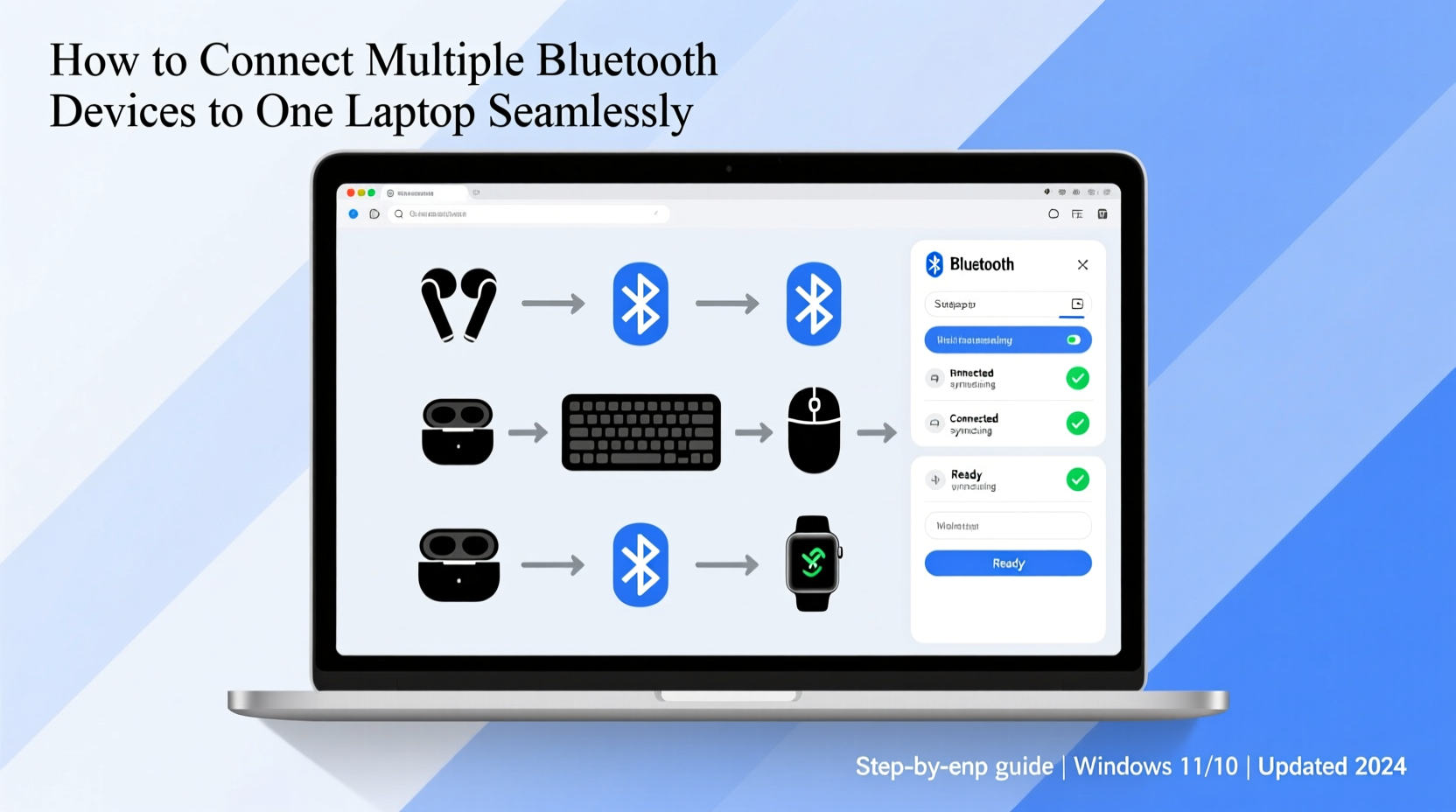
Before diving into setup steps, it's essential to understand the technical foundation of Bluetooth connectivity. Bluetooth doesn’t treat all devices the same way—it uses different profiles for different functions. For example:
- A2DP (Advanced Audio Distribution Profile): Used for streaming high-quality audio to headphones or speakers.
- HID (Human Interface Device): Enables keyboards, mice, and game controllers to communicate with your laptop.
- HFP (Hands-Free Profile): Allows headsets to make and receive calls.
- MAP (Message Access Profile): Lets your laptop access notifications from a paired phone.
The key challenge in connecting multiple devices lies in profile conflicts and bandwidth allocation. A single Bluetooth adapter has limited throughput, typically around 3 Mbps under ideal conditions. When multiple high-bandwidth devices like audio headsets and file-transfer gadgets are active simultaneously, performance may degrade.
Multipoint technology—commonly found in premium wireless earbuds—allows a single device to maintain two active Bluetooth links at once (e.g., your laptop and phone). However, most laptops do not natively support receiving multipoint signals from multiple endpoints. Instead, they act as central hubs, connecting to several peripherals individually.
“Bluetooth 5.0 and later versions significantly improve coexistence between devices, reducing interference and increasing range. But real-world performance still depends heavily on driver quality and chipset design.” — Dr. Alan Reed, Wireless Systems Engineer at IEEE
Step-by-Step Guide: Connecting Multiple Devices by OS
The process varies slightly depending on your operating system. Below are detailed instructions for Windows, macOS, and Linux.
Windows 10 & 11
- Turn on Bluetooth on your laptop via Settings > Devices > Bluetooth & other devices.
- Put your first device (e.g., wireless mouse) into pairing mode.
- Select “Add device” and choose Bluetooth. Wait for detection and complete pairing.
- Repeat the process for additional devices: headphones, keyboard, etc.
- After pairing, go to Device Manager and expand “Bluetooth” to ensure all adapters are functioning without errors.
- Right-click each device under Settings > Bluetooth & other devices to manage defaults (e.g., set preferred audio output).
Windows allows up to seven active Bluetooth connections simultaneously due to protocol limits, though practical usage rarely exceeds four without performance issues.
macOS Ventura and Later
- Click the Bluetooth icon in the menu bar or navigate to System Settings > Bluetooth.
- Ensure Bluetooth is enabled.
- Press and hold the pairing button on your device until its indicator flashes.
- Select the device from the list and click “Connect.”
- For audio devices, go to Sound > Output to manually select which headset to use.
- To switch between input/output devices quickly, consider using third-party tools like Bluefruit Connect or built-in shortcuts.
macOS handles HID devices exceptionally well, often allowing seamless switching between keyboards and mice. However, audio routing can be less intuitive, especially when multiple headsets are paired.
Linux (Ubuntu/Debian-based Distributions)
- Open a terminal and ensure Bluetooth services are running:
sudo systemctl status bluetooth. - If inactive, start it:
sudo systemctl start bluetooth. - Launch the GUI Bluetooth settings via system tray or run
bluetoothctlin terminal. - Type
power on, thenagent on, followed byscan onto discover devices. - Once detected, pair using
pair [MAC address], then trust and connect. - Use
pulseaudioorpipewiretools to manage audio outputs if multiple headsets are connected.
Linux offers granular control but requires more technical know-how. Tools like Blueman provide user-friendly interfaces for managing complex setups.
Optimizing Performance for Simultaneous Connections
Just because you *can* connect multiple devices doesn’t mean they’ll all perform flawlessly together. Interference, power management, and resource contention can degrade experience.
Reduce Signal Interference
Bluetooth operates in the 2.4 GHz band, shared with Wi-Fi, microwaves, and cordless phones. To minimize interference:
- Keep your laptop away from routers or microwave ovens.
- Use 5 GHz Wi-Fi whenever possible to free up the 2.4 GHz spectrum.
- Avoid placing metal objects between your laptop and Bluetooth devices.
Manage Power Settings
Some laptops disable USB Bluetooth adapters during sleep or low-power modes. Prevent this by adjusting power plans:
- Go to Control Panel > Power Options > Change plan settings > Change advanced power settings.
- Expand “USB settings” and disable “Selective suspend setting.”
- Do the same for “Wireless Adapter Settings > Power Saving Mode” – set to “Maximum Performance.”
Use External Bluetooth Adapters
If your built-in adapter struggles with multiple devices, consider adding a secondary USB Bluetooth 5.2+ dongle. This allows offloading certain devices (e.g., audio) to a dedicated adapter, reducing congestion.
| Connection Type | Max Theoretical Devices | Recommended Practical Limit | Best For |
|---|---|---|---|
| Internal Bluetooth 4.2 | 7 | 3–4 | Keyboard, mouse, basic audio |
| Internal Bluetooth 5.0+ | 7 | 5 | High-res audio, HID, file transfer |
| Dual Adapter Setup | 14 (7 per adapter) | 6–8 | Professional workstations, studios |
| Third-party Dongles (Low Quality) | 7 | 2–3 | Limited use; avoid for critical tasks |
Real-World Example: A Remote Worker’s Setup
Sarah, a digital marketer working remotely, uses her Windows laptop daily with four Bluetooth devices: noise-canceling headphones for calls, a wireless mechanical keyboard, a trackball mouse, and a fitness tracker that syncs notifications. Initially, she experienced audio dropouts during Zoom meetings whenever she typed vigorously.
Diagnosis revealed that her older Bluetooth 4.1 adapter couldn’t handle both high-bandwidth audio and constant HID data bursts. She resolved the issue by purchasing a USB-C Bluetooth 5.2 adapter and assigning her headphones to the new dongle while keeping input devices on the internal radio. The result was stable, interference-free operation across all four devices—even during long conference calls.
This case illustrates that hardware upgrades, combined with strategic device assignment, can dramatically improve multitasking reliability.
Troubleshooting Common Issues
Even with proper setup, problems may arise. Here are frequent issues and solutions:
- Device disconnects when another connects: Check for driver conflicts. Update or reinstall the Bluetooth driver through Device Manager.
- Audio cuts out during heavy typing: Caused by bandwidth saturation. Separate audio onto a different adapter or reduce keystroke polling rate if adjustable.
- Laptop fails to detect known devices: Clear the Bluetooth cache. On Windows, run
net stop bthserv && net start bthservin an elevated command prompt. - Poor range or signal drops: Ensure no physical obstructions and verify both devices support Bluetooth 5.0 or higher for extended range modes.
Frequently Asked Questions
Can I use two Bluetooth headphones at the same time?
Yes, but not for stereo audio splitting. Windows and macOS allow multiple headphones to be connected, but only one can be the active playback device unless you use third-party software like Virtual Audio Cable (Windows) or SoundSource (macOS) to route audio to multiple outputs.
Why does my mouse lag when my headphones are connected?
This occurs due to bandwidth contention on older Bluetooth versions. Both devices compete for transmission time slots. Upgrading to Bluetooth 5.0+ or using separate adapters resolves this.
Does connecting more devices drain my laptop battery faster?
Marginally. Each active Bluetooth link requires periodic signaling, which increases power draw. However, the impact is usually minor unless you're using power-hungry peripherals or weak signal conditions forcing retransmissions.
Checklist: Seamless Multi-Device Connection Setup
- ✅ Confirm your laptop supports Bluetooth 5.0 or higher.
- ✅ Update Bluetooth drivers and OS to latest version.
- ✅ Pair devices one at a time in order of priority (audio first, then input).
- ✅ Assign critical devices (like headsets) to high-performance adapters.
- ✅ Disable Bluetooth power-saving features in OS settings.
- ✅ Test stability under typical workload (typing while playing audio).
- ✅ Label devices clearly in settings for easy identification.
- ✅ Consider a dual-adapter setup if experiencing consistent lag or disconnections.
Final Thoughts and Next Steps
Connecting multiple Bluetooth devices to one laptop isn’t just possible—it’s entirely feasible with the right knowledge and configuration. By understanding Bluetooth profiles, optimizing your environment, and leveraging modern hardware capabilities, you can create a smooth, productive workspace tailored to your workflow.
Start small: pair two devices, test responsiveness, then gradually add more. Monitor performance and adjust accordingly. If you hit limits, don’t hesitate to invest in a quality external adapter—often a $20 solution can transform your experience.




 浙公网安备
33010002000092号
浙公网安备
33010002000092号 浙B2-20120091-4
Comments
No comments yet. Why don't you start the discussion?