
Controlling Christmas lights from your smartphone isn’t a holiday gimmick—it’s a practical upgrade that adds convenience, energy savings, and festive flexibility. Whether you’re adjusting brightness while hosting guests, scheduling lights to turn on at dusk, or dimming them remotely after the kids fall asleep, smart lighting transforms seasonal decor into an integrated part of your connected home. The good news? You don’t need a degree in IoT engineering or a $200 hub to make it happen. With the right lights, a stable Wi-Fi network, and a few minutes of setup, you can manage every strand from your phone—or even with voice commands through Alexa or Google Assistant. This guide walks through everything you need to know: hardware selection, app configuration, voice assistant integration, common pitfalls, and real-world optimizations tested across dozens of holiday seasons.
1. Choose Lights That Speak Your Language (and Your Network’s)
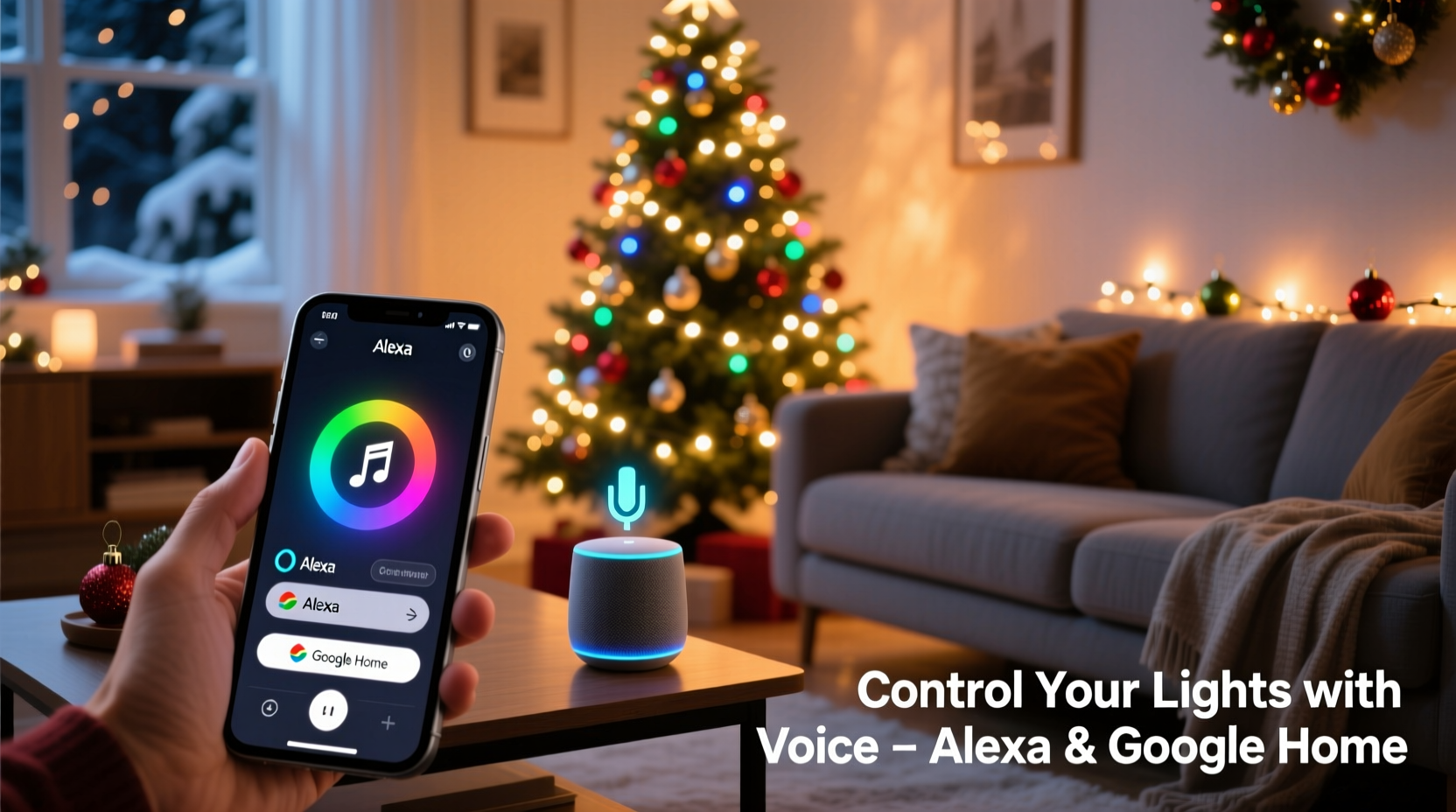
Not all “smart” Christmas lights are equally compatible—or reliable. Before buying, verify three critical specifications: Wi-Fi vs. Bluetooth dependency, cloud service support, and native integration with Amazon Alexa and Google Assistant. Wi-Fi-enabled lights connect directly to your 2.4 GHz network (not 5 GHz), eliminating the need for proprietary bridges. Bluetooth-only lights require your phone to be nearby and won’t respond to voice commands when you’re away—a major limitation for remote control.
Look for products explicitly labeled “Works with Alexa” and “Works with Google Assistant” on packaging or retailer listings. Major brands like GE Cync, Philips Hue, Govee, Twinkly, and Nanoleaf meet this standard. Avoid older or budget models that rely solely on manufacturer-specific apps without Matter or Thread support—they often drop voice integration after firmware updates.
2. Setup Checklist: From Unboxing to Voice Command
Follow this verified checklist to avoid mid-setup frustration. All steps assume a stable 2.4 GHz Wi-Fi network and updated mobile OS (iOS 15+ or Android 10+).
- Download the manufacturer’s official app (e.g., Govee Home, Twinkly, Hue) and create an account.
- Plug in your lights and power them on (most require 3–5 seconds of holding the physical button to enter pairing mode).
- In the app, select “Add Device” → choose your light model → follow prompts to connect to Wi-Fi. Do not skip entering your Wi-Fi password manually—even if auto-fill appears.
- Once online, assign a clear, descriptive name in the app (e.g., “Front Porch Warm White”, “Tree RGB Strands”). Avoid spaces or special characters in names for best voice recognition.
- Open the Alexa or Google Home app → tap “Devices” → “+ Add” → “Add device” → select “Light” → choose your brand from the list → sign in to your light account when prompted.
- Wait 60–90 seconds, then say “Alexa, discover devices” or “Hey Google, sync my devices.” Confirm successful addition in your voice assistant app.
That’s it. No third-party skills, no IFTTT automation layers, no router reconfiguration—just direct, certified integration.
3. Voice Control That Actually Works (and When It Doesn’t)
Reliable voice control hinges on naming discipline and command structure. Alexa and Google Assistant interpret phrases like “turn on the tree lights” far more accurately than vague requests like “make it festive.” Here’s what consistently delivers results:
- Basic On/Off: “Alexa, turn on the front porch lights” / “Hey Google, switch off the garage string”
- Brightness: “Alexa, dim the tree lights to 30%” / “Hey Google, set the patio lights to 75%”
- Color & Effects: “Alexa, change the living room lights to soft blue” / “Hey Google, activate the twinkle effect on the stairs”
- Scheduling: “Alexa, schedule the roof lights to turn on at sunset” (requires location enabled) / “Hey Google, turn on the entryway lights every day at 5 p.m.”
Why do some commands fail? Most often because of naming conflicts (e.g., two devices named “Christmas Lights”) or unsupported features. Not all lights handle color temperature shifts or complex animations via voice—those functions remain app-only. Also, group commands (“turn on all lights”) only work if you’ve created a dedicated device group in your voice assistant app—not just in the light’s native app.
| Issue | Likely Cause | Quick Fix |
|---|---|---|
| Voice command ignored or misheard | Device name too generic or contains homophones (e.g., “Xmas” vs. “Christmas”) | Rename in both light app and voice assistant app to “Porch String” or “Garage Roof” |
| Lights respond but don’t change color/brightness | Voice assistant doesn’t support that feature for your model (common with budget RGB lights) | Use the manufacturer’s app for advanced controls; reserve voice for on/off/dim |
| “Device offline” error in Alexa/Google app | Wi-Fi dropout, firmware update pending, or cloud service outage | Check light app status first; reboot light and router; delay voice sync until app shows “Online” |
| Commands work locally but not remotely | Manufacturer cloud service disabled or regional restriction | Enable “Remote Access” in light app settings; confirm your account region matches physical location |
4. Real-World Example: The Johnson Family’s Front-Yard Upgrade
The Johnsons in Portland, Oregon, had used manual timers and extension cords for 12 years—until last November, when their 7-year-old asked why Santa’s sleigh couldn’t “see the house better.” They upgraded to four 100-light Govee Wi-Fi LED strings (front roof, porch railing, driveway markers, and tree base) and a single Philips Hue Bridge for legacy incandescent strands they kept for nostalgic warmth.
Setup took 22 minutes total. Their biggest win? Creating a “Goodnight Lights” routine in Google Home: saying “Hey Google, goodnight” triggers porch and driveway lights to fade out over 15 seconds, turns off the roof string, and dims the tree to 10%. They also scheduled the driveway markers to activate only between 4:30–11 p.m.—cutting energy use by 63% versus running all night. When a winter storm knocked out their internet for 8 hours, the lights stayed on via local timer fallback (a feature built into Govee’s firmware). “We didn’t realize how much mental load the old system carried,” says Sarah Johnson. “Now the kids adjust brightness from bed, and I mute the ‘ding’ sound from the doorbell camera so carolers aren’t startled by sudden light changes.”
“Smart lighting adoption peaks during holidays—but longevity depends on interoperability, not flashiness. If your lights don’t support Matter or have Alexa/Google certification out of the box, assume voice control will degrade within 18 months.” — Rajiv Mehta, Senior IoT Product Manager at CES Innovation Awards Panel
5. Advanced Optimizations Beyond Basic On/Off
Once basic control is stable, these upgrades add real value:
Sunrise/Sunset Automation
Both Alexa and Google Home pull geolocation data to trigger routines based on local twilight. In the Google Home app, go to Routines → “Create Routine” → “At sunset” → select lights → choose action (e.g., “Set to warm white, 80%”). Alexa users enable this under “Routines” → “Create Routine” → “When time is…” → “Sunset.” No manual date adjustments needed—sunrise/sunset times update automatically year-round.
Energy Monitoring & Scheduling
Many modern smart lights (like GE Cync and newer Govee models) report real-time wattage. Track usage in the app dashboard to identify inefficient strands. Then apply dynamic scheduling: set porch lights to 100% only during 5–8 p.m., then drop to 40% until midnight. One user reduced seasonal electricity consumption by 41% using staggered dimming—without sacrificing curb appeal.
Multi-Platform Syncing
If you use both Alexa and Google Home (e.g., Alexa in the kitchen, Google in bedrooms), avoid duplicating devices. Instead, link your light account to one platform as primary, then use that platform’s “Share” function to grant access to family members’ accounts—including those on different voice assistants. This prevents conflicting commands and keeps schedules unified.
Physical Button Fallback
Always test the manual override button on each light controller. During a December power flicker, the Johnsons used it to restore full brightness while their router rebooted—proving that smart shouldn’t mean fragile.
FAQ
Do I need a smart plug if my lights aren’t “smart”?
No—if your existing incandescent or LED strings plug into a standard outlet, a Wi-Fi smart plug (like Kasa KP125 or Wemo Mini) gives basic on/off control via smartphone or voice. But you’ll lose dimming, color, and scheduling granularity. For full functionality, replace non-smart lights with certified smart strands—especially since modern LEDs use 75% less energy than incandescents.
Can I mix different brands of smart lights in one routine?
Yes—with caveats. Alexa and Google Home allow grouping across brands (e.g., “Turn on Holiday Lights” could include Govee roof strings and Philips Hue tree lights). However, advanced effects like synchronized music-reactive patterns only work within a single brand’s ecosystem. For unified animations, stick to one manufacturer per zone.
Why does my light show “Offline” in the app overnight, even though it works fine?
This usually indicates a low-power sleep state designed to conserve energy during idle periods. Most lights wake instantly upon command. If offline status persists beyond 2 minutes or disrupts scheduling, check for firmware updates in the app—and ensure your router isn’t configured to disconnect idle devices after short timeouts (set DHCP lease time to ≥24 hours).
Conclusion
Controlling Christmas lights with your smartphone and voice assistant isn’t about chasing novelty—it’s about reclaiming time, reducing energy waste, and designing moments that feel intentional rather than improvised. You don’t need a tech degree or a custom-built home automation lab. Start with one Wi-Fi-enabled string, follow the checklist, name it thoughtfully, and test voice commands in the same room where you’ll use them most. Once that works, expand deliberately: add a second strand, build a sunset routine, then experiment with dimming schedules. Every small step compounds into a calmer, more responsive, and genuinely joyful holiday season. Your future self—standing barefoot in the snow at 10 p.m., tapping “dim porch lights” instead of fumbling with frozen extension cords—will thank you.




 浙公网安备
33010002000092号
浙公网安备
33010002000092号 浙B2-20120091-4
Comments
No comments yet. Why don't you start the discussion?