
Facebook remains one of the most widely used social media platforms in the world, connecting over 2.9 billion people monthly. Whether you're joining to reconnect with old friends, follow news and events, or grow a personal brand, creating an account is the first essential step. For those unfamiliar with digital platforms, the process can seem intimidating. This guide breaks down each stage clearly and securely, ensuring anyone—regardless of tech experience—can set up a functional and safe Facebook profile.
Why Create a Facebook Account?
Before diving into the setup, it helps to understand what Facebook offers. The platform allows users to share photos, join groups, message friends, follow public figures, attend virtual events, and even run small businesses through Pages and Marketplace. It’s also a primary communication tool in many communities, schools, and workplaces. A well-managed account opens doors to both personal and professional opportunities.
However, privacy and security are critical. While Facebook provides robust tools to manage your data, starting with strong settings ensures your information stays protected from the beginning.
Step-by-Step Guide to Creating Your Account
Follow these steps carefully to create your Facebook account from any device—desktop, laptop, tablet, or smartphone. The interface is consistent across devices, though mobile may require downloading the app for full functionality.
- Visit the Official Website: Open your web browser and go to facebook.com. Always ensure you’re on the correct site to avoid phishing scams.
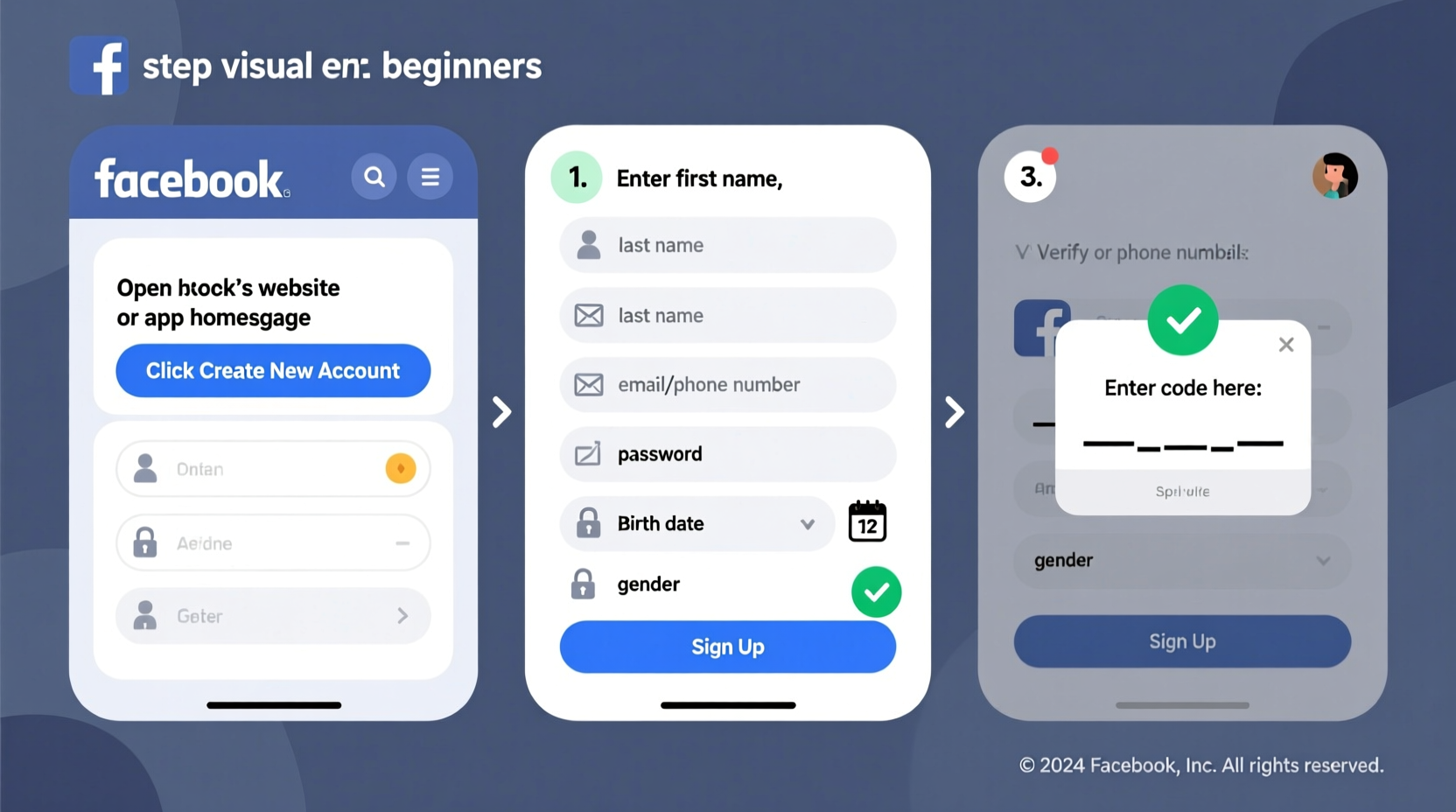
- Fill in Your Information: On the homepage, locate the registration form. Enter:
- Your first and last name (use real names as per Facebook policy)
- A valid mobile number or email address
- A secure password (at least 6 characters, ideally longer with mixed characters)
- Your date of birth
- Select Gender (Optional): You can choose male, female, or customize if desired. This field does not affect account functionality.
- Click “Sign Up”: After filling out the form, click the green button. Facebook will verify your details and proceed to the next screen.
- Confirm Your Identity: Facebook will send a confirmation code via SMS or email. Enter the code when prompted to verify your contact method.
- Add Profile Photo (Optional but Recommended): Uploading a clear photo helps friends recognize you and adds authenticity to your profile.
- Find Friends: Facebook may ask to access your phone contacts or email list to suggest connections. You can skip this step safely.
- Complete Setup: Once verification is complete, you’ll be directed to your News Feed. Your account is now active.
Essential Settings to Adjust After Sign-Up
Immediately after creating your account, take time to configure privacy and security options. Many new users overlook these, leaving their profiles exposed.
Review Privacy Settings
Navigate to Settings & Privacy > Privacy Checkup. Here, you can control who sees your posts, how people find you, and what information appears publicly.
- Set future posts to \"Friends\" instead of \"Public\"
- Limit past posts by using the \"Limit Past Posts\" tool
- Disable tagging approval if you want to review tags before they appear
Enable Two-Factor Authentication
Go to Settings > Security and Login. Turn on two-factor authentication (2FA) using either text messages or an authenticator app like Google Authenticator. This adds a critical layer of protection against unauthorized access.
Manage Ad Preferences
Under Ad Settings, you can limit how your data is used for targeted advertising. While Facebook uses activity to personalize ads, you can opt out of certain categories or disable ad personalization entirely.
| Setting | Recommended Option | Why It Matters |
|---|---|---|
| Who can see your future posts? | Friends | Prevents strangers from viewing personal updates |
| Profile discovery via email/phone? | Only friends | Reduces spam and unwanted contact |
| Two-factor authentication | Enabled | Makes hacking significantly harder |
| Tagging approvals | On | You approve tags before they appear on your timeline |
Common Challenges and How to Avoid Them
New users often face issues during or after account creation. Being aware of these pitfalls improves success and confidence.
- Name Restrictions: Facebook requires real names. Using nicknames, symbols, or offensive terms may result in temporary suspension.
- Verification Failures: If you don’t receive a code, check spam folders or request a call instead of SMS.
- Duplicate Accounts: Each person should have only one account. Creating multiple violates Facebook’s policy and risks permanent bans.
- Phishing Scams: Never enter your login details on third-party sites claiming to help with registration.
“Starting with strong privacy habits reduces long-term risks. New users should treat their first 24 hours on Facebook as setup time—not social time.” — Lena Patel, Digital Safety Educator
Real Example: Maria’s First Facebook Experience
Maria, a 67-year-old retiree from Ohio, decided to join Facebook to stay in touch with her grandchildren. She followed the sign-up process but skipped privacy settings, leaving her posts public. Within days, she received friend requests from strangers and saw unfamiliar comments on her photos. Concerned, she contacted her son, who helped her adjust her privacy controls and enable two-factor authentication. After cleaning up her settings, Maria felt more confident sharing family moments without fear of exposure.
Her story highlights the importance of balancing connectivity with caution. Taking just 15 minutes to configure settings made her experience safer and more enjoyable.
Checklist: What to Do Right After Account Creation
Use this checklist to ensure your account is secure and personalized:
- ✅ Verify your email or phone number
- ✅ Upload a recognizable profile picture
- ✅ Set default audience for posts to “Friends”
- ✅ Run Privacy Checkup
- ✅ Enable two-factor authentication
- ✅ Review and adjust ad preferences
- ✅ Explore Help Center for additional guidance
Frequently Asked Questions
Can I use a nickname on Facebook?
Facebook’s policy requires your authentic name—the one you use in everyday life. However, you can add a nickname or maiden name that appears alongside your primary name once approved.
What if I forget my password?
Click “Forgotten password?” on the login page. Enter your email or phone number, and Facebook will send reset instructions. Make sure your contact info is up to date to recover access easily.
Is it safe for seniors or less tech-savvy users to join Facebook?
Yes, with proper guidance. Older adults benefit greatly from staying connected, but should learn to identify scams, avoid suspicious links, and restrict profile visibility. Family support during setup enhances safety.
Take the Next Step Confidently
Creating a Facebook account doesn’t have to be overwhelming. By following a structured approach and prioritizing privacy from day one, you build a foundation for meaningful and secure online interactions. Whether you're reconnecting with loved ones, exploring interests, or supporting a cause, your presence on Facebook starts with a single, informed action.




 浙公网安备
33010002000092号
浙公网安备
33010002000092号 浙B2-20120091-4
Comments
No comments yet. Why don't you start the discussion?