
The default Calculator app on the iPhone is reliable but minimal. While it handles basic arithmetic and rotates into scientific mode, many users need more advanced features, cleaner interfaces, or specialized functions like unit conversion, programming calculations, or tip splitting. Fortunately, iOS allows you to go beyond Apple’s built-in tool by customizing its use and switching to third-party alternatives that better suit your daily needs.
Whether you're a student, finance professional, developer, or just someone who hates digging through menus, learning how to optimize your calculation experience can save time and reduce frustration. This guide walks you through practical ways to enhance, replace, and personalize your calculator setup on iPhone.
Understanding the Default Calculator App
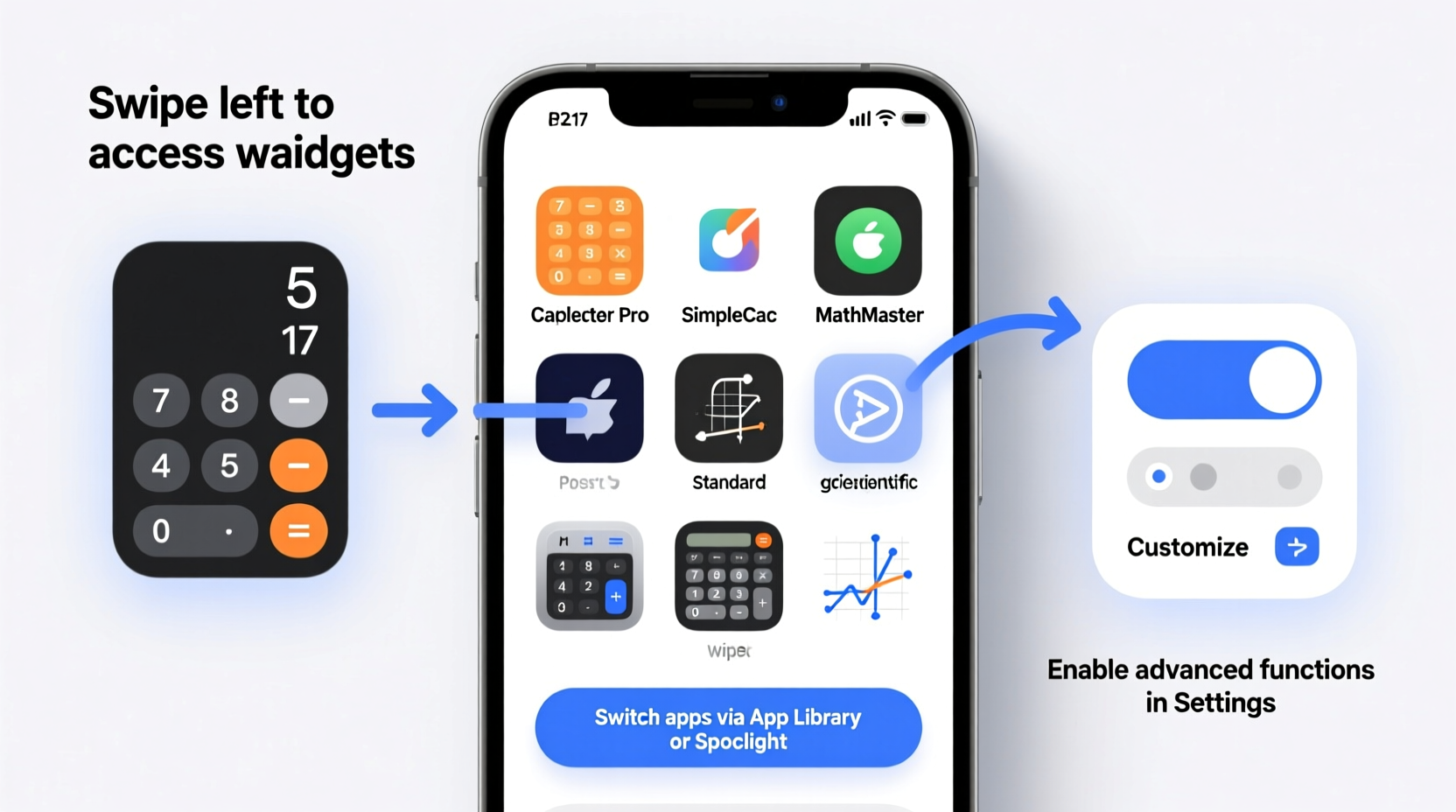
Apple’s native Calculator app comes preinstalled on every iPhone. It supports addition, subtraction, multiplication, division, percentages, square roots, and—when rotated to landscape mode—a full scientific calculator with trigonometric functions, logarithms, exponents, and memory operations.
Despite its simplicity, the app lacks customization options. You cannot change themes, add shortcuts, or access history beyond the current session. There’s no voice input, no formula editing, and no way to label or save previous results. For light use, it suffices. But power users quickly hit limitations.
Switching to Third-Party Calculator Apps
iOS gives full freedom to install alternative calculator apps from the App Store. These often offer enhanced layouts, dark modes, cloud sync, handwriting support, and even AI-powered equation solving. Here are some top-tier options:
| App Name | Key Features | Best For |
|---|---|---|
| PCalc | Programmer mode, RPN support, customizable interface, extensive settings | Developers, engineers, tech enthusiasts |
| Calculator ∞ | Graphing, symbolic algebra, LaTeX export, step-by-step solutions | Students, educators, STEM fields |
| MyScript Calculator | Handwriting recognition, natural writing input, gesture-based editing | Visual learners, note-takers |
| Calcbot | Animated UI, currency/time/unit converters, iCloud sync | Travelers, freelancers, everyday users |
To switch to a new calculator app:
- Open the App Store and search for “calculator.”
- Browse reviews and feature lists; try free versions first.
- Download and install your preferred app.
- Open it and explore its interface and settings.
- Optionally, remove the default Calculator from your Home Screen (but keep it installed—it cannot be deleted).
Setting a Default Alternative via Siri or Shortcuts
While iOS doesn’t let you set a system-wide default calculator replacement, you can streamline access using Siri or the Shortcuts app.
For example, create a Siri command like “Open my calculator” that launches PCalc instead of the stock app. Or place a large widget from your preferred app on the Home Screen for one-tap access.
Customizing Your Experience with Widgets and Shortcuts
Even without replacing the core app, you can significantly improve usability through personalization tools built into iOS.
Add a Calculator Widget
Widgets provide instant access without opening an app. Starting with iOS 14, you can add widgets to your Home Screen or Today View.
- Long-press on your Home Screen and tap the \"+\" icon in the top-left corner.
- Search for your preferred calculator app (e.g., Calcbot or PCalc).
- Select a widget size and add it to your screen.
- Position it near frequently used tools like Notes or Reminders.
This reduces friction when doing quick math during shopping, budgeting, or meal planning.
Create Custom Shortcuts for Common Calculations
The Shortcuts app enables automation. You can build workflows for recurring tasks like calculating tips, splitting bills, or converting units.
“Automation isn't just for coders. A well-designed shortcut can turn a five-step process into a single tap.” — David Lin, iOS Productivity Consultant
Example: Build a “Split Dinner Bill” shortcut that asks for total amount, number of people, and tip percentage, then returns individual shares. Assign this to a Home Screen icon labeled “Dinner Math,” making shared expenses effortless.
Real-World Example: Maria’s Freelance Workflow
Maria is a freelance graphic designer who invoices clients hourly. She used to juggle between the default calculator, notes, and her time tracker to calculate earnings. After switching to Calculator ∞ and creating a custom shortcut called “Invoice Total,” she now enters hours worked and rate per hour, and the app instantly outputs subtotal, tax (if applicable), and final amount—all formatted for copy-paste into her invoice template.
She also added a dark-mode widget to her iPad Home Screen so she can do quick client quotes during meetings without fumbling through apps. Her monthly billing time dropped from 45 minutes to under 10.
Essential Tips for Maximizing Calculator Efficiency
Do’s and Don’ts When Choosing a Calculator App
| Do | Don’t |
|---|---|
| Test free versions before purchasing premium upgrades | Assume all apps support scientific notation or complex math |
| Check for offline functionality if you travel frequently | Ignore permissions—avoid apps requesting unnecessary data access |
| Use apps with cloud sync if you work across devices | Forget about accessibility features like dynamic text or VoiceOver compatibility |
| Look for gesture controls (e.g., swipe to delete) | Stick with clunky UIs just because they’re familiar |
FAQ
Can I delete the default Calculator app?
No. The built-in Calculator app cannot be uninstalled, as it's part of the iOS system. However, you can hide it inside a folder or remove its icon from your Home Screen while using a third-party app as your primary tool.
Are third-party calculator apps safe?
Most reputable calculator apps are safe, especially those from known developers with transparent privacy policies. Avoid apps that request access to contacts, location, or photos unless absolutely necessary. Stick to high-rated options with regular updates.
Will switching calculators affect other apps?
No. Other apps don’t rely on your choice of calculator. Copy-pasting numbers works universally, and none of your data is tied to the default app. Switching is entirely user-driven and risk-free.
Final Recommendations and Action Plan
Improving your iPhone’s calculation capabilities doesn’t require technical expertise—just awareness and intention. Start by evaluating your current pain points: Do you struggle with unit conversions? Need better history tracking? Want faster access?
Here’s a checklist to upgrade your setup in under 20 minutes:
- ✅ Spend 5 minutes browsing the App Store for “scientific calculator” or “programmer calculator.”
- ✅ Download one highly rated app that matches your needs (PCalc for pros, Calcbot for casual use).
- ✅ Install its widget on your main Home Screen page.
- ✅ Create one useful shortcut (e.g., tip calculator or BMI estimator).
- ✅ Test it in a real scenario—like splitting a lunch bill or checking a discount.
Once customized, your iPhone becomes not just a communication device, but a precision tool tailored to your lifestyle. Whether managing finances, studying, coding, or planning, the right calculator makes all the difference—not because it computes faster, but because it fits seamlessly into how you think and work.




 浙公网安备
33010002000092号
浙公网安备
33010002000092号 浙B2-20120091-4
Comments
No comments yet. Why don't you start the discussion?