
Digital photos are precious—they capture moments, emotions, and milestones. But over time, they accumulate: blurry shots, duplicates, screenshots, and forgotten folders buried in device storage. The result? A chaotic digital gallery that’s hard to navigate and risks data loss. The good news is you don’t need expensive software or cloud subscriptions to regain control. With the right strategy and free tools, you can declutter your digital photos across smartphones, computers, and tablets efficiently and securely.
This guide walks through a complete, actionable process for organizing your digital photo collection using only no-cost solutions. From identifying what to keep to syncing across devices and maintaining order long-term, every step is designed for real-world usability.
Create a Unified Strategy Before You Begin
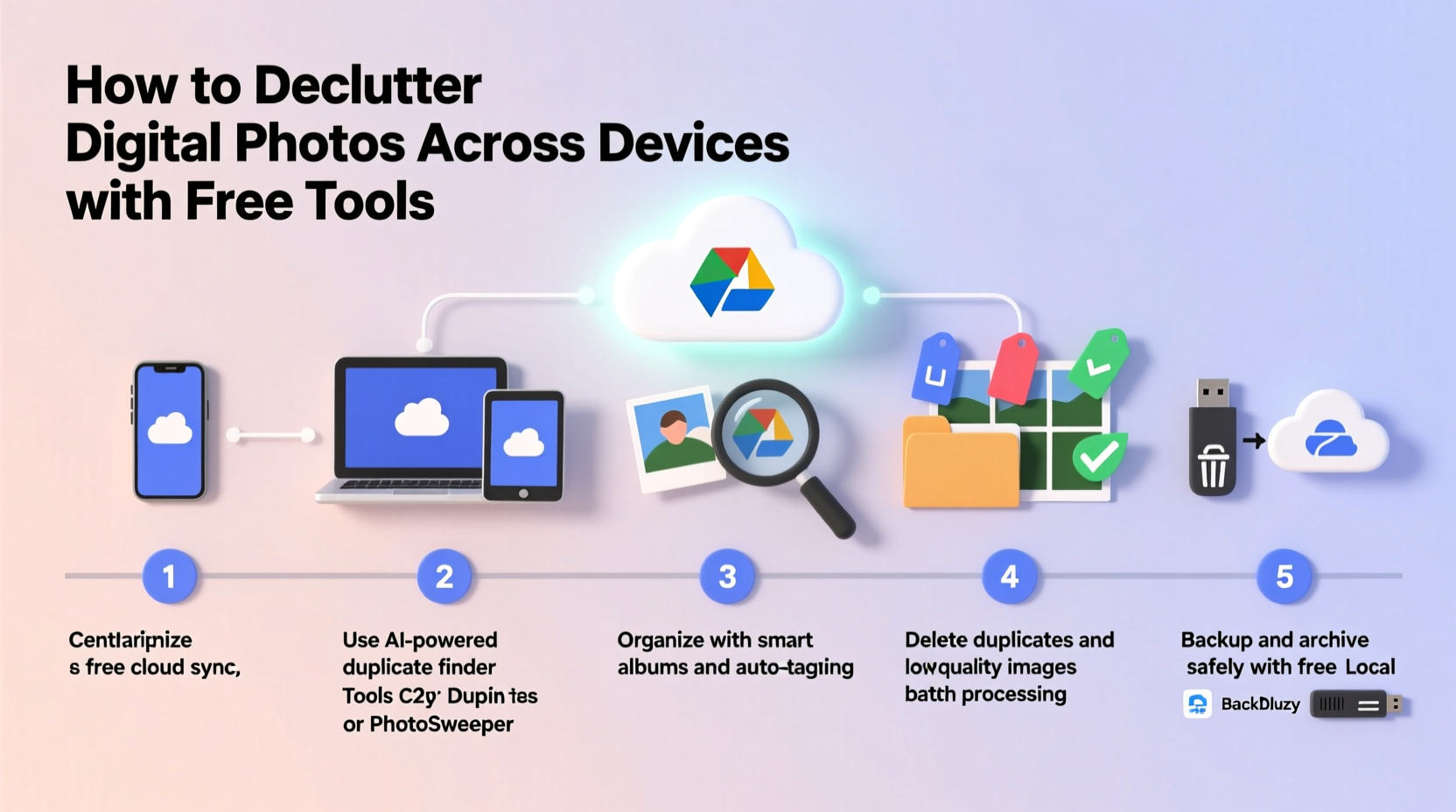
Before diving into folders or deleting files, establish a clear plan. Most people jump straight into sorting, which leads to inconsistent results and emotional fatigue. Instead, define your goals: Are you trying to free up phone storage? Prepare a curated archive for printing? Simplify sharing with family?
A unified strategy includes three core elements: naming conventions, folder structure, and retention rules. For example, adopt a date-based naming system like YYYY-MM-DD_EventName. This ensures chronological consistency and makes future searches effortless. Structure your main archive with top-level folders such as “Family,” “Travel,” and “Documents,” then subdivide by year.
Set retention rules upfront. Decide whether to keep all originals or only high-quality images. Define what counts as a duplicate (exact byte match vs. visual similarity). These decisions prevent second-guessing later.
Step-by-Step: Declutter Photos Across Devices
Follow this seven-step process to clean up your digital photo library across smartphones, laptops, and tablets using only free tools.
- Collect All Photos in One Place
Use free cloud services like Google Photos (up to original quality) or Microsoft OneDrive (5 GB free) to pull images from phones, tablets, and computers. Enable auto-upload on mobile devices to ensure nothing is missed. - Download and Consolidate Locally
Export your cloud-stored photos to a single external drive or computer folder. Use Google Takeout or OneDrive’s desktop sync client. This creates a master copy you can sort without relying on internet connectivity. - Remove Obvious Junk
Delete screenshots, failed captures, and out-of-focus images. Tools like Windows File Explorer or macOS Preview allow quick previews. Sort by file type or size to spot irrelevant files fast. - Find and Eliminate Duplicates
Use free duplicate finders: Duplicate Cleaner Free (Windows), DupeGuru (cross-platform), or VisiPics (visual matching). These scan for identical or near-identical images, even if filenames differ. - Organize by Date and Event
Rename and move files into structured folders. Use bulk renaming tools like Bulk Rename Utility (free, Windows) or Renamer (macOS) to apply consistent naming patterns across hundreds of files at once. - Tag and Categorize Key Photos
Apply metadata using free software like XnView MP. Add keywords (e.g., “beach vacation 2023,” “birthday”), ratings, or captions. This enables powerful search later, even without AI-powered platforms. - Backup and Sync Securely
Store your cleaned archive in two locations: one local (external drive) and one cloud-based (Google Drive, OneDrive, or Dropbox Basic). Enable encryption tools like VeraCrypt (free) for sensitive albums.
Timeline for a Full Cleanup (Realistic Estimate)
| Task | Time Required (for ~5,000 photos) |
|---|---|
| Data Collection & Export | 2–4 hours |
| Junk Removal | 1–2 hours |
| Duplicate Detection | 1–3 hours |
| Folder Organization | 2–5 hours |
| Tagging & Metadata | Optional: 1–3 hours |
| Backup Setup | 1 hour |
| Total Estimated Time | 7–18 hours |
Break this into 1–2 hour sessions over a week. Trying to do it all at once often leads to burnout and poor decisions.
Free Tools That Make a Difference
You don’t need paid software to manage thousands of photos. The following free tools are reliable, actively maintained, and compatible across major operating systems.
- Google Photos (web, Android, iOS): Offers smart grouping, facial recognition, and search by location or object—all free at original quality (not high quality).
- DupeGuru (Windows, macOS, Linux): Detects duplicates by content, not just filename. Supports fuzzy matching for slightly edited versions of the same image.
- XnView MP (cross-platform): A full-featured photo organizer with batch conversion, tagging, and EXIF editing. Ideal for building searchable archives.
- Bulk Rename Utility (Windows): Extremely powerful for renaming large batches using rules, prefixes, counters, or date extraction from metadata.
- VeraCrypt (all platforms): Encrypt sensitive photo folders before storing them on external drives or less secure cloud providers.
Do’s and Don’ts of Digital Photo Management
| Do | Don’t |
|---|---|
| Keep at least two backups (3-2-1 rule: 3 copies, 2 media types, 1 offsite) | Rely solely on your phone or a single cloud service |
| Use consistent folder names and date formats | Name folders “Vacation!!!” or “Stuff from iPhone” |
| Review and update your archive annually | Assume “once organized” means “forever organized” |
| Compress old albums with ZIP or 7-Zip (free) to save space | Delete originals without verifying backups first |
| Leverage built-in tools like Apple Photos or Google’s archive feature | Leave thousands of unsorted images in your camera roll |
“Digital clutter isn’t just about storage—it’s about mental load. Every unnecessary photo competes for attention when you’re trying to relive a memory.” — Dr. Lena Patel, Digital Wellness Researcher, University of Edinburgh
Mini Case Study: Recovering Control After Years of Accumulation
Sarah, a teacher and mother of two, hadn’t touched her photo collection in eight years. Her iPhone was constantly out of storage, her laptop backup failed repeatedly, and she couldn’t find photos of her daughter’s first day of school. She started with Google Photos, where 18,000 images were scattered across auto-uploaded bursts and screenshots.
She downloaded everything to an external drive using Google Takeout. Then, she used DupeGuru to remove 2,300 duplicates—mostly multiple shots from the same moment. With Bulk Rename Utility, she standardized filenames based on EXIF dates. She created folders like “2023-06_Family Trip Croatia” and “2022-10_School Play.”
Sarah tagged key events in XnView MP and backed up the final archive to both her encrypted external drive and Microsoft OneDrive. The entire process took 14 hours over three weekends. Now, she finds any photo in seconds—and her phone has 12 GB of extra space.
Essential Checklist for a Clean Digital Photo Library
- ✅ Enable auto-sync on all devices (Google Photos, iCloud, or OneDrive)
- ✅ Export cloud libraries to a local drive using free tools
- ✅ Delete obvious junk: screenshots, memes, blurry test shots
- ✅ Run a duplicate finder to eliminate redundant images
- ✅ Organize remaining photos into dated, descriptive folders
- ✅ Apply tags or keywords to important events or people
- ✅ Backup the final archive to two separate locations
- ✅ Schedule an annual review to maintain order
Frequently Asked Questions
Can I declutter photos without losing quality?
Yes. When using free tools like XnView MP or Bulk Rename Utility, always choose “save copy” instead of “overwrite.” Work on duplicates of your original files until the final archive is confirmed. Never delete originals until you’ve verified backups in two locations.
What if I have photos stored on old devices or dead phones?
If the device still powers on, connect it via USB and manually copy the DCIM folder. For non-functional devices, consider professional data recovery services—but first check if auto-upload was enabled. Many users unknowingly backed up to Google Photos or iCloud before their phone failed.
Are free tools safe for private photos?
Most desktop tools (like XnView, DupeGuru, and Bulk Rename Utility) process files locally—your photos never leave your device. Avoid uploading sensitive images to unknown web-based organizers. For added security, use VeraCrypt to encrypt folders before storing them on shared or cloud drives.
Maintain Order: Prevent Future Clutter
Decluttering is not a one-time fix. New photos arrive daily. To prevent backsliding, build sustainable habits. Set a monthly reminder to review your camera roll. Archive anything older than 30 days into properly named folders. Use your cloud service’s “archive” feature (available in Google Photos and Apple Photos) to hide processed images from your main view without deleting them.
Enable automatic organization features. Google Photos groups images by trip, person, and pet. Apple Photos uses on-device AI to suggest memories and hide screenshots. These aren’t perfect, but they reduce manual effort significantly.
Finally, be intentional about what you photograph. Not every meal, receipt, or passing scene needs saving. Ask: “Will I want to see this in five years?” If not, skip the shot or delete it immediately.
Take Action Today—Your Memories Deserve Better
Your digital photos are more than files—they’re fragments of your life. Letting them rot in disorganized folders diminishes their value and increases the risk of permanent loss. The tools to fix this are already available, and they cost nothing. What holds most people back isn’t complexity or expense—it’s starting.
Pick one device. Export its photos. Delete ten useless screenshots. Create one properly named folder. That’s progress. Repeat weekly, and within a month, you’ll have a cleaner, safer, and more meaningful photo collection.




 浙公网安备
33010002000092号
浙公网安备
33010002000092号 浙B2-20120091-4
Comments
No comments yet. Why don't you start the discussion?