
Dust, crumbs, oils from fingertips, and bacteria accumulate on keyboards over time—especially if you type daily. A dirty keyboard isn’t just unsightly; it can affect performance, cause sticky keys, and even harbor germs. But many people hesitate to clean their keyboards thoroughly out of fear of dislodging or losing keys. The good news: with the right approach, you can deep clean your keyboard safely and effectively—without removing a single key.
This guide walks through proven techniques for cleaning mechanical, membrane, and laptop keyboards while preserving key integrity. Whether you're working from home, gaming, or managing a shared workspace, these strategies will keep your keyboard functional, hygienic, and looking like new.
Why Deep Cleaning Matters
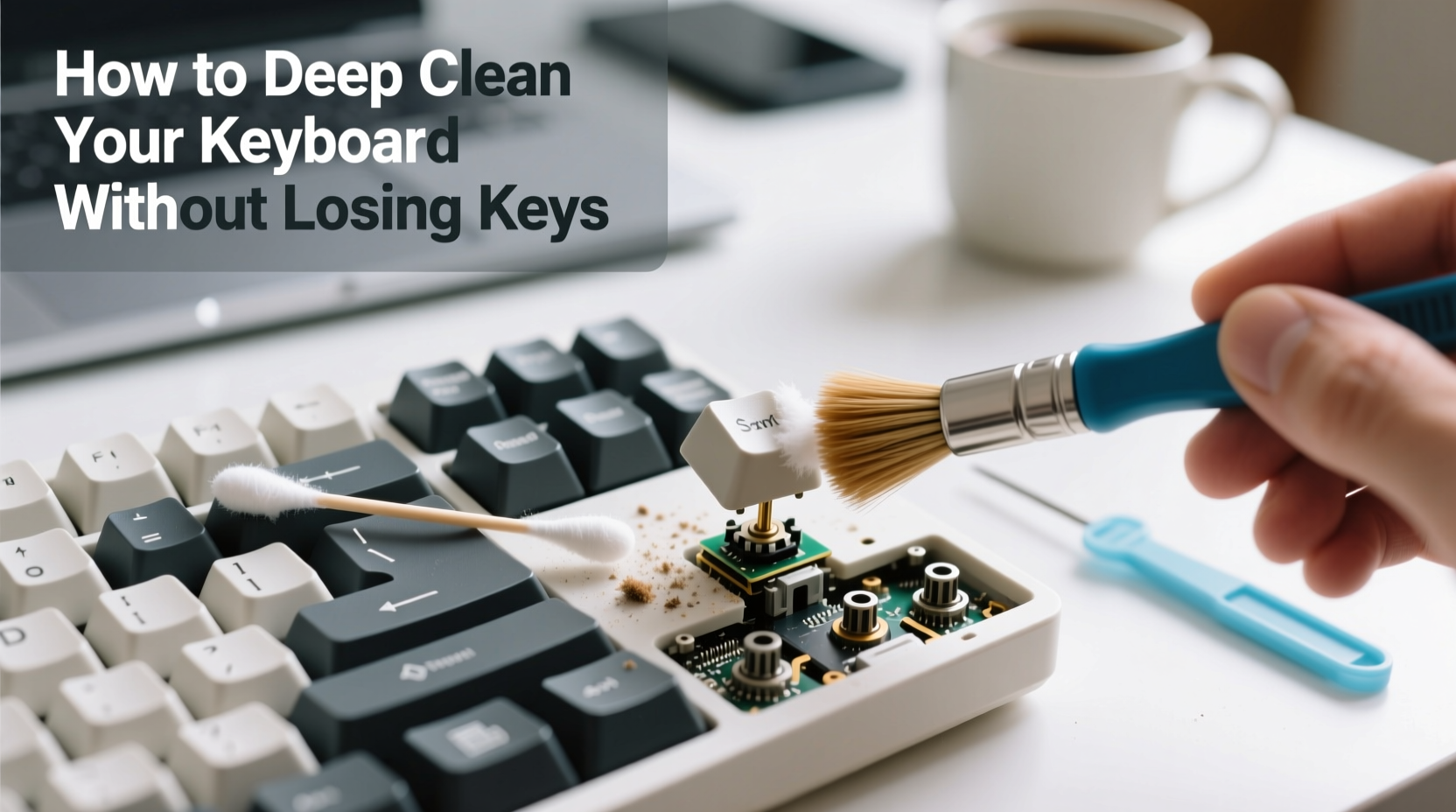
A keyboard is one of the most frequently touched surfaces in any workspace. Studies by microbiologists have shown that the average keyboard hosts more bacteria than a toilet seat. Beyond hygiene, debris buildup can interfere with keystroke responsiveness and lead to long-term hardware damage.
Regular surface wiping isn’t enough. Over months, fine particles settle beneath keycaps, especially on mechanical keyboards where gaps between switches are larger. Without periodic deep cleaning, this grime hardens and becomes harder to remove later—often forcing users into risky disassembly attempts.
“Most keyboard failures aren't due to electronics but physical obstruction from dust and liquid residue.” — Dr. Alan Reyes, Electronics Durability Researcher at MIT Media Lab
Essential Tools for Safe Keyboard Cleaning
Before starting, gather tools that won’t damage sensitive components or require prying off keys. Avoid sharp objects like knives or metal tweezers, which can scratch plastic or snap clips.
- Compressed air canister: Blows out dust and debris from under keys without contact.
- Microfiber cloth: Soft, lint-free material ideal for wiping surfaces.
- Isopropyl alcohol (70%): Effective disinfectant that evaporates quickly and is safe on most plastics.
- Cotton swabs: For precision cleaning around tight spaces between keys.
- Soft-bristled brush: A clean makeup or paintbrush helps loosen stubborn particles.
- Vacuum with narrow nozzle attachment: Optional, for suctioning loosened debris (use low power).
Step-by-Step: Deep Clean Your Keyboard Without Removing Keys
This method works across all major keyboard types—mechanical, scissor-switch (laptops), and rubber dome (membrane). It eliminates the need to pop off keycaps, reducing risk of misplacement or breakage.
- Power down and disconnect. Unplug wired keyboards or turn off wireless ones. For laptops, shut down completely. This prevents accidental input and protects circuitry.
- Shake out loose debris. Hold the keyboard upside down and gently shake it. Tap the back lightly to dislodge crumbs and dust trapped underneath.
- Use compressed air. Tilt the keyboard at a 45-degree angle and spray short bursts between keys. Move systematically row by row. Keep the can upright to avoid propellant leakage.
- Brush away residual dust. Use a soft-bristled brush in sweeping motions across the keybed. Focus on areas near spacebar and Enter key—common crumb traps.
- Dampen a microfiber cloth with 70% isopropyl alcohol. Wring it until nearly dry—never wet. Wipe each keycap top and sides. Don’t pour liquid directly onto the keyboard.
- Clean between keys with swabs. Wrap a cotton swab in the damp cloth or lightly apply alcohol. Gently rotate it between clusters of keys to lift grime.
- Target problem zones. Pay extra attention to Shift, Ctrl, and Alt keys—often overlooked but heavily used. If sticky residue remains, reapply alcohol sparingly and let sit for 10 seconds before wiping.
- Dry thoroughly. Allow the keyboard to air-dry for at least 15–30 minutes before reconnecting. Place it in a well-ventilated area, ideally tilted forward to encourage airflow.
Do’s and Don’ts When Cleaning Keyboards
| Do’s | Don’ts |
|---|---|
| Use 70% isopropyl alcohol for disinfection | Submerge the keyboard in water or cleaner |
| Hold compressed air can upright during use | Shake the can vigorously or tilt it while spraying |
| Wipe keys with a slightly damp microfiber cloth | Use paper towels—they can scratch or leave lint |
| Let the keyboard dry completely before use | Rush drying with a hairdryer on high heat |
| Store covered when not in use (e.g., silicone skin) | Place drinks or food directly above the keyboard |
When You Might Need to Remove Keys (And How to Do It Safely)
While most cleaning can be done without removal, some situations—like spilled liquids or visible mold under keycaps—may require lifting them. However, doing so risks breaking retention clips or forgetting original positions.
If you decide to proceed:
- Use a dedicated keycap puller (available for $5 online)—never fingernails or flathead screwdrivers.
- Work one row at a time. Lay keys on a labeled tray or take a photo of the layout first.
- Clean removed caps with warm soapy water, rinse, and dry fully before reattaching.
- Reattach firmly but gently—listen for the click.
“Only remove keys if absolutely necessary. Most issues are resolved with non-invasive cleaning.” — Lena Park, Peripheral Maintenance Technician at TechCare Labs
Mini Case Study: Recovering a Sticky Gaming Keyboard
Jamal, a streamer and competitive gamer, noticed his 'W' and 'Space' keys were registering double inputs. He avoided cleaning because he feared damaging his expensive mechanical board. After two months, lag worsened during matches.
He followed the no-key-removal method: disconnected the keyboard, shook out debris, used compressed air, then wiped with alcohol-dampened cloth and swabs. After drying, the keys responded smoothly again. No parts were removed, and the keyboard returned to full function—saving him from costly replacement.
The entire process took 25 minutes and cost less than $10 in supplies.
Checklist: Deep Clean Your Keyboard Safely
- ☑ Turn off and unplug the keyboard
- ☑ Shake out loose debris upside down
- ☑ Spray compressed air between keys (short bursts)
- ☑ Brush away remaining dust with soft bristles
- ☑ Dampen microfiber cloth with 70% isopropyl alcohol
- ☑ Wipe tops and sides of all keys
- ☑ Use cotton swabs for tight spaces
- ☑ Air-dry for at least 15–30 minutes
- ☑ Reconnect and test functionality
Frequently Asked Questions
Can I use hand sanitizer to clean my keyboard?
No. While hand sanitizer contains alcohol, it also includes fragrances, thickeners, and glycerin that leave sticky residues. Stick to pure 70% isopropyl alcohol diluted properly or pre-moistened electronics wipes designed for screens and devices.
How often should I deep clean my keyboard?
Every 4–6 weeks for regular users. In high-dust environments or shared workspaces, consider cleaning every 3–4 weeks. Light surface wiping can be done weekly.
Will compressed air damage my keyboard?
Not if used correctly. Use short bursts and keep the can upright. Avoid prolonged spraying in one spot, which can force moisture or static into circuits. High-quality cans use dry gas (usually difluoroethane) that poses minimal risk.
Final Thoughts: Maintain Performance and Hygiene Long-Term
Deep cleaning your keyboard doesn’t require technical skill or risky disassembly. With simple tools and careful technique, you can restore functionality, eliminate germs, and extend your device’s lifespan—all without losing a single key.
Think of your keyboard as an extension of your workspace hygiene. Just as you wash your hands or wipe down your phone, routine keyboard maintenance supports both health and productivity. Make it part of your monthly digital wellness routine.




 浙公网安备
33010002000092号
浙公网安备
33010002000092号 浙B2-20120091-4
Comments
No comments yet. Why don't you start the discussion?