
Digital photography has made capturing life’s moments easier than ever. But with convenience comes clutter—especially when the same photo appears across multiple devices. Over time, duplicates pile up on smartphones, tablets, laptops, and cloud storage, consuming valuable space and making it harder to find the images you actually want. The real challenge isn’t just finding duplicates—it’s removing them safely, completely, and without accidentally deleting cherished originals.
The solution requires more than quick fixes or one-time cleanups. It demands a systematic approach that spans all your devices, accounts, and backup systems. Whether you use Apple’s ecosystem, Google Photos, Windows, or a mix of platforms, this guide provides a comprehensive strategy to eliminate duplicates while preserving your memories.
Why Duplicate Photos Accumulate Across Devices
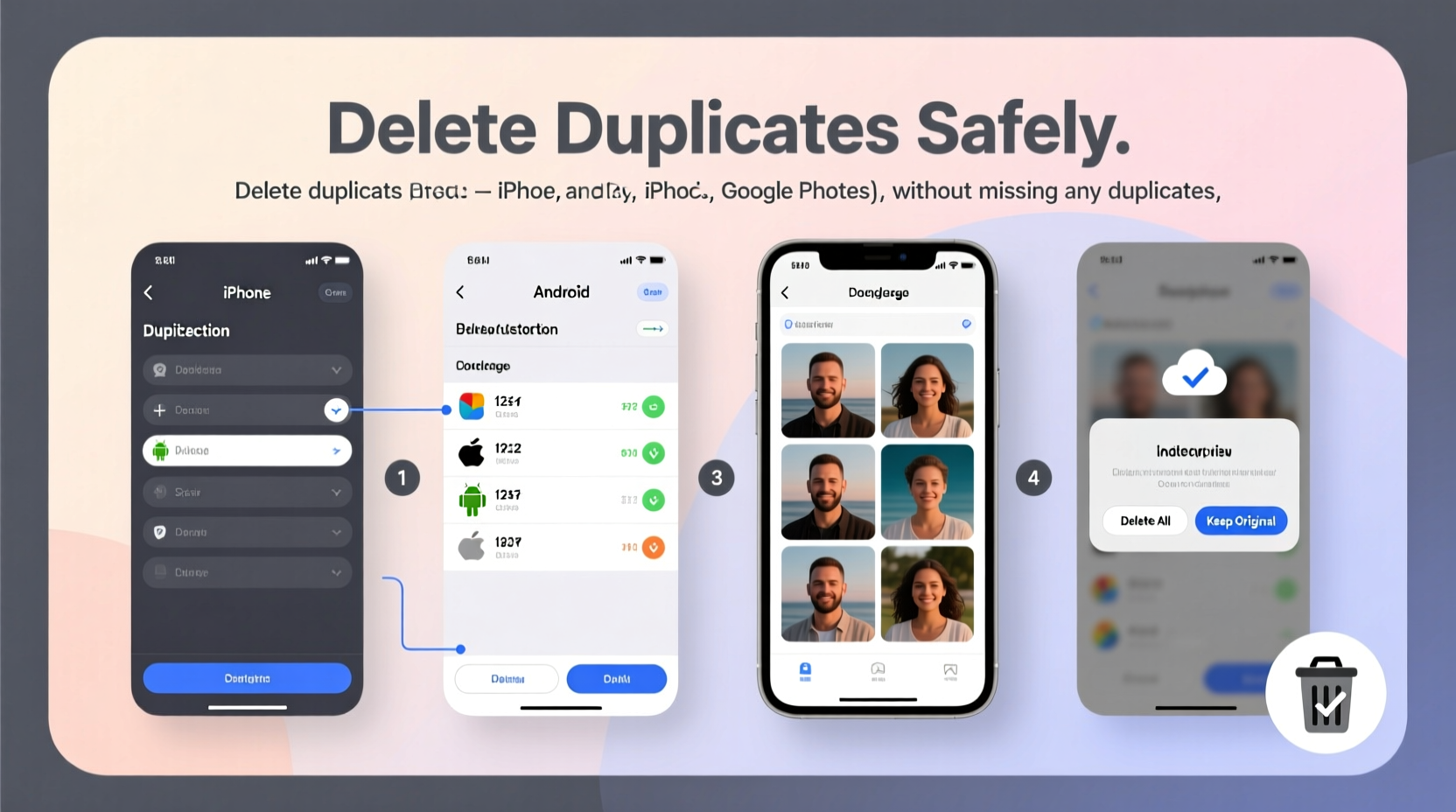
Duplicates aren’t usually the result of user error—they’re built into how modern digital ecosystems operate. When you take a photo on your iPhone, it syncs to iCloud. Later, if you download it to your Mac or export it to an external drive, another copy is created. Simultaneously, you might have backed up the same image via Google Photos from a different device, or re-saved it after editing. These overlapping workflows create identical or near-identical files across multiple locations.
Common causes include:
- Automatic cloud syncing across platforms (iCloud, Google Photos, Dropbox)
- Manual transfers between devices via email, messaging apps, or USB
- Multiple backups (Time Machine, File History, third-party tools)
- Editing a photo and saving it as a new file instead of overwriting
- Using multiple accounts for the same service (e.g., two Google accounts)
Without intervention, these duplicates can double or triple your media storage usage—sometimes without you even noticing.
Step-by-Step Guide to Delete Duplicates Without Losing Anything Important
Cleaning up duplicates should never be rushed. A single misstep could erase irreplaceable memories. Follow this timeline-based approach to ensure thoroughness and safety.
- Inventory Your Devices and Accounts
Create a list of every device and cloud account where photos are stored: iPhone, Android phone, iPad, MacBook, Windows PC, iCloud, Google Photos, OneDrive, Dropbox, external drives, etc. - Unify Access Where Possible
If you haven’t already, link devices to the same primary account (e.g., sign in to Google Photos on both Android and desktop). This helps centralize visibility. - Pause Automatic Syncing Temporarily
Go to settings on each device and disable auto-upload functions. This prevents new duplicates from appearing while you work. - Back Up Everything Before Starting
Use an external hard drive or secondary cloud service to create a full backup of all photo libraries. Label it “Pre-Duplicate Cleanup – [Date].” - Choose a Primary Photo Hub
Select one platform to serve as your master photo library. Most users pick either Google Photos or iCloud due to their robust organization tools. - Scan for Duplicates Using Software
Use dedicated tools (covered below) to detect exact and visual duplicates across folders and devices. - Review and Confirm Deletions Manually
Never rely solely on automated deletion. Always preview suggested duplicates before removal, especially those with slight variations (cropped, filtered, etc.). - Delete Only After Cross-Checking
Ensure the photo exists in at least one other location before removing it from any device. - Re-enable Syncing and Monitor for New Duplicates
Once cleanup is complete, reactivate syncing but monitor uploads closely for the next few days. - Schedule Quarterly Maintenance
Set a calendar reminder every three months to repeat the scan process and catch new duplicates early.
Best Tools for Finding and Removing Duplicates
Manual scanning through thousands of photos is impractical. Fortunately, several reliable tools can identify duplicates by file hash, metadata, or visual similarity.
| Tool | Platform | Duplicate Detection Method | Auto-Delete Option | Price |
|---|---|---|---|---|
| Google Photos (built-in) | Android, Web | Cloud-based visual matching | Yes (via \"Junk\" folder) | Free (with storage limits) |
| iCloud Photos | iOS, macOS | Server-side deduplication | Limited (merges automatically) | Free (5GB), Paid plans available |
| Duplicate Photo Cleaner (by Ashisoft) | Windows, macOS | Visual + file comparison | Yes (with preview) | $30 (one-time) |
| VisiPics | Windows | Image fingerprinting | No (manual selection only) | Free |
| PhotoSweeper (by EdgeLine) | macOS | Pixel-level comparison | Yes (configurable rules) | $15–$25 (tiered pricing) |
| CCleaner (Photo Finder) | Windows, macOS | File size and name matching | Yes | Free / Pro version $25 |
For cross-platform users, combining Google Photos’ cloud detection with a local tool like PhotoSweeper or Duplicate Photo Cleaner offers the most comprehensive coverage.
“We’ve seen cases where users lost years of photos because they trusted full automation. Always keep human review in the loop.” — David Lin, Data Recovery Specialist at DriveSentinel Labs
Real Example: How Sarah Cleared 18,000 Duplicates Without Losing a Single Memory
Sarah, a freelance photographer and mother of two, noticed her iPhone storage was constantly full despite having iCloud enabled. She had over 42,000 photos across her iPhone, iPad, MacBook, and Google account—but estimated only about half were unique.
She began by exporting all photos from Google Photos and organizing them into dated folders on an external SSD. Then, she used Duplicate Photo Cleaner on her MacBook to scan both the external drive and her local Photos library. The software found 18,742 potential duplicates.
Instead of bulk-deleting, Sarah used the tool’s side-by-side viewer to compare each pair. She discovered that some “duplicates” were actually edited versions or cropped variants she wanted to keep. By applying filters—such as keeping the highest-resolution version or the one with editing metadata—she reduced the final deletion list to 14,200 files.
Before deletion, she verified that each photo existed in at least one secure location (either iCloud or the external backup). Over the course of a weekend, she cleared the duplicates, freeing up over 60GB of space across devices. She now runs a monthly scan using the same method and reports significantly faster device performance.
Essential Checklist for Safe Duplicate Removal
Follow this checklist before, during, and after your cleanup process to avoid data loss.
- ✅ List all devices and accounts storing photos
- ✅ Back up all photo libraries to an external source
- ✅ Disable auto-sync and cloud upload features temporarily
- ✅ Choose one primary platform as your “master” library
- ✅ Use at least one dedicated duplicate-finding tool
- ✅ Preview all flagged duplicates before deletion
- ✅ Confirm each duplicate exists elsewhere before removing
- ✅ Delete only from non-primary devices first (e.g., remove from phone if kept on desktop)
- ✅ Re-enable syncing and verify consistency across devices
- ✅ Schedule recurring maintenance (e.g., every 90 days)
FAQ: Common Questions About Deleting Duplicate Photos
Can I recover a photo if I accidentally delete the wrong one?
Yes—if you followed the backup step. Most devices also retain deleted photos in a “Recently Deleted” folder for 30 days (iOS, Google Photos, etc.). On computers, check the Recycle Bin or Trash first. For permanent losses, professional recovery software like Disk Drill or EaseUS may help, but success depends on whether the data has been overwritten.
Will deleting duplicates on one device remove them everywhere?
Only if you're using synchronized cloud services like iCloud Photos or Google Photos with “Sync this device” enabled. If not, deletions are local. Always confirm sync status before assuming changes will propagate.
How do I handle duplicates that aren’t exact copies—like edited versions?
Treat near-duplicates carefully. Many duplicate removers allow you to set rules: keep the larger file, the one with edits, or the most recent version. When in doubt, keep both temporarily and decide later. You can always delete the simpler version once you’re sure the enhanced one is preserved.
Long-Term Strategy: Prevent Duplicates Before They Form
The best way to manage duplicates is to minimize their creation. Implement these habits to maintain a clean, efficient photo ecosystem:
- Standardize your workflow: Designate one device or app as your default photo taker and editor.
- Use selective sync: In cloud apps, choose specific folders to sync rather than entire libraries.
- Avoid re-downloading shared albums: Viewing a shared album doesn’t require saving every photo locally.
- Organize by event or date: Create consistent naming conventions and folder structures to reduce confusion.
- Automate smartly: Use tools like Hazel (macOS) or File Juggler (Windows) to auto-sort incoming photos and flag duplicates upon arrival.
Additionally, consider adopting a “single source of truth” model. For example, treat Google Photos as your official archive. All other devices become access points—not storage silos. This reduces redundancy and simplifies management.
“Digital clutter grows silently. The people who maintain clean libraries aren’t necessarily more technical—they’re just more consistent.” — Lena Patel, Digital Organization Consultant
Conclusion: Take Control of Your Digital Memories
Duplicate photos are inevitable in today’s multi-device world, but they don’t have to dominate your storage or complicate your life. With a clear plan, the right tools, and disciplined habits, you can eliminate redundancies safely and efficiently—without risking a single memory.
The effort pays off immediately: faster devices, smoother syncing, and a clearer view of the moments that matter. More importantly, you gain confidence that your digital archive is accurate, organized, and resilient.




 浙公网安备
33010002000092号
浙公网安备
33010002000092号 浙B2-20120091-4
Comments
No comments yet. Why don't you start the discussion?