
A small red light glowing from your phone’s edge can be more than just a minor annoyance—it can disrupt sleep, distract during quiet moments, or even indicate an underlying issue. Whether it appears when charging, during notifications, or constantly blinks without explanation, understanding its origin is key to controlling it. While this indicator often serves a purpose—like signaling battery status or missed alerts—many users prefer to disable it for comfort or privacy. The good news: most modern smartphones allow you to manage or completely turn off these lights through settings, developer options, or third-party tools.
This guide walks you through identifying the source of the red light, exploring device-specific solutions, and offering advanced workarounds for persistent cases. Whether you're using an iPhone, Samsung Galaxy, Google Pixel, or another Android model, the steps below provide clear, practical methods to regain control over your device’s visual cues.
Understanding the Red Light: What It Means and Why It Appears
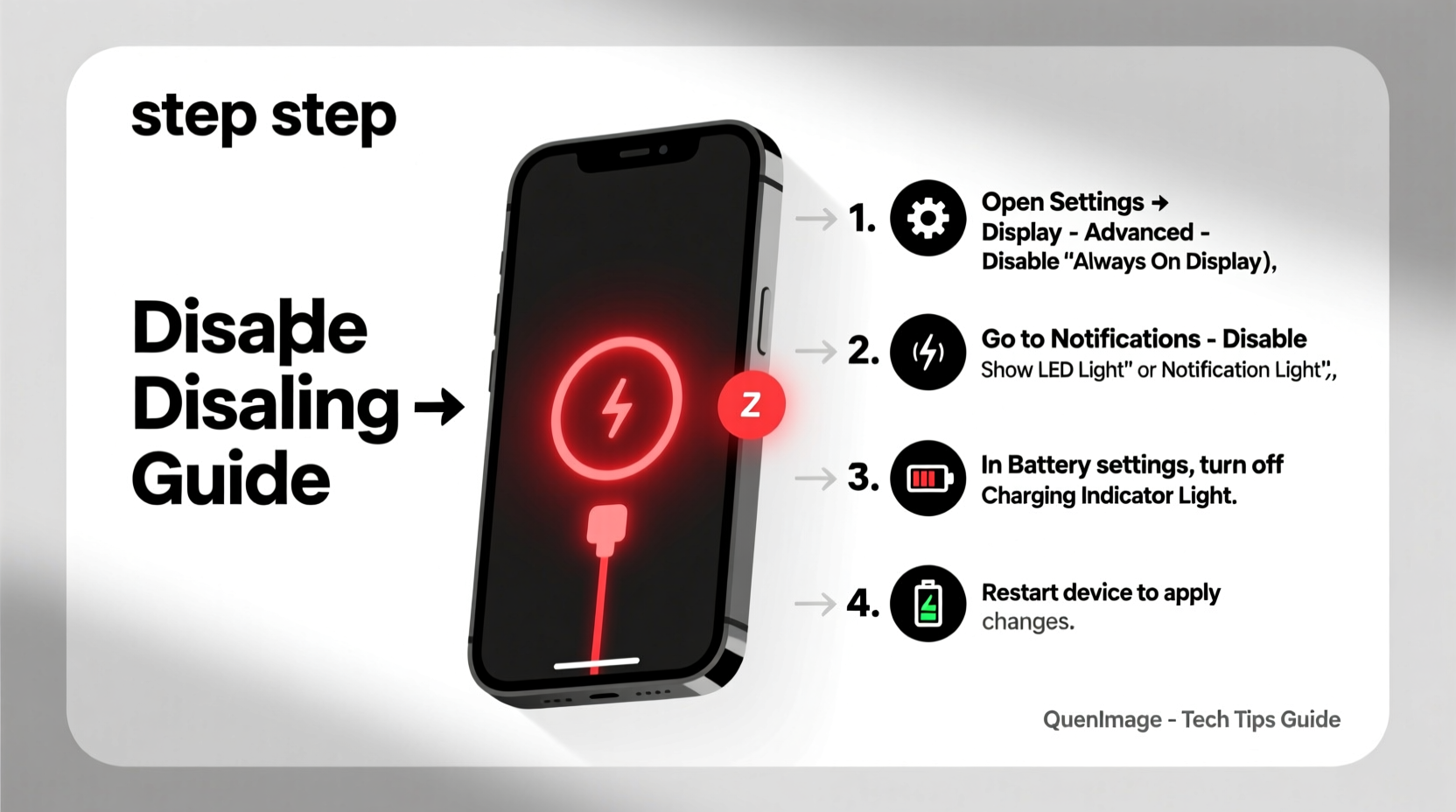
The red LED on your phone typically functions as a notification or charging indicator. Its behavior varies by manufacturer and model:
- Charging Indicator: A steady or pulsing red light often means the battery is low or currently charging. On some devices, it turns green when fully charged.
- Notification Alert: The light may blink red to signal missed calls, messages, or app alerts—even when the screen is off.
- Proximity or Sensor Light: Some phones use infrared sensors near the front camera that emit a faint red glow in low light. This is common in Face ID or facial recognition systems.
- Firmware or Hardware Issue: In rare cases, a constant red light could point to a malfunctioning sensor or battery problem.
Before attempting to disable the light, determine whether it's software-based (configurable) or hardware-related (possibly requiring repair). Most users dealing with blinking or persistent notification lights can resolve the issue through settings adjustments.
Step-by-Step Guide to Disable Notification Lights by Device
Disabling the red notification light depends largely on your phone’s operating system and brand. Below are detailed instructions for the most common platforms.
For Android Devices (Samsung, Google, OnePlus, etc.)
- Open the Settings app.
- Navigate to Accessibility or Display, depending on your model.
- Look for Notification Light or Pulse Notification Light.
- Toggle the switch to disable the feature entirely.
- To customize per app: Go to Apps & Notifications > [App Name] > Notifications, then disable visual alerts.
On Samsung Galaxy devices, the option may be under Advanced Features > Motions and Gestures > Pulse Notification Light. For Pixel phones, it's usually found under Sound & Notification > Advanced > Notification Pulse.
For iPhones
iPhones do not have a traditional LED notification light. However, some users report a faint red glow near the front camera. This is typically from the proximity sensor or TrueDepth camera system used for Face ID.
Apple does not offer a direct setting to disable this red glow, but you can reduce its visibility:
- Enable Reduce White Point in Settings > Accessibility > Display & Text Size.
- Turn on Auto-Brightness to minimize screen and sensor activity in dark environments.
- Use Do Not Disturb mode at night to limit background processes that activate sensors.
“The red glow on iPhones isn’t a notification LED but part of the Face ID system. It’s designed to be subtle, but can appear brighter in total darkness.” — Jordan Lee, Mobile Hardware Analyst at TechInsight Labs
Fix Charging-Related Red Lights
If the red light only appears while charging, it’s likely a battery status indicator. While useful, it can be bothersome in bedrooms or dark spaces.
Steps to Address Charging Indicators
- Check Battery Health: A constantly red charging light might indicate a failing battery. Replace it if performance has degraded.
- Use Manufacturer Charger: Third-party chargers may trigger incorrect LED signals due to voltage mismatches.
- Cover the Light: If software disable isn't possible, place a small piece of opaque tape over the LED (common on older LG or HTC models).
- Enable Airplane Mode Overnight: Reduces background activity and may dim or stop indicator lights on some devices.
Advanced Solutions and Workarounds
When standard settings don’t offer an option to disable the red light, consider these alternative approaches.
Using Developer Options (Android)
Some Android devices allow deeper customization via Developer Options:
- Go to Settings > About Phone.
- Tap Build Number seven times to enable Developer Options.
- Return to Settings and open Developer Options.
- Search for settings related to LED indicators or notifications.
- Disable any active LED pulse functions.
Note: These options vary widely between manufacturers and may not exist on all devices.
Third-Party Apps
Apps like Battery LED Control (for rooted devices) or Light Manager can override default LED behaviors. However, they require careful permissions and may not support newer Android versions due to security restrictions.
| Solution | Works On | Difficulty | Effectiveness |
|---|---|---|---|
| Disable in Settings | Most Android phones | Easy | High |
| Developer Options | Android (varies by brand) | Moderate | Medium |
| Third-Party App | Rooted Android | Hard | Variable |
| Physical Cover | All devices | Easy | High (temporary) |
| No action (iPhone) | iPhones only | N/A | Low (no official disable) |
Real-World Example: Fixing a Persistent Blink on a Samsung Galaxy S21
Mark, a freelance writer, noticed his Samsung Galaxy S21 emitted a faint red blink every few seconds at night, even when no notifications were present. It disrupted his sleep despite using blue light filters and Do Not Disturb mode. After testing various settings, he discovered the light was tied to a fitness app syncing data in the background. He disabled notification access for the app and turned off the Pulse Notification Light in Settings > Accessibility > Interaction and Dexterity > Pulse Notification Light. The red blinking stopped immediately. Mark later applied black electrical tape over the LED as a failsafe during overnight charging.
FAQ: Common Questions About Red Indicator Lights
Can a red light drain my battery?
No, LED indicators consume negligible power. However, the processes triggering them (like background sync) may impact battery life slightly.
Is the red light harmful to my eyes?
Not physically. However, prolonged exposure to any light in a dark room—especially red, which affects melatonin less than blue—can interfere with sleep quality for sensitive individuals.
Why does my phone show a red light when turned off?
Some phones maintain a charging indicator even when powered down. This is normal behavior. If the light persists without charging, it may indicate a firmware glitch or hardware fault.
Final Checklist: How to Disable the Red Light
- Identify the Source:
- Determine if the light is from charging, notifications, or sensors.
- Check Notification Settings:
- Disable pulse alerts in Accessibility or Display settings.
- Review App Permissions:
- Turn off notification access for apps causing unnecessary alerts.
- Inspect Charging Behavior:
- Use original charger; monitor if light changes with battery level.
- Try Physical Block (if needed):
- Apply a tiny piece of matte tape over the LED—avoid covering sensors.
- Consult Support:
- If the light persists abnormally, contact manufacturer support or visit a service center.
Take Control of Your Device’s Visual Cues
Your phone should serve you—not disturb you. With a few precise adjustments, you can eliminate unwanted red lights and create a calmer digital environment. Whether through built-in settings, smart workarounds, or simple physical fixes, regaining control is both possible and worthwhile. Start today by checking your notification preferences and disabling any unnecessary visual alerts. A distraction-free device leads to better focus, improved sleep, and greater peace of mind.




 浙公网安备
33010002000092号
浙公网安备
33010002000092号 浙B2-20120091-4
Comments
No comments yet. Why don't you start the discussion?